LEARN / TABGROUP VAULT
Update a Backup or Keep a New Copy
Use Save all Groups without filling your library with copies you do not need.
Free and Pro
Step by Step
-
Review Active
Check the Groups across your Windows. Save all Groups works across those Windows, including collapsed rows.
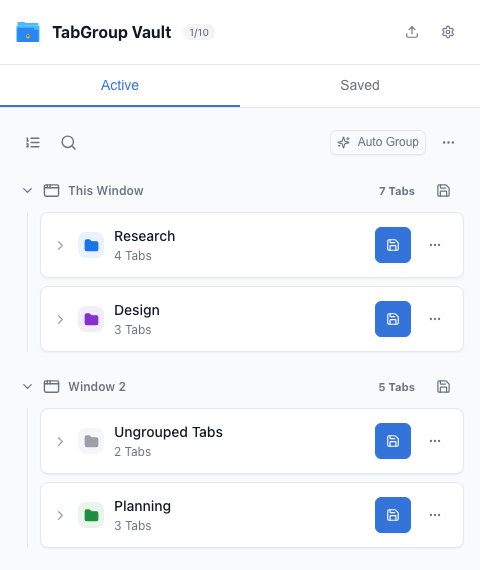
Review every Window before saving. -
Use the Default to Update
Save all Groups defaults to updating existing backups when it can identify the matching backup. Newly encountered Groups create backups and count toward the free allowance.
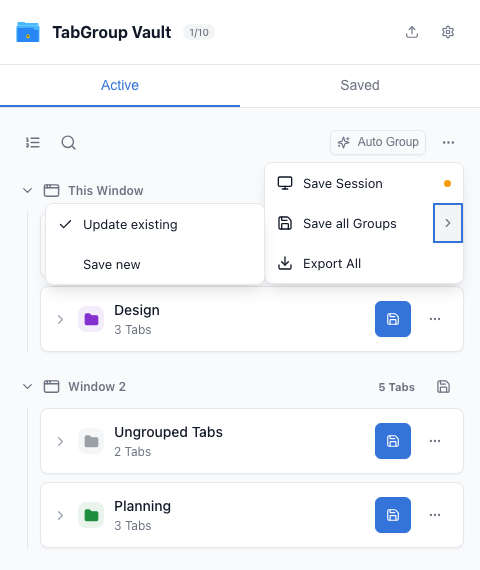
Save all Groups defaults to Update existing. -
Choose a Different Mode when Needed
Hover over or click the right-hand chevron beside Save all Groups. Choose Save new if you want separate copies, then run Save all Groups.
Open the chevron to choose Save new. -
Read the Result
The result distinguishes saved, updated and blocked Groups. If you reached the free limit, the remaining Groups were not saved.
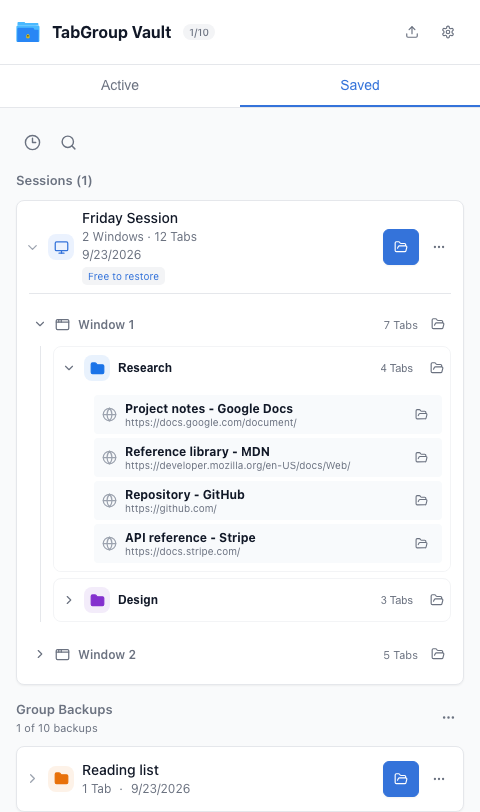
Check the new or updated Group backups. -
Undo an Unintended Update
Use Undo updates in the update notice to return changed backups to their previous contents. Later edits or deletions are protected; Undo is not an unlimited history.
Use Undo updates from the result notice if needed.