LEARN / TABGROUP VAULT
Save and Return to a Session
Keep your Windows, Groups and ungrouped Tabs together.
One free Session preview · Further Session saves require Pro
Step by Step
-
Check your Open Windows
In Active, review the Window rows. Session capture includes normal Chrome Windows with saveable Tabs, even if their rows are collapsed.
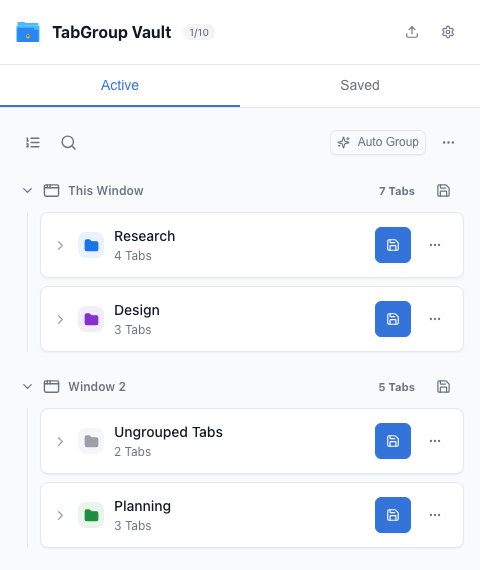
Review the open Window rows. -
Choose Save Session
Open the Active actions menu and choose Save Session. Give it a name such as Friday research, then save.
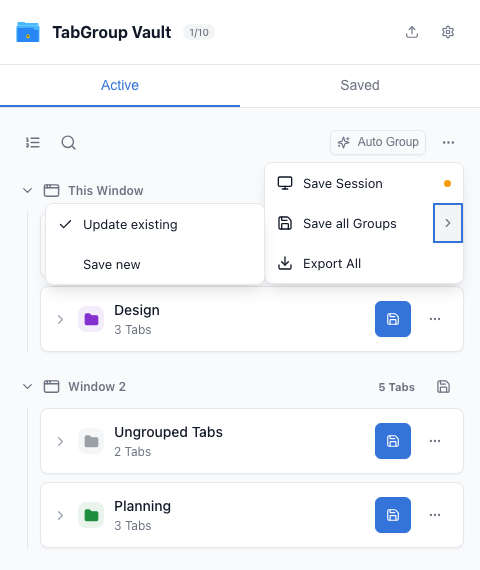
Open Active actions and choose Save Session. -
Inspect the Saved Copy
Open Saved and expand the Session. Its Windows contain the saved Groups and ungrouped Tabs. Check any warning about content that could not be saved.
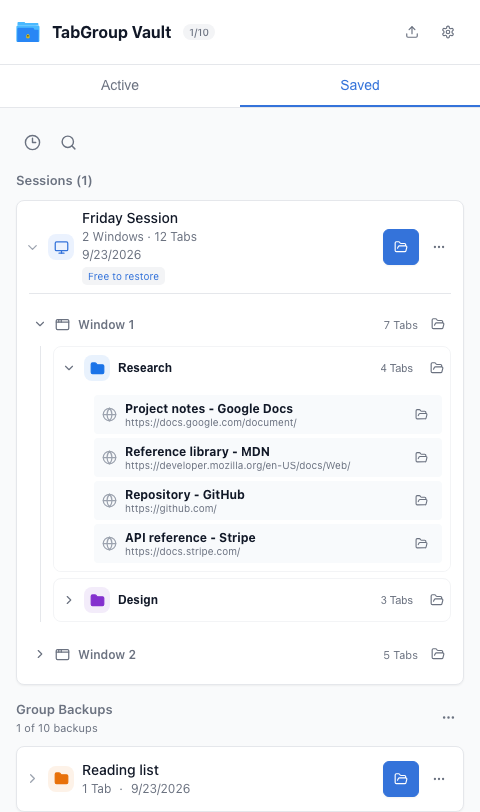
Expand the saved Session. -
Return to your Work
Use Restore on the Session. Review the confirmation and restore. Its saved Windows reopen as separate Windows; existing Windows are not replaced.
Restore the whole Session or one Window.
What Is Preserved?
Sessions retain saved URLs, Group names and colors, Tab order within Groups, pinned state and the grouping of content into Windows. They do not preserve Window size or screen position, login state, unsaved page edits or a Tab’s full navigation history.
Automatic Saving Is Different
Auto-save on Window close keeps Group backups. It is not a continuously recorded history of complete Sessions. Save a named Session when you want to preserve a particular multi-Window setup.