LEARN / ORGANIZE
Edit Groups and Tabs
Use the editor that matches the copy you want to change.
Editing an owned backup is available even after Pro expires · Session Group editing requires extension 1.6.7
Edit a Live Group
In Active, open a Group’s three-dot menu and choose Edit Group. Name and color changes affect the open Chrome Group.
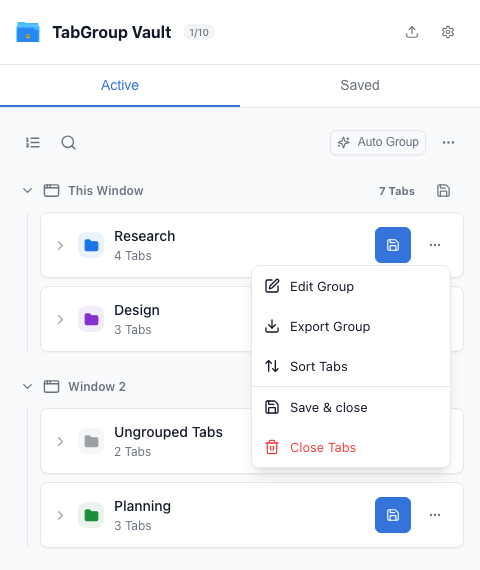
Open Edit Group from a live Group menu. Edit a Group Backup
In Saved, open the separate Group backup’s three-dot menu and choose Edit Group. Change its name, color or Tabs and save. This updates that backup.
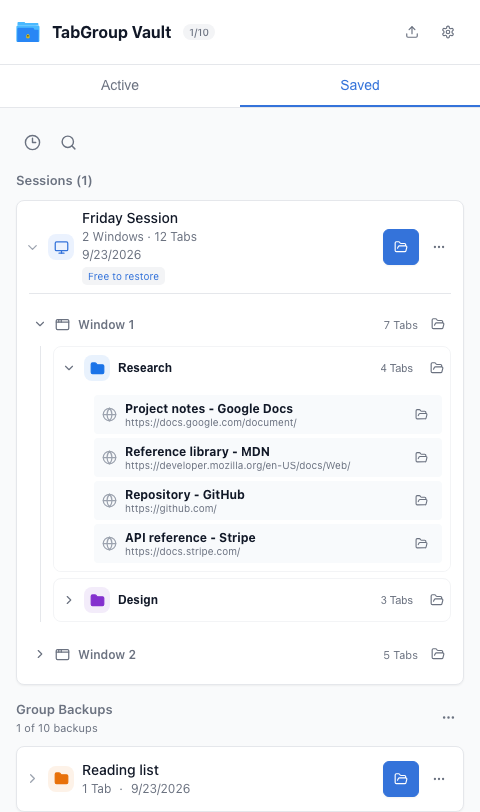
Separate Group backups are listed below Sessions. Edit a Group Inside a Session
Open the Session’s three-dot menu, choose Edit Session, then use the Group edit icon. You can change the name, color, Tab title or URL, add a Tab, remove one, or move Tabs up and down.
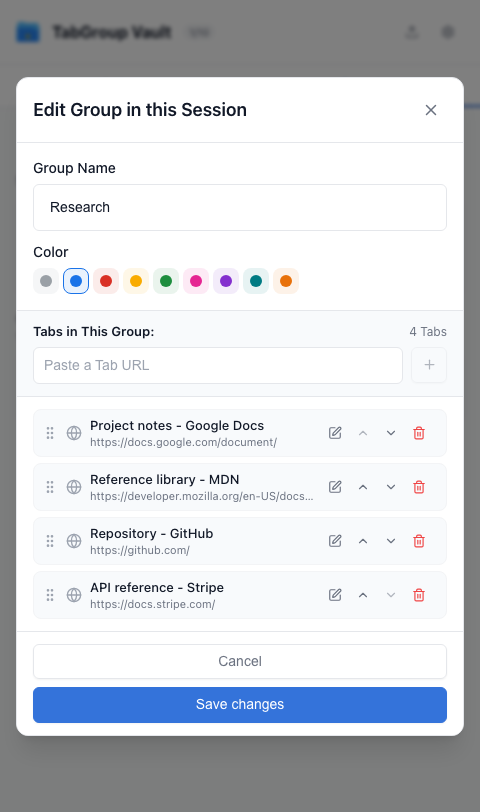
Edit Group inside Edit Session. Place Groups and Windows
Return to Edit Session. Move Groups up or down, move a Group to another Window, add a saved Group backup, rename the Session, or reorder Windows. Save the Session.
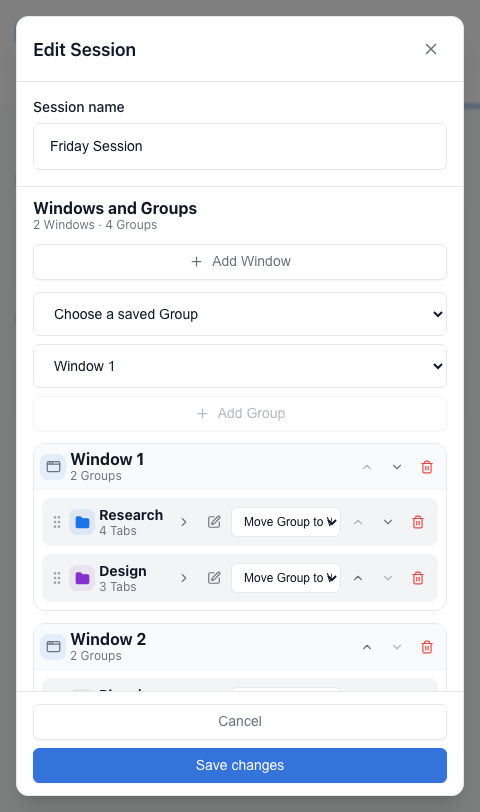
Arrange Groups within and across Windows.
Other Live Group Actions
The same menu can Export Group, Sort Tabs, Save & close, or Close Tabs. Save & close makes a backup before closing the live Tabs. Confirm the backup in Saved before deleting other copies.
Next: Organize a Session