LEARN / TABGROUP VAULT
Save a Group. Reopen It Later.
Make your first backup and check that you can return to it.
Free and Pro · About 2 minutes
Step by Step
-
Open TabGroup Vault
Click the extension icon to open the side panel. In Active, expand the Window that contains your Tabs.
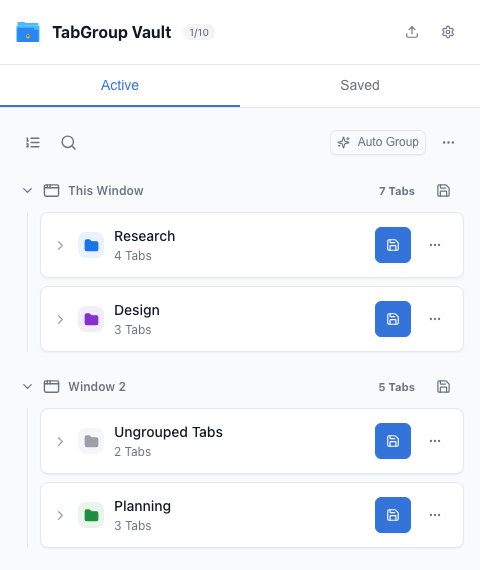
Open Active and find the Window. -
Choose a Group
Find the Chrome Group you want to keep. You can also save the Ungrouped Tabs row; you do not have to organize everything first.
Find the Group row. -
Save a Backup
Click the save icon on that row. Named Chrome Groups save with their existing name; if prompted, enter a name and confirm. Check the success message before closing any Tabs.
Use the blue save button. -
Check Saved
Open Saved and find the backup under Group backups. Expand it to check the Tabs it contains.
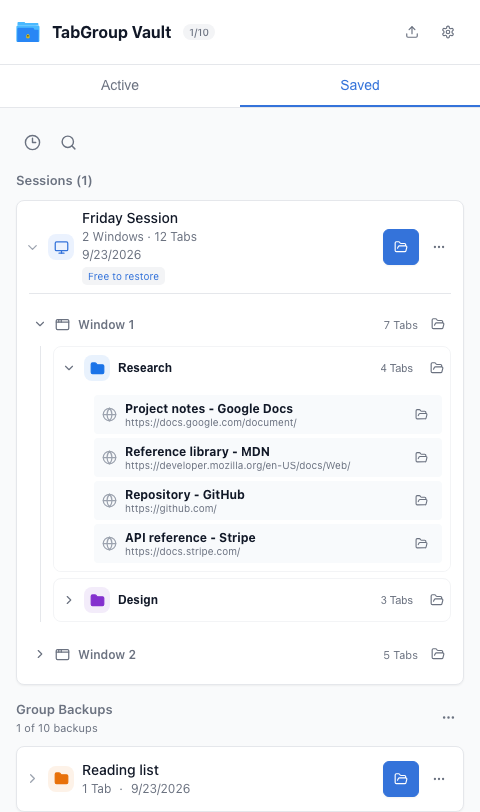
Switch to Saved and inspect the Group backup. -
Try Restore
Use the backup’s Restore button. It opens the saved pages. The backup stays in Saved, so you can use it again.
Restore from the saved Group row.
At the Free Limit
Free includes 10 ordinary Group backups. Updating an existing backup does not use another slot. A new copy does. Export or remove an unwanted backup, or choose Pro for additional backups.