LEARN / TABGROUP VAULT
Find and Reopen a Tab
Search what is open now and what you have saved, without remembering where you put it.
Search and view sorting are free · Restore or export anything you already own
Step by Step
Search by Name, Title or URL
Select the magnifying-glass icon above the list to open search. Type a Session name, Group name, page title or part of an address. Collapsed items are included.
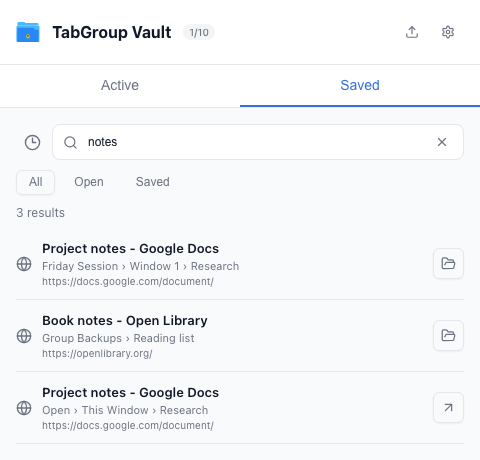
Open Search and type a page or Group name. Check Where It Belongs
Each result shows its location. A saved Tab can show its Session, Window and Group. Use All, Open or Saved to narrow the results.
Check the path under each result. Open the Result You Need
The arrow switches to an already-open Tab. Restore opens saved content. A Session result can restore the whole Session; a Window, Group or Tab result restores just that selection after confirmation.
Open or restore the matching result. Clear Search to Return
Press Escape or use Clear search. Your expanded and collapsed sections stay as you left them.
Clear the query to return to the library.
Put Useful Items First
Use the sort icon beside Search. Active offers browser order, name or Tab count. Saved offers Recent, Name or Tab count. Recent shows newly saved or updated items first. Sorting changes only the displayed list.
Choose Pin Session from a Session’s menu to keep it above other Sessions. Active and Saved remember their own sort choices.