LEARN / TABGROUP VAULT
Back Up to Your Google Drive
Keep saved Groups and Sessions available across Chrome profiles.
Pro for live sync and new backups · Restore existing backups free
Step by Step
-
Open Settings
Find Google Drive sync and choose Connect Google Drive. Pick the account where you want your backups stored.
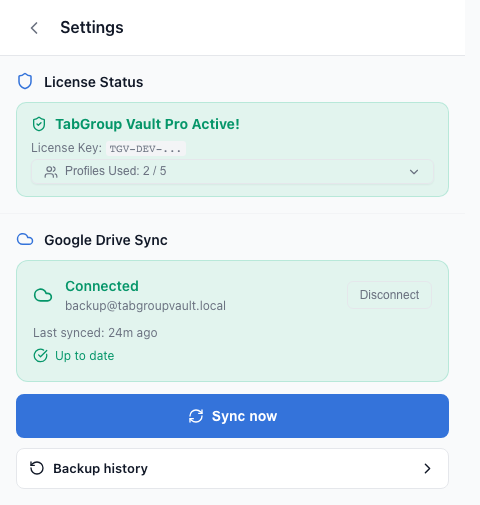
Open Settings. -
Check the Account and Status
Complete Google authorization, then return to Vault. A local save and a completed Drive backup are different states; wait for the Drive operation to finish.
Check the connected account and status. -
Keep a Complete Backup
Choose Sync now to update the shared Drive library with your saved Groups and Sessions. Recovery backups are separate point-in-time copies, so check Backup history when you need an earlier version.
Use Sync now for a current copy. -
Restore on the Other Profile
Connect the same Google account on the other profile. Check Saved for synced items, or Backup history for an earlier copy. Existing content stays free to restore or export after Pro expires.
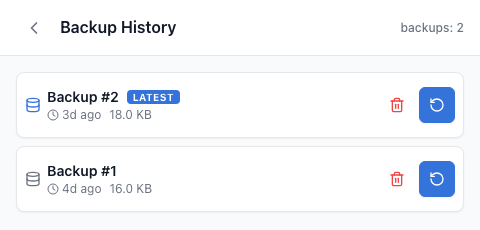
Choose an earlier backup to restore. -
Reconnect If Asked
If access expires, use Reconnect Google Drive. Your local saved copies remain available while Drive is disconnected.
Reconnect from Settings if access expires.
Keep a Portable Copy Too
Export a JSON backup before a large import, profile change or reinstall. Removing an extension or browser profile can remove its local data. Do not delete your only copy while troubleshooting.
Where Does It Go?
Drive backup uses the private app-data area of your own Google account. Check that both profiles are connected to the same account; a different account has a different backup library.