LEARN / TABGROUP VAULT
Restore When Something Goes Wrong
Check what was saved and recover the available content without losing your remaining copies.
Free and Pro · restore owned Drive backups free; live sync and new backups require Pro
Step by Step
-
Keep your Existing Data
Do not uninstall Vault or remove the Chrome profile as a first troubleshooting step. Export the saved content you can still access.
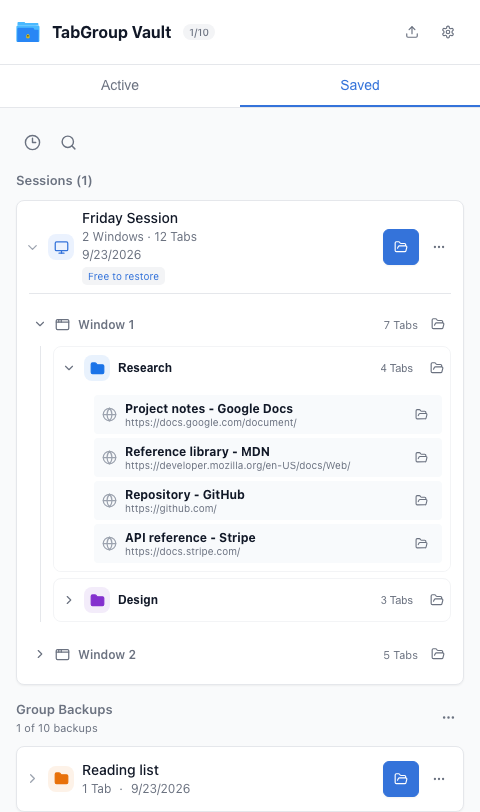
Keep the saved library intact while you inspect it. -
Check Saved
Look for the Group backup or Session you need. Expand it to inspect its contents, then restore the relevant copy.
Expand the available Session or Group. -
Read Partial Results
If some pages or Groups could not reopen, the result should say so. Keep the saved copy, check the listed problem and retry only the content you still need.
Restore only the content you need. -
Check Drive If Connected
Use the same Google account and inspect your full backups. Reconnect if authorization has expired. Do not assume a local save already reached Drive.
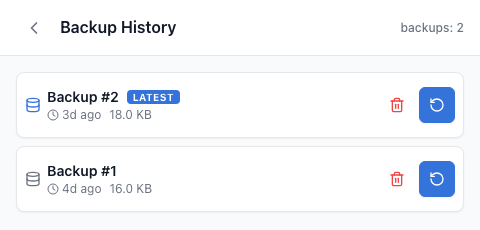
Check Drive Backup history. -
Ask for Help
If content is still missing, contact support with your extension version, the action you took and the result shown. Share Tab URLs only if you want to and they are necessary.
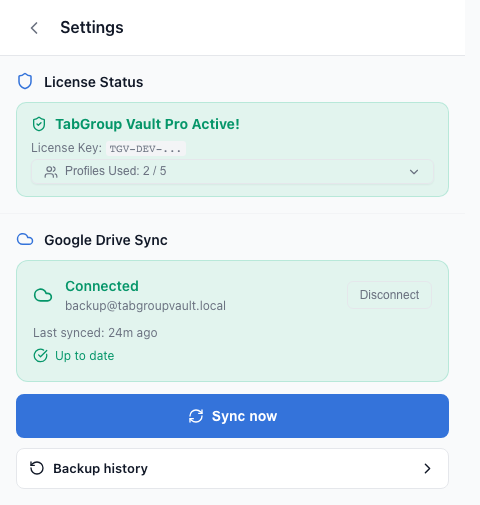
Use Settings to find account and support options.
Pages That May Not Reopen
Chrome internal pages and other restricted URLs may be excluded. Websites may ask you to sign in again. Browser restrictions, removed pages and network failures can also affect a restore.
If a Session Still Needs a Group Backup
If Vault says a Session still needs a backup, that Group backup has been left unchanged. Open Saved again to retry the update. If the message continues, export your data as JSON and contact support before removing your remaining copies.