LEARN / TABGROUP VAULT
Organize Tabs in Windows and Sessions
Arrange your open Tabs first, then save a Window or the whole workspace. The annotated screens show where to click.
Free includes one Window or Session capture · Further captures require Pro
1. Organize Open Tabs
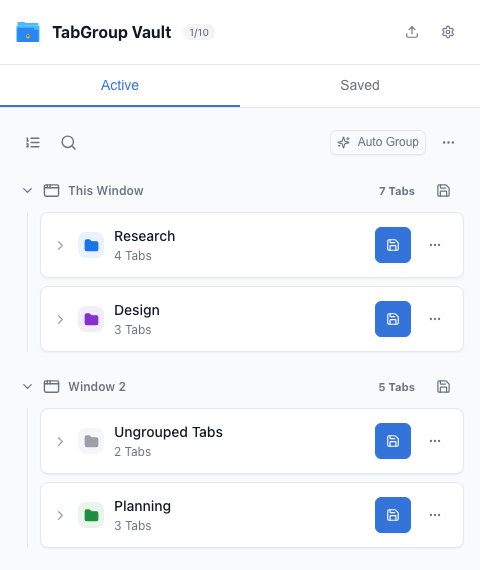
In Chrome, move Tabs into their Window and Group. Name and color each Group, then arrange Tabs. In Vault, open Active to check. See Sort Groups and Tabs for sorting controls. Ungrouped Tabs are saved too.
2. Save a Window or the Full Session
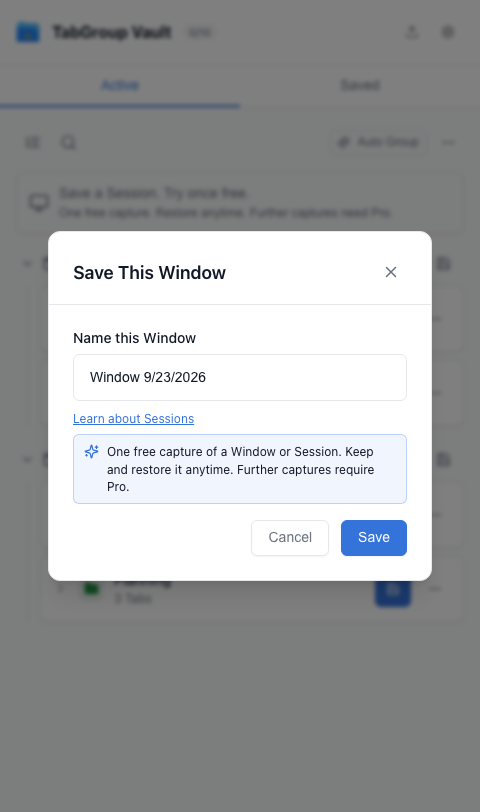
Choose the Window save icon for one Window. To keep all open Windows as one workspace, open Active actions and choose Save Session. Give the capture a useful name.
3. Inspect and Arrange the Saved Session
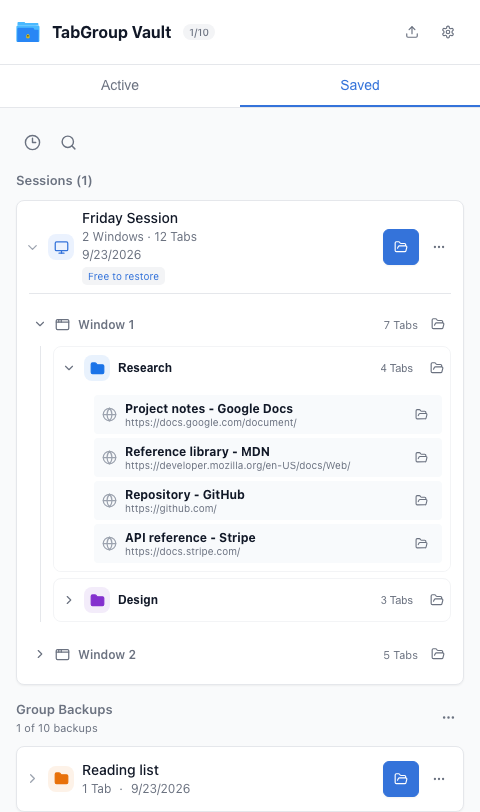
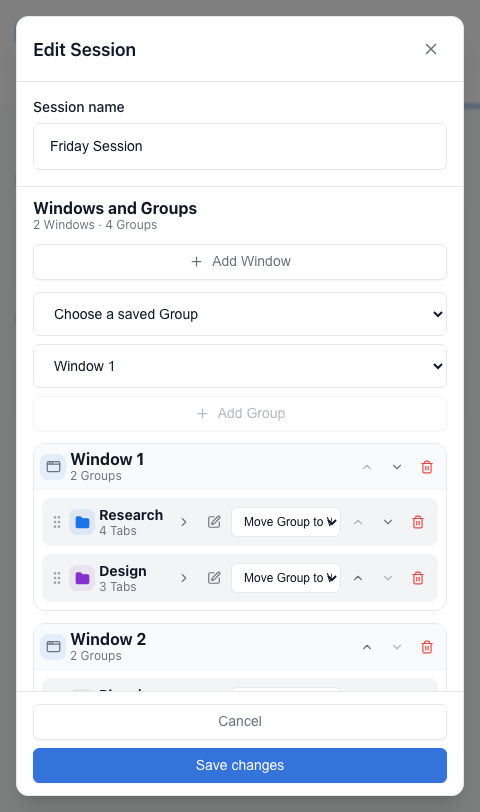
Open Saved and expand the Session to inspect each Window, Group and Tab. Open the Session’s three-dot menu and choose Edit Session. You can rename the Session, reorder Windows and Groups, add a saved Group backup, or move a Group to another Window.
4. Edit a Group and Its Tabs
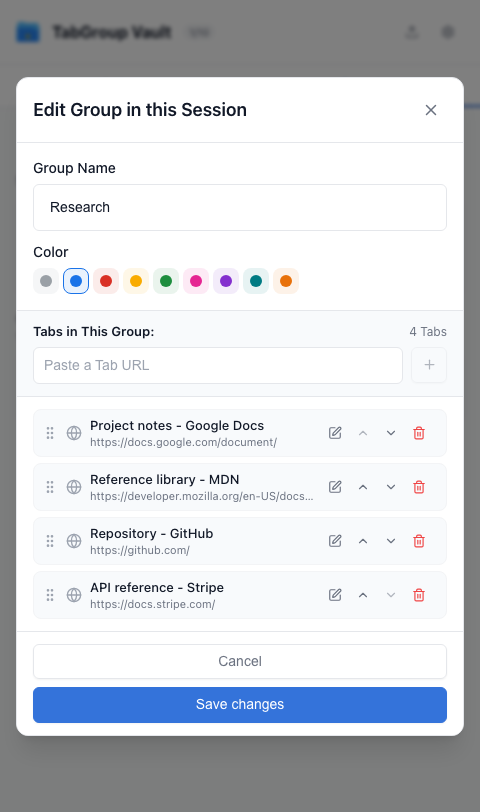
In the updated Edit Session panel, choose a Group’s edit icon. Change its name, color or Tabs, then save the Group and Session. These edits stay in this Session. If your installed version has no edit icon, arrange the Tabs in Chrome and save a new Session. Editing a separate Group backup does not update the Session.