LEARN / TABGROUP VAULT
Export, Import and Change Computers
Take a portable copy of your saved work with you.
Export is available free · Import respects the Group-backup allowance
Step by Step
-
Choose your Export Scope
Use a Group or Session’s menu for that item, or the Saved actions menu for the available library export.
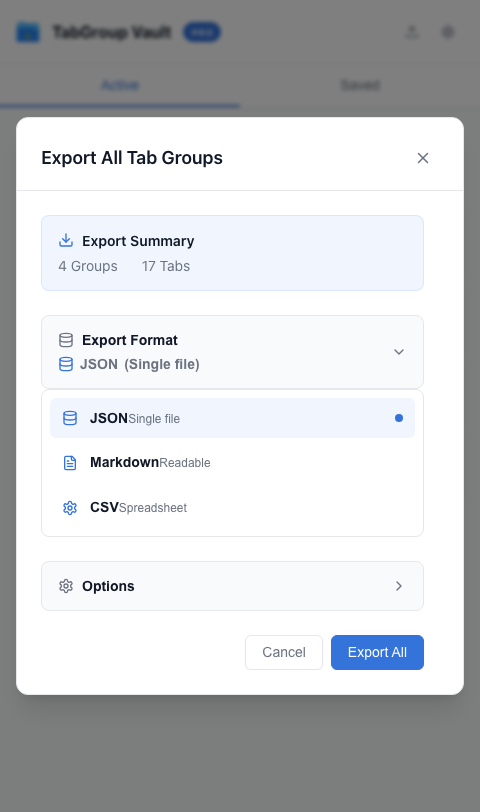
Open Export from the appropriate menu. -
Choose JSON for Recovery
JSON retains the metadata needed to reconstruct supported Groups and Sessions. Markdown and CSV are useful lists of links; do not treat them as equivalent full backups.
Choose JSON for a restorable copy. -
Keep the Original File
Store the export somewhere you can access from the destination computer. Leave the source library intact until the import is verified.
Save the downloaded file somewhere safe. -
Import on the Destination
Open Import, select a supported JSON, Markdown or CSV file, and review the result. Free imports count toward the ordinary Group-backup allowance.
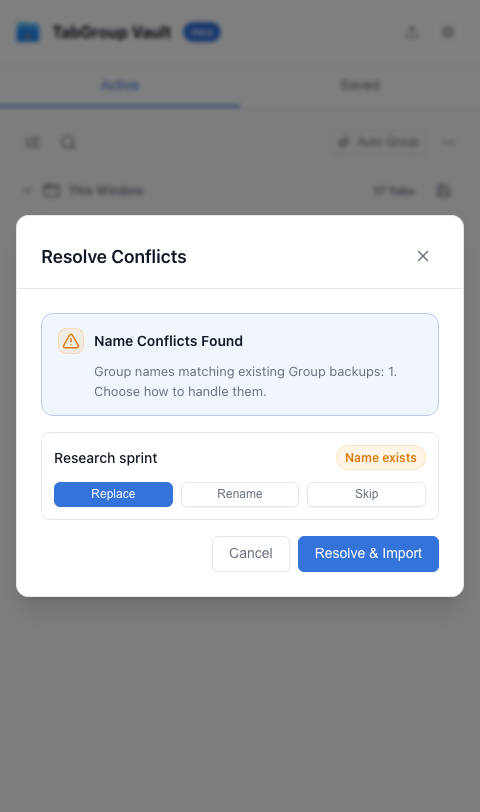
Import JSON on the destination profile. -
Check Before Deleting Anything
Inspect the imported Groups and Session contents. If the import was partial or reached a limit, keep the source file and resolve the missing content first.
Review and resolve any naming conflicts.