LEARN / PROTECT
Settings and Automation
Choose how Vault looks, saves and connects to Drive.
Some settings require Pro
Open Settings
Click the gear in the extension header. The license and Drive status appear here.
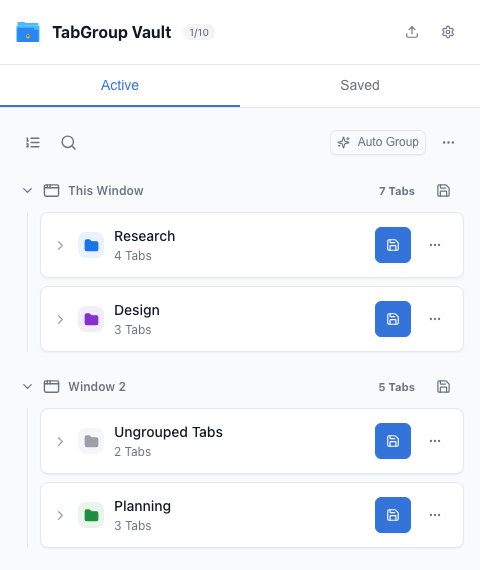
Open Settings from the header. Set Language and Appearance
Scroll to Appearance. Choose a language and theme. Premium themes require Pro; the free plan can preview them.
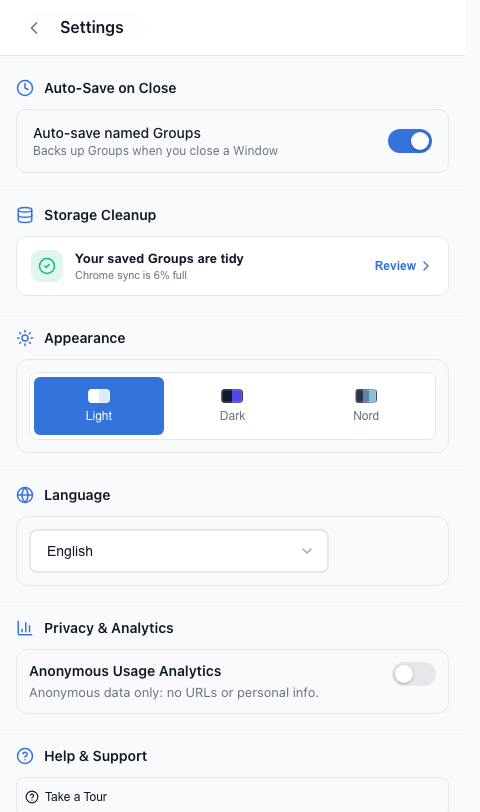
Scroll below the license and Drive cards for Appearance. Turn On Automatic Backups
In Settings, enable automatic saving on Window close if your plan allows it. This preserves eligible Group backups, not a continuous multi-Window Session history.
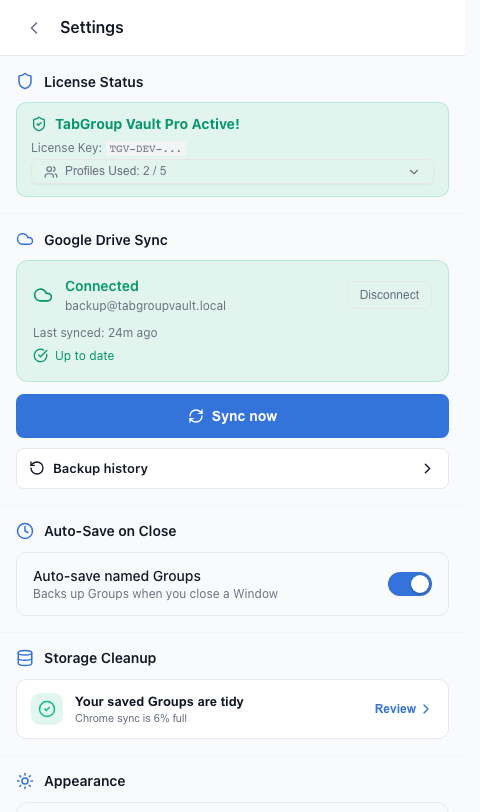
Find the backup controls in Settings. Check Drive and Shortcuts
Connect your Google account and use Sync now when you need a current cloud backup. Open Keyboard Shortcuts from Settings to review or change extension shortcuts in Chrome.
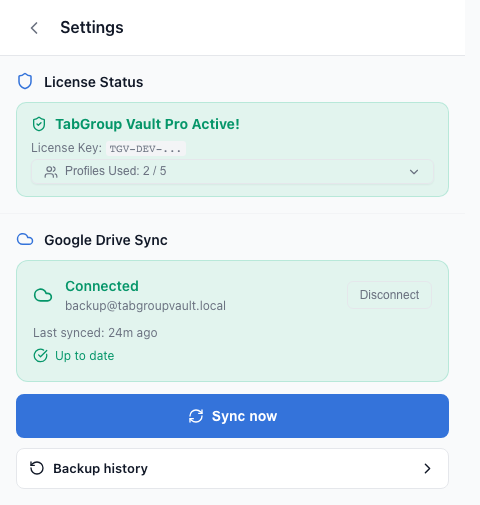
Check the account before running Sync now.
Other Settings
Settings also holds license and profile controls, storage cleanup, analytics preference, the product tour and support. Open each section to review its current state before changing it.
Next: Use Google Drive