The Short Answer
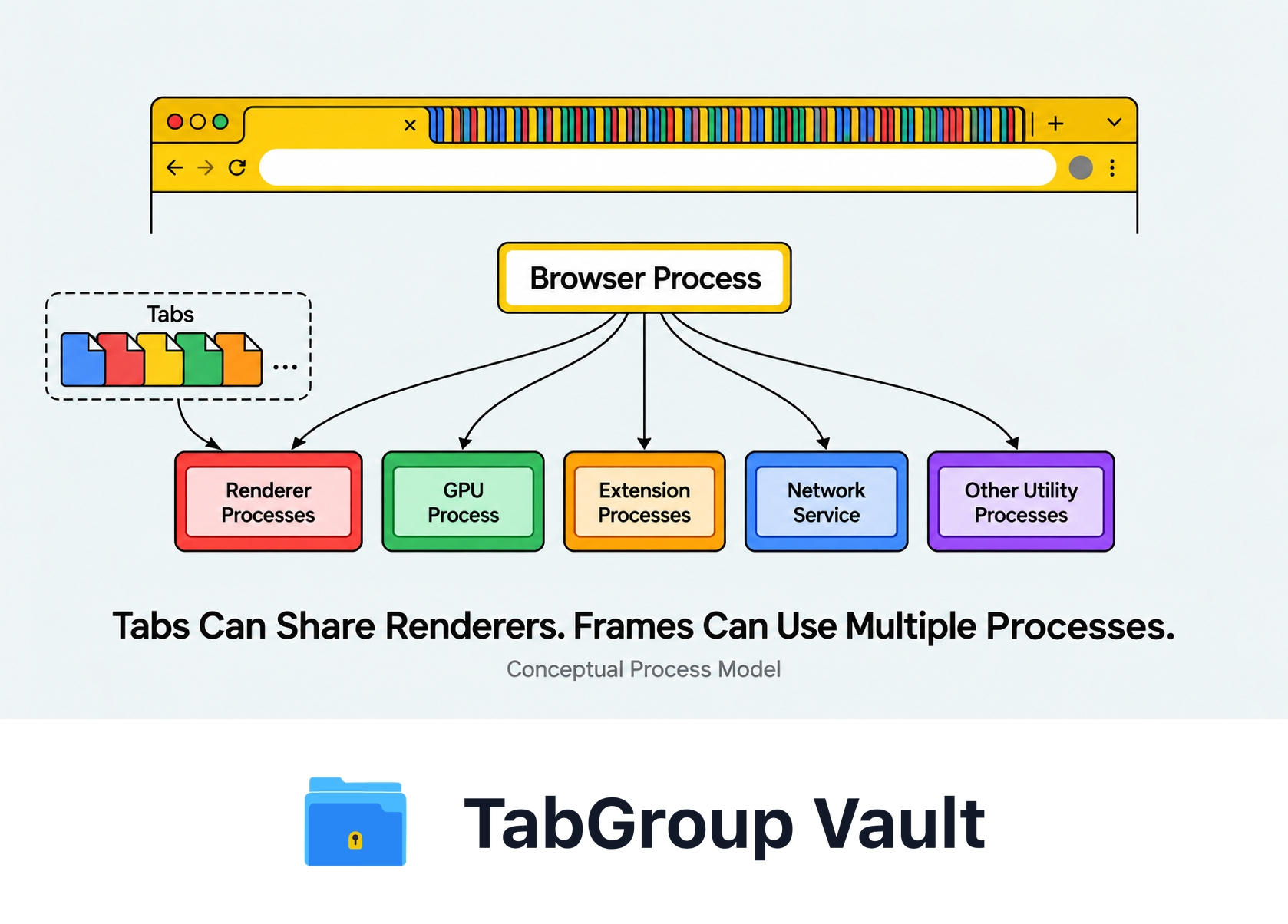
Illustrative example; layout and sample data are conceptual.
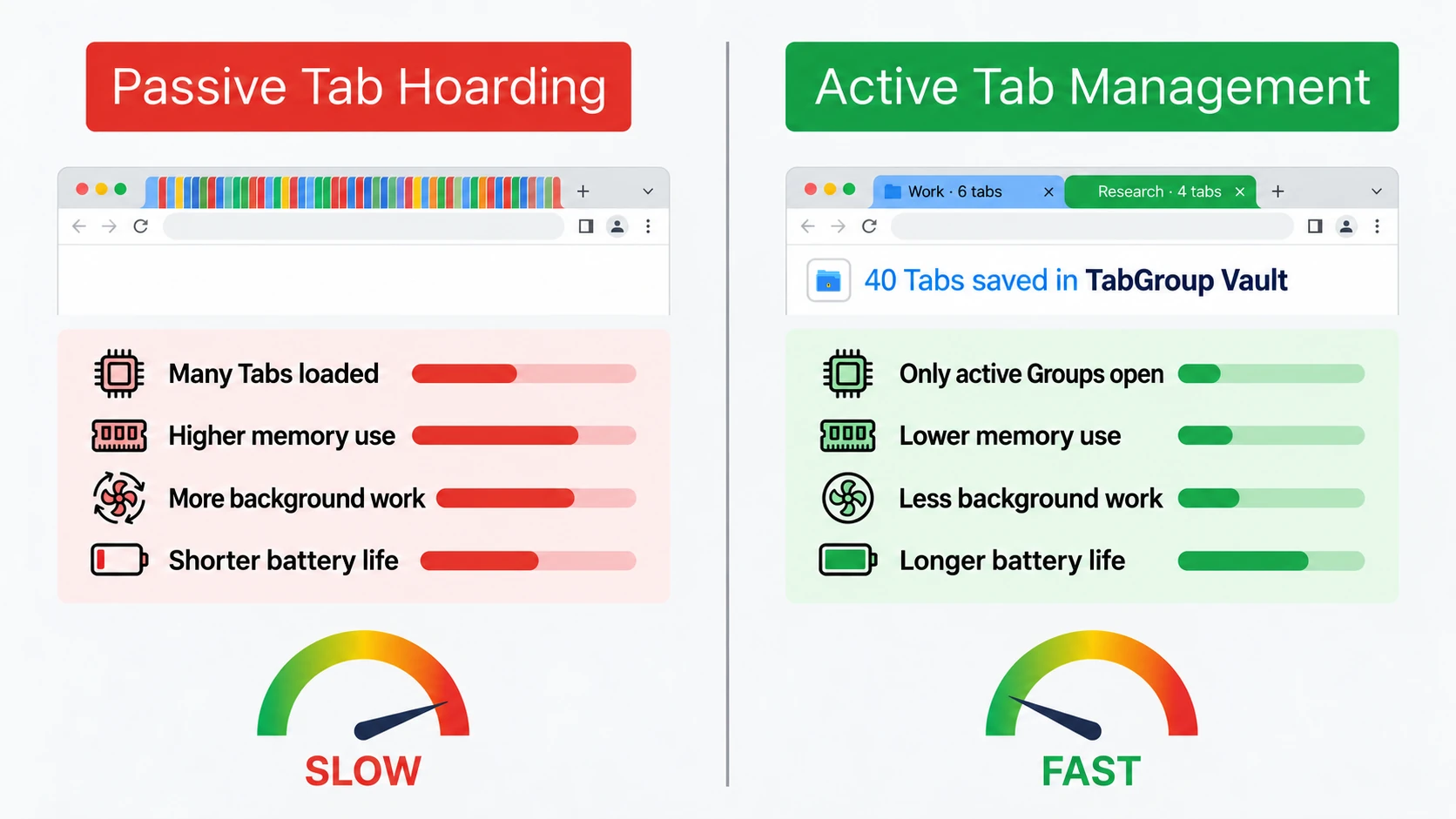
Open Tabs can slow Chrome. Google recommends closing unused Tabs because Chrome has to work harder as more Tabs stay open. Heavy pages and page-touching extensions make that drag easier to feel.
Tab Groups do not automatically make Chrome faster. Groups are useful for organizing and collapsing visual clutter. Grouped Tabs are still open Tabs. To remove their memory and CPU cost, close them or save them outside the active browser Session.
Bookmarks are different. A bookmark is a saved link you can return to later. It is not an active loaded page, so a large bookmark collection should not be treated the same way as a large set of open Tabs.
If your Tabs are loading slowly, diagnose the symptom first. A slow page load may be the network or the site. Slow Tab switching usually points to memory or CPU pressure. A Tab that reloads after sitting inactive is often Memory Saver doing its job. Slower browsing or search can also relate to Chrome preload settings or unwanted extensions.
Why Open Tabs Can Slow Chrome
Chrome uses multiple operating-system processes for web content. Many sites or site instances may run separately for stability, security, and responsiveness, but the exact process layout depends on site isolation, process reuse, platform, and available resources.
The benefit is real. If one Tab crashes, it is less likely to bring down the whole browser. If a site runs risky code, process isolation helps contain it. Chrome's design is built around keeping browsing stable and responsive.
The tradeoff is overhead. With a large Tab set, Chrome may run a long list of renderer and utility processes, which increases memory use and scheduling work. Heavy web apps, media pages, dashboards, and script-heavy pages can cost far more than a simple article or documentation page.
| Feature | What to Check |
|---|---|
| Measure Your Workload | RAM and CPU depend on pages, frames, extensions, background activity, and other apps. Tab count alone cannot predict a fixed RAM total, crash threshold, or percentage saving. |
| Memory Saver | Chrome can deactivate inactive pages, then reload them when needed. Settings and exceptions apply. Collapsing or coloring a Group alone does not unload its pages. |
| Processes and Tabs | Tabs can share renderer processes; a page with isolated frames can use several processes. Chrome also has browser, GPU, extension, and utility processes. One Tab does not always equal one process. |
Sources Checked October 1, 2026: Chrome Memory Saver · Chromium Process Model · Chrome Troubleshooting
What Actually Uses Resources
Tab count matters, but it is only the first clue. The real cost comes from page weight, background activity, Chrome processes, extensions, and whatever else your computer is running.
| Factor | How it can slow Chrome | What to check |
|---|---|---|
| Open pages | Each active page adds memory, scripts, rendering work, and possible background activity. | Chrome Task Manager with Shift+Esc |
| Heavy web apps | Mail, docs, dashboards, design tools, and large spreadsheets can stay active in the background. | Tabs with high memory or CPU use |
| Extensions | Extensions that modify pages can add overhead across many open Tabs. | chrome://extensions |
| Media and downloads | Video, audio, downloads, and screen sharing can keep Tabs active and prevent deactivation. | Tabs with active media indicators |
| Memory Saver reloads | Inactive Tabs may reload when you return to them, which can feel like slow loading. | Settings > Performance |
When Chrome and your other apps need more memory than your system can comfortably provide, the whole machine can start to feel slow. That shows up as delayed Tab switching, laggy typing, blank pages while Tabs recover, or other apps becoming less responsive.
Why Background Tabs Still Matter
Even when you are not looking at a Tab, a modern page may still have background work to do:
- JavaScript timers: setInterval and setTimeout calls that run code on a schedule, such as updating a notification badge or refreshing content.
- WebSocket connections: Persistent connections to servers for real-time updates (chat apps, stock tickers, collaborative editing tools).
- Service workers: Background scripts that handle caching, push notifications, and offline functionality.
- CSS animations: Animated elements continue their rendering cycles even when the Tab is not visible.
- Analytics and tracking: Sites can run periodic beacons that report user engagement data.
Chrome can limit some background activity, but active web apps are still active software. If you keep many live apps open in Tabs, they can continue to compete for memory, CPU, and network attention.
Extensions Multiply the Cost
Extensions are easy to forget because they sit off to the side. Some Chrome extensions use content scripts to modify pages you visit. Those scripts can run in the same renderer process as the pages they modify, so an extension that touches pages can add memory and CPU overhead across a crowded Session.
The practical test is simple: open Chrome Task Manager with Shift+Esc, sort by memory or CPU, and look for Tabs or extensions that stand out. Then disable extensions you do not use at chrome://extensions.
The Extension Multiplier Effect
An extension that runs on pages does not affect only one Tab. It can add overhead across the pages it modifies, so reducing either the number of active Tabs or the number of page-touching extensions can make the Session lighter.
Why Are My Tabs Loading So Slow?
Use the symptom to choose the fix:
| Symptom | Likely cause | First move |
|---|---|---|
| New pages load slowly | Network speed, site performance, DNS, or Chrome preload settings | Test another site, then check Settings > Performance > Preload pages |
| Switching Tabs is slow | Memory or CPU pressure from open Tabs, apps, or extensions | Open Chrome Task Manager with Shift+Esc |
| Inactive Tabs reload when clicked | Memory Saver deactivated them to free memory | Review Memory Saver level and site exclusions |
| Chrome feels slow everywhere | Too many active Tabs, unwanted processes, or extensions | Close unused Tabs, stop unwanted processes, disable unused extensions |
Small pushback: if only one site is slow, the problem may not be your Tab count. If every Tab switch feels delayed, or Chrome Task Manager shows several heavy pages and extensions, your open Session is probably too large.
What To Do About It
The best fix is to reduce the number of active Tabs. A cleaner-looking Tab bar helps, but it does not lighten Chrome by itself.
Solution 1: Save and close Tabs you are not using right now
The most effective fix is also the plainest one. If you are not using a Tab right now, it should not be consuming memory right now. Save your Tab Groups with TabGroup Vault, close them, and restore them when you actually need them.
That removes the active Tab workload. The page is remembered, not running.
TabGroup Vault
Price: Free (10 snapshots) / $39 one-time Pro
Key benefit: Save Tab Groups with full structure, then close them to eliminate all resource usage
Restore: One-click restore brings back every Tab, Group name, and color exactly as saved
Solution 2: Reduce your extension count
Audit your extensions at chrome://extensions. For each one, ask: do I use this daily? If not, disable it. Removing an extension that runs on pages can reduce overhead across many open Tabs.
Solution 3: Use Tab Groups for organization, then close what you can
Tab Groups are still useful. They make it easier to batch work, collapse visual noise, and see which sets of Tabs can be saved and closed. They are not a memory-saving feature by themselves while the Tabs remain open.
For broader Tab manager choices, see the Chrome Tab manager guide. For research workflows specifically, see Chrome Tab Groups for research.
Solution 4: Enable Memory Saver
Chrome's Memory Saver, under Settings > Performance, deactivates Tabs you are not currently using to save memory and help active Tabs run smoothly. Inactive Tabs reload when you return to them. Chrome offers Moderate, Balanced, and Maximum levels.
Do not expect every inactive Tab to deactivate. Chrome lists several activities and settings that can prevent it, including audio or video, screen sharing, notifications, downloads, partially filled forms, pinned Tabs, and connected USB or Bluetooth devices.
Solution 5: Close media and streaming Tabs
Tabs playing video or audio are often worth closing first because they can stay active and may prevent Memory Saver from deactivating the Tab. Bookmark or save the page if you need to return later.
Solution 6: Use bookmarks for reference links, not active tasks
Bookmarks are good for links you might revisit someday. They are less useful for active projects where you need a named set of Tabs, Group colors, and a restore point. For that, save the Group, close it, and restore it when the work comes back.
The Bigger Picture: Rethinking Tab Habits
The root cause of Chrome's slowdown is rarely Chrome alone. It is the habit of using Tabs as a memory system. People keep Tabs open to remember things: articles to read, tasks to finish, references to check. Open Tabs are expensive notes to yourself. Each one costs system resources while it sits there.
The better habit is simple: save what you need, close what you are not using, and restore on demand. TabGroup Vault makes that practical because your Tab structure survives after you close the Group.
If your main question is whether too many Tabs slow the whole computer, see the Tab hoarding guide, the 200 Tabs cleanup plan, or Chrome's Tab limit and how many Tabs it can handle. For specific optimization steps, see our guide on speeding up Chrome with Tab-focused optimizations.