How to reduce Chrome memory usage fast
If Chrome is using too much memory, start here: press Shift + Esc to open Chrome Task Manager, sort by Memory footprint, and end the specific Tab, extension, or process at the top if you do not need it. Then turn on Memory Saver in Settings > Performance, remove extensions you do not use, close or save inactive Tabs, and fully quit Chrome if background activity keeps running.
| Fix | Speed | RAM impact | Best when |
|---|---|---|---|
| Open Chrome Task Manager | Immediate | High | You need to find the worst Tab, extension, or process |
| Close or save inactive Tabs | Immediate | High | You have 20+ Tabs open |
| Enable Chrome Memory Saver | Minutes | Medium-high | Tabs sit inactive for long stretches |
| Add Memory Saver exceptions | 2 minutes | Protective | Calls, dashboards, or music must stay active |
| Trim extensions | 10 minutes | Medium | Chrome has many background processes |
| Stop background Chrome activity | 2 minutes | Low-medium | Chrome processes remain after Windows close |
| Restart and update Chrome | 5 minutes | Low-medium | You have not fully quit Chrome recently |
Why Chrome uses so much memory
| Feature | What to Check |
|---|---|
| Measure Your Workload | RAM and CPU depend on pages, frames, extensions, background activity, and other apps. Tab count alone cannot predict a fixed RAM total, crash threshold, or percentage saving. |
| Memory Saver | Chrome can deactivate inactive pages, then reload them when needed. Settings and exceptions apply. Collapsing or coloring a Group alone does not unload its pages. |
| Processes and Tabs | Tabs can share renderer processes; a page with isolated frames can use several processes. Chrome also has browser, GPU, extension, and utility processes. One Tab does not always equal one process. |
Sources Checked October 1, 2026: Chrome Memory Saver · Chromium Process Model · Chrome Troubleshooting
Open your system's activity monitor and you may see many Chrome processes. That is normal. Chromium uses separate browser, renderer, plugin, extension, and other processes, and each new Tab will often get its own renderer process. The design helps stability and isolation, but it also makes Chrome look busy in system tools.
The tradeoff is memory. Every active Tab needs RAM for rendering, JavaScript, media playback, and page state. Heavy web apps such as Google Sheets, Figma, Slack, Notion, or large dashboards can use far more memory than a simple article. Extensions add their own background work. Chrome can also preload pages so they open faster.
The pattern is simple: the more open Tabs, extensions, and background tasks you keep alive, the more memory Chrome uses. Many Chrome processes are not automatically a problem. High memory becomes actionable when a specific Tab, extension, or process is consuming unusual resources.
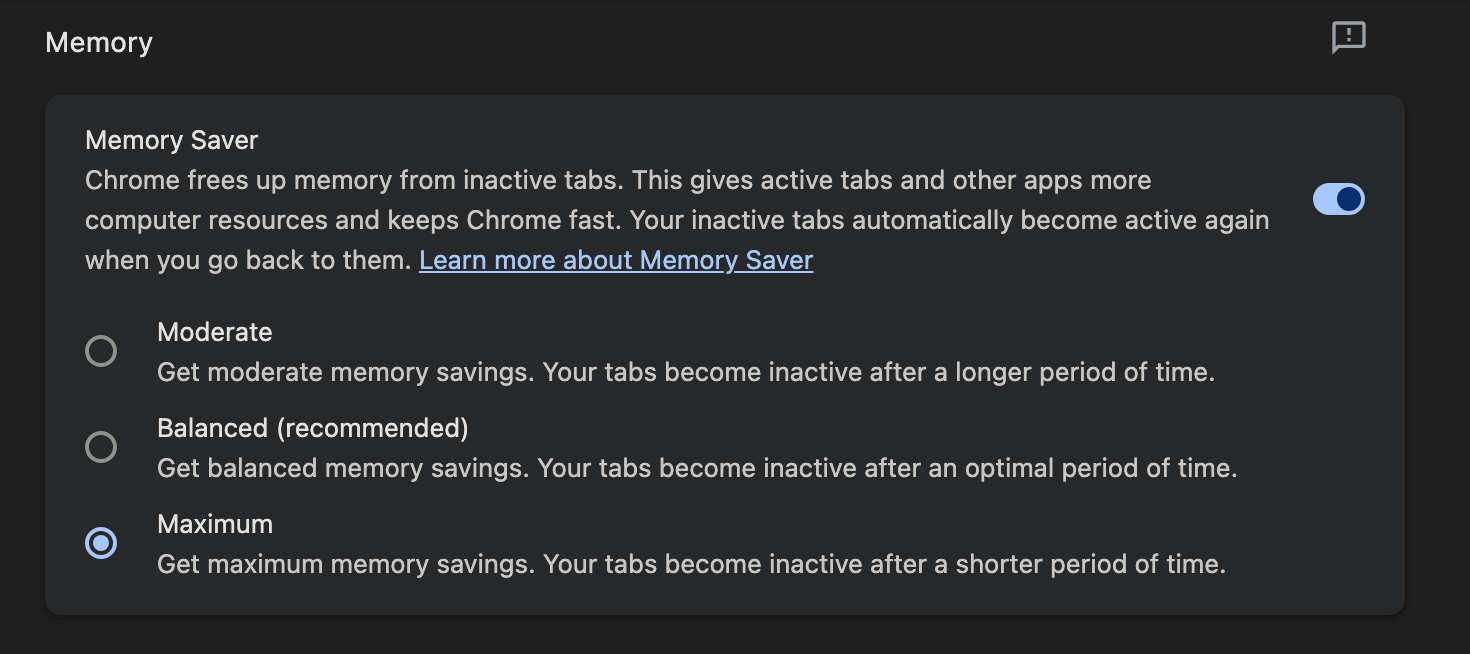
You do not have to guess. Start with the fast checks, then move down the list.
Fix 1: Use Chrome's built-in Task Manager
Before changing settings, see what is eating your memory. Press Shift + Esc on Windows or Linux, or go to Menu > More Tools > Task Manager on any platform. Chrome's internal Task Manager shows memory usage per Tab, extension, and background process.
Sort by the Memory footprint column to find the worst offenders. A single heavy web app can use more memory than a stack of simple Tabs. Select any process and click End process if you are ready to close that Tab or extension process.
Use Chrome Task Manager before your operating system's Task Manager when possible. The OS view can show many Chrome processes, but Chrome's own Task Manager tells you which Tab, extension, or browser process you are ending.
You can also turn on Tab memory usage on hover cards under Chrome's Appearance settings. That makes it easier to spot a heavy Tab before opening Task Manager.
Fix 2: Close Tabs you are not actively using
This is obvious, and it works. Every Tab you close frees its active page state. If you have 50 Tabs open but are using 5, the other 45 Tabs are still asking Chrome to remember them.
People keep Tabs open for a reason. They are reference material, tasks in progress, or articles to read later. Closing them can mean losing context. That is where the next fix helps.
Fix 3: Save Tab Groups with TabGroup Vault, then close them
If you want to cut Chrome's memory without losing your work, save your Tab Groups before closing them. TabGroup Vault takes a snapshot of your Tab Groups: every Tab URL, the Group name, the Group color, and the Tab order. Then you can close those Tabs, reclaim the memory, and restore the Group later with a single click.
TabGroup Vault
Price: Free (10 snapshots) / $39 one-time Pro
How it helps: Save Tab Groups, close them to free memory, restore them when needed
Impact: Frees the memory used by Tabs you close after saving
This works especially well for project-based browsing. Save your Research Group on Monday, close it, work on something else, and restore it on Wednesday exactly as it was. Chrome stays lighter in between, and the project stays intact. For the full workflow, use the guide to reducing Chrome memory usage without losing your Tabs.
Fix 4: Enable Chrome's Memory Saver mode
Chrome includes a built-in Memory Saver setting under Settings > Performance. When Memory Saver deactivates an inactive Tab, the Tab stays visible in your Tab strip, but its contents reload when you open it again.
Chrome desktop gives you three Memory Saver levels: Moderate, Balanced, and Maximum. Moderate deactivates Tabs less often, Balanced is the recommended middle setting, and Maximum frees memory more aggressively. If a site must stay live, add it to "Always keep these sites active" in the same Performance settings area.
Memory Saver is useful for passive Tab buildup, but it is not the same as saving your work. Chrome's Tab discarding predates Memory Saver, and Memory Saver arrived in Chrome 108 to make proactive deactivation more common for inactive background Tabs. When a deactivated Tab reloads, page state can change. For Tabs you need to preserve as a project, saving the Tab Group with TabGroup Vault before closing it is still the more predictable approach.
Why Memory Saver may not seem to work
Memory Saver does not deactivate every inactive Tab. Chrome may keep Tabs active when they are doing work that should not be interrupted, including active audio or video, calls, screen sharing, page notifications, active downloads, partially filled forms, pinned Tabs, and pages connected to USB or Bluetooth devices.
If Memory Saver looks like it is not doing anything, check those exclusions first. Then look for pinned Tabs, active media, extensions, and heavy web apps in Chrome Task Manager. When the setting still seems quiet, the practical next step is the same: check which Tabs are protected, which extensions are running, and which processes are using memory.
Chrome can also show Performance issue alerts that recommend deactivating Tabs when memory pressure is high. If those alerts are distracting, you can turn them off in Settings > Performance.
Fix 5: Remove unnecessary extensions
Extensions are a hidden source of memory bloat. Each extension runs as its own process, and many inject scripts into every page you visit. An ad blocker, a password manager, a grammar checker, and a screenshot tool may look small on their own. Together, they can add hundreds of megabytes of overhead.
Go to chrome://extensions and review what you have installed. Disable anything you do not use regularly. For extensions you use occasionally, consider turning them on only when needed instead of letting them run all day. Then reopen Chrome Task Manager and see whether the extension processes changed.
Fix 6: Reduce Chrome processes safely
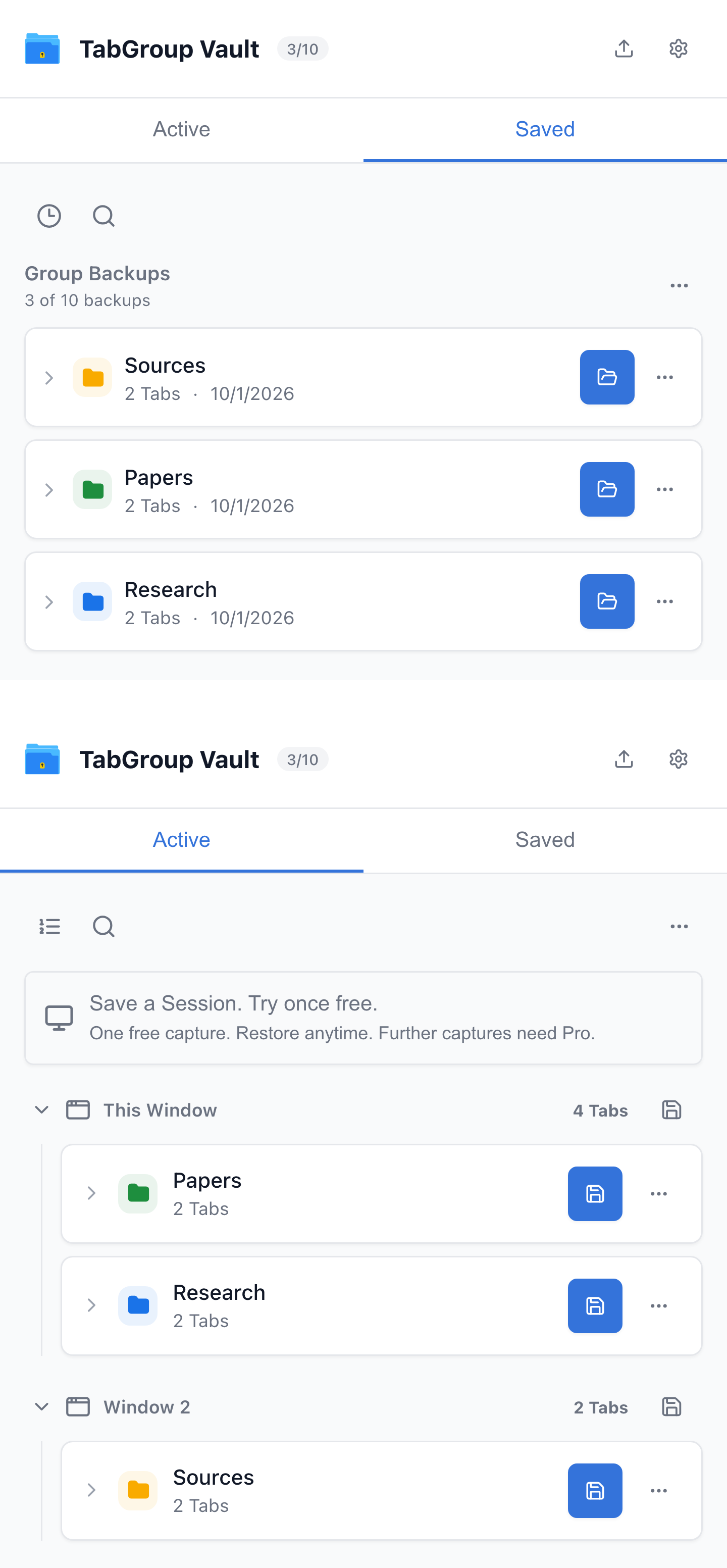
Current TabGroup Vault UI with sample Chrome data. The restore pair shows the same Research Group before and after the production restore action.
You cannot safely collapse Chrome into one process. Multiple processes are part of how Chrome isolates Tabs, extensions, plugins, and browser work. The safer goal is to reduce the number of active things Chrome has to keep alive.
Close Tabs you are not using, remove extensions that run in the background, and fully quit Chrome when you are done. On systems where Chrome is allowed to keep background apps running after the last Window closes, turn that behavior off in Chrome's system settings or enterprise-managed policy if your organization controls it.
Fix 7: Review Preload Pages
Chrome can preload pages so browsing feels faster. That can help, but it also means Chrome may do background work before you open a page.
Go to Settings > Performance and review Preload Pages. If Chrome is using too much memory or feels busy in the background, try a less aggressive preload setting and compare Task Manager before and after.
Fix 8: Update Chrome
Chrome updates can include performance and stability fixes, and they only finish applying after you restart the browser. Go to Settings > About Chrome to check for updates. If Chrome has been open for days or weeks, restart it after the update and check memory again.
Fix 9: Clear browsing data and cache
Over time, Chrome accumulates cached data, cookies, and browsing history. Most of that lives on disk, but a bloated profile can still make Chrome feel heavier while it manages that data.
Go to Settings > Privacy and Security > Delete browsing data. Select cached images and files, cookies, and browsing history. Choose a time range and clear the data. This will not affect your saved passwords or bookmarks unless you select them.
Fix 10: Avoid killing random Chrome processes in your OS
If you open your operating system's Task Manager or Activity Monitor, Chrome may appear as a long list of similar processes. Ending one at random can close the wrong Tab, crash a page, or leave you guessing about what changed.
Use Chrome Task Manager first because it maps memory use to browser-specific Tabs, extensions, and processes. After you identify the culprit, end that item in Chrome or close the related Tab normally.
How much memory should Chrome use?
There is no single normal number. Chrome memory usage depends on the sites you open, the number of active Tabs, media playback, extensions, operating system, and available hardware. A few simple pages may feel light, while one large web app can dominate memory by itself.
| Scenario | What to check | What to do first |
|---|---|---|
| A few simple Tabs | Extensions and background pages | Use Task Manager before changing settings |
| Many mixed Tabs | Heavy web apps and media Tabs | Close or save inactive Groups |
| Web apps open all day | Sheets, dashboards, chat, design tools | End heavy processes you are not using |
| Lots of extensions | Extension processes in Task Manager | Disable anything you do not use daily |
| Tabs used as a to-do list | Inactive projects and reference Tabs | Save, close, and restore later |
If Chrome is using enough memory to slow the system, do not chase a universal benchmark. Open Chrome Task Manager, sort by Memory Footprint, and start with the process at the top of the list.
The long-term solution: change how you use Tabs
The fixes above help in the short term, but the root cause is usually the same: too many Tabs open at once. The durable fix is changing your Tab habits.
Instead of keeping 50 Tabs open as a to-do list, save them. Use Tab Groups to organize your work, take snapshots with TabGroup Vault, and close what you are not actively using. Collapsed Tab Groups and Chrome's vertical Tabs can make a crowded Window easier to review, but they are organization features, not RAM fixes. The RAM-saving action is closing saved Tabs or letting Chrome deactivate inactive ones.
For a deeper walkthrough, see our guide on reducing Chrome memory usage without losing your Tabs. For why Chrome slows down with many Tabs, read our explainer on why Chrome slows down with too many Tabs. For practical speed tips, check our Tab-focused Chrome performance guide.
What about Edge or Firefox?
Other browsers have their own Tab sleeping or unloading features, but switching browsers is not the first fix for Chrome memory usage. Edge includes Sleeping Tabs with adjustable inactivity timing, and Firefox can unload inactive Tabs when memory is low. For comparison intent, use the dedicated Firefox vs Chrome RAM usage guide or the Chrome vs Firefox vs Edge Tabs comparison.
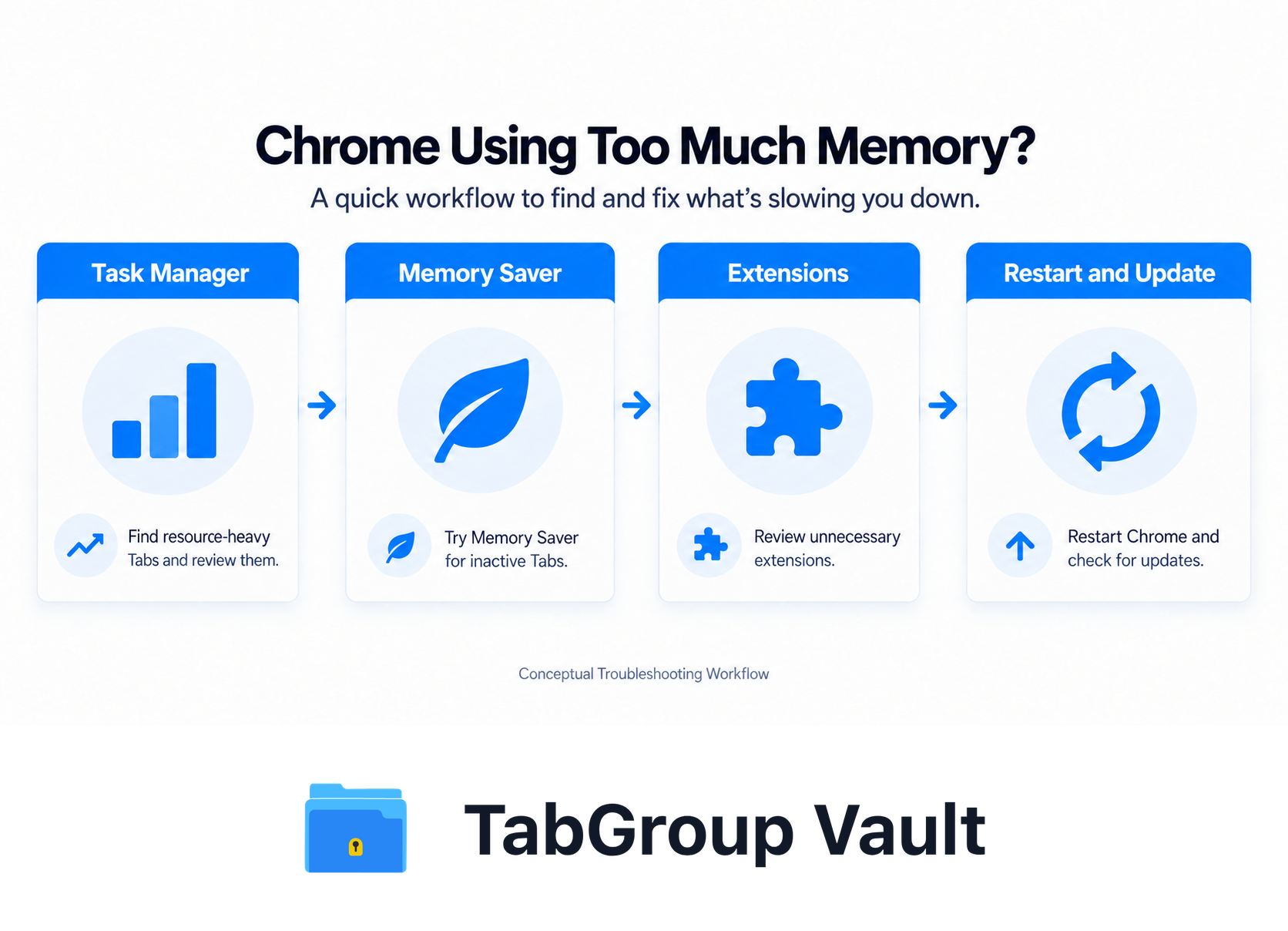
Illustrative example; layout and sample data are conceptual.