How many Tabs can you open in Chrome?
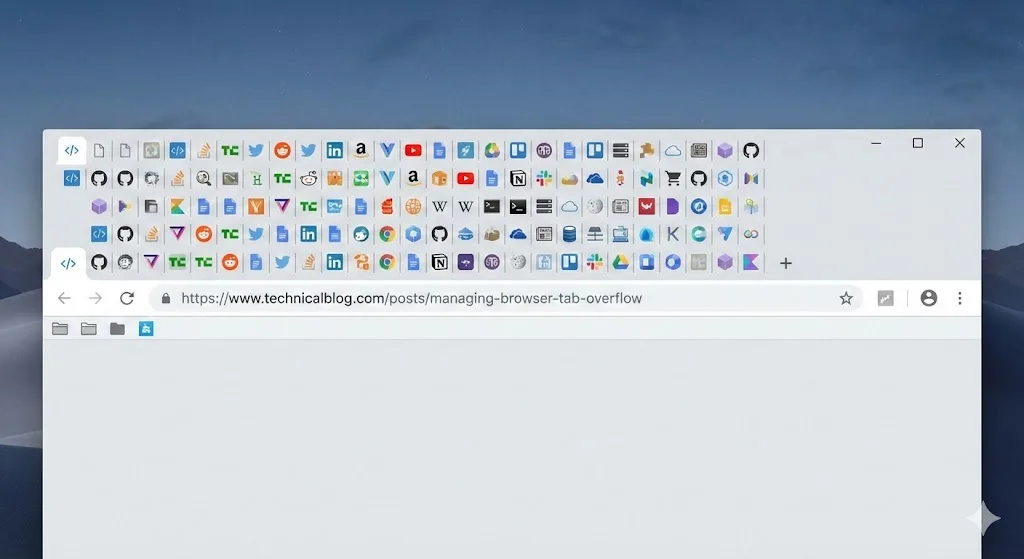
Chrome does not publish a fixed maximum Tab count. In practice, Chrome lets you keep opening Tabs until your device, pages, extensions, active media, and operating system make the Session uncomfortable.
On a 16GB RAM computer, 30-60 active mixed Tabs is a sensible working range. You may be able to open 100+ Tabs if most pages are light, Memory Saver can deactivate unused Tabs, and you are not running many extensions or heavy apps. That is where the answer gets annoyingly workload-specific.
How many Chrome Tabs can you open with 16GB RAM?
For 16GB RAM, 30-60 active Tabs is the practical answer for a normal mix of reading pages, documents, dashboards, media pages, and a few common extensions. Treat that as field guidance, not a Google recommendation.
Light reading pages may let you go higher. Video calls, design tools, heavy documents, downloads, pinned Tabs, and extensions can pull the number down quickly. If Chrome starts reloading Tabs, lagging, or showing page loading errors, that workload is past its comfort zone.
Why Chrome feels like it has a Tab limit
Chrome's practical Tab limit comes from memory pressure. Every open Tab can use memory for the page, scripts, media, form state, background activity, and browser processes. Extensions and other apps pile on.
Once the system is under pressure, Chrome may feel capped even though the Tab strip still lets you open more Tabs. Watch for slow Tab switching, pages reloading when you return to them, frozen Windows, high fan or battery use on laptops, and occasional "Aw, Snap!" page loading errors.
If the main problem is slowness after opening many Tabs, use the troubleshooting steps in Why Chrome Slows Down With Too Many Tabs.
Quick answer by RAM size
These are TabGroup Vault practical estimates, not official Chrome limits or Google recommendations. They assume Chrome is the main app running, with a normal mix of simple pages, news or media pages, web apps, and a few common extensions.
| System RAM | Practical active Tab range | What to expect |
|---|---|---|
| 4 GB | 5-10 | Keep Chrome lean; heavy web apps can overwhelm this quickly |
| 8 GB | 10-30 | Fine for lighter work; multiple heavy apps or video Tabs can cause reloads |
| 16 GB | 30-60 | Comfortable range for most mixed Chrome workflows |
| 32 GB | 60-120 | Power-user range; Memory Saver and save-and-close habits still help |
| 64 GB or 128 GB | 120-200+ light Tabs | Large Sessions are possible, but heavy Tabs and usability still decide the limit |
| Feature | What to Check |
|---|---|
| Measure Your Workload | RAM and CPU depend on pages, frames, extensions, background activity, and other apps. Tab count alone cannot predict a fixed RAM total, crash threshold, or percentage saving. |
| Memory Saver | Chrome can deactivate inactive pages, then reload them when needed. Settings and exceptions apply. Collapsing or coloring a Group alone does not unload its pages. |
| Processes and Tabs | Tabs can share renderer processes; a page with isolated frames can use several processes. Chrome also has browser, GPU, extension, and utility processes. One Tab does not always equal one process. |
Sources Checked October 1, 2026: Chrome Memory Saver · Chromium Process Model · Chrome Troubleshooting
Tab count can fool you. A low Tab count with several heavy apps can use more memory than a high Tab count full of simple reading pages. User reports also show that one heavy or misbehaving page, especially video or a complex web app, can dominate memory use across the browser. Treat the table as a starting point, then check your own browser with Chrome's built-in tools.
Caveat
These numbers are not Google recommendations. They are practical ranges. If you also run an IDE, Slack, Figma, video meetings, Android apps, Linux apps, or other memory-heavy software alongside Chrome, keep fewer Tabs open.
What about Chromebooks or 128GB RAM?
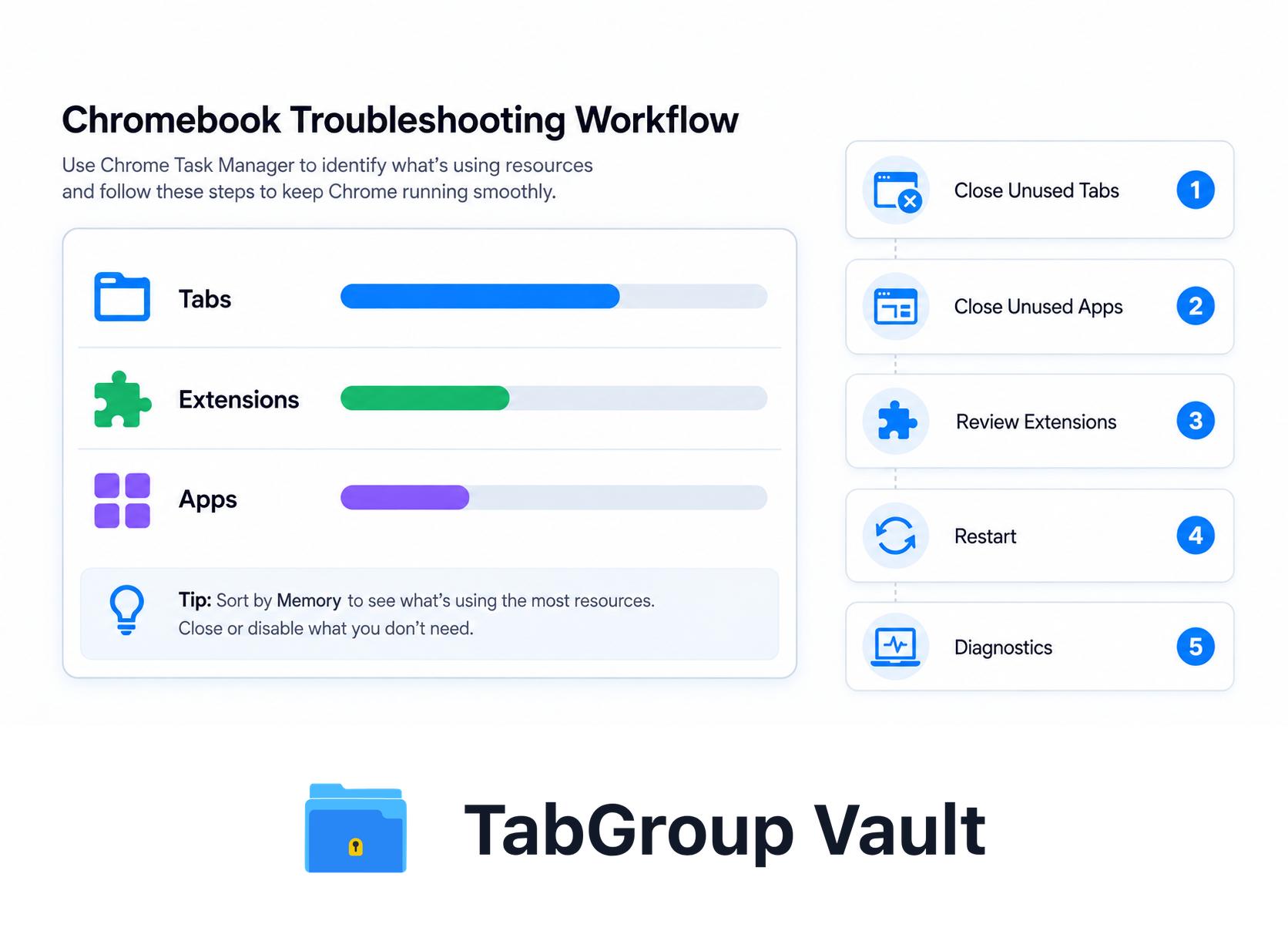
On Chromebooks, the practical limit changes by device and workload. A 4 GB Chromebook can struggle with a few heavy web apps, while a newer 16 GB Chromebook can keep many more simple pages open. If the device slows down, close unused Tabs, Windows, and apps, then press Shift+Esc to open Chrome Task Manager. For the habit side of the problem, see our guide to Tab hoarding.
With 128GB RAM, Chrome can often handle hundreds of light Tabs, but there is still no official maximum Tab count. Heavy web apps, video calls, downloads, extensions, page crashes, OS limits, and plain usability still decide the working limit. For very large active Sessions, see what to do when you have 200 Tabs open.
How to check your own Chrome Tab limit
The useful number is personal: the point where your Tabs start using too much memory for your device. Check it this way:
- Hover over individual Tabs in Chrome on Chromebook, Windows, Linux, or Mac to see memory usage cards for supported Tabs. If memory does not appear, check Chrome's Appearance settings for Tab memory usage on hover cards.
- Open Chrome Task Manager from Menu > More Tools > Task Manager, or press Shift+Esc on Windows, Linux, and Chromebook, then sort by Memory to compare pages, extensions, apps, and background pages.
- Look for heavy pages first: video calls, design tools, dashboards, documents, social feeds, and Tabs that keep updating in the background.
- Watch for Chrome Performance issue alerts. They are on by default and can recommend Tab deactivation when browsing performance is poor.
- Close unused Windows and apps, then check if Tab switching and page reloads improve.
- On Chromebook, use Diagnostics to check memory if freezes continue, then restart. If the device keeps freezing after closing unused Tabs, apps, and extensions, follow Chromebook recovery guidance.
What happens when Chrome runs out of memory
Illustrative example; layout and sample data are conceptual.
When Chrome approaches your system's memory limits, several things can happen:
- Inactive Tabs reload: Chrome may deactivate inactive Tabs to save memory. Those Tabs usually reload when you select them again.
- System swapping: The operating system moves some of Chrome's memory to the swap file on disk. Disk access is far slower than RAM, so Chrome can start to crawl.
- UI lag: Chrome's interface becomes unresponsive. Switching Tabs takes seconds instead of milliseconds. Typing in the address bar lags noticeably.
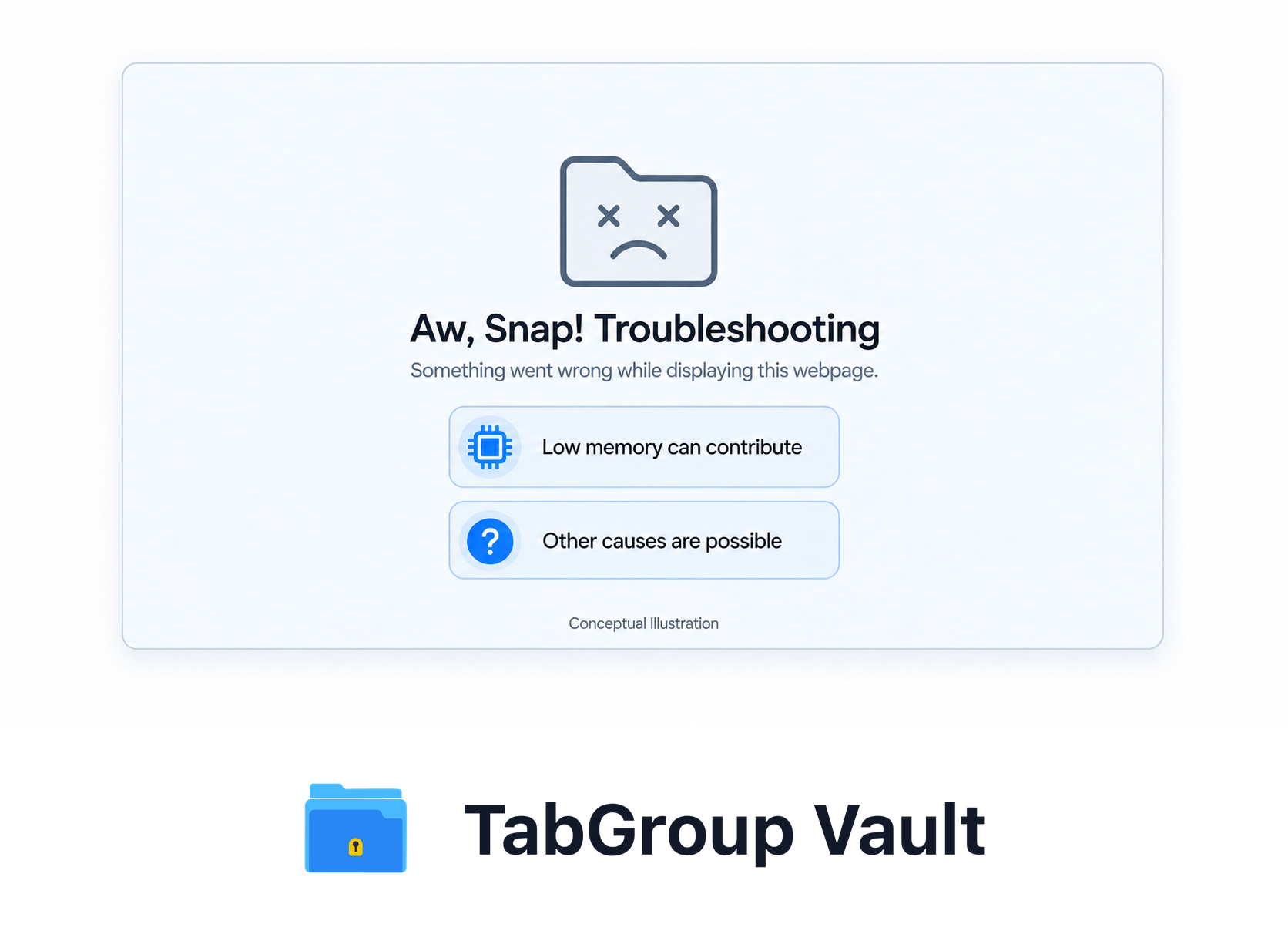
- Page loading errors: "Aw, Snap!" means Chrome is having trouble loading a page. Low memory can contribute, but it is not the only possible cause.
- Page or browser crash: Under severe memory pressure, pages can crash or fail to load. If crashes keep happening, use the dedicated crash steps in How to Stop Chrome From Crashing.
Illustrative example; layout and sample data are conceptual.
Not all Tabs are equal
Tab count alone does not tell the whole story. What is inside each Tab can matter more than the number on the Tab strip:
- Simple reading pages are usually lighter than full web apps.
- News sites with ads and social feeds can keep scripts, media, and background updates running.
- Documents, spreadsheets, dashboards, and design tools can use much more memory than static pages.
- Communication tools and video meetings can stay active in the background.
- A single heavy or misbehaving page can matter more than dozens of simple Tabs.
When you judge your Tab capacity, start with what is open. The count comes second.
What Chrome Memory Saver actually does
Chrome's Memory Saver can help, but it is not a new Tab limit. It deactivates Tabs you are not currently using to save memory and help active Tabs run smoothly. Inactive Tabs reload when you open them again.
Chrome offers three Memory Saver levels in Settings > Performance: Moderate waits longer before deactivating Tabs, Balanced is the recommended middle setting, and Maximum deactivates Tabs after a shorter inactive period.
Some Tabs are skipped because Chrome treats them as active or important. Active audio or video, screen sharing, notifications, active downloads, partially filled forms, pinned Tabs, and connected USB or Bluetooth devices may prevent Tab deactivation. Google said Memory Saver could use up to 40% and 10GB less memory in its 2022 launch post, but real savings vary by workload.
Saved Tab Groups and vertical Tabs
Vertical Tabs can make many open Tabs easier to scan, but they do not increase how many loaded pages Chrome or a Chromebook can keep active. For more on this layout option, see Vertical Tabs in Chrome.
Chrome's saved Tab Groups are useful for organization. Synced browsing history and Tabs can save Tab-Group changes across devices, and closed Groups can be reopened later. Still, a huge live browser Session is poor permanent storage. Save what you need, close what you are not using, and keep the active set small.
How to work past Chrome's practical Tab limit
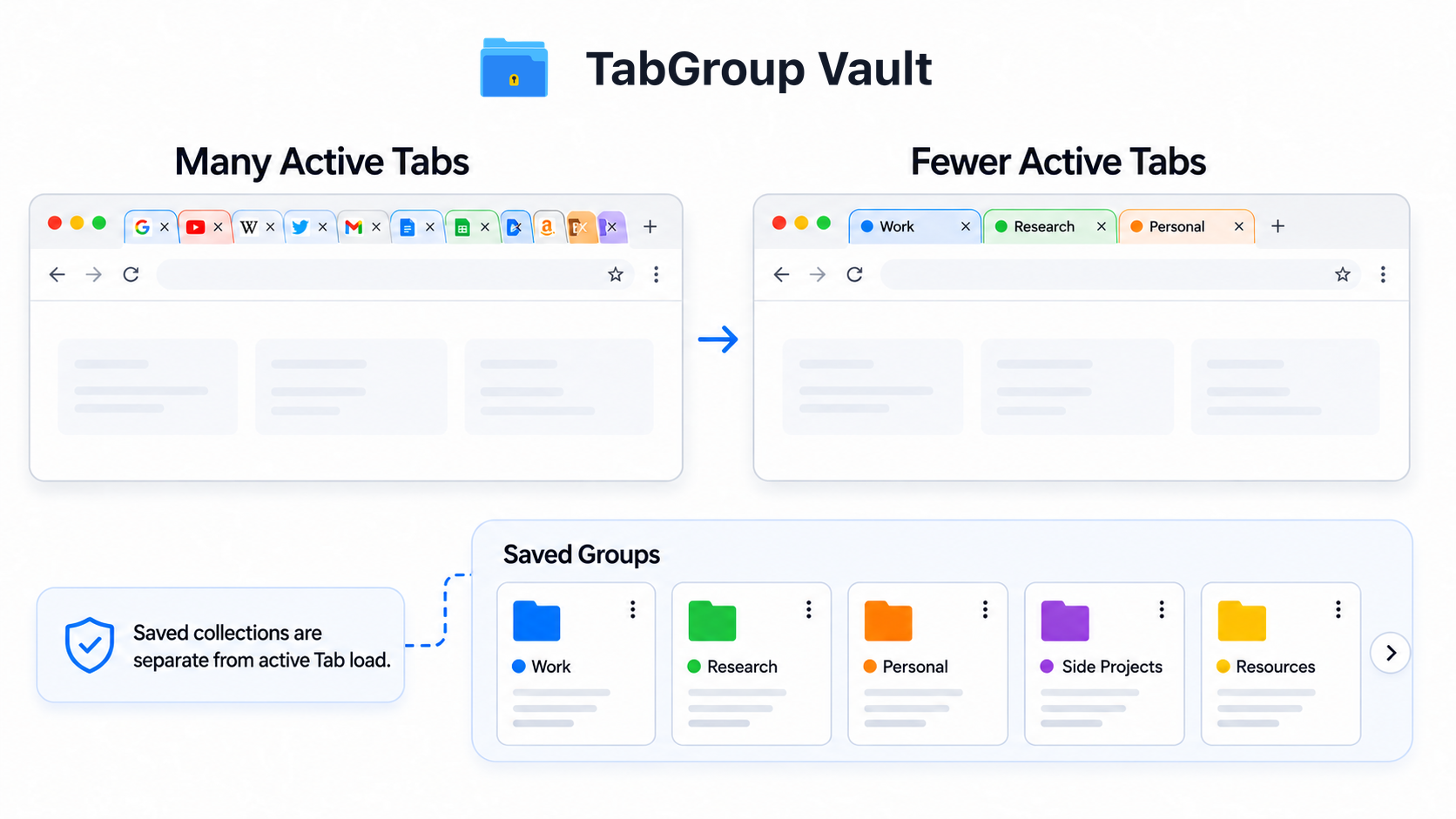
If you need access to more Tabs than your system can handle at once, keep only active Tabs loaded and save the rest.
The save-and-close approach
TabGroup Vault saves Tab Groups as lightweight snapshots. A snapshot stores Tab URLs, Group names, colors, and Tab order in a few kilobytes of local storage. You can close those Tabs, free their memory, and restore the Group later with one click.
TabGroup Vault
Price: Free (10 snapshots) / $39 one-time Pro
Saved Tab capacity: Separate from active Tab load; closed saved Groups use far less memory than live pages
Pro features: Unlimited snapshots, bulk restore, Google Drive backup, 5 Chrome profiles, dark theme
Saving and closing Groups lets you keep a larger saved collection while keeping fewer Tabs active. You might have 200 Tabs saved across several Groups but only 15 loaded at any time. Your system only has to support those 15 active Tabs. The other 185 sit as snapshots instead of live pages.
Combine with Memory Saver for active Tabs
For Tabs that are currently open, Chrome's Memory Saver can deactivate inactive Tabs when it can. Pair that with save-and-close for inactive Groups, and Chrome stays usable without pretending there is one magic Tab number for every device.
How other browsers compare
This article is about Chrome. Other browsers also manage Tabs: Microsoft Edge sleeping Tabs are on by default for idle background Tabs, and Firefox can unload Tabs under low memory. For a browser-by-browser comparison, see Chrome vs Firefox vs Edge for Tab management.
Key takeaway: manage Tabs, do not count them
Obsessing over a specific Tab number misses the point. Keep your active working set small and your saved collection large. A Chromebook that feels fine with 12 Tabs and a workstation that feels fine with 80 Tabs need the same habit: close the Tabs you are not using right now.
Save your Tab Groups. Close what you are not using. Restore on demand. That makes Chrome's practical Tab limit manageable instead of annoying. For memory steps, see our guide on reducing Chrome memory without losing Tabs. If Chrome keeps crashing, use the dedicated steps in How to Stop Chrome From Crashing.