What vertical Tabs are, briefly
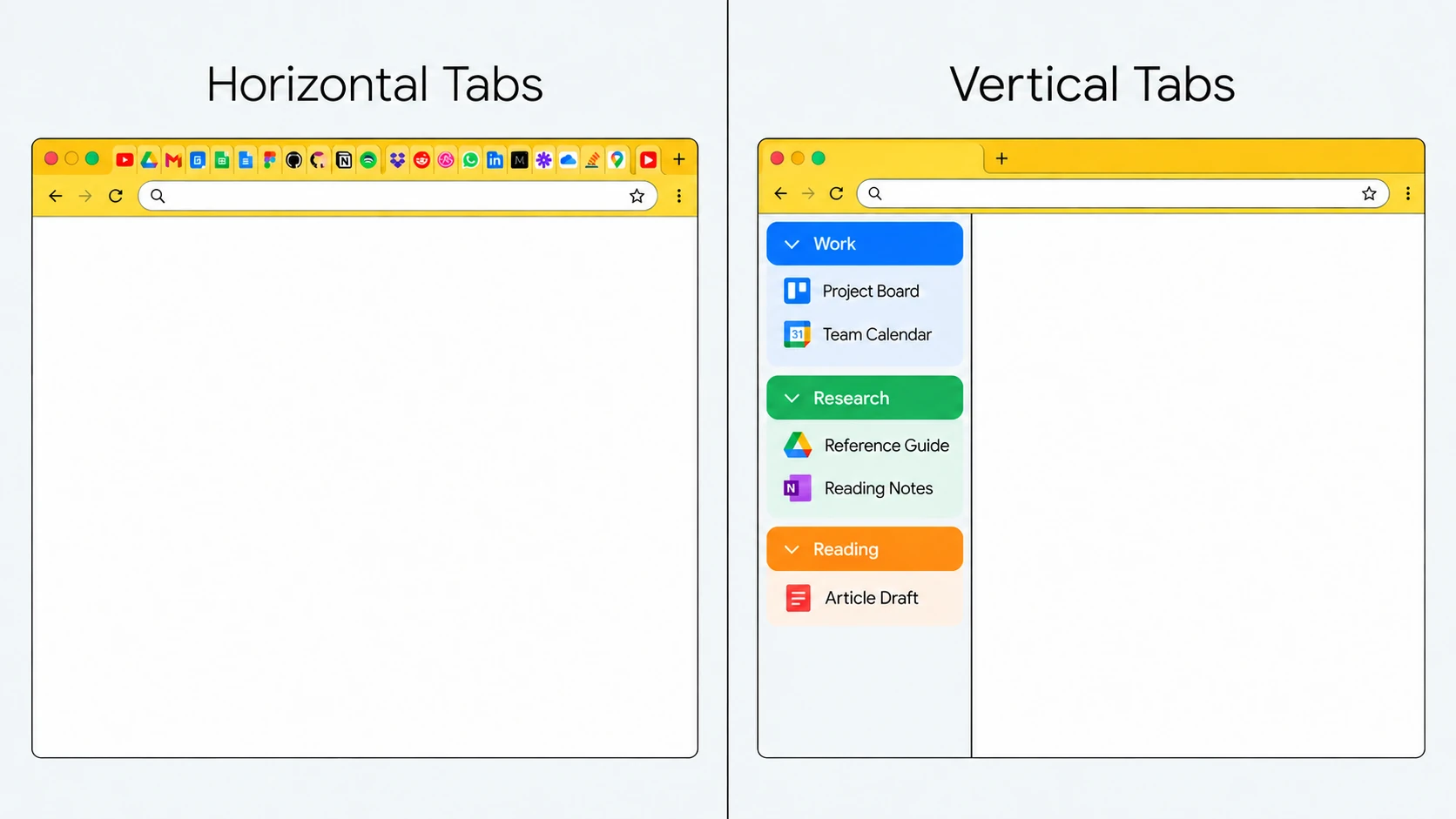
Vertical Tabs move your Tab list from the top of the Window to a sidebar on the left (or right). Instead of 50 Tabs squeezed into a horizontal strip where favicons vanish at 30 Tabs, you get a scrollable column where each Tab has room to show its favicon and title.
Arc popularized the layout. Edge shipped it. Firefox gets it through extensions like Tree Style Tab. Chrome users waited years for a native answer. Google finally rolled out native vertical Tabs starting in Chrome 146 (stable, March 2026), and the feature began its staged rollout to all users in April 2026.
How to enable Chrome's native vertical Tabs
The primary entry point is a single menu item:
- Right-click the Tab strip (the empty space on the Tab bar, not the page content) and choose Show Tabs Vertically. Your Tabs move from the top strip into a sidebar on the left.
- To return to the horizontal layout, right-click the sidebar or the Tab bar again and pick Show Tabs Horizontally.
The feature is a UI choice, not a destructive operation. Your Tabs, Groups, and Session stay untouched when you switch layouts.
If you do not see the option
Update Chrome to the latest stable channel: the rollout is staged, so not every user sees it the first day. If the menu item is still missing, open chrome://flags/#vertical-tabs, enable the flag, relaunch Chrome, and the "Show Tabs Vertically" option should appear. Enterprise-managed Chrome may have the flag disabled by policy.
Why vertical Tabs matter for Tab-heavy work
A horizontal Tab bar stops scaling around 12 to 15 Tabs per Window. After that:
- Tab titles disappear. You are navigating by favicons alone.
- Favicons themselves shrink and become hard to distinguish.
- At 100+ Tabs, Chrome shows a smiley face instead of a Tab count.
A vertical sidebar scales linearly. A scrollable column of 80 Tabs is usable in a way a horizontal strip of 80 Tabs simply is not. You can read the titles. You can scan. You can find.
This is the same reason file managers, mail clients, and chat apps all settled on vertical lists. It is the layout that actually works for dozens of items.
Native Chrome vs vertical Tab extensions
| Feature | What to Check |
|---|---|
| Capabilities and Permissions | Check the current developer listing, update date, permissions, privacy policy, and platform support. Features and ratings can change; a badge is not a guarantee. |
| Native or Extension | Chrome already provides Tab Groups and Tab search. Compare a specific extension for extra features rather than assuming every extension has tree views, cross-Window lists, or a fixed memory cost. |
Sources Checked October 1, 2026: Chrome Web Store Guidance · Chrome Help · Chrome Shortcuts
Extensions still have the edge on specific features. Here is the honest breakdown.
| Feature | Native Chrome | Extension (typical) |
|---|---|---|
| Sidebar layout | Yes | Yes |
| Reads Chrome Tab Groups | Yes | Varies, most do |
| Tree hierarchy (child Tabs) | No | Yes (Tree Style Tab style) |
| Built-in search across Tabs | Basic (Ctrl+Shift+A) | Usually richer, with highlighting |
| Pinned Tabs area | Yes | Yes, often more configurable |
| Multi-Window awareness | Per-Window panel | Some show all Windows at once |
| Memory impact | Built-in, minimal | Extra extension process |
| Permissions asked | None extra | Broad Tab access usually required |
| Syncs across devices | Yes, with Chrome sync | Extension-specific |
| Setup friction | One click | Install, review, configure |
When native is enough
You probably do not need an extension if:
- You run 20 to 60 Tabs at a time.
- You already use Chrome Tab Groups and want vertical display of those Groups.
- You prefer zero extensions for privacy reasons.
- You want sidebar visibility without having to learn a new UI.
When people still reach for extensions
You might want an extension if:
- You run 100+ Tabs regularly and need tree-style nesting to stay sane.
- You want a persistent cross-Window sidebar that shows every Tab in every open Window in one list.
- You want advanced search, filters, and keyboard navigation that native has not yet matched.
- You are migrating from Firefox's Tree Style Tab culture and want the same shape in Chrome.
Vertical Tabs and Tab Groups
They solve different things. Vertical Tabs are a display choice: they make 60 Tabs readable. Tab Groups are an organization choice: they give those 60 Tabs context ("Client A", "Deploy pipeline", "Inbox triage"). Each is useful on its own; combined with collapsed Groups, you can keep what you are not using out of sight while still seeing everything else. For a deeper look at grouping, see the complete guide to Chrome Tab Groups.
A working setup for 40+ Tab days
- Enable the native vertical Tab sidebar (right-click Tab strip → Show Tabs Vertically).
- Group Tabs by context: one Group per project, client, or investigation.
- Collapse Groups you are not actively in.
- Pin the handful of Tabs you always need: inbox, calendar, whatever it is for you.
- Save Groups you will return to so a Chrome quit does not destroy them.
- Take a snapshot periodically so a Chrome misbehavior does not cost an hour of rebuilding.
Where TabGroup Vault fits
Vertical Tabs solve the display problem. TabGroup Vault solves the durability problem. A snapshot preserves your Groups (names, colors, and every Tab position) so a profile reset, forced update, or accidental close does not erase the workspace you just built. Free for 10 snapshots; Pro is $39 lifetime.
How Chrome compares to Arc and Edge
Arc uses vertical Tabs as its only layout: the horizontal strip does not exist. That plus Spaces (workspace switching) makes it genuinely good for people who live in Tabs. The catch is it is a whole different browser with its own quirks and less extension compatibility. Edge has had mature, polished vertical Tabs since 2020 and works with most Chrome extensions; the Microsoft UI chrome is real but tolerable. Chrome's native vertical Tabs are newer but shipping: and they remove the main reason Chrome-loyal users were drifting toward Arc or Edge for this specific feature. For a deeper comparison, see Arc browser vs Chrome and Chrome vs Firefox vs Edge for Tabs.
Things that catch people out
On a 13-inch laptop the sidebar eats real horizontal space: worth collapsing it when you are focused on one page. If you have a vertical Tab extension installed alongside Chrome's native sidebar, you will end up with two sidebars; pick one. Brave, Vivaldi, and Opera each handle vertical Tabs differently from upstream Chrome, so check your specific build if the menu item does not appear. And the native panel only shows Tabs for the current Window: if you need a unified all-Windows list, an extension is still the answer.
The short version
Turn native vertical Tabs on and use it for a week. Most people running more than 15 Tabs do not want to go back. If you hit the limits: tree hierarchies, cross-Window lists, advanced Tab search: then install an extension. The gap between native and extension is much smaller than it was a year ago, and for the majority of use cases Chrome's built-in version is enough.