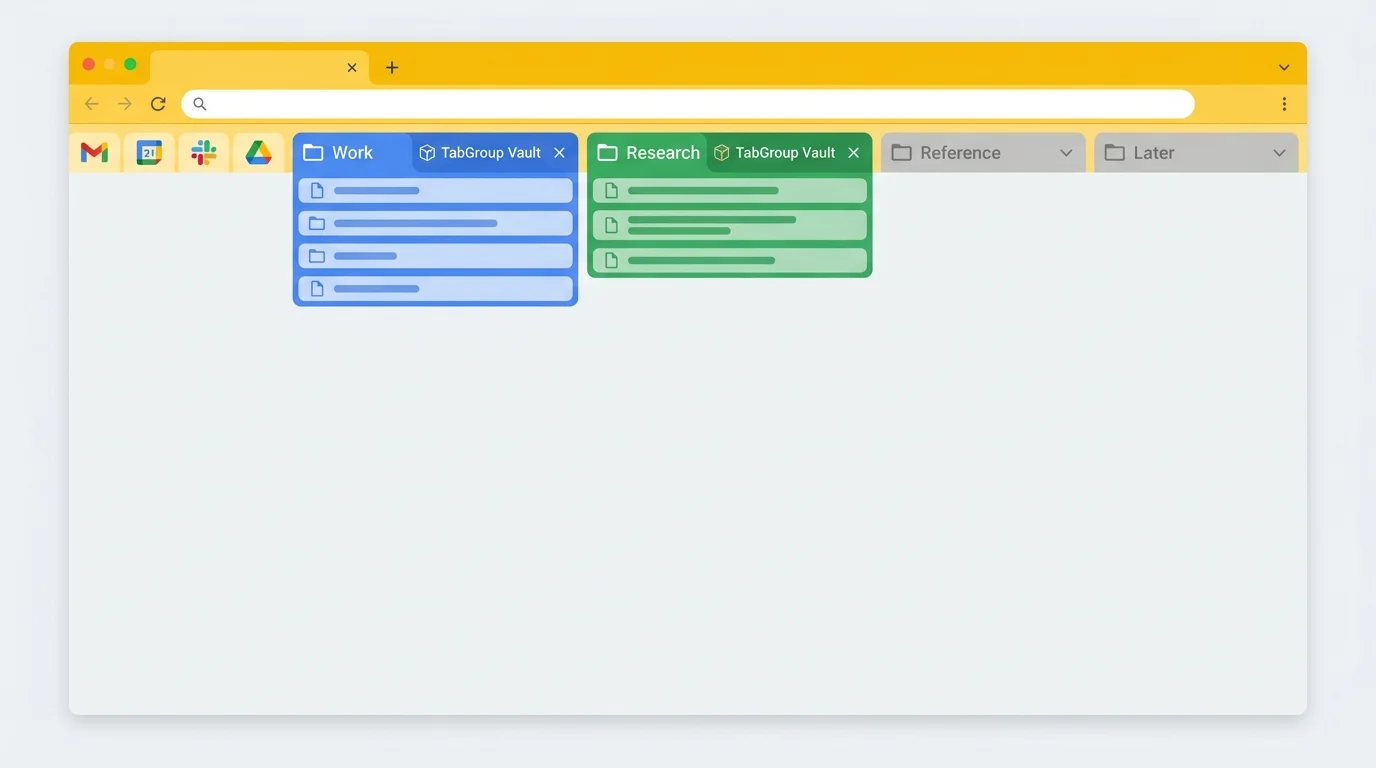
The Problem
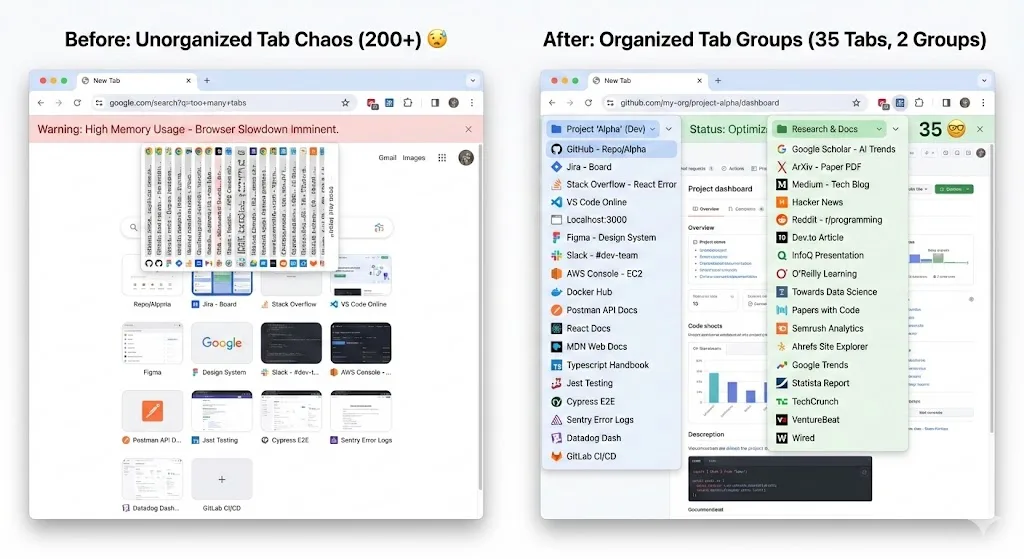
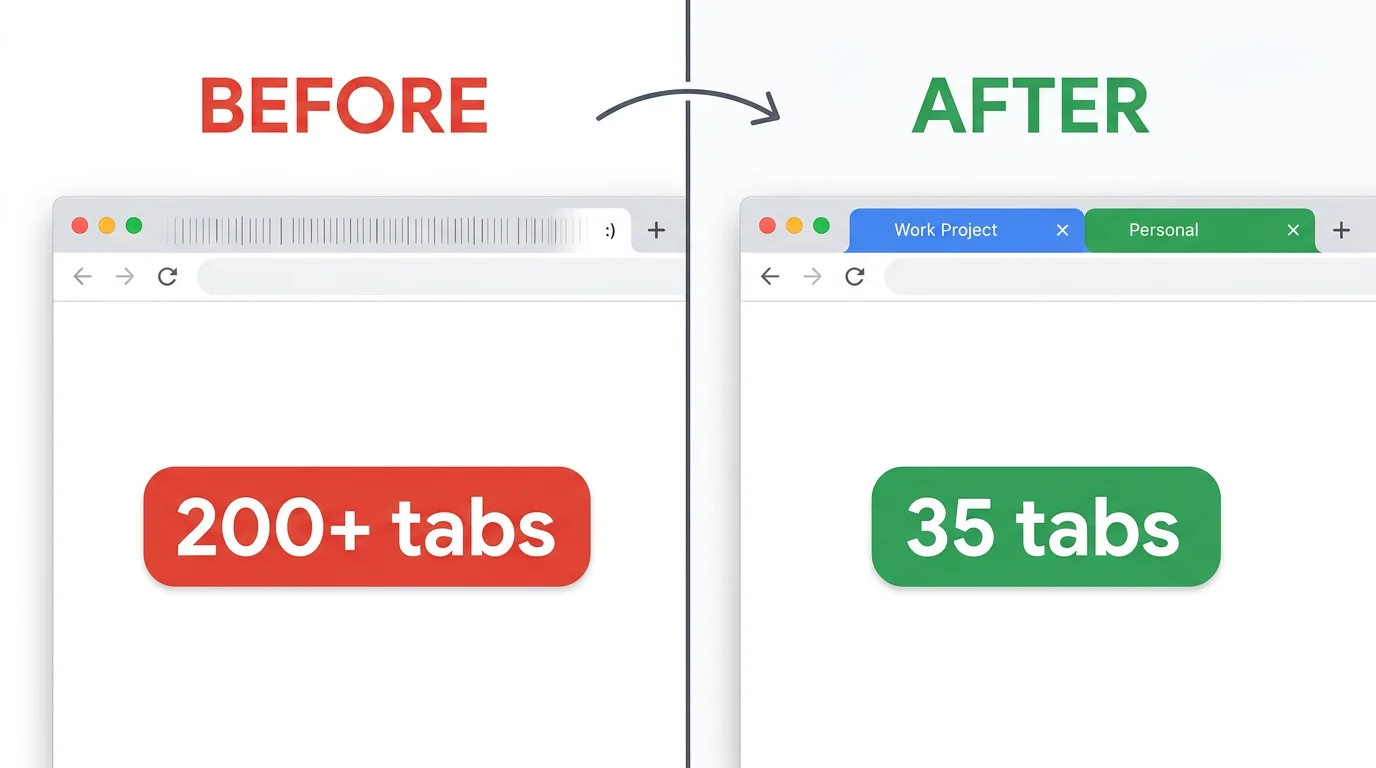
I am going to be honest about this: at my worst, I had 234 Tabs open across three Chrome Windows. Chrome stopped showing the Tab count and replaced it with a smiley face. My laptop fan ran constantly. Finding any specific Tab required scrolling through a sea of identical-looking favicons, and half the time I would just open a new Tab and search for the page again rather than hunt for the one I already had open.
I knew I had a problem. I just did not know how to fix it without losing all the things I was "going to get back to." That stack of Tabs represented weeks of accumulated research, project references, articles to read, shopping comparisons, and half-started tasks. Closing them felt like throwing away work.
If this feels familiar, the fix is not a bigger Tab bar. It is a cleanup system that lets you save context, close what you are not using, and restore a full project later. This is what I tried, what worked, and the routine that keeps my Tab count under 40 most days.
Illustrative example; layout and sample data are conceptual.
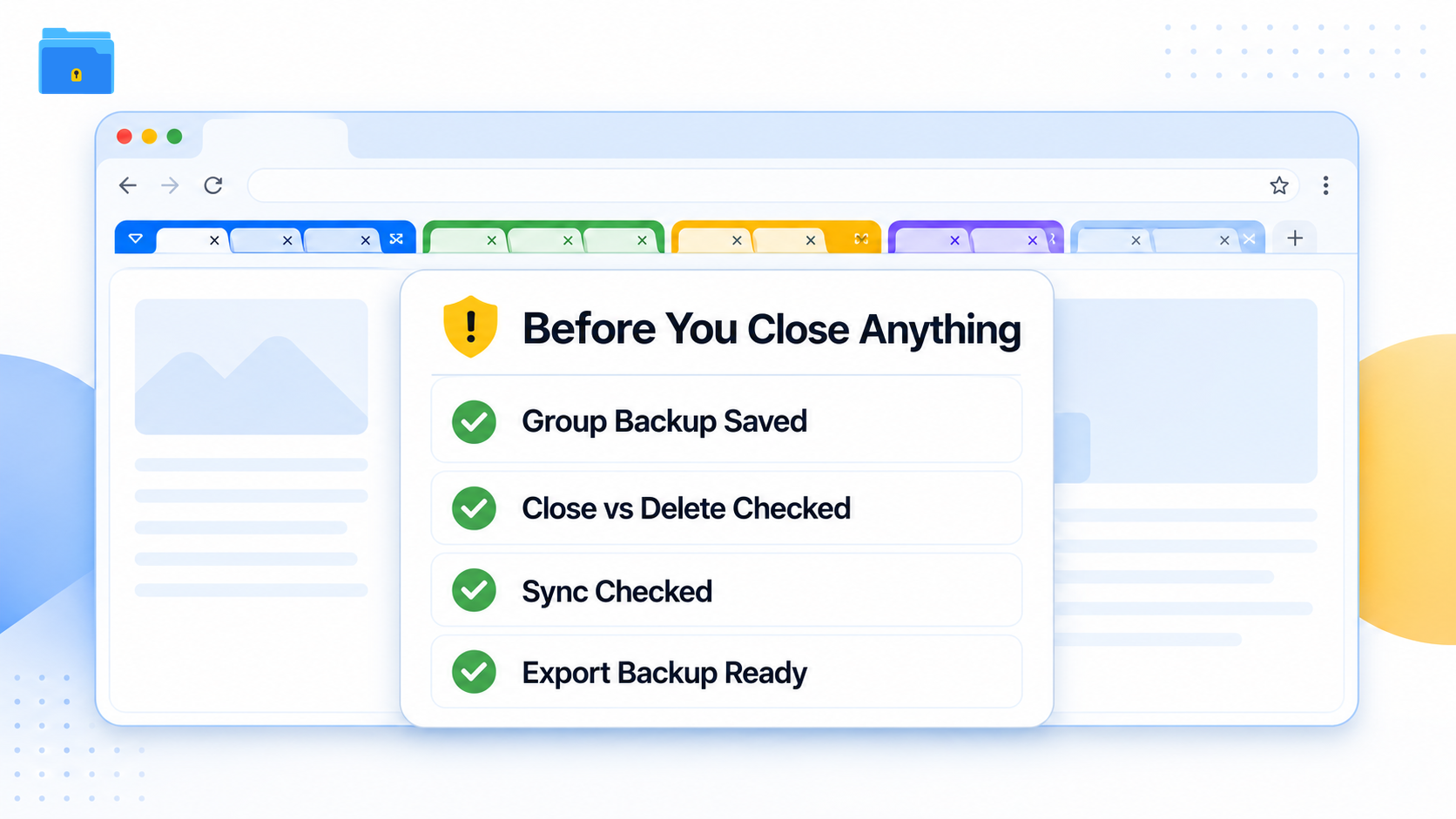
Before You Close Anything
Before the big cleanup, make Tab closing boring. A little setup turns it from a gamble into a controlled reset.
- Save or export a backup first. Use a snapshot, exported list, or another system you trust before closing whole Groups.
- Know the difference between close, delete, and ungroup. In Chrome, closing a saved Group keeps it available to reopen. Deleting removes the Group. Ungrouping leaves the Tabs open but removes the Group across synced devices.
- Check your Chrome account and sync state. Chrome can save and sync Tab Groups across devices when you are signed into the same Google Account and the relevant Tab or history sync settings are enabled.
What I Tried First
Attempt 1: Just close everything
I tried the "declare Tab bankruptcy" approach. Close all Tabs, start fresh. It felt great for about an hour. Then I needed a page I had closed and could not find it in my history because I did not remember the URL or the exact title. Within two days, I was back up to 80 Tabs because I was afraid to close anything again.
Attempt 2: Bookmark everything
I selected all Tabs, bookmarked them into a folder called "Cleanup Feb 2026." I now have 14 of those folders, dating back years. I have never opened any of them. Bookmarking 200 Tabs does not organize them. It just moves the clutter from the Tab bar to the bookmark menu.
Attempt 3: OneTab
OneTab collapsed everything into a list. That helped with memory because fewer Tabs stayed open, and OneTab says it can reduce memory use by up to 95%. Newer versions also have more organization tools than the simple flat-list experience I first tried: folders, drag-and-drop, search, quick list, tasks, and stars. OneTab is useful for list-style cleanup. For this workflow, I wanted Chrome Groups to come back as project-shaped workspaces. I restored everything back to Tabs within a week.
What Chrome Can Do Natively Now
Before adding another tool, use the Chrome features already built for Tab overload. Tab Search and address-bar search with @tabs help you find open Tabs without scanning every favicon by hand.
Chrome can also save and sync Tab Group changes across devices where you are signed into the same Google Account and syncing open Tabs or browsing history is enabled. Closed Groups can be reopened from the bookmarks bar or the Chrome menu. Just keep the actions straight: closing a saved Group keeps it available to reopen, deleting removes it, and ungrouping leaves the Tabs open but removes the Group across synced devices.
Memory Saver can reduce RAM pressure by deactivating unused Tabs and reloading them when you return. It is not a cleanup or archive system, though. Tabs with audio or video, screen sharing, notifications, downloads, partially filled forms, pinned status, or connected devices may stay active.
Chrome also has vertical Tabs. Google announced the rollout on April 7, 2026, and users can right-click a Chrome Window and choose "Show Tabs Vertically." Vertical Tabs can make crowded Windows easier to scan because you can read more of each title, scroll through Tabs, and manage Groups from a side layout.
Those features are the starting point now. They help you find, see, and reopen active work. What Chrome still does not decide for you is which projects are paused, which ones deserve a restorable snapshot, and which ones can be closed without drama. For a broader setup guide, see how to organize Chrome Tabs.
What Actually Worked: The Afternoon Cleanup
The fix took one afternoon. About three hours. Here is what I did.
Step 1: Install TabGroup Vault and save everything first
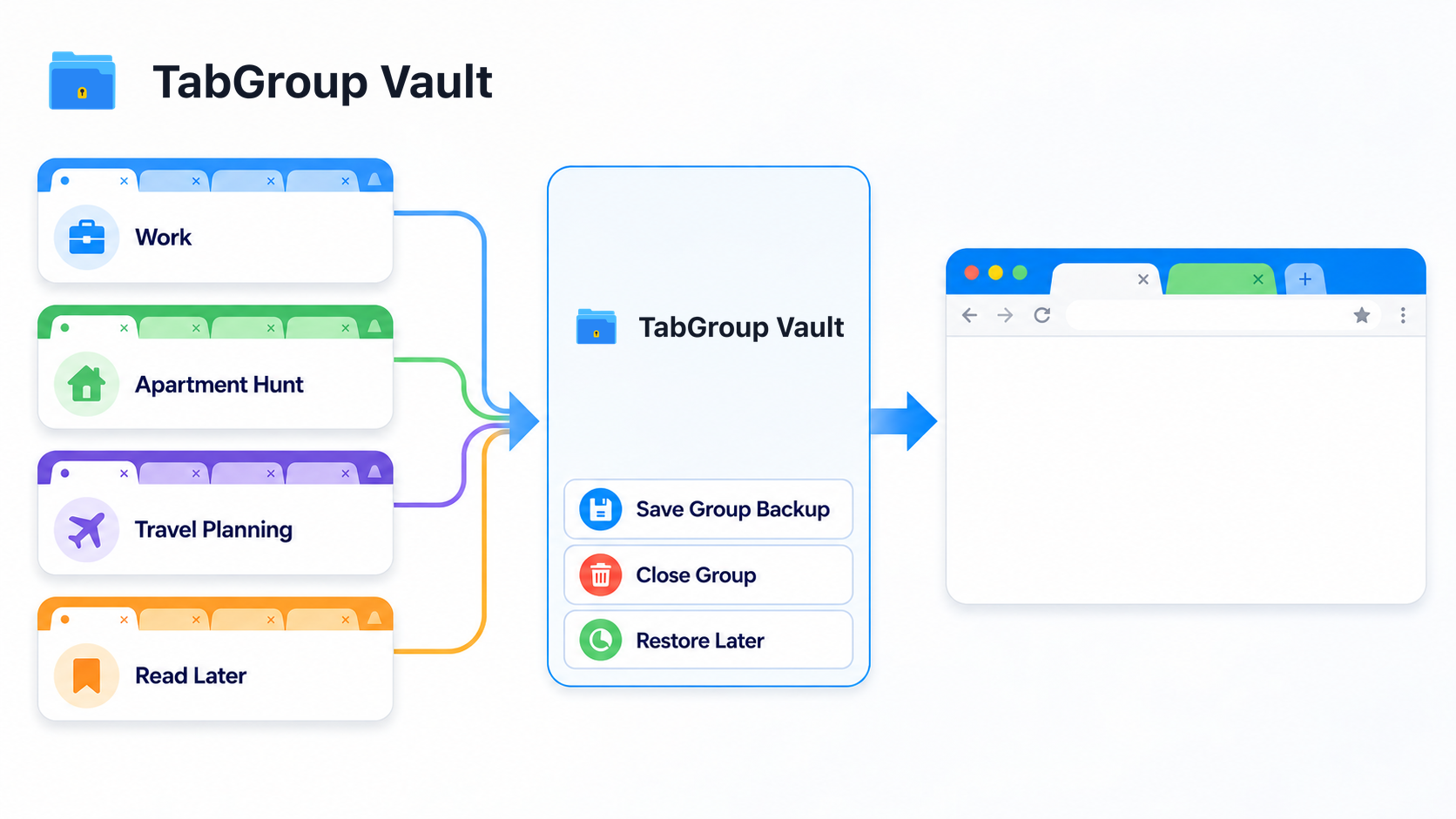
Before doing anything else, I installed TabGroup Vault and saved a complete snapshot of all my Tabs. That changed the whole cleanup. The Tabs in that snapshot were saved somewhere I could get back to, so I could close things without relying on memory or browser history alone.
TabGroup Vault
Why it helped: It saved all 234 Tabs as a restorable snapshot before I started cleaning. I was not relying on memory or browser history alone.
Free tier: 10 snapshots (enough to start). Pro: $39 one-time for unlimited.
Step 2: Sort Tabs into Groups by project
I went through every Tab and added it to a Chrome Tab Group from the right-click menu. I created Groups as I went. The first pass gave me this messy but useful map:
- Work - Q1 Report (blue) - 18 Tabs of research and data
- Work - Client Proposal (blue) - 12 Tabs
- Side Project (green) - 22 Tabs of docs and tutorials
- Apartment Hunt (purple) - 31 Tabs of listings and neighborhood info
- Travel Planning (orange) - 15 Tabs of flights, hotels, itineraries
- Read Later (grey) - 47 Tabs of articles and blog posts
- Shopping (yellow) - 28 Tabs of product comparisons
- Random / Unknown (red) - everything else
This step took the longest, about 90 minutes. It also did the most work. Once the Tabs were sorted, I could finally see what I actually needed.
Step 3: Make hard decisions about each Group
For each Group, I asked one question: "Am I actively working on this in the next 3 days?"
- Yes (keep open): Work - Q1 Report, Work - Client Proposal
- Maybe soon (save and close): Side Project, Apartment Hunt, Travel Planning
- Not really (save and close): Shopping, Read Later
- No (just close): Random / Unknown
Step 4: Save Groups, then close them
For each "save and close" Group, I saved a snapshot with TabGroup Vault, then closed the Group. That is the move that makes the system work. The Tabs are gone from my browser, freeing up memory and visual space, but every Tab in the saved snapshot can be restored. If I need those apartment listings next week, one click brings them back in the same Tab Group with the same colors and names.
For the "just close" Group, I took a final snapshot as insurance, then closed everything in it.
Step 5: Bookmark the truly permanent stuff
A few pages from the closed Groups were things I wanted as permanent references, not tied to a specific project. I bookmarked those into organized folders: "Recipes," "Tax Resources," "Dev References." About 15 bookmarks total from 200+ Tabs.
The Results
After the cleanup, I had 30 Tabs open in 2 active Groups, plus 4 pinned Tabs. On my machine, Chrome memory use dropped from about 8 GB to under 2 GB. Your number will vary depending on the sites, extensions, system, and whether Tabs are already inactive. My laptop quieted down. More important, I could find the Tab I needed in seconds.
| Metric | Before | After |
|---|---|---|
| Open Tabs | 234 | 34 |
| Chrome Windows | 3 | 1 |
| RAM usage | ~8 GB | ~1.8 GB |
| Time to find a Tab | 30-60 seconds | Under 5 seconds |
| Saved cleanup Tabs lost | N/A | Zero from the snapshot |
The System That Keeps It Clean
The cleanup was the hard part. Staying organized is much easier because I follow three rules.
Rule 1: Group immediately
When I open a new Tab that is part of a project, it goes into the project's Tab Group right away. If there is no Group for it yet and I am opening a third Tab on the same topic, I create a new Group. Ungrouped Tabs are not allowed to accumulate.
Rule 2: Save before switching
Before I switch to a different project, I save a snapshot. This takes one click. If I get pulled into something and forget to go back, my Groups are preserved as an intentional archive, not just a crowded live Window.
Rule 3: Close completed work
When a project is done or a task is complete, I save a final snapshot of the Tab Group and close it. The snapshot is my archive. I can reopen it any time, but the Tabs are not cluttering my browser anymore.
What changed
The reason I hoarded Tabs was fear of losing them. Once I had a reliable way to save and restore Tab Groups, closing Tabs became easy. The tool did not organize my Tabs for me -- it gave me the confidence to organize them myself.
One caution applies to any Tab manager, including browser-native features and extensions: understand how export, backup, and sync work before you rely on it for anything important. People get tripped up by the difference between saved, closed, synced, and deleted Groups, so treat Tab cleanup as risky until you understand the backup model. OneTab also warns that uninstalling and reinstalling the extension can cause the browser to delete stored Tabs. The whole point of the system is to make closing Tabs feel safe, so the backup model should be clear before your first big cleanup.
Frequently Raised Objections
"But I might need those Tabs later"
That is exactly why you save a snapshot before closing. Every Tab in that saved snapshot can be restored. In three months of using this system, I have needed to restore a saved Group exactly twice. Both times, it took less than 10 seconds.
"I do not have time to organize Tabs"
The cleanup takes one afternoon. After that, the daily maintenance is under 5 minutes. Compare that to the time you waste every day scanning 200 Tabs for the one you need, or reopening pages you already had open somewhere.
"I work on too many things at once"
That might be true. But 200 open Tabs does not make multi-project work easier. It splits your attention and makes every project harder to re-enter. A system that lets you collapse and restore project contexts is calmer than one giant live pile.
To clean up without guessing, start by installing TabGroup Vault and saving a snapshot of your current state. Then follow the afternoon cleanup process above. For the full operating system, see our Tab management system article. For the habit side of the mess, read why you hoard Tabs and how to stop.