How to Bookmark All Tabs in Chrome
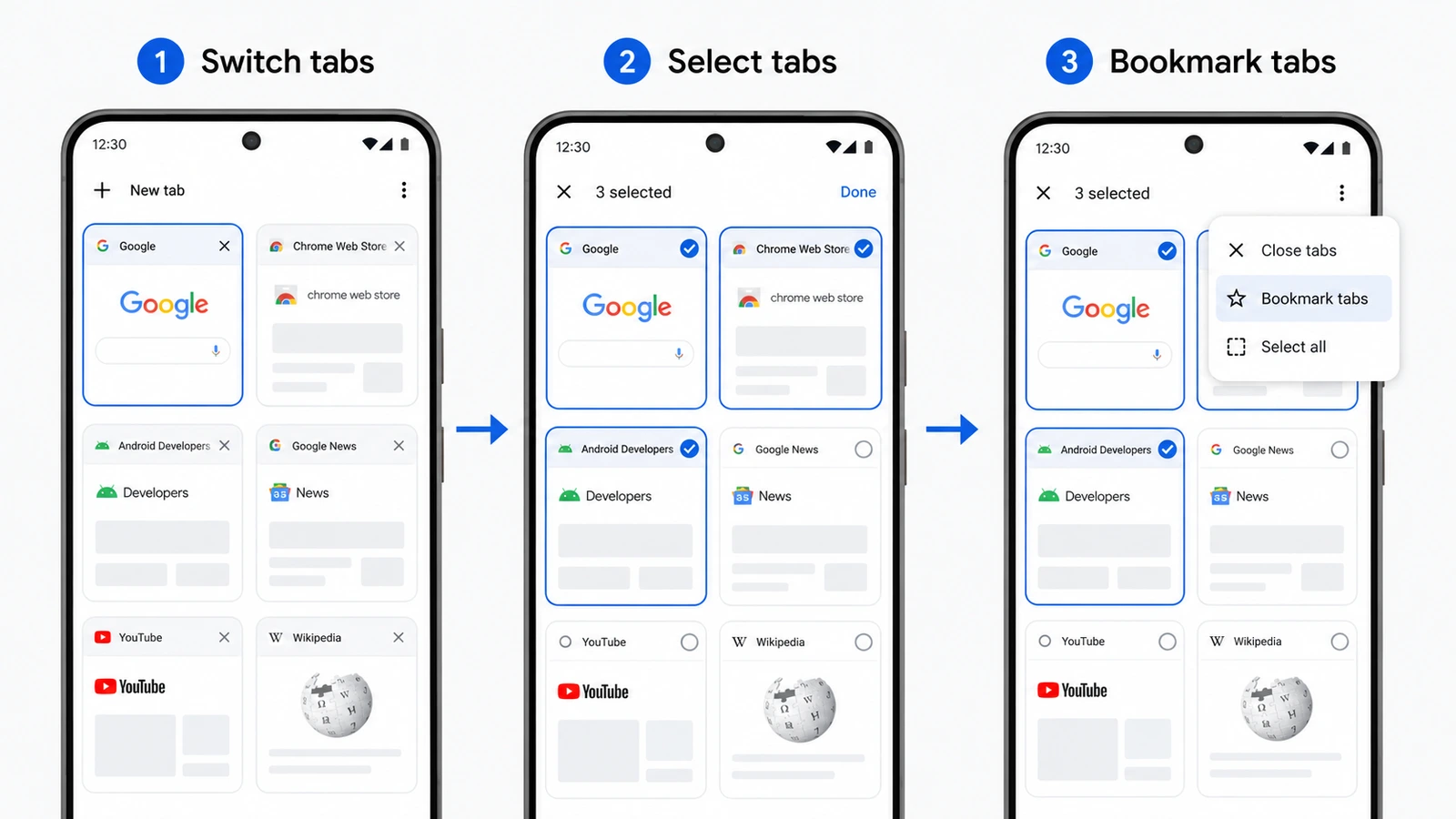
To bookmark all Tabs in Chrome, press Ctrl+Shift+D on Windows or Linux, or Cmd+Shift+D on Mac. Name the folder, pick where it should live, and Chrome saves the Tabs from that Window inside the new bookmark folder.
This bookmarks the current Chrome Window, not every separate Chrome Window you have open. If you want to save Tabs from another Window too, switch to that Window and run the same shortcut again.
Method 1: Keyboard shortcut
On Chrome desktop, the shortcut is the fastest path:
- Open the Chrome Window that contains the Tabs you want to save.
- Press Ctrl+Shift+D on Windows or Linux, or Cmd+Shift+D on Mac.
- Name the bookmark folder and choose its location.
- Click "Save."
Method 2: Right-click menu
- Right-click on any Tab in the Tab bar.
- Select "Bookmark all Tabs" from the context menu.
- Name the folder and choose where to save it.
- Click "Save."
Method 3: Chrome menu
- Click the three-dot menu in the top-right corner of Chrome.
- Hover over "Bookmarks and lists."
- Select "Bookmark all Tabs."
- Name the folder and save.
If the shortcut does nothing
Click inside Chrome and try again. If the bookmark dialog still does not open, use Bookmarks and lists > Bookmark all Tabs from the Chrome menu. Then check whether another app or extension is using the same shortcut.
How to Open All Tabs from a Chrome Bookmark Folder
Once the folder exists, you can reopen the whole set at once.
- Open the Bookmark Manager with Ctrl+Shift+O (Cmd+Shift+O on Mac), or click the three-dot menu and go to Bookmarks and lists > Bookmark Manager.
- Find the folder containing your saved Tabs.
- Right-click the folder and choose "Open all", "Open all in new Window," or "Open all in incognito Window."
This adds the bookmarked pages to your current Session. It does not replace or close Tabs you already have open. If the folder has a lot of bookmarks, Chrome may warn you before opening them all.
Alternative: "Continue where you left off"
If you do not need bookmarks and only want Chrome to reopen your last Session after restarting, go to Settings > On Startup and select "Continue where you left off." Bookmarking is still the better fit when you want a named folder of links you can keep, move, search, or sync with your Chrome bookmarks.
Organizing your bookmarked Tabs
After bookmarking all Tabs, take a minute to clean up the folder. Open the Bookmark Manager with Ctrl+Shift+O (Cmd+Shift+O on Mac) and create sub-folders for different projects or topics. Add dates to folder names, such as "Research - May 2026," so old Sessions are easier to recognize. Drag bookmarks between folders when a saved set starts to sprawl.
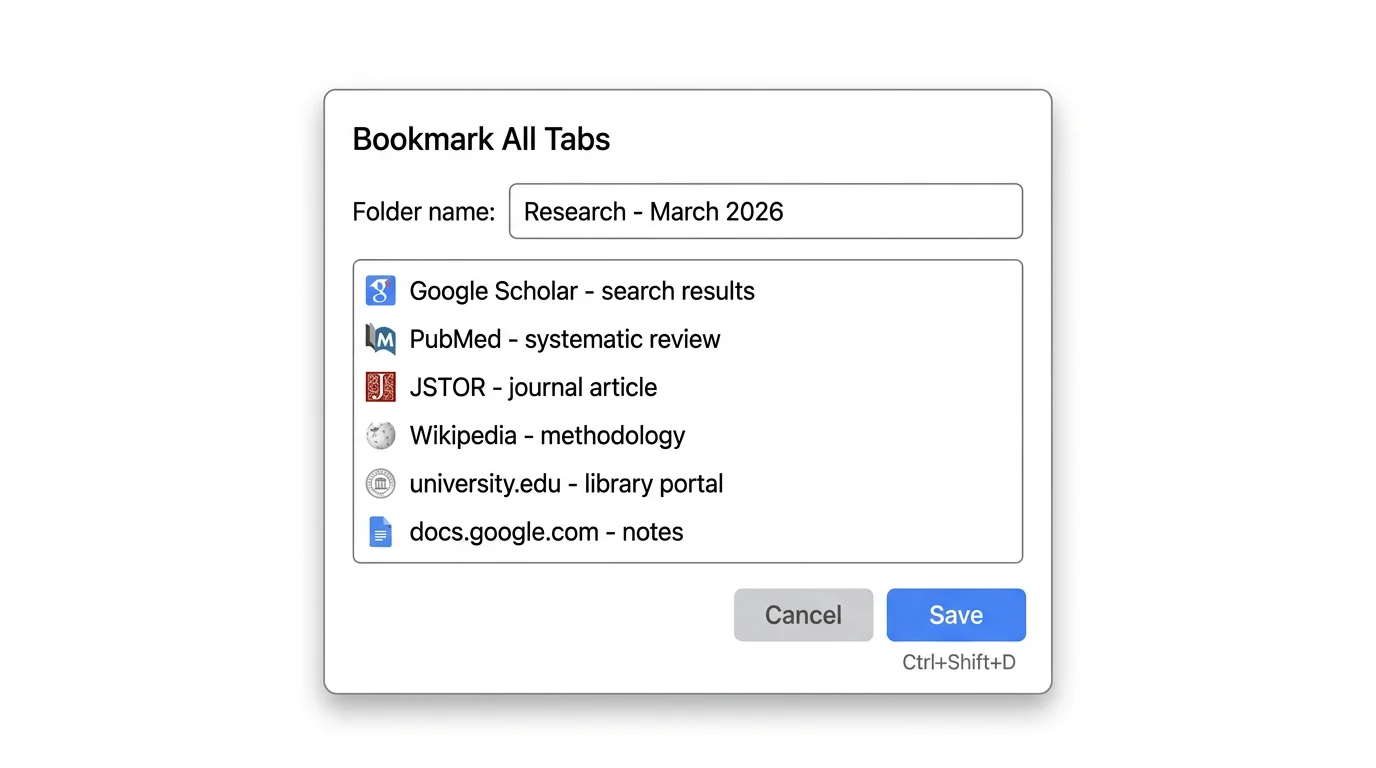
How to bookmark all Tabs in Chrome on Android
Chrome on Android does not have the same desktop keyboard shortcut, but you can select multiple Tabs and bookmark them together from the Tab switcher.
- Tap Switch Tabs.
- Touch and hold any Tab, or tap More.
- Tap "Select Tabs."
- Choose the Tabs you want to save.
- Tap More, then choose "Bookmark Tabs."
To organize the saved Tabs afterward, open Chrome's bookmarks and move them into the folders you want. When you are signed in to Chrome with a Google Account and bookmark sync is enabled, those bookmarks can appear on your other signed-in devices.
When bookmarking all Tabs works well
Bookmark-all-Tabs is useful when you want a reference folder, not a live workspace.
Archiving completed research
If you have finished a research project and want to save the pages without keeping them open, put them in a named bookmark folder. You probably will not reopen every page at once, and individual bookmarks are easy to find with Chrome's bookmark search.
Saving a simple set of pages
When you have a small number of Tabs that all relate to one thing, a bookmark folder works fine. For example, saving five recipe pages into a "Thanksgiving Dinner" folder. The structure is flat and simple enough that bookmarks handle it well.
Creating a permanent reference collection
Some page collections are meant to stick around: favorite news sites, development docs, tools you use daily. Bookmark folders fit that job because they stay in Chrome and can sync when you are signed in and bookmark sync is enabled.
Quick Tip
You can open all bookmarks in a folder at once by right-clicking the folder and selecting "Open all." It is handy for reopening a saved set, but it will not rebuild a Chrome Tab Group workspace.
Where bookmark folders fall short
Bookmark folders start to feel clumsy when you rely on Tab Groups or bounce between active projects.
Bookmark folders are not saved Tab Groups
Bookmark-all-Tabs creates a folder of links. It does not save Chrome Tab Group names, colors, or grouped workspace structure. If you have Groups named "Design Research," "Competitor Analysis," and "Budget," a bookmark folder gives you the pages, but not the Group setup.
Chrome also has saved Tab Groups for closing and reopening Groups when you are signed in and the relevant sync settings are enabled. Use native saved Tab Groups when you want Chrome's Group behavior. Use bookmarks when you want a portable folder of page links.
For more keyboard help around Groups, see our Chrome Tab Groups keyboard shortcuts guide. If you are trying to recover a lost Session instead of creating bookmarks, start with how to recover closed Tabs in Chrome.
No automatic saving
Bookmarking all Tabs is a manual action. If you need automatic recovery or saved Group structure, use Chrome's saved Tab Groups, Chrome's Session restore behavior, or a dedicated Tab manager. For cleanup advice when the Tab count itself is the problem, read what to do when you have 200 Tabs open or our guide to Tab hoarding.
Bookmark folder accumulation
If you bookmark all Tabs regularly, you can end up with a stack of nearly identical folders. Without a naming habit and the occasional cleanup, the bookmark bar starts to look like the Tab bar you were trying to escape.
No restore preview
Before restoring bookmarks, you usually need to open or expand the folder to inspect what is inside. With many folders, you may not remember which one contains the Tabs you need. Tab Group snapshots in tools like TabGroup Vault show you the Group names, colors, and Tab titles before you restore.
| Feature | Bookmark All Tabs | TabGroup Vault |
|---|---|---|
| Save all Tabs at once | Yes | Yes |
| Preserve Tab Groups | No | Yes (names, colors, order) |
| Preserve workspace structure | No | Exactly |
| Auto-save | No | Yes (Pro) |
| Restore preview | No | Yes |
| Reopen saved set | Yes, from folder | Yes |
| Cross-device sync | Yes, when signed in with bookmark sync | Via export |
| Price | Free (built-in) | Free / $39 Pro |
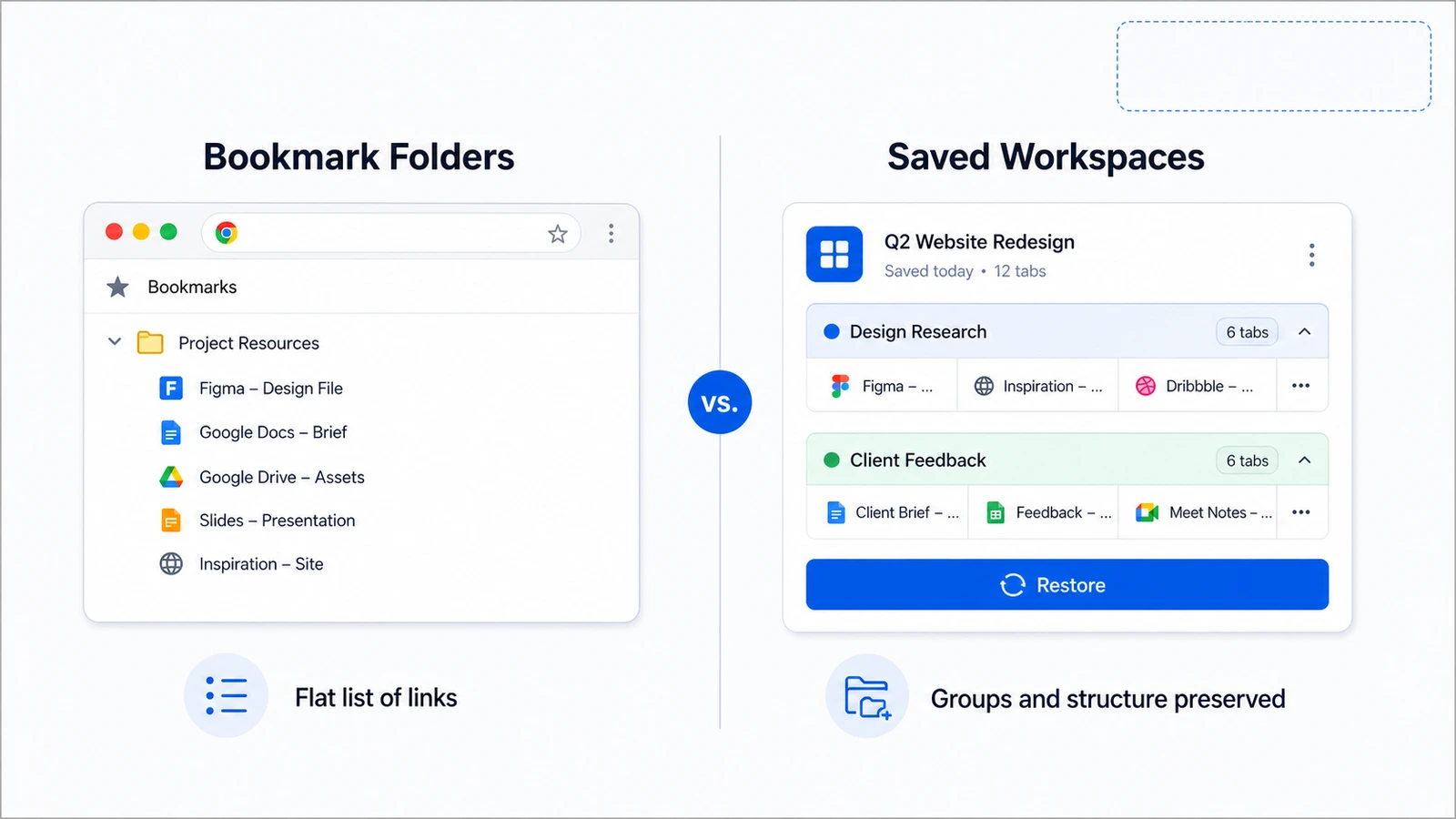
For active work, save the workspace
If you are bookmarking all Tabs because you want to come back to a grouped workspace later, use Chrome's saved Tab Groups or a snapshot tool such as TabGroup Vault instead of a flat bookmark folder.
The workflow
- Organize Tabs into Groups using Chrome's built-in Tab Group feature. Name each Group and assign a color.
- Save a snapshot with TabGroup Vault. This captures every Group with its name, color, Tab order, and URLs.
- Close the Groups you do not need right now. They are saved in the snapshot.
- Restore when needed. Click the snapshot in TabGroup Vault to bring back the exact Tab Group setup you had.
That keeps the structure bookmarks drop. Restoring a grouped workspace takes less sorting, and TabGroup Vault Pro can auto-save snapshots while you work.
TabGroup Vault
The bookmark alternative for Tab Groups: Save and restore Chrome Tab Groups with names, colors, order, and URLs intact. One click to save, one click to restore.
Free: 10 snapshots. Pro: $39 one-time for unlimited snapshots and auto-save.
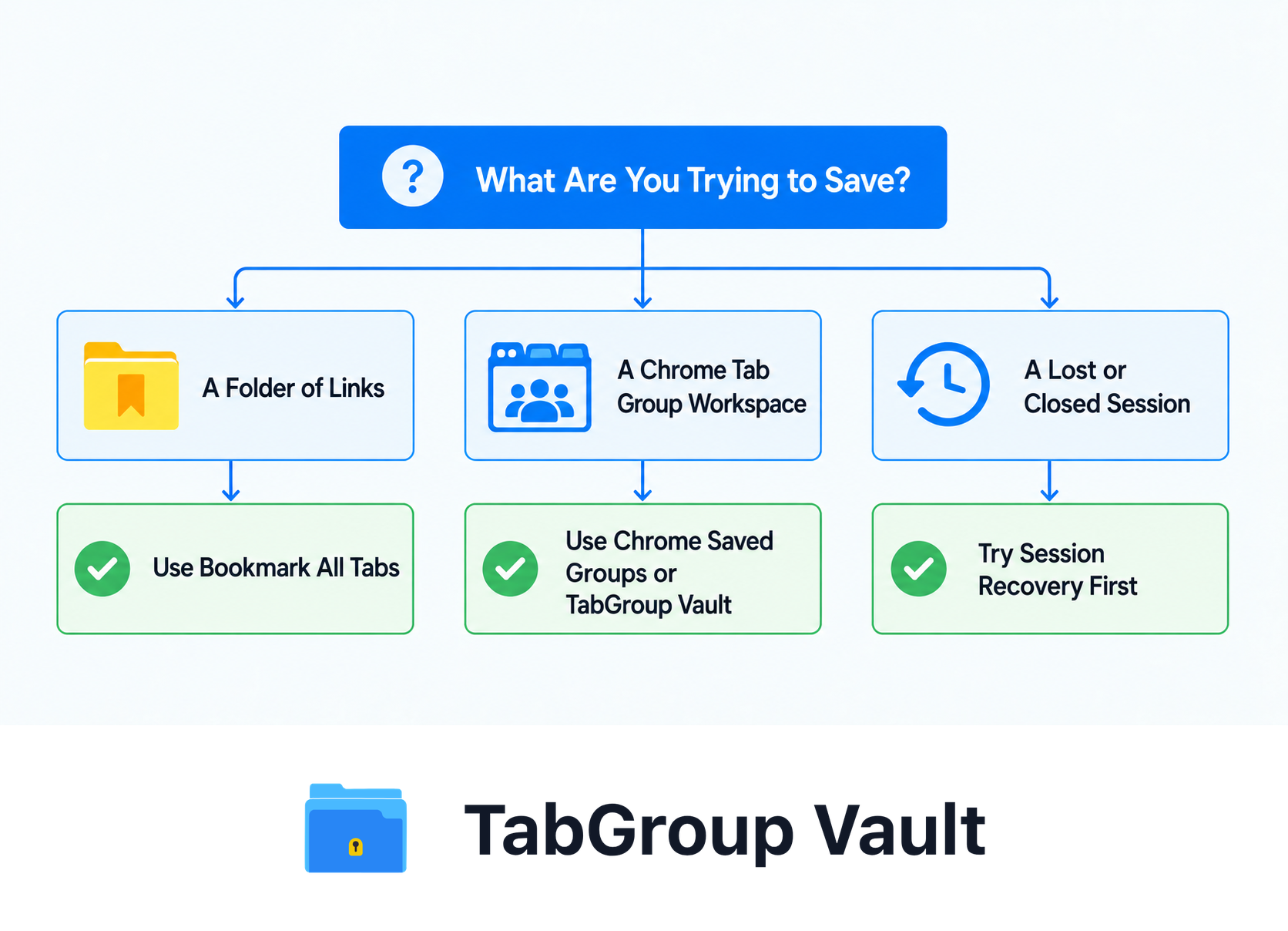
When to use each method
Pick the tool based on what you are trying to keep.
- Use "Bookmark All Tabs" when: You want to archive a set of pages permanently, you do not need Tab Group structure, or you want cross-device access through Chrome bookmark sync.
- Use Chrome saved Tab Groups when: You want Chrome's native Group closing and reopening behavior.
- Use TabGroup Vault when: You want snapshots with restore previews, extension-specific organization, or automatic saving.
- Use both when: Bookmark individual pages you want long-term, and use saved Groups or TabGroup Vault for active Tab Group workflows.
For more on organizing your Tabs with both native tools and extensions, see our guide to organizing Chrome Tabs. If you are trying to decide between Tab-saving tools, our review of 7 Chrome Tab managers compares the main options.
Illustrative example; layout and sample data are conceptual.