Tab Groups vs Bookmarks: The Short Answer
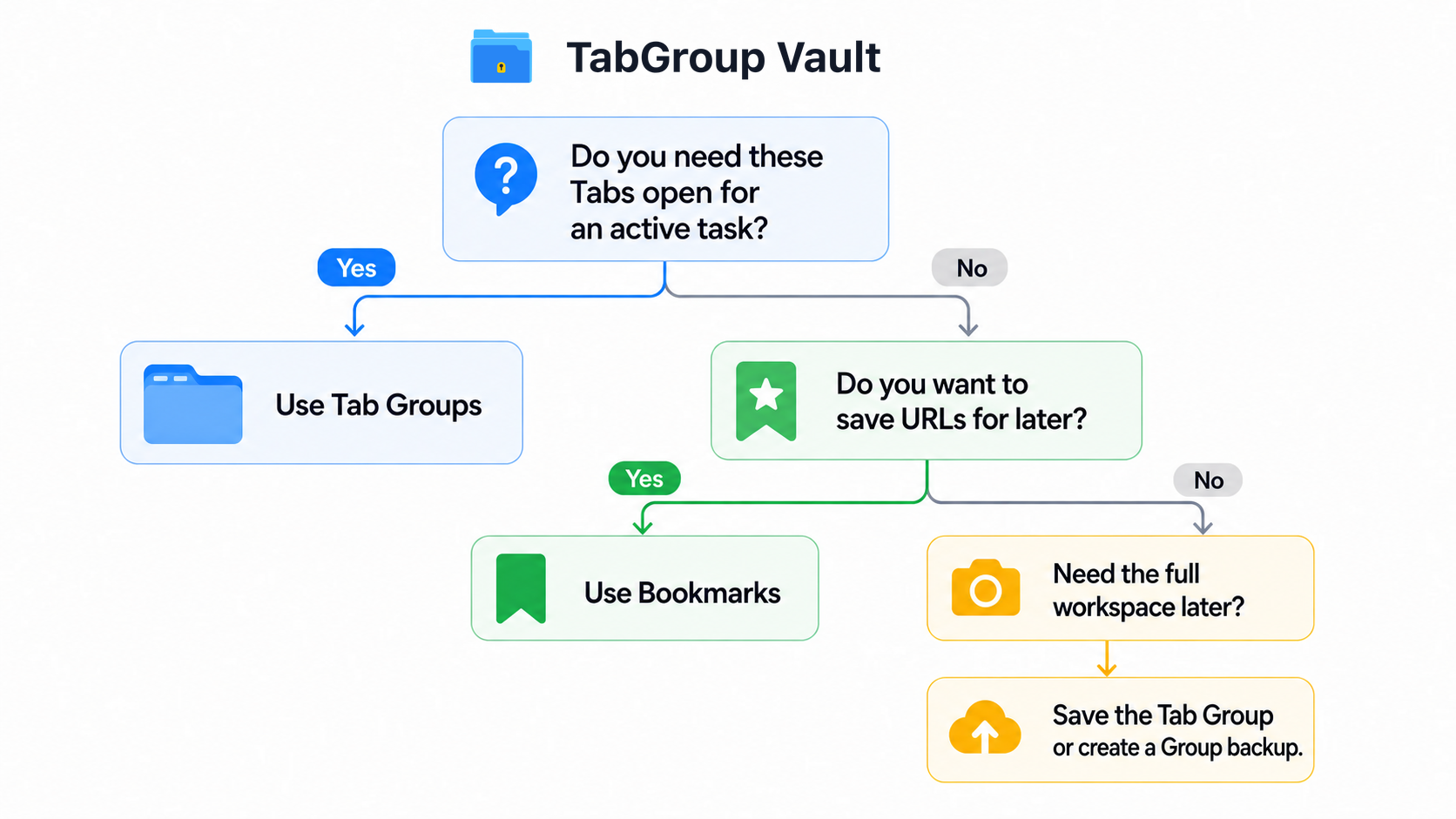
Use Chrome Tab Groups when several open Tabs belong to the same active task. Use bookmarks when you want Chrome to remember a page or site so you can find it later.
The split is workflow: active workspace versus saved link library. Chrome can automatically save and sync Tab Group changes across signed-in devices when History and Tabs are synced, and closed Groups can be reopened. Bookmarks are still the steadier tool for durable URL libraries because they are searchable, folder-based, exportable, and built for large collections.
What does bookmarking a Tab do? It saves that page's URL. It does not save the live Tab's scroll location, form state, Group color, Tab order, or full working context.
| Feature | What to Check |
|---|---|
| Close a Group | Closes its Tabs while retaining the saved Group for reopening. Availability and sync depend on account settings. |
| Delete a Group | Removes the saved Group and its Tabs. It is different from closing or ungrouping. |
| Ungroup | Keeps the Tabs open and removes their Group membership. |
| A Separate Copy | A backup can restore only data that was saved. Local extension data can be lost with Profile deletion or extension removal. Export and check a separate copy before destructive changes. |
Sources Checked October 1, 2026: Chrome Help · Chrome Extension Storage
What Bookmarking a Tab Does
Bookmarking a Tab tells Chrome to save the current page's URL. After that, you can find the saved page from the bookmarks bar, the address bar, the side panel, or Bookmark Manager.
Bookmarks can live in folders and subfolders, which makes them useful for reference libraries. When you are signed in to Chrome with a Google Account, bookmarks and other saved information can be used across devices. Chrome can also export bookmarks from Bookmark Manager as an HTML file and import bookmarks from an HTML file later.
That makes a bookmark different from a Tab Group. A bookmark saves a link. A Tab Group keeps related open Tabs together as a workspace.
Quick Decision Table
Use this split when a Tab feels useful but you are not sure where it belongs.
| Question | Tab Groups | Bookmarks |
|---|---|---|
| Best use | Active projects, research, and tasks with several open Tabs | Favorite or frequently visited sites you want Chrome to remember |
| What gets saved | A named, color-coded Group of open Tabs that Chrome can save and reopen | Page URLs stored in folders or the bookmarks bar |
| Organization style | Color-coded labels in the Tab strip | Folders and subfolders |
| Active workspace control | Yes, one-click collapse | No, bookmarks open pages when selected |
| Sync | Saved Group changes can sync when signed in with History and Tabs synced | Can sync through a Google Account when signed in |
| Live Tab state | Keeps Tabs open as part of the working set | Stores URLs, then opens pages again when clicked |
| Large collections | Limited by attention, memory, and Tab management | Better for libraries. Google says a Google Account can store up to 100,000 bookmarks |
| Finding one page | Ctrl+Shift+A Tab search | Bookmark manager search bar |
| Export and portability | Limited without another tool | HTML export and import built in through Bookmark Manager |
| Keyboard support | Chrome documents keyboard paths for Group menus, Tab changes, and expand/collapse after focus is on the Group header | Keyboard access through Chrome's bookmark menus and manager |
When Tab Groups Are Better
Tab Groups earn their keep when the pages are part of the same job and you still need them open.
Project-Based Work Sessions
When you are working on a project that involves five to fifteen open Tabs, such as a Google Doc, a reference article, a design tool, and a communication thread, a Tab Group keeps them bundled and accessible. You can collapse the Group when you need to focus on something else and expand it when you return.
Research in Progress
If you are comparing products, reading several articles on a topic, or gathering details from a few places, Tab Groups keep the whole set open and organized. Bookmarking each page one by one is slower and strips away the working context.
Daily Workflow Management
A useful daily setup might include one Group for email and messages, one for the current project, and one for reference material. Those Groups change often. Tab Groups handle that churn better than bookmark folders.
Visual, Keyboard-Friendly Workspaces
Tab Groups are useful when the Group itself is part of how you work. Chrome documents keyboard paths for Tab Group menus, adding or removing Tabs, and expanding or collapsing a Group after focus is on the Group header. For the basics, use the Chrome Tab Groups guide.
When Bookmarks Are Better
Bookmarks are for pages you want to keep without leaving them open.
Reference Material You Return to Frequently
Documentation sites, style guides, internal tools, and commonly used web apps belong in bookmarks. You visit them regularly, and you want Chrome to remember the URLs without keeping every page open.
Collections You Build Over Time
A library of recipes, travel ideas, or professional resources belongs in bookmarks. These collections grow slowly over weeks and months, and you do not need all of them open at once. Chrome's Google Account limit is high enough for serious libraries, up to 100,000 bookmarks.
Cross-Device Access
If you need the same reference links on your work computer, home laptop, and phone, bookmarks are still the simplest choice. Chrome can use bookmarks across devices through your Google Account when you are signed in. Saved Tab Groups can also sync when History and Tabs are synced, but bookmarks are better for a durable library of individual URLs.
Are Saved Tab Groups the Same as Bookmark Folders?
No. Saved or closed Chrome Tab Groups may appear from the bookmarks bar or Chrome menu, but they are not the same thing as bookmark folders.
A bookmark folder is a collection of saved URLs. A saved Tab Group is a Chrome Tab-Group object with a Group name, color, and Tabs that can be reopened as a Group. That distinction matters when you are trying to preserve an active workspace instead of building a long-term URL library.
Close vs Delete vs Ungroup in Chrome
Chrome gives Tab Groups several similar-looking actions with different results:
- Close Group: closes the Group without deleting it, so it can be reopened later.
- Delete Group: removes it on the current device and other devices using the same Google Account.
- Ungroup: keeps the Tabs open locally but deletes the Group across those devices.
Use close when you want the Group back later. Use delete only when you are done with the Group everywhere.
Can You Convert Between Tab Groups and Bookmarks?
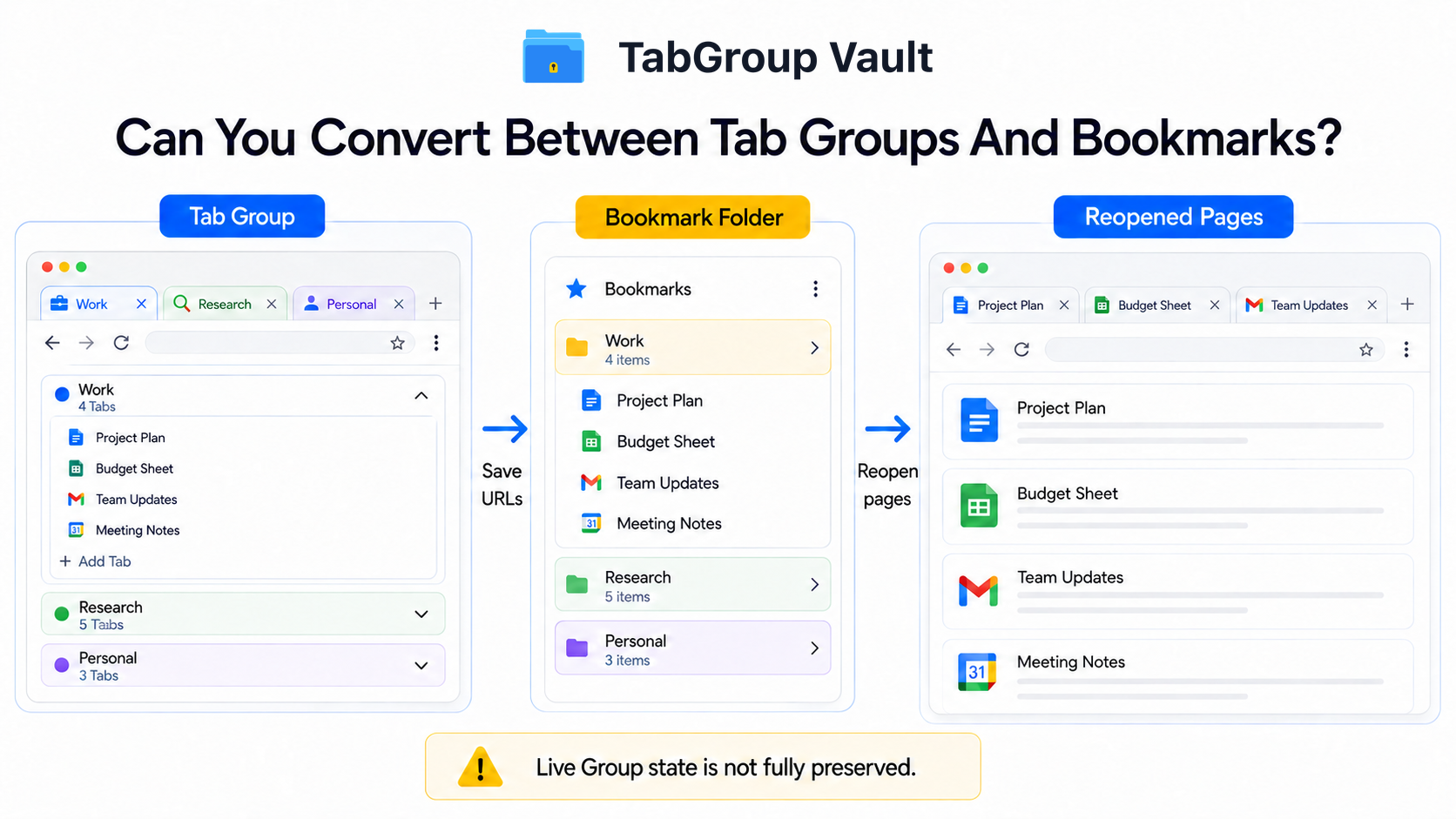
You can move between the two, but conversion does not preserve a live saved Tab Group.
Chrome can save open Tabs as a bookmark folder, which stores the URLs in that folder. Reopening those bookmarks recreates pages from saved links, not the original live Tab Group state.
Some Chrome installations expose ways to open a bookmark folder as a new Tab Group. Treat that as a UI-dependent convenience for reopening URLs, not as a guarantee that Chrome has restored the original saved Group.
For permanent Tab saving, the Chrome Tab-saving methods guide compares the options. For closing behavior, read do Tab Groups save when you close Chrome?.
The Best Approach: Use Both Together
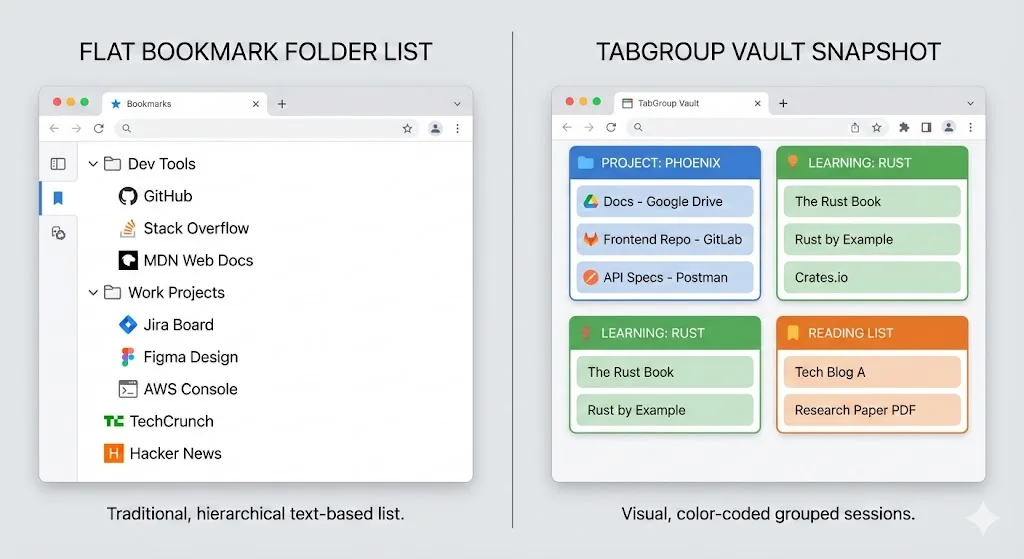
The cleanest browser setup uses Tab Groups and bookmarks together.
Step 1: Tab Groups for Active Work
During your work day, keep active projects, current research, and in-progress tasks as live Tab Groups. Collapse the ones you are not focused on right now.
Step 2: Bookmark Important Pages Before Closing
At the end of a project or work Session, bookmark pages that are useful as standalone references. Use a bookmark folder with the same name as the project if you want those URLs available later without reopening the whole working set.
Step 3: Use Snapshots as the Bridge
For Tab Groups you want to keep but may not need for weeks, take a snapshot with a tool like TabGroup Vault. You can archive the working set and restore the same Tabs later without manually bookmarking each one.
TabGroup Vault: Save the Workspace
TabGroup Vault saves snapshots of your Tab Groups, including names, colors, and Tab order. Archive active work without flattening it into a bookmark folder. The free tier includes 10 snapshots; Pro is a $39 one-time upgrade.
Common Mistakes to Avoid
These habits are small, but they make Chrome feel messier every week.
Mistake: Using Bookmarks as Active Tabs
Bookmarking everything and reopening 30 links each morning defeats the purpose of bookmarks as a library. If you need the same Tabs open every day, a saved Tab Group or snapshot is usually cleaner.
Mistake: Keeping Tabs Open "Just in Case"
If Tabs have been open for weeks and you have not looked at them, they belong in bookmarks or a saved snapshot, not in your active Tab bar. Closing them reduces memory usage and visual clutter.
Mistake: Organizing Bookmarks Like Tab Groups
Creating elaborate, frequently changed bookmark folders to mimic Tab Groups wastes time. Tab Groups are built for fluid reorganization. Use them for that job.
Mistake: Never Bookmarking Anything
Relying entirely on Tab Groups and browser history makes important pages harder to manage. Reference URLs deserve bookmarks. There are also user reports of confusion around saved Tab Group visibility, local files, PDFs, and managing many saved Groups, so keep bookmarks or exported bookmark files for links you cannot afford to lose.
What About Firefox and Edge?
This comparison is mainly about Chrome, but two cross-browser caveats are worth keeping straight. Firefox now has native desktop Tab Groups, but Mozilla says they are local only and do not sync with Firefox Sync. Microsoft is retiring Edge Collections beginning with Edge 145, so Collections are not a stable long-term substitute for Chrome Tab Groups or bookmark folders.
The Verdict
Tab Groups and bookmarks work best as a pair. Tab Groups handle active work: related Tabs stay visible, collapsible, and easy to reopen as a workspace. Bookmarks handle long-term reference, so you can find one page later without reopening an entire Group.
For research-heavy workflows, read how to use Chrome Tab Groups for research. For broader extension comparisons, see the best Chrome Tab manager guide. For keyboard workflows, use the Chrome Tab Groups keyboard shortcuts guide.
Quick Rule of Thumb
If the pages belong together for work in progress, use a Tab Group. If the page is useful on its own next week or next month, bookmark it. If you want to archive a working set, use a saved Group or snapshot.