Why You Need to Save Your Chrome Tabs
If you need to save Tabs in Chrome before you close the Window, use Ctrl+Shift+D on Windows or Command+Shift+D on Mac. Chrome creates a bookmark folder with the Tabs in the current Window. It is fast, free, and reliable, but it saves URLs rather than your full working state.
That difference matters. Bookmark folders do not preserve Tab Group colors, collapsed state, scroll position, form text, or which Tabs belonged together. Chrome's startup restore can reopen pages when you quit normally, but it should not be your only backup for important work.
This guide ranks the practical ways to save Chrome Tabs by what they preserve, how quickly you can restore them, and where each method breaks down.
Overall Ranking
| Feature | What to Check |
|---|---|
| Bookmarks | Keep URLs and bookmark-folder order; do not record the full Chrome Group structure or browser Session. |
| Saved Chrome Groups | Built-in saving and reopening, with sync controlled by account settings. |
| TabGroup Vault | Save Group backups and whole Sessions. Local data; optional Pro Drive backup and Window-close auto-save. Keep an export outside the Profile. |
| Session Buddy | Session and Window organization with automatic local backups. Native Chrome Group support remains on its roadmap. Cloud collections have a separate rollout and plan. |
| A Separate Copy | A backup can restore only data that was saved. Local extension data can be lost with Profile deletion or extension removal. Export and check a separate copy before destructive changes. |
Sources Checked October 1, 2026: Chrome Help · TabGroup Vault Features · Session Buddy Roadmap · Session Buddy Backups · Chrome Extension Storage
#1: TabGroup Vault (Best Overall)
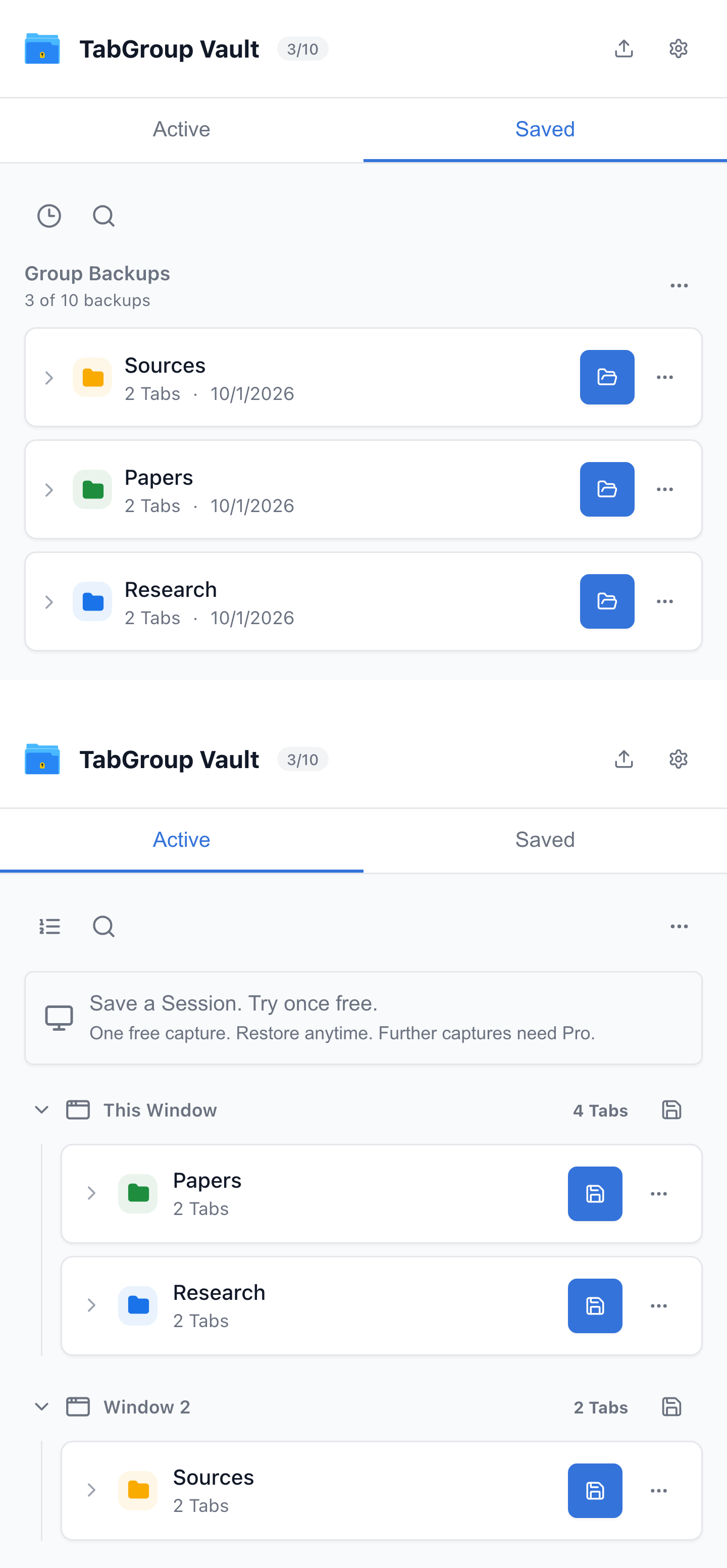
TabGroup Vault is a Chrome extension designed specifically for saving and restoring Tab Groups. Unlike Session managers that save flat lists of URLs, TabGroup Vault captures the complete structure of your Tab Groups: names, colors, Tab order, and which Tabs belong to which Group.
How It Works
- Click the TabGroup Vault icon in your Chrome toolbar.
- Click "Save Snapshot" to capture all current Tab Groups.
- Your snapshot is stored outside Chrome's Session data.
- To restore, open the extension and click "Restore" on any saved snapshot.
Pros
- Preserves full Tab Group context: names, colors, and Tab order.
- Snapshots survive Chrome crashes, updates, and profile resets.
- Supports multiple snapshots for version history.
- Export and import snapshots as JSON files.
- One-click save and restore.
Cons
- Requires installing a Chrome extension.
- Free tier is limited to 10 snapshots (Pro is $39 one-time for unlimited).
TabGroup Vault
The only Tab-saving method on this list that preserves complete Tab Group structure. Free to try with 10 snapshots. Pro upgrade for $39 lifetime gives unlimited snapshots, export/import, and priority support.
Save the workspace before Chrome forgets it
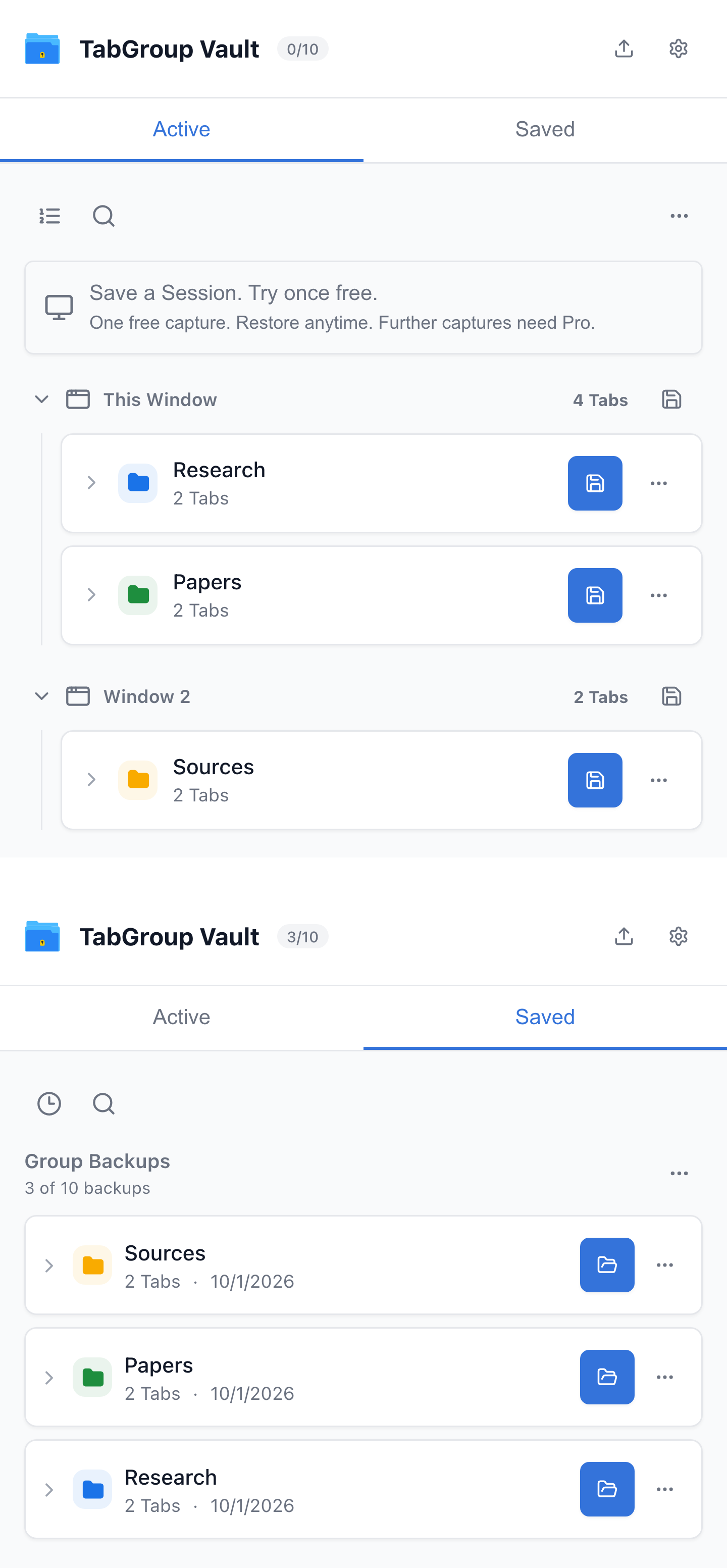
If a Window or Group matters, save a snapshot before you close it. The demo shows how TabGroup Vault captures the grouped workspace and restores it later without rebuilding every Tab by hand.
#2: Chrome's Built-In Saved Tab Groups
Chrome's built-in Tab Groups now support saved Groups. Google says a closed Group is not deleted; it can be reopened from the bookmarks bar or from Chrome's Tab Groups menu. With Chrome sync on, changes to Tab Groups can also sync through your Google Account.
How It Works
- Create or open a Tab Group.
- Name the Group so it is easy to recognize later.
- Close the Group from the Tab strip when you are done with it.
- Reopen it from the bookmarks bar or the Tab Groups menu.
Pros
- No extension needed; built into Chrome.
- Quick and easy to use.
- Groups can appear on the bookmarks bar for easy access.
- Works well for a small number of named Groups.
Cons
- No version history. Modifications can become the new saved state.
- Cannot export saved Groups directly to a backup file.
- Depends on Chrome profile and sync state for cross-device convenience.
- Must save each Group individually (no "save all" option).
For a deeper dive into this feature's limitations, see our article on how to save Tab Groups in Chrome.
#3: Bookmark All Tabs
Chrome's "Bookmark all Tabs" feature saves every open Tab in the current Window to a bookmark folder. It is a blunt instrument but extremely reliable.
How It Works
- Press Ctrl+Shift+D (or Cmd+Shift+D on Mac).
- Chrome prompts you to create a new bookmark folder.
- Name the folder and click Save.
- All Tabs in that Window are bookmarked in that folder.
- To restore, right-click the folder in the bookmarks bar and select "Open all."
Pros
- Extremely reliable. Bookmarks almost never disappear.
- Syncs across devices with Chrome Sync.
- Can be exported as an HTML file for backup.
- No extension needed.
Cons
- Does not preserve Tab Groups. You get a flat list of URLs.
- No Group names, colors, or organization.
- Does not preserve scroll position, form text, logged-in state, or pinned-Tab state.
- Reopening bookmarks does not recreate Groups; Tabs open individually.
- Creates clutter in your bookmarks over time.
#4: Session Buddy
Session Buddy is a well-known Chrome extension that saves and restores browser Sessions. It captures all open Windows and Tabs as a Session that you can name and restore later.
How It Works
- Install Session Buddy from the Chrome Web Store.
- Click the extension icon to open the Session Buddy interface.
- Click "Save" to capture the current Session.
- To restore, select a saved Session and click "Open."
Pros
- Saves all open Windows and Tabs at once.
- Can auto-save Sessions at regular intervals.
- Free to use with optional donation.
- Established extension with a large user base.
Cons
- Does not preserve Tab Group structure. Sessions restore as ungrouped Tabs.
- Interface feels dated compared to modern alternatives.
- No export to standard formats for sharing with others.
#5: Manual Bookmarking
The most basic method: bookmark individual Tabs one at a time using Ctrl+D (or Cmd+D on Mac).
How It Works
- Navigate to the Tab you want to save.
- Press Ctrl+D (or Cmd+D on Mac).
- Choose or create a folder and save the bookmark.
- Repeat for each Tab you want to save.
Pros
- Maximum control over what you save and where.
- Bookmarks are permanent and sync across devices.
- No extensions or special features needed.
Cons
- Extremely slow for multiple Tabs.
- No Tab Group structure preserved.
- Easy to forget to bookmark important Tabs.
- Creates bookmark clutter over time.
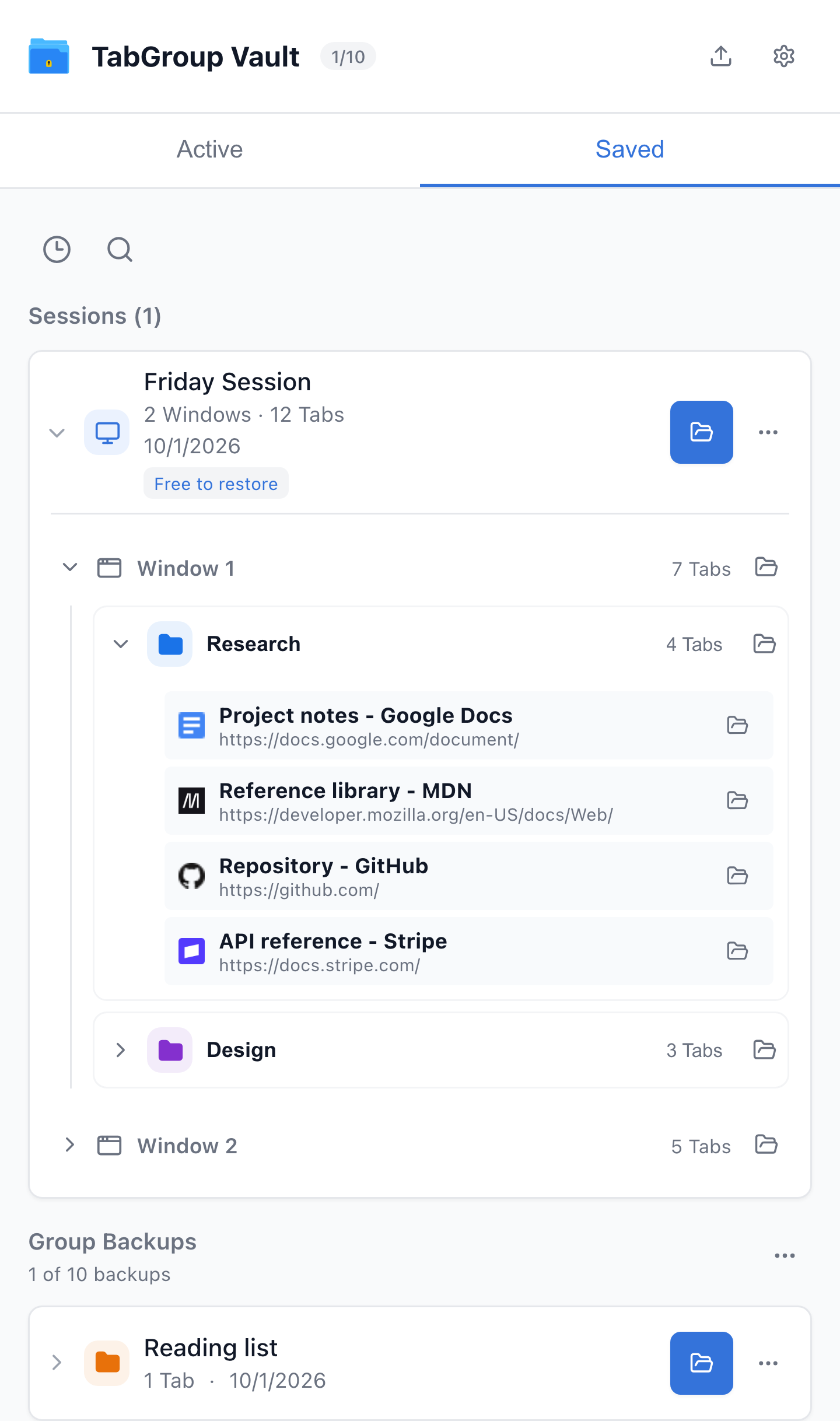
Current TabGroup Vault Saved Session view with deterministic sample data. This capture demonstrates the interface, not a live cloud or crash-recovery test.
Which Method Should You Choose?
The right method depends on how you use Tabs and what you need to preserve.
If You Use Tab Groups Heavily
Choose TabGroup Vault. It is the only method that preserves the full Tab Group experience, including names, colors, and structure. Chrome's built-in save is a reasonable alternative if you only have one or two Groups and do not mind re-saving after updates.
If You Just Want Tabs Saved Without Groups
Choose Session Buddy or Bookmark All Tabs. Both save URLs effectively. Session Buddy is more convenient for frequent saves; Bookmark All Tabs is more reliable for long-term storage.
If You Want Maximum Reliability
Combine multiple methods. Use TabGroup Vault for daily snapshots, Chrome's Save Group as a secondary backup, and Bookmark All Tabs for a final safety net on critical projects. This layered approach ensures you have at least one working backup no matter what happens.
Our Recommendation
For most Chrome users, we recommend TabGroup Vault as your primary saving tool with Chrome's "Continue where you left off" setting enabled as a baseline. Google describes that startup setting as a way to reopen the same pages you were looking at when you quit Chrome. Treat it as convenience, then use snapshots or bookmarks for anything you cannot afford to lose.
If you are not ready to install an extension, start with Chrome's saved Tab Groups and the Bookmark All Tabs shortcut. These built-in tools cover most casual scenarios, and you can add a dedicated snapshot tool when you need restore points, exports, or cleaner long-term organization.
Quick Start Suggestion
Enable "Continue where you left off" in Chrome settings right now, then make a bookmark folder or TabGroup Vault snapshot for the Window you actually need to keep. Startup restore is helpful, but a deliberate save is easier to trust.
For more details on Tab Group-specific saving, read our guide on how to save Tab Groups in Chrome. If you are trying to recover Tabs you have already lost, our article on why Chrome Tab Groups disappear covers every recovery option.