New to Tab Groups?
To create a Tab Group, right-click any Tab and select "Add to new Group," then give it a name and color. For the full setup flow, see our Chrome Tab Groups guide.
Save versus export in Chrome
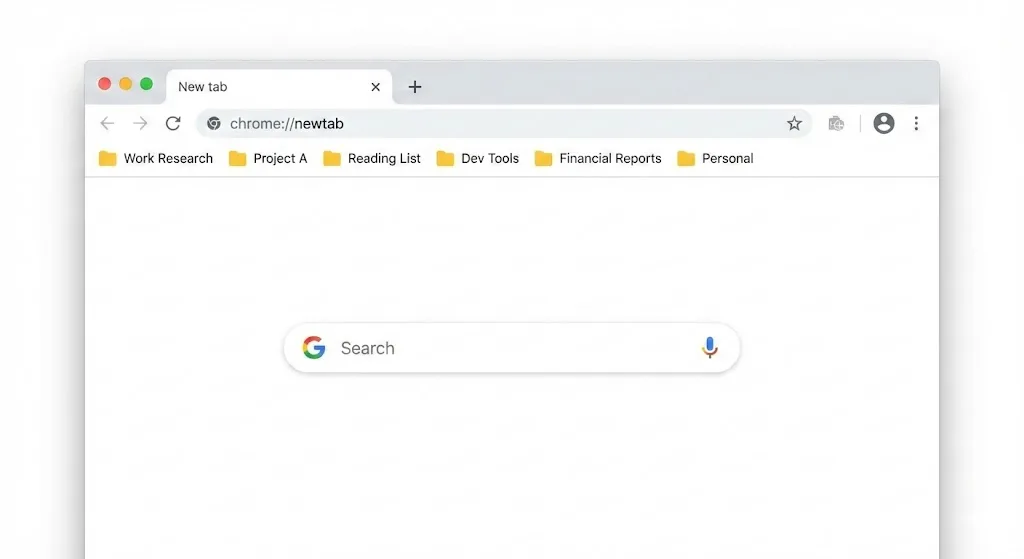
Yes, Chrome can save Tab Groups. It saves them inside Chrome and can sync changes across signed-in devices. What Chrome does not give you is a documented export file for saved Tab Groups.
To save a Tab Group in Chrome, create the Group, name it, then use "Close Group" when you want it off the Tab strip. Chrome hides the Group without deleting it, and you can reopen it from the bookmarks bar, if Tab Groups are shown there, or from More > Tab Groups.
For a basic file backup, Chrome can export bookmarks as HTML. For Group names, colors, Tab order, and reusable snapshots, use an extension that exports Tab Group data.
| Method | Best for | What it saves | Export file |
|---|---|---|---|
| Chrome saved Groups | Reopening Groups inside Chrome across signed-in devices | Saved Group state inside Chrome | No documented native saved-Group export |
| Bookmark export | URL-only backup | Bookmarks in an HTML file | Yes, HTML |
| Extension snapshot or export | Backups that keep Group details outside Chrome's saved Group list | Group names, colors, Tab order, URLs, and snapshots | Yes, for extensions that support export |
Need a separate backup? Chrome's saved Groups live inside Chrome. TabGroup Vault creates snapshots you can restore or export as JSON, Markdown, or CSV. The Chrome Web Store lists 1,000 users and a 4.6 rating from 9 ratings.
Install free for 10 snapshots. If you need unlimited snapshots, the 7-day Pro trial comes before $39 lifetime Pro.
| Feature | What to Check |
|---|---|
| Close a Group | Closes its Tabs while retaining the saved Group for reopening. Availability and sync depend on account settings. |
| Delete a Group | Removes the saved Group and its Tabs. It is different from closing or ungrouping. |
| Ungroup | Keeps the Tabs open and removes their Group membership. |
| A Separate Copy | A backup can restore only data that was saved. Local extension data can be lost with Profile deletion or extension removal. Export and check a separate copy before destructive changes. |
Sources Checked October 1, 2026: Chrome Help · Chrome Extension Storage
How to save and reopen Chrome Tab Groups
The Chrome flow is short:
- Create a Tab Group by right-clicking a Tab and choosing "Add Tab to new Group."
- Name the Group, choose a color, and add the Tabs you want to keep together.
- Right-click the Group label and choose "Close Group" when you want it off the Tab strip.
- Reopen the Group from the bookmarks bar grid item, or open More > Tab Groups and choose the Group.
For Chrome's grouping basics, use our Chrome Tab Groups guide. If the real question is what happens after you quit Chrome, read the closer look at whether Tab Groups save when you close Chrome.
Settings that make saved Groups easier to find
Chrome's Appearance settings include two Tab Group controls that reduce hunting later:
- Show Tab Groups in bookmarks bar: displays saved Groups where they are easier to reopen.
- Automatically pin new Tab Groups to the bookmarks bar: makes new Groups appear there without an extra step.
Close vs delete vs ungroup
| Action | What happens | Use it when |
|---|---|---|
| Close Group | Hides the Group from the Tab strip without deleting it. You can reopen it from Chrome's saved Tab Group surfaces. | You want the Group out of sight but still saved for later. |
| Delete Group | Removes the saved Group across devices using the same Google Account. | You are done with the Group and do not need it again. |
| Ungroup | Keeps the Tabs open, but removes the Group structure across devices using the same Google Account. | You want the Tabs, but no longer want them grouped. |
See one-click Tab Group save and restore
TabGroup Vault snapshots the Group you already made in Chrome, then restores the same name, color, Tab order, and URLs when you need them back.

Exportable backup
TabGroup Vault stores snapshots outside Chrome's saved Group list and exports them as JSON, Markdown, or CSV. Start free with 10 snapshots.
4.6 on the Chrome Web Store · Used by over 1,000 weekly active Chrome users
Chrome export options
Chrome can export bookmarks as an HTML file. It does not document a native export feature for saved Tab Groups as reusable Tab-Group files.
The built-in workaround is to bookmark the Tabs you care about, then export your bookmarks:
- Bookmark the Tabs or Group URLs you want to preserve.
- Open Chrome's Bookmark Manager.
- Use the bookmark export option to save an HTML file.
That protects URLs only. The Group name, color, collapsed state, snapshot history, and reusable workspace are left behind. For JSON, Markdown, or CSV, use a Tab Group extension that supports export.
Use bookmarks as a URL-only backup
Bookmarks are still worth using for research or project links you cannot lose:
- Right-click any Tab within the Group.
- Select "Bookmark all Tabs" (or press Ctrl+Shift+D / Cmd+Shift+D).
- Create a new folder with the same name as your Tab Group.
- Save the bookmarks.
This preserves the URLs, but you lose the Tab Group structure, color, name, collapsed state, and snapshot history. When you reopen the bookmarks, they open as individual Tabs. Then you rebuild the Group by hand. Fine as a last resort. Annoying for daily use.
Use a Tab Group extension for snapshot backups
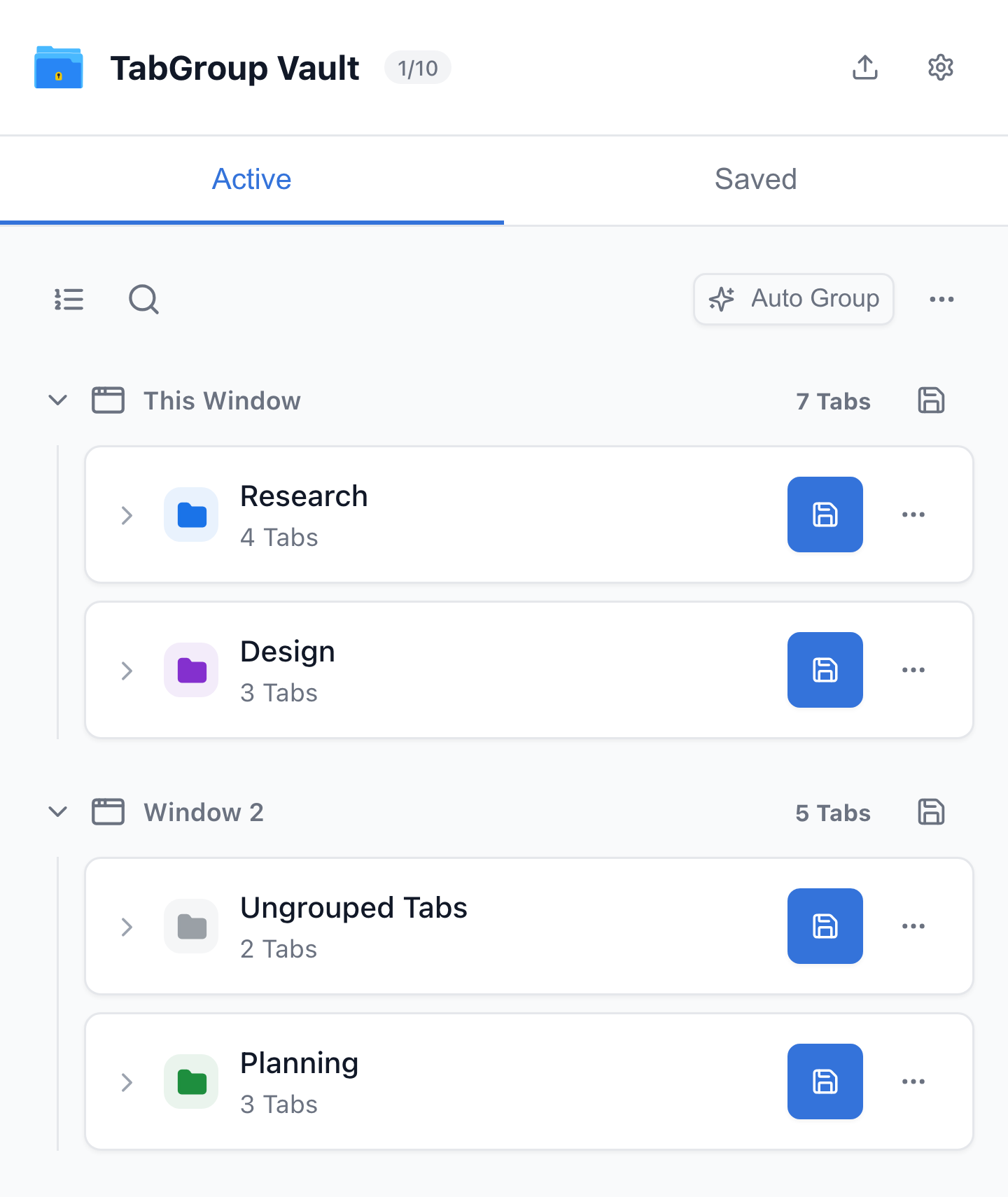
If Chrome's saved Group list is not enough, use an extension that captures your Group data as snapshots outside Chrome. Chrome extension APIs expose Tab Group title, color, collapsed state, Window ID, and Group IDs on Tabs. That gives an extension more to work with than a bookmark export.
TabGroup Vault: one-click Tab Group saving
TabGroup Vault snapshots Tab Group names, colors, Tab order, and URLs. One-Group restore and export to JSON, Markdown, or CSV are free. Free is 10 snapshots (imports count). Pro is $39 lifetime for unlimited snapshots, Google Drive backup, auto-save on close, and restore-all in the current Window, with a 7-day card trial. Chrome Web Store shows about 1,000 users and a 4.6 rating from 9 ratings.
With TabGroup Vault:
- Click the extension icon in your toolbar.
- Click "Save Snapshot" to capture all open Tab Groups.
- Your Groups are stored outside Chrome's Session data.
- To restore, open the extension, find your snapshot, and click "Restore."
The point is control. Chrome's saved Groups are convenient, but they are still tied to Chrome, sync, and the current browser profile. If a Group is deleted by mistake, or you need a file outside Chrome, snapshots give you another recovery path. Keeping a few snapshots also gives you a simple version history.
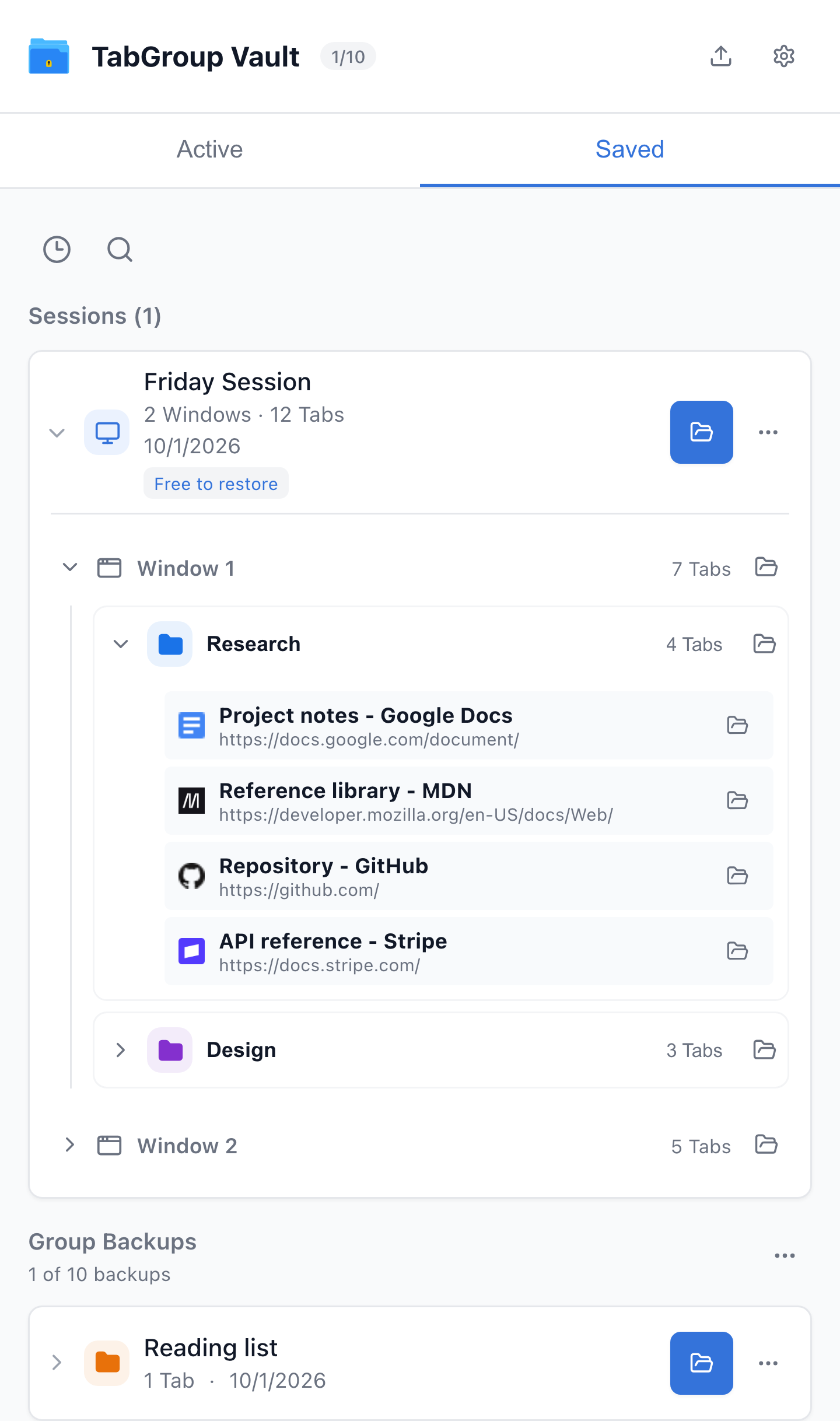
Current TabGroup Vault Saved Session view with deterministic sample data. This capture demonstrates the interface, not a live cloud or crash-recovery test.
Tab Group sync across devices
Chrome syncs Tab Group changes across devices when browsing history and Tabs are synced with the same Google Account. To check this, go to Settings > You and Google > Sync and confirm that Tabs and browsing history are included.
Before you rely on another device, open it and confirm the Group appears there. For work you cannot afford to rebuild, keep a separate backup because Chrome saved Groups are tied to Chrome and your Google Account state.
Saving Tab Groups on mobile
Chrome saves and syncs Tab Group changes across devices signed into the same Google Account. Desktop Chrome still gives you the clearest controls for naming Groups, changing colors, reopening saved Groups, and making backups.
Chrome's AI Tab Organizer
Chrome's AI Tab Organizer helps create suggested Groups from open Tabs, but it is not a save, export, or backup workflow.
Habits that protect your Tab Groups
Use "Close Group" instead of delete when you want a Group out of the Tab strip. Save a bookmark export or extension snapshot when a Group holds research, project links, or a workspace you reuse. Before relying on sync alone, confirm the Group appears on another signed-in device.
Tip
For important Groups, keep a backup outside Chrome. Bookmark export preserves URLs. A snapshot extension preserves more of the Group structure.
When a saved Group is missing
If a saved Group does not appear where expected, start where Chrome and extensions are most likely to keep recent Tabs:
- Check the bookmarks bar: Saved Groups may still appear there even if they are no longer open.
- Open More > Tab Groups: Chrome lists saved Groups there when they are available.
- Check Chrome History: Press Ctrl+H to open your browsing history. Your recently visited URLs may still be there even if you need to rebuild the Group manually.
- Look for extension backups: If you had a Tab manager extension installed, check whether it saved a recent Session.
For step-by-step recovery, read our guide on why Chrome Tab Groups disappear and how to fix it.
Recommended setup
Chrome can save Tab Groups, close them without deleting them, and sync them when Tab and history sync are enabled. For everyday browsing, that is probably enough.
If your Groups are workspaces, research folders, or reusable project context, saved Groups are not the same as an exportable backup. Use Chrome's saved Groups for convenience. Add bookmarks or TabGroup Vault snapshots when you need a file you control.