How to restore Tab Groups in Chrome
| Feature | What to Check |
|---|---|
| Close a Group | Closes its Tabs while retaining the saved Group for reopening. Availability and sync depend on account settings. |
| Delete a Group | Removes the saved Group and its Tabs. It is different from closing or ungrouping. |
| Ungroup | Keeps the Tabs open and removes their Group membership. |
| A Separate Copy | A backup can restore only data that was saved. Local extension data can be lost with Profile deletion or extension removal. Export and check a separate copy before destructive changes. |
Sources Checked October 1, 2026: Chrome Help · Chrome Extension Storage
If your Chrome Tab Groups disappeared, do not rebuild them yet. Start with Chrome menu > Tab Groups, then check the bookmarks bar. When browsing history and Tabs are synced with your Google Account, Chrome can automatically save and sync Tab Group changes. The Group may be closed, hidden, attached to another Chrome profile, or sitting in Recently Closed.
Work through the recovery path in this order:
- Open Chrome menu > Tab Groups. Closed saved Groups can show up there even when the Tab strip looks empty.
- Check the bookmarks bar Tab Groups control. Saved Groups may live there instead of in the active Window. Open the control, then select the Group name.
- Turn on the bookmarks bar controls. Go to Settings > Appearance and enable Show Tab Groups in bookmarks bar. Also enable Automatically pin new Tab Groups to the bookmarks bar so new Groups have a predictable home.
- Use Recently Closed. Press Ctrl+Shift+T on Windows or Linux, Command+Shift+T on Mac, or check History > Recently Closed if you closed a Window by mistake.
- Use History for URL recovery. If the Group structure is gone, chrome://history may still have the pages.
Why Chrome Tab Groups seem to disappear
Most missing Groups fall into one of a few buckets: saved but out of sight, closed but not deleted, removed by Delete or Ungroup, tied to another Chrome profile, unsynced, or reduced to individual URLs in History.
That distinction matters. A closed saved Group is usually reopenable. A deleted or ungrouped Group is different because Chrome removes the Group on your device and on other devices using the same Google Account. At that point, the URLs may be all you get back.
Profile, sync, bookmarks-bar visibility, and pinning settings can make saved Groups annoyingly hard to find. Check the menu, bookmarks bar, and profile state before assuming the Group was deleted.
Close Group vs Delete Group vs Ungroup
Close Group
Close Group does not delete the Group. A closed Group can be saved in the bookmarks bar or menu and opened again. If you used Close Group and the Group vanished from the Tab strip, check Chrome menu > Tab Groups and the bookmarks bar before digging through History.
Delete Group
Delete Group removes the Group on your device and other devices using the same Google Account. Chrome may still have the pages in History, but the Group name, color, and membership may not come back.
Ungroup
Ungroup leaves the Tabs open, but deletes the Group across synced devices. Use it only when you want to keep the pages and stop treating them as a named Tab Group.
If you need the Group, avoid Delete and Ungroup
If you want to hide a Group for later, use Close Group. Delete and Ungroup remove the Group itself.
Can deleted Tab Groups be restored?
Closed saved Groups can often be reopened from Chrome menu > Tab Groups or from the bookmarks bar. Deleted Tab Groups are different. If you chose Delete, Chrome removes the Group from devices using the same Google Account.
Ungroup is different from Close Group too. It leaves the Tabs open, but removes the Group. If a Group was deleted or ungrouped, Chrome may still have the pages in History or on another signed-in device, but the Group name, color, and exact membership may not come back.
If you closed the Window by mistake
If the Group disappeared after you closed a Chrome Window, act quickly. Press Ctrl+Shift+T on Windows or Linux, or Command+Shift+T on Mac, to reopen previously closed Tabs in order. You can also use History > Recently Closed to restore a recently closed Window, then open Chrome History and look for any pages that still did not return.
Chrome's startup setting can reopen the same pages after quitting, but do not count on every Tab Group name, color, and membership surviving every situation. If Chrome restores pages without the Group details, use History to recover URLs and rebuild the Group.
If the Group is in another profile
Chrome Tab Groups can sync when browsing history and Tabs are synced with a Google Account. If you use more than one Chrome profile, signed-in account, or device, make sure Chrome is open in the profile where the Group was created.
- Check the profile icon in the top-right corner of Chrome.
- Confirm sync is enabled for browsing history and Tabs on the account where you expect the Group.
- Look for the Group from another synced desktop device if you recently switched machines.
If the Group was deleted or ungrouped while sync was active, that removal can follow the same Google Account across devices.
If this is a managed work or school profile, saved Tab Group sync can also depend on admin policy. Managed users should ask their admin if saved Groups do not sync across devices.
If only the URLs remain
Sometimes Chrome can bring back the pages but not the Group structure. In that case, open chrome://history and search by time period, site, or page title. Reopen the pages, select the Tabs, right-click, and choose Add Tabs to new Group.
If you remember the Group topics, rebuild one Group at a time instead of dumping everything into one crowded Window. For a practical saving workflow, use how to save Tab Groups in Chrome. For Chrome's close and reopen behavior, see do Tab Groups save when you close Chrome?
For a broader walkthrough of creating, naming, saving, and reopening Groups, use the Chrome Tab Groups guide.
Use an independent snapshot for important Groups
Chrome's saved and synced Tab Groups are worth using. For research, client work, shopping comparisons, or multi-week projects, keep a second copy outside the live browser state.
There are two sane ways to do that:
Option A: manual bookmarks
Bookmark all Tabs in a Group into a folder. This is simple and durable, but it does not preserve the Group color or Chrome's Group state. Depending on how you restore, you may need to recreate the Group manually.
Option B: use a Tab Group extension
A Tab Group extension can store snapshots separately from the active Chrome Window. Use one for Groups that deserve a restore point and an exportable copy.
TabGroup Vault: snapshots for important Tab Groups
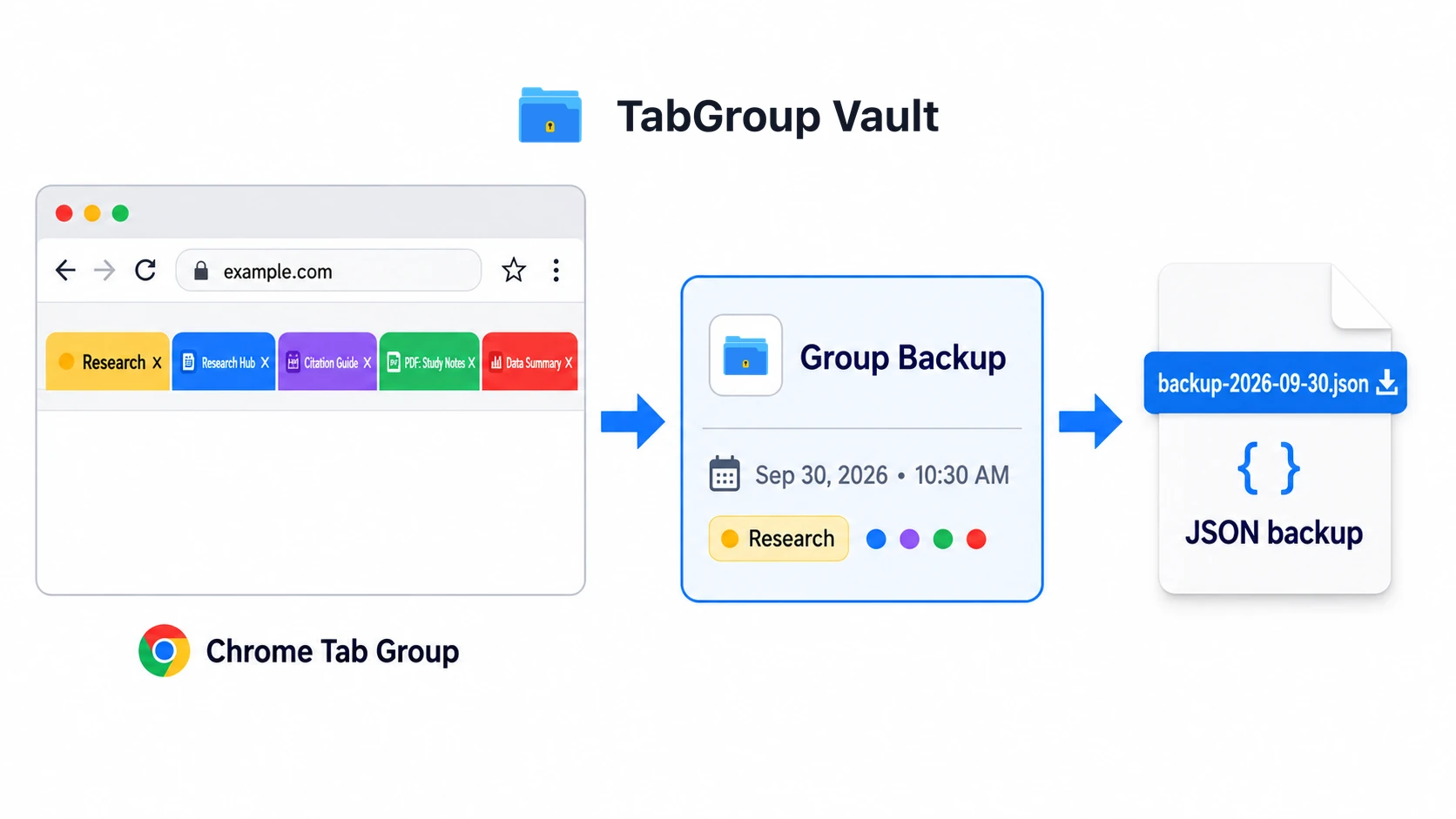
TabGroup Vault saves snapshots of Chrome Tab Groups, including names, colors, Tab order, and URLs. One-Group restore and JSON export are free. Free is 10 snapshots (imports count). Pro is $39 lifetime for unlimited snapshots, Google Drive backup, auto-save on close, and restore-all in the current Window, with a 7-day card trial. Chrome Web Store shows about 1,000 users and a 4.6 rating from 9 ratings.
Recover this time. Back it up before the next time.
One click saves the Group names, colors, Tab order, and URLs. If Chrome loses the workspace, restore the snapshot instead of rebuilding it from History.
Prevention checklist
Use Chrome's built-in saving first, then add a backup for Groups you would hate to reconstruct.
- Turn on Chrome sync for browsing history and Tabs on the Google Account you use for Tab Groups.
- Enable bookmarks bar visibility with Settings > Appearance > Show Tab Groups in bookmarks bar.
- Automatically pin new Tab Groups so new Groups appear from the bookmarks bar by default.
- Use Close Group instead of Delete or Ungroup when you want to hide a Group for later.
- Use Ctrl+Shift+T or Command+Shift+T quickly after closing the wrong Tab or Window.
- Snapshot important Groups before major work Sessions, travel planning, research sprints, or anything painful to rebuild from History.
- Export important snapshots to a file when you want an offline copy.
A note on technical limits
Chrome exposes Tab Groups through an extension API, and the API Group IDs are unique within a browser Session. Do not treat those IDs as permanent restore handles. Chrome can still save Tab Groups in normal signed-in use; the technical point is narrower than that.
Fastest path
Check Chrome menu > Tab Groups and the bookmarks bar Tab Groups control first. If the Group is not there, try Recently Closed. If that fails, recover URLs from History and rebuild the Group manually.
For prevention-focused workflows, see do Tab Groups save when you close Chrome? For options beyond Chrome's built-in Groups, read the best Tab manager extensions for Chrome.