Before you do anything else
Stop. Do not close Chrome. Do not restart your computer. Do not open new Tabs you do not need. Each new Tab and each restart reduces your chances of a full recovery.
If you are reading this on the same Chrome Window where the Tab was closed, you are in the best possible position. Try the fastest method first and only escalate if it does not work.
Method 1: The keyboard shortcut (5 seconds)
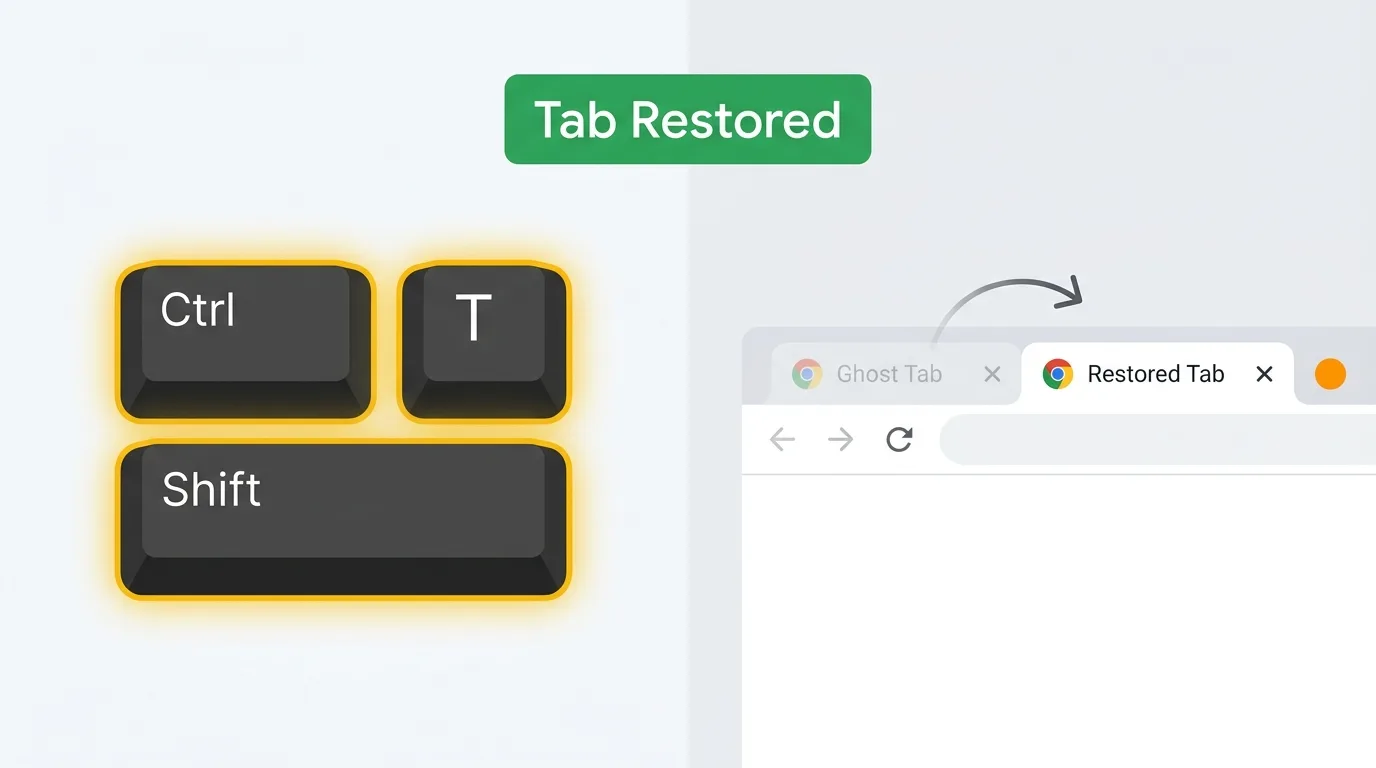
On Windows and Linux: Ctrl+Shift+T. On macOS: Cmd+Shift+T.
Press it once and Chrome reopens the most recently closed Tab. Press it again and the one before that comes back. Keep going until everything is restored: Chrome remembers up to 25 recently closed Tabs and Windows. If you closed an entire Window, the first press typically restores the whole thing with all its Tabs.
Worth knowing
Works whether you clicked the X by mistake or hit Cmd+W out of habit. Does not work for Tabs closed in an incognito Window after incognito has been fully closed.
Method 2: Right-click the Tab strip (10 seconds)
If you cannot remember the shortcut or the key chord is awkward on your keyboard:
- Right-click any Tab in the Chrome Tab bar.
- Choose Reopen closed Tab from the context menu.
This is functionally identical to the shortcut. It restores the most recently closed Tab, one at a time.
Method 3: Recently closed in the menu (20 seconds)
This is useful when you want to pick a specific Tab, not just the last one you closed.
- Click the three-dot menu at the top right of Chrome.
- Hover over History.
- Look at the Recently closed list.
Chrome shows individual closed Tabs and closed Windows. Each entry is clickable. Closed Windows appear as a bundle, so clicking one restores the entire Window with all its Tabs in one shot.
Method 4: Full history (Ctrl+H)
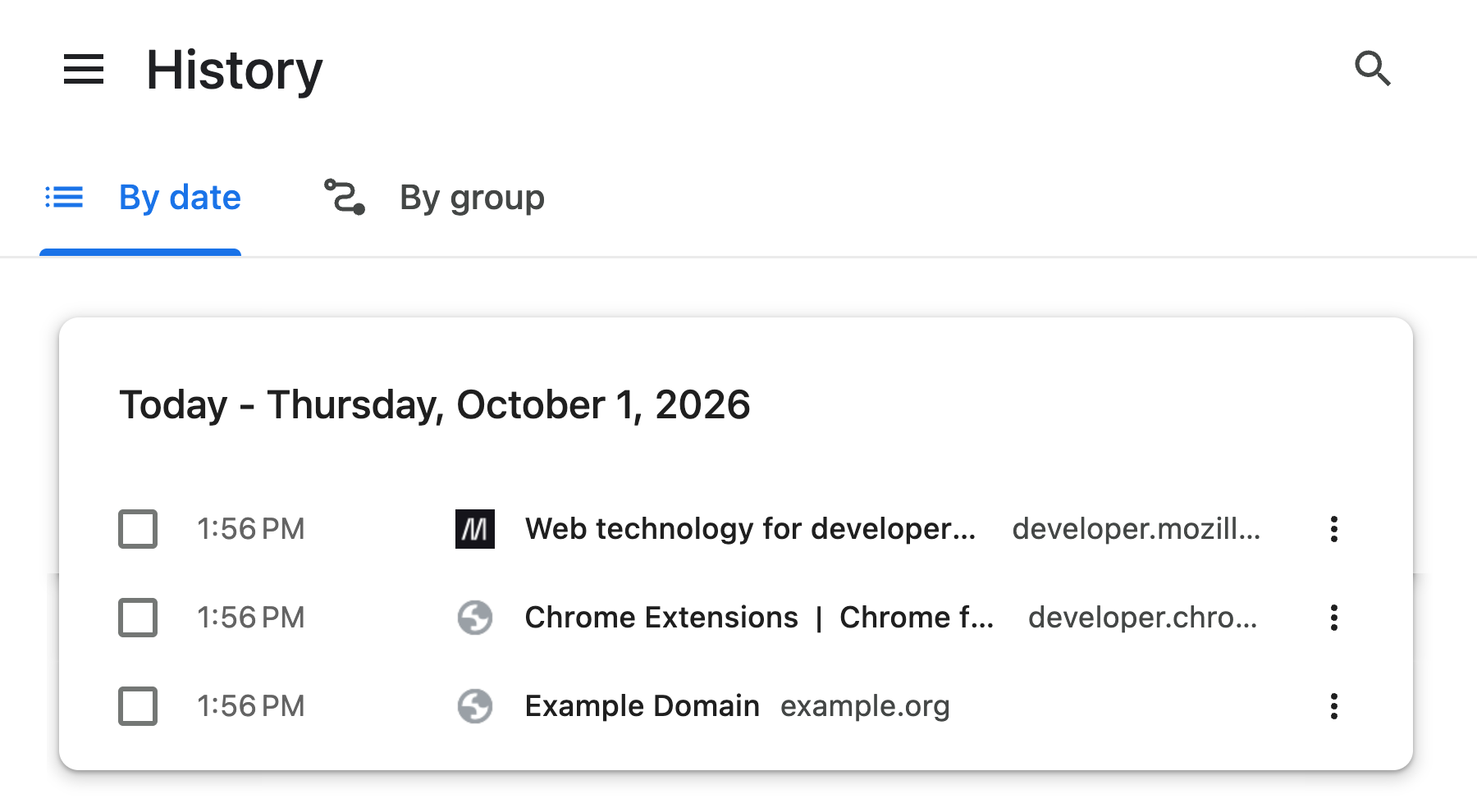
Actual Chrome History in an isolated Profile, with three sample visits. History lists visited URLs; it is not a Group backup.
When the Tabs are long gone (you closed them yesterday, Chrome restarted, or "Recently closed" is empty) go to history.
- Press
Ctrl+HorCmd+Yon Mac. This openschrome://history. - Scroll to the time range when you had the Tabs open.
- Middle-click (or Ctrl/Cmd-click) each URL to reopen it in a new background Tab.
History is the most reliable source because it records every page you visited, not just what was open when Chrome closed. The trade-off is effort: you are rebuilding the Session by hand.
Method 5: Previous Session on next launch
If Chrome has already been closed, your last hope from native tools is to have Chrome restore the previous Session on relaunch.
- Open Chrome.
- If Chrome detects a crash or abnormal close, it often shows a banner: "Restore pages? Chrome didn't shut down correctly." Click Restore.
- If the banner does not appear, check three-dot menu > History > Recently closed. There is often an entry like "5 Tabs" or "Window, 12 Tabs". Clicking it restores that bundle.
To make this path more reliable going forward, open chrome://settings/onStartup and choose Continue where you left off. With that setting, every Chrome launch tries to bring back the previous Session automatically. Full walkthrough: how to restore your previous Chrome Session.
Method 6: Tabs were in Tab Groups
If the lost Tabs were inside Chrome Tab Groups, what you can recover depends on whether those Groups were saved. Saved Tab Groups survive: find them on the bookmarks bar or under the three-dot menu → Tab Groups, and click to reopen. If the Group was synced, it is also available on any Chrome signed into the same Google account.
Unsaved Tab Groups lose their structure when they close. You can still pull the individual Tabs back via Ctrl+Shift+T or history, but they come back as loose Tabs. You will have to rebuild the Group manually. If this keeps happening, right-click the Group pill and toggle "Save Group" before it matters. See do Tab Groups save when you close Chrome? for the full picture.
Method 7: Backup extension (if installed beforehand)
Snapshot extensions: TabGroup Vault, Session Buddy, Tab Session Manager: take copies of your Tabs and Tab Groups outside Chrome's native storage. When native recovery fails (profile reset, corrupted Session, accidental wipe), the extension usually still has it. This only helps if you installed one before losing the Tabs.
Put a backup layer in place today
TabGroup Vault takes a snapshot of your Tab Groups with one click and can back them up to Google Drive. The free tier covers 10 snapshots, which is enough to protect your primary workspaces. Install it now so the next accidental close is a non-event.
What will not bring Tabs back
A few things get suggested that do not actually work. Clearing the cache does nothing for closed Tabs and can make recovery harder by invalidating Session data. Reinstalling Chrome resets your profile: it will not return Tabs and often makes things worse. System Restore on Windows does not track browser Session state. And chrome://flags is for experimental features, not Session recovery.
Prevent it next time
| Feature | What to Check |
|---|---|
| Recently Closed and History | Try the reopen shortcut, Recently Closed, other Windows, and History. Startup recovery depends on available Session data. Avoid unverified Session-file copying recipes. |
| A Separate Copy | A backup can restore only data that was saved. Local extension data can be lost with Profile deletion or extension removal. Export and check a separate copy before destructive changes. |
| TabGroup Vault | Save Group backups and whole Sessions. Local data; optional Pro Drive backup and Window-close auto-save. Keep an export outside the Profile. |
Sources Checked October 1, 2026: Chrome Help · Chrome Shortcuts · Chrome Extension Storage · TabGroup Vault Features
With today's Tabs recovered, two minutes of setup makes the next accident much less painful. Set "Continue where you left off" at chrome://settings/onStartup. Memorize Ctrl+Shift+T / Cmd+Shift+T. Right-click your important Tab Groups and save them. And install a snapshot extension so there is a backup layer outside Chrome's own storage.
Once those are in place, a closed Window is a 5-second fix instead of an hour rebuilding from memory.