First, leave Chrome open
| Feature | What to Check |
|---|---|
| Close a Group | Closes its Tabs while retaining the saved Group for reopening. Availability and sync depend on account settings. |
| Delete a Group | Removes the saved Group and its Tabs. It is different from closing or ungrouping. |
| Ungroup | Keeps the Tabs open and removes their Group membership. |
| A Separate Copy | A backup can restore only data that was saved. Local extension data can be lost with Profile deletion or extension removal. Export and check a separate copy before destructive changes. |
Sources Checked October 1, 2026: Chrome Help · Chrome Extension Storage
If your Google Chrome Tabs disappeared, press Ctrl+Shift+T on Windows/Linux or Command+Shift+T on Mac first. Chrome may reopen the closed Tab or the whole closed Window. If that does not work, do not assume the Tabs are gone. They may still be sitting in another Window, another profile, a collapsed Tab Group, Tab Search, Recently closed, History, or Android Inactive Tabs.
- Press Ctrl+Shift+T on Windows/Linux or Command+Shift+T on Mac.
- Look for the Tabs in another Chrome Window or profile.
- Look for collapsed Tab Groups and use Tab Search.
- Open History > Recently closed and restore any listed Window or Tab.
- Use full History to search for the pages you had open.
- On Android, check the Tab switcher, Inactive Tabs, Search your Tabs, Recently closed Tabs, Other devices, and Tab Groups.
- If you sync Chrome history, check synced history and open Tabs from your Google account.
Quick recovery order
Start with the keyboard shortcut. Then look through hidden Windows or profiles, collapsed Groups, Tab Search, Recently closed, full History, and synced history. Leave Session files for last.
Why your Chrome Tabs keep disappearing
Most "missing Tabs" cases are visibility or Session-state problems, not proof that Chrome deleted every page. Start with these causes:
- Wrong Window: Chrome may have opened a new Window while your Tabs stayed in another one.
- Wrong profile: Chrome profiles keep bookmarks, history, passwords, and settings separate, so the wrong profile can make Tabs or history look missing.
- Startup setting: If Chrome is not set to continue where you left off, it may open a new Tab page after a normal restart.
- Collapsed or closed Group: A collapsed Group hides its Tabs. A closed saved Group can be reopened from Chrome's Tab Groups menu or bookmarks bar.
- Android Inactive Tabs: On Android, unused Tabs and Groups can move out of the main Tab switcher into Inactive Tabs.
- Accidental close all: Recently closed may restore a whole Window or recently closed Tabs.
- Incognito: After all Incognito Windows close, Chrome does not keep a local History record you can restore from.
1. Reopen closed Tabs with Ctrl+Shift+T
Press Ctrl+Shift+T on Windows/Linux or Command+Shift+T on Mac. Chrome uses this shortcut to reopen the most recently closed Tab or Window. Press it again to move backward through closed items. Chrome lists both shortcuts in its official keyboard shortcut guide.
If you closed an entire Window, the shortcut may reopen that Window with its Tabs.
If Tabs start coming back, keep pressing until you have what you need. If nothing happens, move on.
2. Check whether the Tabs are hidden
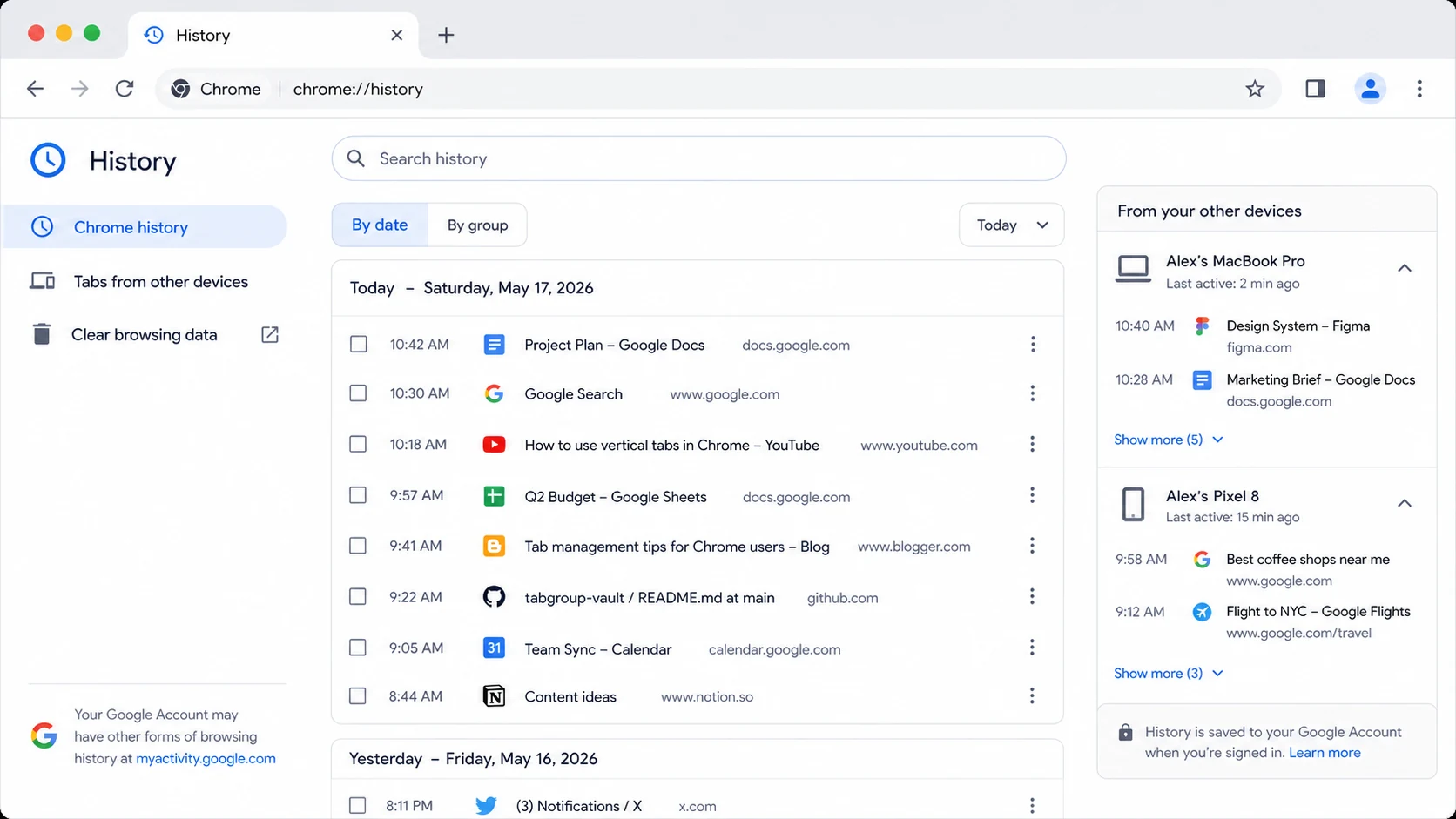
Your Tabs may still be open. Check the boring causes first: another Chrome Window, another Chrome profile, a collapsed Tab Group, Tab Search, synced open Tabs, or a crowded Tab strip where the page title no longer fits.
- Windows: Look at the taskbar. Right-click the Chrome icon and see if multiple Windows are listed. Use Alt+Tab to cycle through open Windows.
- Mac: Right-click the Chrome icon in the Dock and look for Window options. Use Mission Control to see open Windows.
- Profiles: Check the profile icon in the top-right corner. If Chrome opened the wrong profile, your usual Tabs may be in another profile Window.
- Tab Groups: Look for collapsed Group labels on the Tab strip. Click a Group name to expand it.
- Tab Search: Search for the page title or domain across open Tabs.
- Vertical Tabs: If the horizontal Tab strip is packed, use Chrome's vertical Tabs option as a visibility aid. It can show more page titles and make crowded Tabs easier to scan.
3. If the Chrome Tab Search button is missing
Chrome Tab Search is on by default, but the button can be unpinned from the Tab strip. If the button is gone, Tab Search may still work.
- Press Ctrl+Shift+A on Windows/Linux or Command+Shift+A on Mac.
- Search for the page title, domain, or keyword from the missing Tab.
- Type @Tabs in the address bar if you prefer to search open Tabs from the omnibox.
If Tab Search finds the page, the Tab was not deleted. Chrome can still see it somewhere.
4. Restore Tabs from Recently closed
Chrome keeps a short list of recently closed Tabs and Windows. Open it this way:
- Click the three-dot menu (top-right corner of Chrome).
- Hover over History.
- Look at the "Recently closed" section at the top.
- Click on individual Tabs or entire Windows to restore them.
This section can show individual Tabs and recently closed Windows. If it is empty or incomplete, continue to full History.
5. Rebuild the Session from full History
If the quick fixes did not work, full History is the better fallback for individual pages. Chrome History lists pages you visited, has search, and can include history from other synced devices when history sync is on.
- Press Ctrl+H (Cmd+Y on Mac) to open the History page.
- Browse the chronological list of visited pages.
- Use the search bar to find specific sites or keywords.
- Open the pages you need in new Tabs.
The tradeoff: History usually shows individual pages, not your old Tab order or Tab Groups. It also will not help if history was deleted, disabled, not synced, or the Tabs were Incognito.
6. Check synced history and other devices
If you are signed into Chrome with history sync enabled, your browsing history can include pages from other devices. That helps when the missing Tabs were open on a different computer or Chrome reopened blank on this one.
- Open Chrome History with Ctrl+H or Command+Y on Mac.
- Look for Tabs from other devices or synced history entries.
- Search by site name, page title, or topic.
- You can also visit myactivity.google.com and filter for Chrome activity.
7. If Chrome Tab Groups disappeared
Chrome Tab Groups can look missing for a few reasons. A collapsed Group hides its Tabs on the Tab strip. Click the Group name or color to expand it. A closed Group can be reopened from Chrome's Tab Groups menu or bookmarks bar. A deleted Group is removed.
Ungrouping is different: it leaves the Tabs open, but removes the Group across synced devices. Deleting or ungrouping a saved Group may remove that Group on devices using the same Google Account.
If your Group labels are missing, first check whether the Group is collapsed, closed, or saved in the Tab Groups menu. Then use Recently closed or History to recover individual pages if needed. A crowded Tab strip or collapsed Group can make open Tabs look gone, even when they were not deleted.
For automatic Tab-Group backups, use a Tab-Group-aware backup tool such as TabGroup Vault. It saves the Group name, color, Tab order, and URLs in snapshots outside Chrome's normal restore flow.
Stop rebuilding vanished workspaces by hand
After you recover today’s Tabs, save the important Group as a snapshot. TabGroup Vault can reopen the complete grouped workspace in one click next time.
8. If all Chrome Tabs disappeared on Android
On Android, start inside Chrome before clearing app data or uninstalling updates. The Tabs may be tucked into a different part of the mobile Tab interface.
- Open the Tab switcher and check the normal Tab list.
- Look for Inactive Tabs. Chrome says Tabs and Groups unused for 14 or more days can move there, and inactive items can be automatically closed after 6 months unless that setting is disabled.
- Use Search your Tabs to search by page title, site, or keyword.
- Open Recently closed Tabs from Chrome's menu.
- Check Other devices if Chrome sync is on.
- Check Tab Groups, especially if you used grouped Tabs on Android.
If you need a deeper recovery path after the Tabs are closed, use the steps in recover closed Tabs in Chrome. If you want to save many Android Tabs before they disappear again, start with bookmarking all Chrome Tabs.
Small caveat: some Android tablet users reported Chrome failing to open with a Window-limit message in May and June 2026, and a Chrome Support Manager said the team was investigating. Treat that as a launch problem, not normal Tab loss. Check History, sync, Recently closed, and other devices before destructive app-data steps.
9. Advanced fallback: Session-file recovery
Chrome stores local Session data in profile files. This method is advanced, unofficial, and not guaranteed. Try it only after the built-in recovery options above, and make a copy of the profile folder before renaming anything.
Session-file steps
- Close Chrome completely (make sure no Chrome processes are running in Task Manager or Activity Monitor).
- Open your Chrome profile folder:
- Windows:
%LOCALAPPDATA%\Google\Chrome\User Data\Default\ - Mac:
~/Library/Application Support/Google/Chrome/Default/ - Linux:
~/.config/google-chrome/Default/
- Windows:
- Look for
Last SessionandLast Tabsfiles. - Rename
Current SessiontoCurrent Session.bak. - Copy
Last Sessionand rename the copy toCurrent Session. - Do the same for
Last Tabs: rename it toCurrent Tabs. - Reopen Chrome.
Session-file recovery can fail if Chrome already overwrote or damaged the files. Treat it as a last resort, not Chrome's official recovery path.
Common reasons Tabs seem gone
Use this as a checklist, not a verdict. Chrome may be showing a different Window, profile, Group state, or startup state than the one you expected.
| Cause | What happened | Prevention |
|---|---|---|
| Chrome restart | Chrome opened a new Window, profile, or startup state without your previous Tabs visible | Enable "Continue where you left off" and keep a backup |
| OS update/restart | Windows or macOS restarted while Chrome had many open Tabs | Use automatic snapshots for important Tab sets |
| Accidental close | You closed the wrong Window or hit Ctrl+W too many times | Learn Ctrl+Shift+T; use a Tab backup extension |
| Profile switch | Chrome opened a profile with separate history, bookmarks, passwords, and settings | Check the profile icon before rebuilding Tabs manually |
| Android Inactive Tabs | Unused Android Tabs or Groups moved out of the main Tab switcher | Check Inactive Tabs and adjust auto-close settings if needed |
| Crowded Tab strip | The Tab is still open but hard to see | Use Tab Search, collapse Groups, or vertical Tabs |
Memory Saver does not delete desktop Tabs
Chrome's desktop Memory Saver frees memory from inactive Tabs and reloads those Tabs when needed. It does not delete desktop Tabs. If a desktop Tab seems missing, check for a hidden Window, collapsed Group, Tab Search result, or crowded Tab strip before blaming Memory Saver.
Android is different because Chrome has Inactive Tabs and mobile Tab-management views. Use the Android checklist above before assuming mobile Tabs were deleted.
If Chrome becomes unstable because you keep hundreds of Tabs open, read why too many Tabs slow Chrome down. If Tabs keep piling up because closing them feels risky, read how to stop Tab hoarding without losing your place.
How to prevent this next time
Once you recover the important pages, set up a small safety net.
Step 1: Enable "Continue where you left off"
Go to chrome://settings/onStartup and select "Continue where you left off." This is your first line of defense for restoring your previous Session on normal shutdowns.
Step 2: Save important Groups outside the live Tab strip
Use saved Tab Groups, bookmarks, or automatic snapshots for work you would hate to rebuild from History.
TabGroup Vault: automatic Tab backup
TabGroup Vault takes automatic snapshots of your Chrome Tab Groups outside Chrome's normal restore flow. Restore a saved snapshot with one click, including Group names, colors, Tab order, and URLs. The free tier includes 10 snapshots. Pro ($39 one-time) adds unlimited snapshots, bulk restore, Google Drive backup, and 5 Chrome profiles.
Step 3: Avoid destructive steps until you check sync and History
Before clearing Chrome data, reinstalling Chrome, or uninstalling app updates on Android, check Recently closed, full History, synced history, other devices, and saved Groups.
Step 4: Learn the emergency shortcuts
Keep these close:
- Ctrl+Shift+T: Reopen last closed Tab or Window
- Command+Shift+T: Reopen last closed Tab or Window on Mac
- Ctrl+H: Open full browsing history on Windows/Linux
- Command+Y: Open full browsing history on Mac
When Tabs are truly gone
In rare cases, Tabs cannot be recovered. The usual reasons are blunt:
- Chrome's Session files were completely overwritten before you could recover them.
- You were browsing in Incognito mode and the Incognito Session ended.
- The pages you had open were temporary (dynamic URLs, one-time-use links, authenticated Sessions that expired).
If you are in this situation, the practical move is prevention. Automatic snapshots can shrink a future loss to the gap between backups.