Why Chrome session restore matters
You had thirty tabs open. Research for a project, a half-written email, a YouTube video you were saving for later, and a dozen documentation pages. Then Chrome crashed, your laptop restarted for an update, or you accidentally closed the wrong window. Now everything is gone.
This is a common frustration Chrome users face. The browser has session restore built in, but it fails often enough that thousands search for solutions every month. This guide covers every method available in 2026, from keyboard shortcuts to reliable backup strategies.
Method 1: The keyboard shortcut (Ctrl+Shift+T)
This is the fastest way to recover recently closed tabs, and it should be your first move whenever tabs disappear unexpectedly.
How it works
- Windows/Linux: Press Ctrl+Shift+T
- Mac: Press Cmd+Shift+T
Each time you press this shortcut, Chrome reopens the most recently closed tab. Press it repeatedly to walk backward through your closed tab history. If you closed an entire window, the first press reopens that entire window with all its tabs.
When it works
This method works when you intentionally or accidentally closed tabs or windows during your current browsing session. Chrome keeps a queue of recently closed items in memory.
When it fails
- After a Chrome crash -- the closed-tab history is stored in memory, and a crash wipes it.
- After a system restart or forced shutdown.
- If you opened a new Chrome window after the old one closed -- the history queue may have reset.
- In Incognito mode -- Chrome does not track closed tabs in private sessions.
Method 2: Chrome settings, "Continue where you left off"
Chrome has a built-in setting that tells the browser to reopen your previous session every time you start it. To enable it:
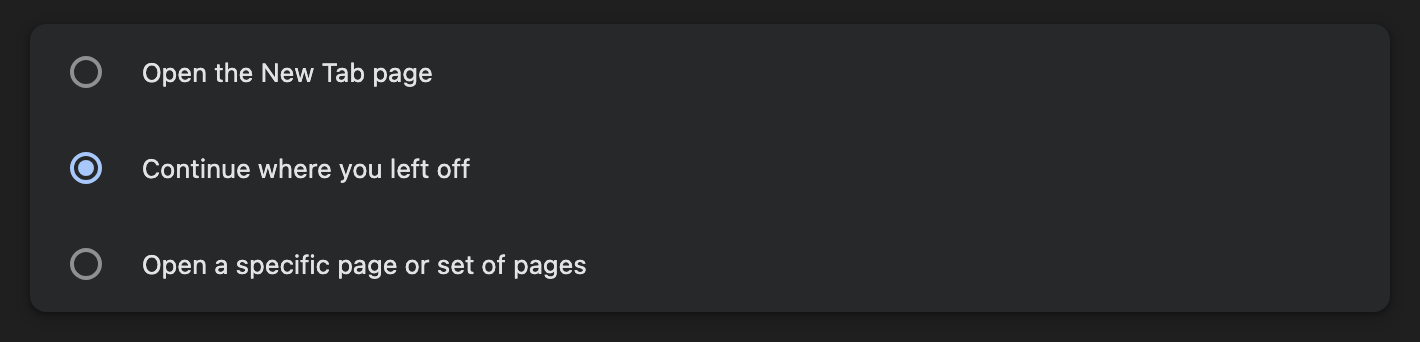
- Open Chrome and go to chrome://settings/onStartup (type this in the address bar).
- Select "Continue where you left off".
- Close the settings tab. The change takes effect immediately.
With this enabled, every time you open Chrome, it will attempt to restore all the windows and tabs from your last session.
The limitations
This setting is designed for clean shutdowns. When you close Chrome normally and reopen it, your tabs come back. But it breaks down in several common scenarios:
- Crashes: If Chrome crashes, the session data may be corrupted, and Chrome will open to a blank page instead.
- Multiple windows: Chrome sometimes only restores the last window you closed, not all of them.
- Updates: Chrome auto-updates can restart the browser without preserving the full session state.
- Tab groups: Even when tabs are restored, tab group names, colors, and organization are frequently lost.
Important Limitation
"Continue where you left off" does not preserve tab groups. Even if your tabs come back, they will all be ungrouped. If you rely on tab groups for organization, you need a separate backup solution.
Method 3: History and recently closed tabs
Chrome's History menu maintains a record of pages you have visited and tabs you have recently closed.
Recently closed (quick access)
- Click the three-dot menu in the top-right corner of Chrome.
- Hover over History.
- Look at the "Recently closed" section at the top of the submenu.
- Click on individual tabs or entire windows to restore them.
Full history page
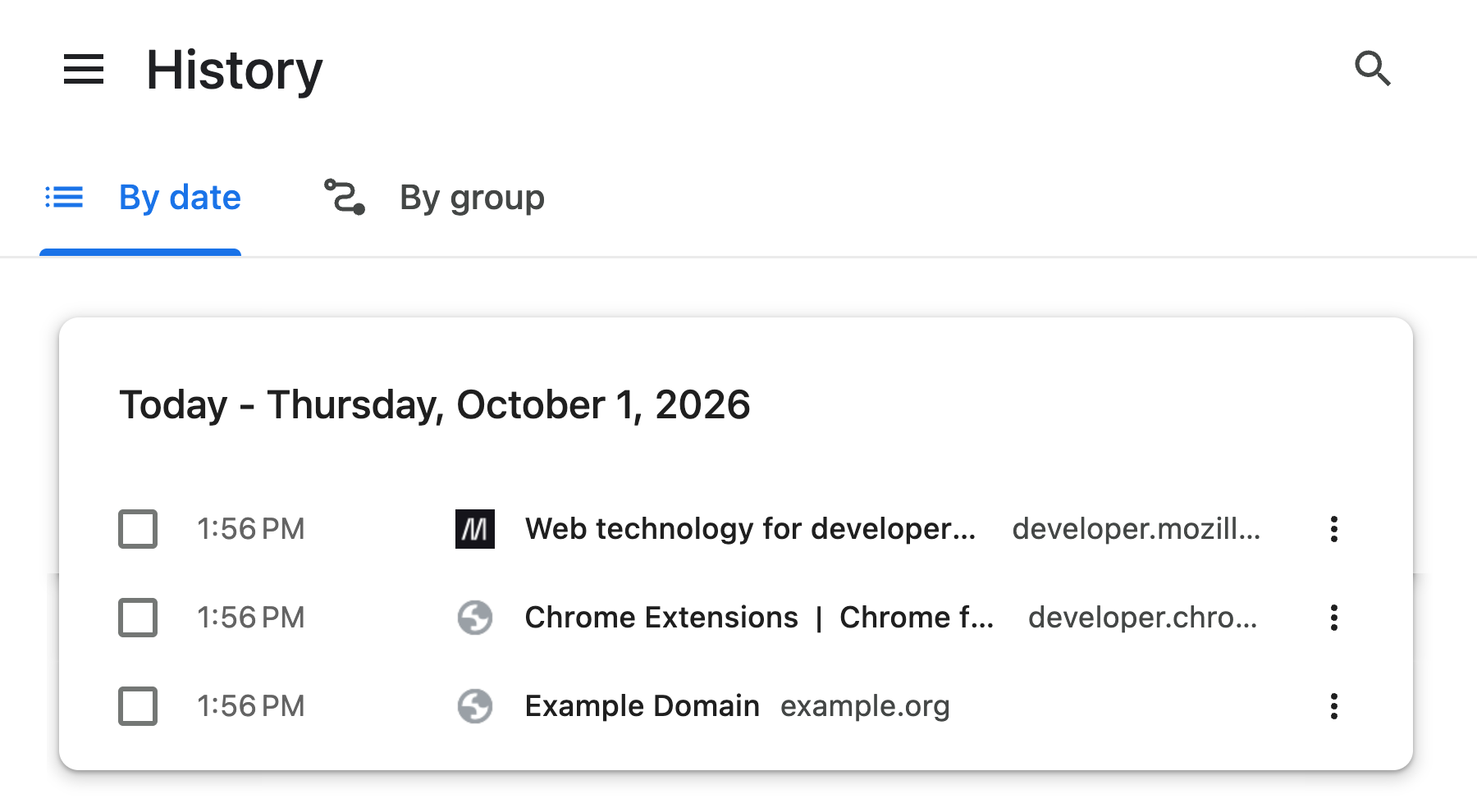
- Press Ctrl+H (Cmd+Y on Mac) to open the full History page.
- Browse or search for specific pages.
- Click any entry to reopen it.
The History page goes back weeks or months, so it is your best bet for finding tabs from older sessions. The downside: it shows individual pages in a flat list. You cannot restore an entire session or tab group from History.
Method 4: Chrome session files (advanced)
Chrome stores session data in files on your computer. In some cases, you can recover a session by accessing these files directly.
Where Chrome stores session data
- Windows:
C:\Users\[Username]\AppData\Local\Google\Chrome\User Data\Default\ - Mac:
~/Library/Application Support/Google/Chrome/Default/ - Linux:
~/.config/google-chrome/Default/
Look for files named Current Session, Current Tabs, Last Session, and Last Tabs. The "Last" files contain data from your previous session.
The recovery process
- Close Chrome completely.
- Navigate to the folder above.
- If
Last SessionandLast Tabsexist, renameCurrent SessiontoCurrent Session.bakandCurrent TabstoCurrent Tabs.bak. - Copy
Last Sessionand rename it toCurrent Session. Do the same withLast Tabs. - Reopen Chrome.
Proceed with caution
Editing session files directly is risky. If Chrome crashed, these files may already be corrupted. Always make backup copies before renaming anything. This method is a last resort, not a regular workflow.
Method 5: Use a session backup extension
The methods above all depend on Chrome's internal session storage, which is fragile. Extensions solve this by storing your session data independently, so it survives crashes, updates, and even Chrome reinstalls.
Several extensions handle session backup. Session Buddy has been a popular choice for saving and restoring window sessions in a simple list format. OneTab takes a different approach by collapsing all tabs into a single list page, reducing memory usage but losing tab group structure. Both are solid options for basic session saving. If you rely on Chrome's tab groups feature and need to preserve group names, colors, and organization, TabGroup Vault is built specifically for that workflow.
TabGroup Vault: reliable session backup
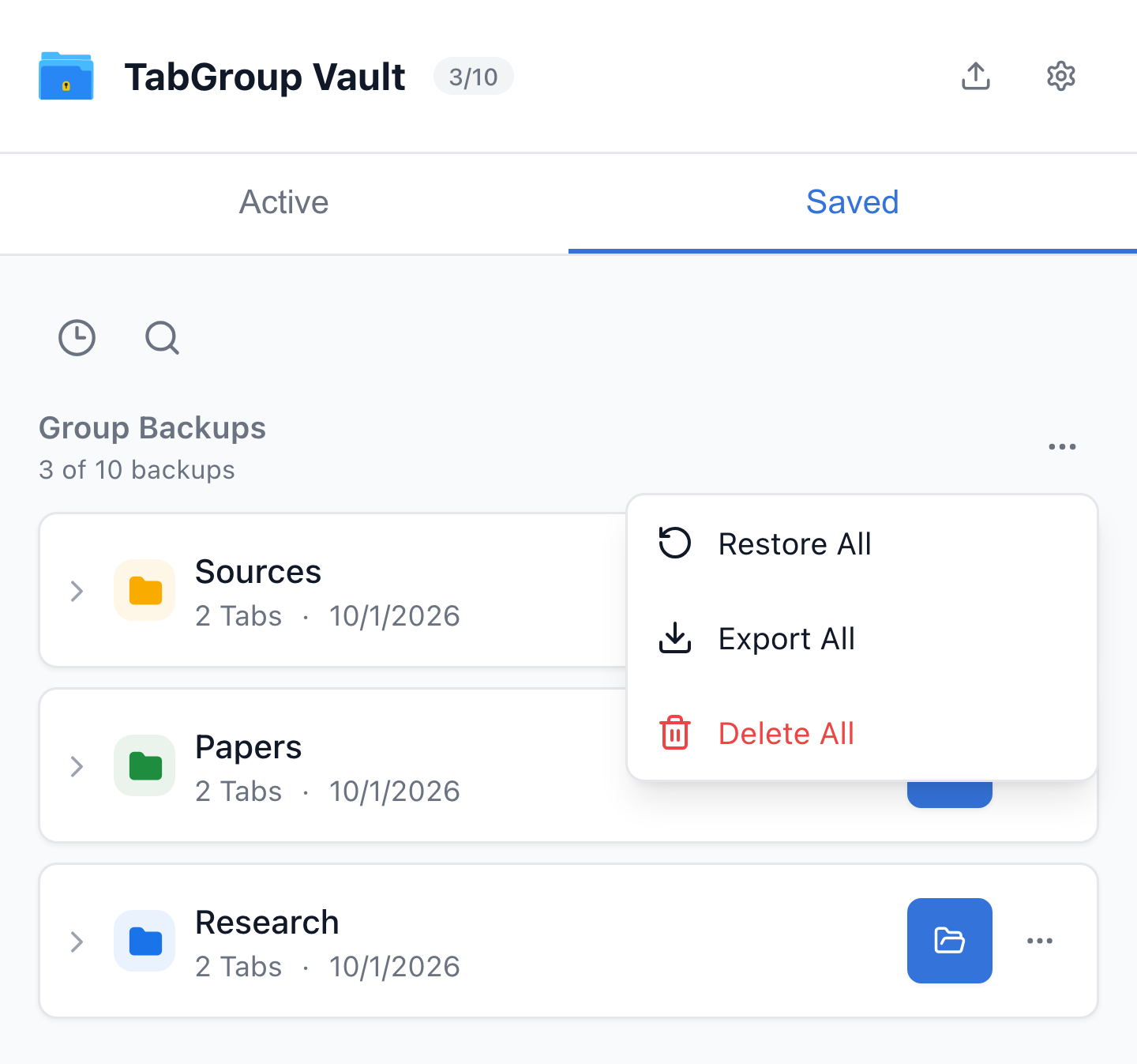
TabGroup Vault saves snapshots of your Chrome tab groups automatically. Unlike Chrome's built-in session restore, your data is stored independently and includes full tab group structure (names, colors, and tab order). Restore everything with one click after any crash or update. Free tier includes 5 snapshots. Pro ($29 one-time) adds unlimited snapshots, bulk restore, Google Drive backup, and support for 5 Chrome profiles.
The key advantage of an extension-based approach is independence. Chrome's session files live inside Chrome and break when Chrome breaks. A well-designed extension stores data separately, creating a backup available regardless of what happens to the browser. For a detailed comparison of extensions that handle both session backup and tab organization, see our guide to the best tab organizer extensions for Chrome.
Check for Manifest V3 compatibility
Chrome removed support for Manifest V2 extensions in Chrome 139 (August 2025). Some older session management extensions that have not been updated may no longer work. Before installing any extension, verify it uses Manifest V3. TabGroup Vault, Session Buddy, and OneTab have all been updated to MV3.
Method 6: The --restore-last-session command-line flag
Chrome supports a startup parameter that forces session restore regardless of your settings. This bypasses the "Continue where you left off" toggle entirely and tells Chrome to always reopen your previous tabs on launch.
How to set it up
- Windows: Right-click your Chrome shortcut and select Properties. In the Target field, add
--restore-last-sessionafter the closing quotation mark of the exe path. Click OK. - macOS: Open Terminal and run:
open -a "Google Chrome" --args --restore-last-session - Linux: Launch Chrome with:
google-chrome --restore-last-session
This flag forces Chrome to attempt session restore on every launch, even after a crash. It is especially useful for IT administrators deploying Chrome across managed devices, or power users who want guaranteed restore behavior without relying on Chrome's settings UI. Note that while the flag improves restore consistency, it still depends on Chrome's session files being intact.
Restoring Tabs on Chrome Mobile (Android & iOS)
Tab recovery works differently on mobile. Chrome mobile does not support the Ctrl+Shift+T shortcut, but there are still ways to get your tabs back.
Android
Tap the three-dot menu and select History. Your recently closed tabs appear at the top. You can also access recently closed tabs by swiping up on the bottom tab bar in newer Chrome versions. If Chrome was force-closed, reopening the app usually restores your previous tabs automatically.
iOS
Tap the three-dot menu and select Recent Tabs. This shows tabs from your current device and any other synced devices signed into the same Google account. Chrome on iOS generally restores your previous session by default when you reopen the app.
On both platforms, the History menu is your primary recovery tool when tabs go missing. There is no keyboard shortcut equivalent on mobile.
Cross-Device Tab Recovery with Google Sync
If you sign into Chrome with the same Google account on multiple devices, you can recover tabs across all of them. To enable sync, go to Settings > You and Google > Sync and turn it on.
Once sync is active, you can view tabs open on your other devices. On desktop, go to History > Tabs from other devices. On mobile, open Recent Tabs from the three-dot menu. This is particularly useful when your laptop crashes but you had the same pages open on your phone or work computer. One limitation: sync only shows tabs that are currently open on other devices, not tabs from closed sessions.
Why built-in methods fail
Chrome's session restore was designed for a simpler era of browsing. Here is why it falls short for modern workflows:
When Chrome crashes, it sometimes displays a "Restore" button in a notification bar at the top of the window on relaunch. Clicking it reopens your previous tabs. However, this prompt does not always appear, particularly after forced shutdowns, OS updates, or Chrome auto-updates. Do not rely on it as a recovery strategy — it is inconsistent and there is no way to trigger it manually.
| Scenario | Built-in Restore | Extension Backup |
|---|---|---|
| Normal shutdown and reopen | Works | Works |
| Browser crash | Sometimes fails | Works |
| OS update/restart | Often fails | Works |
| Chrome auto-update | Sometimes loses tabs | Works |
| Tab group structure | Not preserved | Fully preserved |
| Multiple windows | Inconsistent | All windows saved |
| Older sessions (days ago) | Not available | Available via snapshots |
Setting up reliable session restore
For the most reliable session protection, combine Chrome's built-in tools with an independent backup. Here is the recommended setup:
- Enable "Continue where you left off" in Chrome settings. This covers normal shutdowns.
- Install a backup extension like TabGroup Vault. This covers crashes, updates, and tab group preservation.
- Learn the Ctrl+Shift+T shortcut. This handles quick recovery of accidentally closed tabs during a session.
- Enable Google Drive backup (if your extension supports it). This protects against hardware failure and lets you restore across devices.
With this layered approach, you have two independent safety nets for your tabs. The built-in tools handle simple cases, and the extension handles everything else.
Recovering tab groups specifically
If you use Chrome's tab groups feature to organize your work, session recovery is more important and more difficult. Chrome's built-in session restore does not preserve tab group metadata reliably. Even when tabs come back, they arrive ungrouped. Your organization is gone.
A tab-group-aware extension solves this. TabGroup Vault stores the complete structure of every tab group: the group name, color, collapsed/expanded state, and the order of tabs within each group. When you restore a snapshot, you get back what you had before.
What About Chrome Flags?
Some guides suggest enabling experimental flags at chrome://flags to improve session restore behavior. While there have been flags related to session persistence in the past, relying on them is not recommended for several reasons:
- Flags change or are removed with every Chrome update.
- Experimental features may introduce instability.
- Flags that exist today may not exist in next month's Chrome version.
For a stable, long-term solution, stick with the methods described above rather than depending on experimental browser features.