Best productivity Chrome extensions for 2026: quick answer
| Feature | What to Check |
|---|---|
| Capabilities and Permissions | Check the current developer listing, update date, permissions, privacy policy, and platform support. Features and ratings can change; a badge is not a guarantee. |
| Native or Extension | Chrome already provides Tab Groups and Tab search. Compare a specific extension for extra features rather than assuming every extension has tree views, cross-Window lists, or a fixed memory cost. |
Sources Checked October 1, 2026: Chrome Web Store Guidance · Chrome Help · Chrome Shortcuts
The best productivity Chrome extensions for 2026 are the ones that take work out of the browser instead of adding more ceremony to it. Start with TabGroup Vault for saved Tab-Group backups, Workona for cloud workspaces, OneTab for fast cleanup, Freedom or Forest for focus, Notion Web Clipper or Raindrop.io for saved research, Loom and Grammarly for communication, React Developer Tools and Wappalyzer for developer work, Calendly for scheduling, and Bardeen for automation.
Chrome already has Tab Groups, saved and synced Tab Groups, Tab search, and split view on computer. For plain organization, that may be enough. Add extensions when the built-in tools stop short: backups, cross-app workflows, focus blocking, clipping, automation, or developer inspection.
Quick comparison table
| Feature | What to Check |
|---|---|
| TabGroup Vault | Save Group backups and whole Sessions. Local data; optional Pro Drive backup and Window-close auto-save. Keep an export outside the Profile. |
| Session Buddy | Session and Window organization with automatic local backups. Native Chrome Group support remains on its roadmap. Cloud collections have a separate rollout and plan. |
| Tab Session Manager | The current developer listing includes Chrome/Firefox Group saving, automatic saves, and optional cloud sync. Chrome Group saving no longer requires a companion extension. |
| OneTab | Save Tabs into lists. Its current documentation also describes encrypted cross-browser sync, folders, notes, and tasks. Test exact Chrome Group metadata restoration separately. |
| Workona | Project spaces with resources, notes, and tasks. Tab management must be enabled; it documents Session backups and cross-device use. Check current plans instead of assuming a fixed monthly price. |
| Toby | Visual link collections and shared Spaces with account sync. Its current plans include Session saving. Collection organization is not evidence of identical Chrome Group metadata restoration. |
| Tab Manager Plus | Free, open source under MPLv2. The current repository documents open-Tab search, Window saving, and limits on open Tabs. Compare restore behavior using your own sample Group. |
Sources Checked October 1, 2026: TabGroup Vault Features · Session Buddy Roadmap · Session Buddy Backups · Session Buddy Cloud Plans · Tab Session Manager · OneTab · Workona Tab Manager · Toby · Tab Manager Plus Source
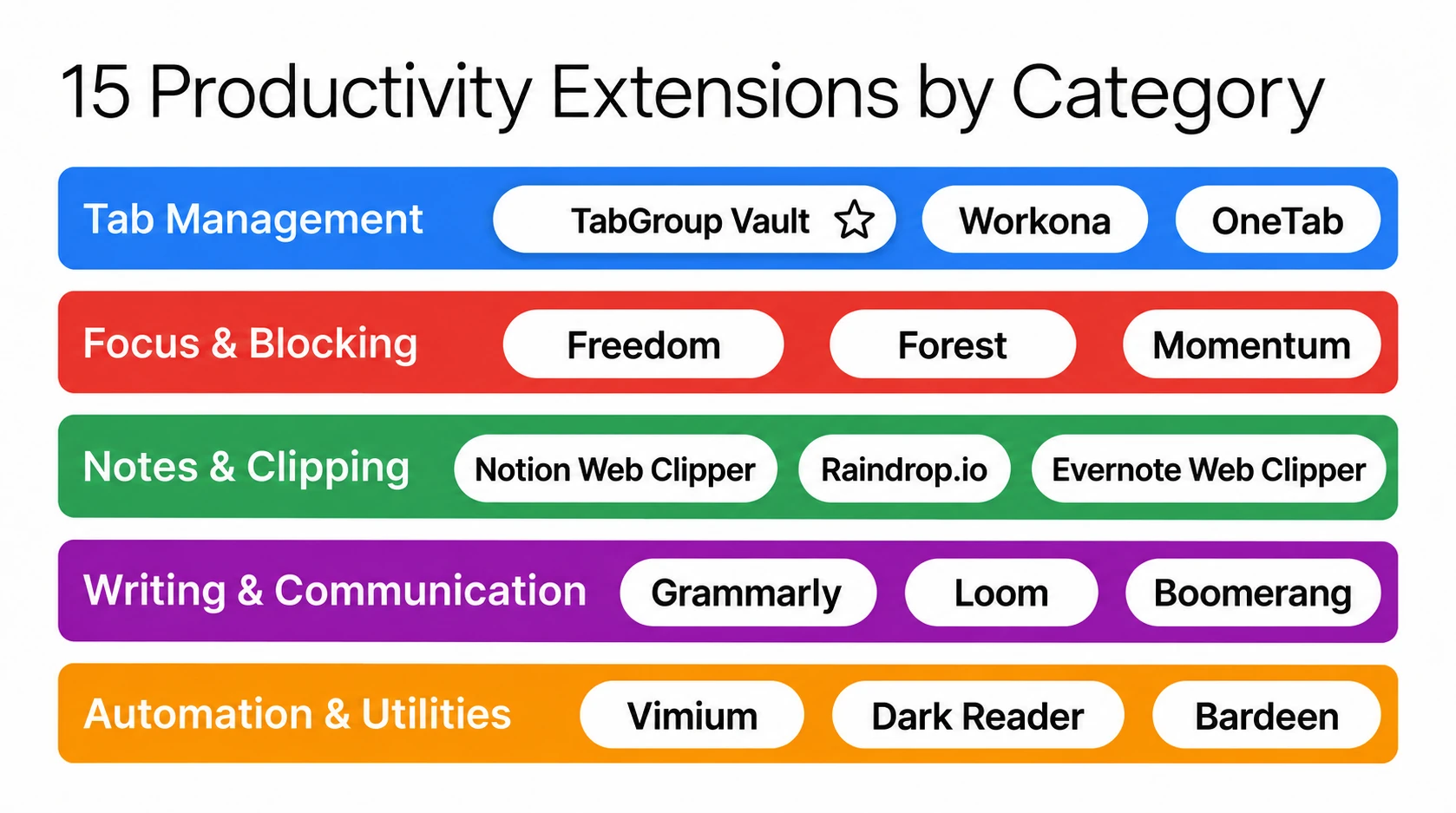
Tab management
If your workday lives in Tabs, project switching can turn into a scavenger hunt fast. Tab management extensions keep the pile readable. For deeper comparisons, see our guides to Chrome Tab organizer extensions, the best Tab managers for Chrome, and Chrome Session manager extensions.
1. TabGroup Vault (best overall Tab manager)
TabGroup Vault is for people who already sort work into Chrome Tab Groups and want a restore point outside Chrome's own saved Groups. Google says Tab Group changes are automatically saved and synced when history and Tabs sync is enabled. Closed Groups can be reopened from the bookmarks bar or Tab Groups menu.
TabGroup Vault
What it does: Saves and restores Chrome Tab Groups with full color, name, and URL preservation. Price: Free (10 snapshots) / $39 lifetime Pro (unlimited snapshots, bulk restore, Google Drive backup, 5 Chrome profiles, dark theme). Best for: Anyone who uses Tab Groups and cannot afford to lose them.
The useful bit is the narrow focus: Tab Groups, not generic Session dumps. Chrome's saved Groups are useful. Independent backups still matter when those Groups hold client work, research, sales pipelines, or a development project you really do not want to rebuild from memory.
2. Workona
Workona treats each project as a workspace. Its Chrome Web Store listing marks it as Featured, with a 4.6 rating, 3.8K ratings, 100,000 users, version 3.1.33, and a January 15, 2025 update. The listing says Workona auto-saves Tabs, supports secure backups, syncs Tabs between computers, stores spaces in the cloud, and its privacy disclosure says it handles web history.
Best for: Users who want strong separation between projects. Price: Free, Pro, Team, and Enterprise plans. Check Workona's pricing page for current prices.
3. OneTab
OneTab is the plain, old reliable choice for Tab cleanup. Click the extension icon and your open Tabs collapse into a single list. Its Chrome Web Store listing marks it as Featured, with a 4.4 rating, 14.6K ratings, 2,000,000 users, version 2.18, and a July 5, 2026 update. OneTab claims up to 95% memory savings by converting open Tabs into a list. It says Tab URLs are not transmitted except when you intentionally use "share as web page," and the Chrome Web Store disclosure says the developer does not collect or use user data.
Best for: Users who want one blunt button for reducing open Tabs. Price: Free.
Focus and distraction blocking
Focus extensions work best when they add just enough friction. Not a lecture. A speed bump.
4. Freedom
Freedom blocks distracting websites and apps across your devices at the same time. You create blocklists and schedule focus Sessions in advance. The cross-device sync is the reason to pick it over a browser-only blocker.
Best for: People who need system-wide distraction blocking. Price: $3.33/month (annual plan).
5. Forest
Forest gamifies focus by growing a virtual tree during work Sessions. Leave a blocked site and the tree dies. Slightly silly? Yes. Also effective for people who hate breaking a visible streak. Forest also partners with real tree-planting organizations, so paid focus Sessions can support reforestation.
Best for: Users who respond well to gamification and visual motivation. Price: Free with optional premium.
6. Momentum
Momentum replaces your new Tab page with a clean dashboard: today's focus, a to-do list, and a background image. Its job is simple. Every new Tab gets one tiny pause before you drift somewhere else.
Best for: Users who want a daily focus reminder integrated into their browsing. Price: Free / $3.33/month Plus.
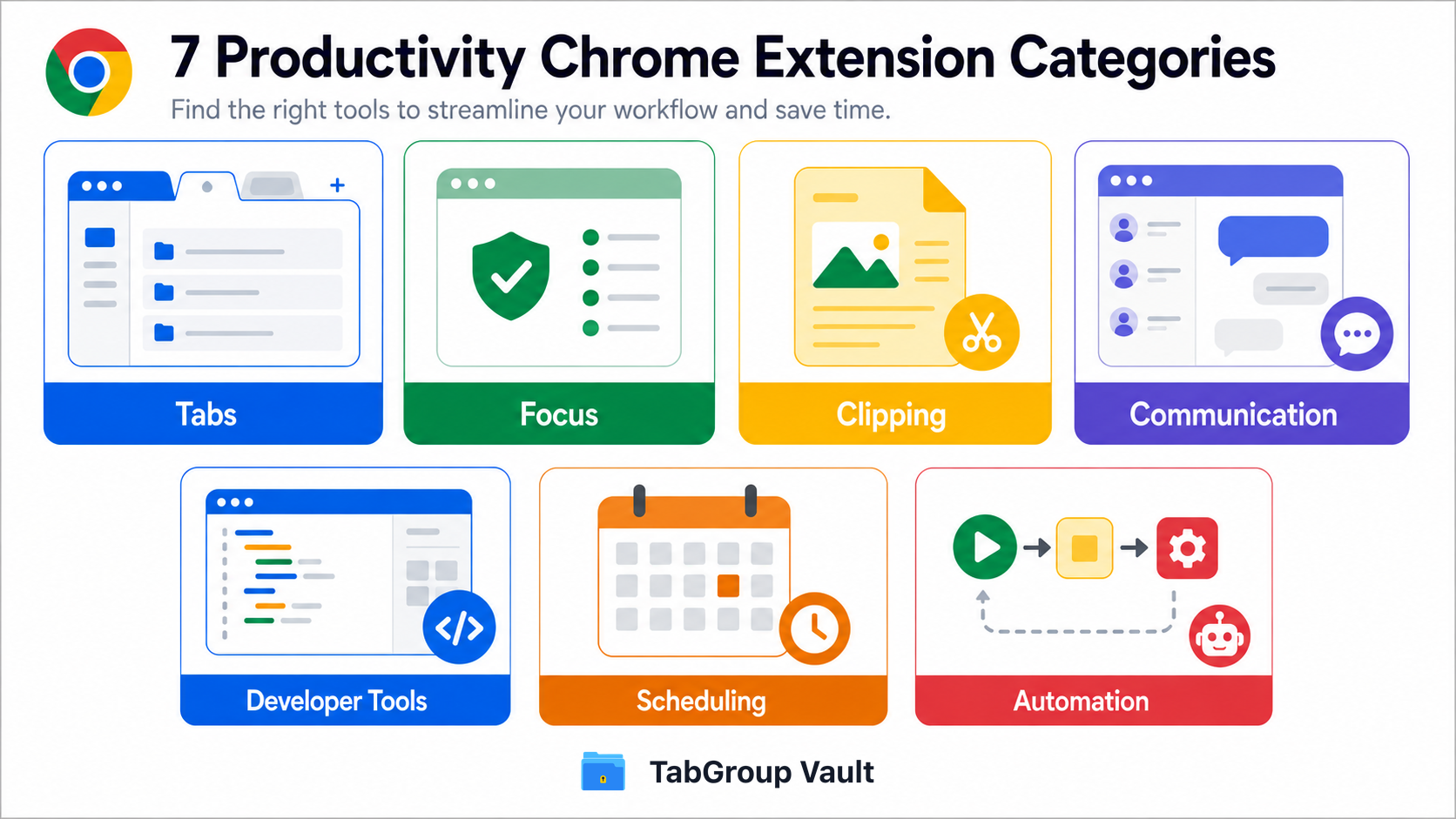
Notes and clipping
Good clipping tools save the page and enough context that you can find it again later. That second part is where plain bookmarks usually fall apart.
7. Notion Web Clipper
If Notion is your knowledge base, the Web Clipper sends pages straight into a Notion database. Add tags, categories, and a note before saving. It works best when you are collecting articles over several days and need each one to land in the right place.
Best for: Notion users who collect web content. Price: Free (requires Notion account).
8. Raindrop.io
Raindrop.io is a bookmark manager with collections, tags, full-text search, and visual previews. Chrome bookmarks are fine for a short list. Raindrop is better when your saved pages have become a research library across browsers and devices.
Best for: Heavy bookmarkers who need better organization than Chrome provides. Price: Free / $3/month Pro.
Communication and collaboration
Remote work creates a lot of tiny explanation loops: record this, clarify that, schedule the call, rewrite the note. These extensions cut down that drag.
9. Loom
Loom records your screen, camera, or both and turns the result into a shareable link. For a bug report, design note, or quick walkthrough, a 2-minute Loom can replace a meeting. The Chrome extension keeps the recorder within reach.
Best for: Remote teams that want to reduce meeting count. Price: Free (25 videos) / $12.50/month Business.
10. Grammarly
Grammarly checks writing in real time across Gmail, Slack, Google Docs, and most text fields in Chrome. The premium version goes past grammar into tone, clarity, and engagement suggestions. It earns its keep when emails, docs, or proposals are part of the job.
Best for: Anyone who writes emails, documents, or messages regularly. Price: Free / $12/month Premium.
Developer tools
Developers already live in the browser. The right extension shortens the distance between "that looks wrong" and the actual cause.
11. React Developer Tools
The official React DevTools extension adds a React Tab to Chrome DevTools. You can inspect component hierarchies, props, state, and hooks in real time. If you build with React, install it.
Best for: React developers. Price: Free.
12. Wappalyzer
Wappalyzer identifies the technologies behind a website: frameworks, CMS platforms, analytics tools, hosting providers, and more. Handy for competitive analysis. Also handy when a sales lead asks, "What stack are they on?" five minutes before a call.
Best for: Developers, marketers, and sales professionals doing website research. Price: Free (basic detection) / paid plans for bulk analysis.
Email and scheduling
13. Checker Plus for Gmail
Checker Plus lets you read, respond to, and manage Gmail without opening another Tab. Desktop notifications include email previews, and quick replies can happen from the popup. If you check email constantly, it cuts down the Tab-switching tax.
Best for: Gmail power users who want to reduce inbox context switches. Price: Free / optional donation.
14. Calendly
Calendly's Chrome extension inserts your scheduling link into an email or message with one click. It can also show availability while you compose, so suggesting meeting times does not require a trip back to the calendar.
Best for: Anyone who schedules meetings frequently. Price: Free / $10/month Standard.
Automation
15. Bardeen
Bardeen automates repetitive browser tasks without code. It can scrape data from websites, fill spreadsheets, send notifications, and connect web apps. Think Zapier, but closer to the Tab where the work is happening.
Best for: Non-technical users who want to automate browser-based workflows. Price: Free (basic automations) / $10/month Pro.
Chrome Web Store checklist before installing
The Chrome Web Store has a productivity collection. Treat it as a starting shelf, not a safety stamp. Before installing any productivity extension, check:
- Featured badge: Google says the Featured badge means the extension follows recommended practices for Chrome extensions and the publisher has a good record.
- Update date: Prefer maintained extensions with recent updates, especially when the tool touches browsing, email, calendar, or page data.
- Permissions: Read the permissions carefully. A tool that edits every page you visit deserves more scrutiny than a tool that runs only from its popup.
- Reviews and user base: Ratings are not proof of safety, but they can reveal recurring bugs, sync issues, support problems, or confusing billing changes.
- Privacy policy and data disclosure: Check what data the extension collects, how it is used, and whether the behavior matches the job you want it to do.
- Current platform support: Manifest V3 is Chrome's current extension platform. Chrome's official timeline says Manifest V2 was disabled for all Chrome channels with Chrome 138 on July 24, 2025, and remaining MV2 extensions are being removed from the Chrome Web Store on August 31, 2026.
- Security posture: MV3 is intended to improve extension privacy, security, and performance, including limits on remotely hosted code. That does not make every MV3 extension safe, so still check the extension's actual permissions and data use.
How to choose the right extensions
Too many extensions can slow Chrome down and create a new kind of browser clutter. Install the ones you actually use. Then review permissions on a schedule, ideally before the extension list becomes furniture.
- Start with Tab management. If the browser is disorganized, every other tool has to fight through the mess. TabGroup Vault or a similar Tab manager should be your first install.
- Add one focus tool. Pick Freedom, Forest, or Momentum based on your personality. You do not need all three.
- Layer in role-specific tools. Developers add DevTools extensions. Writers add Grammarly. Sales teams usually get more from Wappalyzer and Calendly.
- Review quarterly. Remove extensions you have not used in 30 days. Every extension consumes memory, even when idle.
Where to start
Browser productivity usually breaks in one of three places: organization, focus, or repeated tasks. Pick the category that fixes the most irritating part of your day. For most Chrome users, that is Tab management.
If you want a broader category-by-category list, read the best Chrome extensions for 2026. If you want audience-specific picks, see our guides to ADHD productivity tools, freelancer productivity tools, and Chrome extensions for students.