Best Chrome Extensions in 2026: Quick Picks
The best Chrome extensions in 2026 are the ones that work cleanly under Manifest V3, are still maintained, ask for permissions that match their job, and solve a daily problem without bloating your browser. Chrome's Manifest V2 phaseout means old extension lists need a harder filter now: MV3 compatibility first, then usefulness.
| Category | Best pick | Best for | Free option? |
|---|---|---|---|
| Tab management | TabGroup Vault | Saving and restoring Chrome Tab Groups | Yes |
| Focus | Freedom | Blocking distracting sites across devices | Trial |
| Security | Bitwarden | Password management | Yes |
| Privacy | uBlock Origin Lite | Manifest V3 ad blocking in Chrome | Yes |
| Development | React Developer Tools | Debugging React apps | Yes |
| AI / automation | Bardeen | Automating browser workflows | Yes |
What Changed for Chrome Extensions in 2026
Chrome extension recommendations need a different lens in 2026. Manifest V3 is now the practical baseline for normal Chrome users, and built-in Chrome features have changed what some extension categories are for.
- Manifest V2 is effectively over in Chrome. Chrome 138 disabled MV2 extensions for all users, and Chrome 139 and later remove the enterprise policy path. For Chrome users, the safe assumption is simple: choose MV3-compatible extensions.
- uBlock Origin Lite is the Chrome-safe uBlock option. The full uBlock Origin extension depends on MV2 behavior in Chrome. uBlock Origin Lite is the MV3-based content blocker to consider on Chrome.
- Chrome vertical Tabs are rolling out. Google announced vertical Tabs on April 7, 2026 and said the feature was beginning to roll out. When it is available in your Chrome build, right-click a Chrome Window and choose "Show Tabs Vertically."
- Chrome Web Store reviews may be slower for developers. Google warns that an April 2026 submission surge is extending review times. Most reviews finish within a few days, some take a few weeks, and developers should contact support after three weeks.
For users, this means popularity is not enough. Check maintenance, MV3 support, permissions, and whether Chrome now has a built-in feature that covers the same basic need.
How We Selected These Extensions
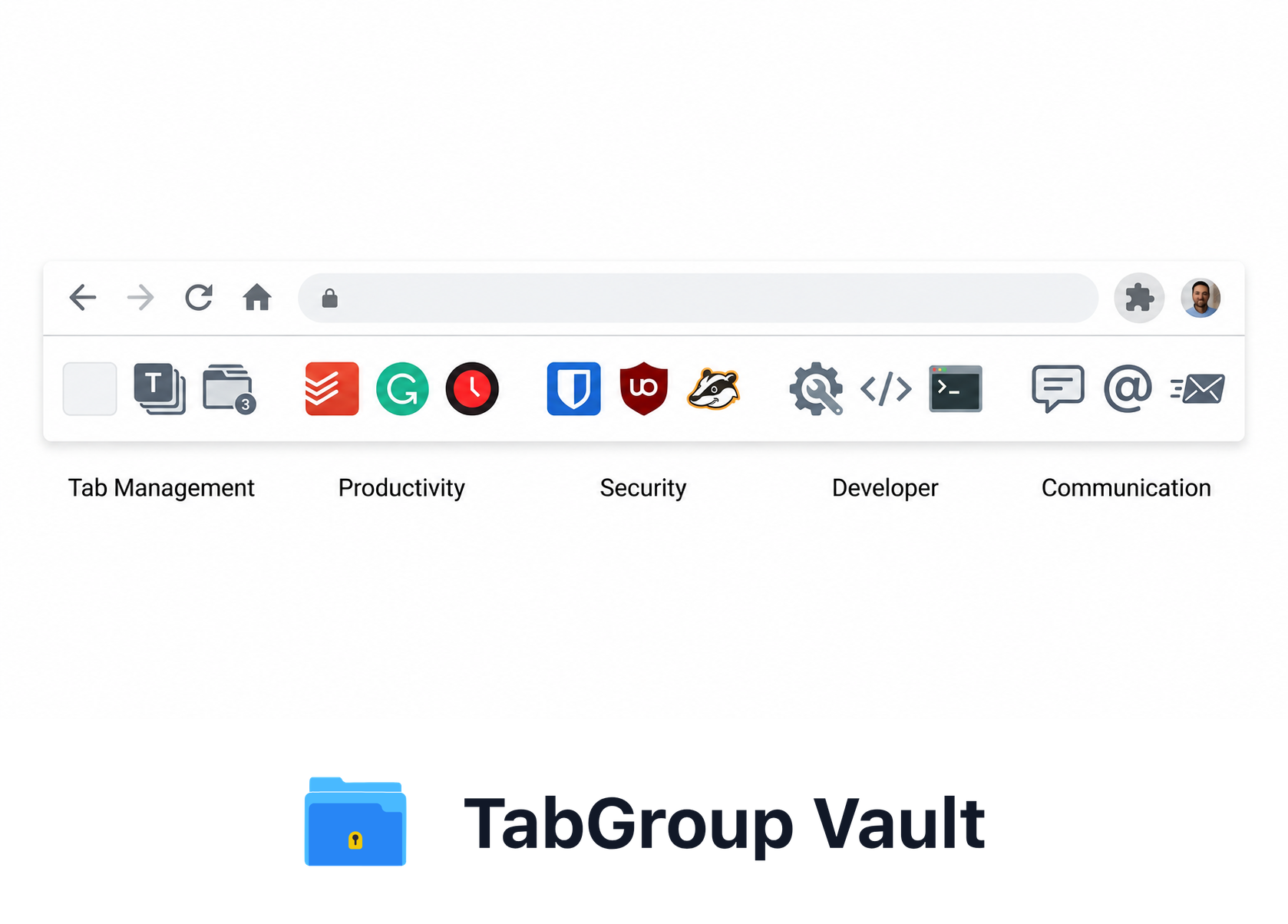
Illustrative example; layout and sample data are conceptual.
The Chrome Web Store remains large, but Google does not appear to publish a current official extension count. Most lists recycle the same names without checking maintenance, permissions, or how MV3 changed the recommendation.
We evaluated each pick against three criteria:
- Does it fit modern Chrome? Many extensions are abandoned, broken by Chrome updates, or have not moved cleanly to Manifest V3.
- Does it justify its resource cost? Every extension consumes memory. We measured each one's footprint and excluded those with disproportionate overhead.
- Does it solve a real problem? We avoided gimmicks and novelty extensions. Every entry here addresses a genuine workflow friction.
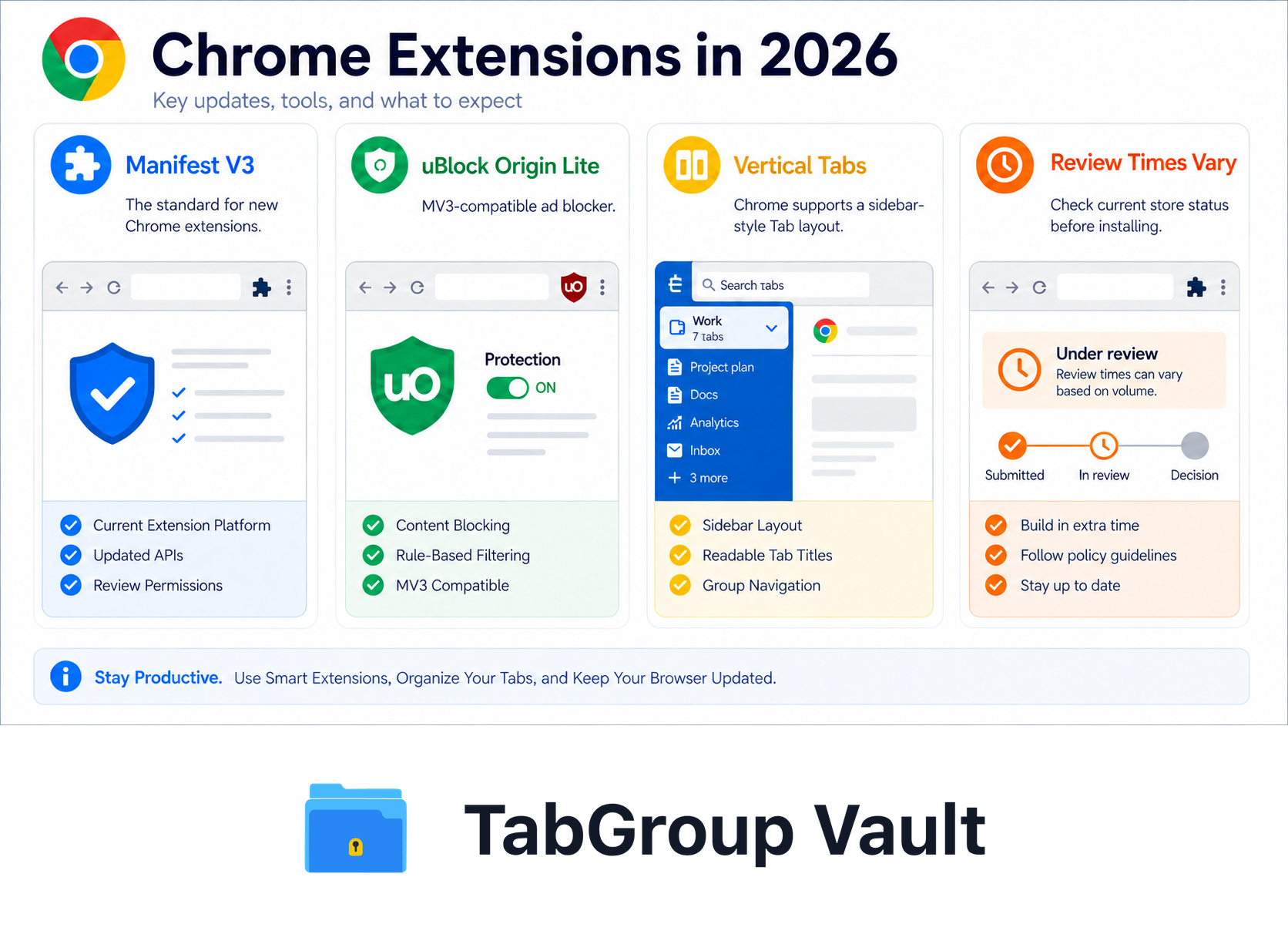
Illustrative example; layout and sample data are conceptual.
Productivity
Extensions that help you get more done by reducing friction, blocking distractions, and automating repetitive tasks.
Todoist
Todoist's Chrome extension turns your browser into a task capture machine. Add tasks from any web page, turn emails into to-dos, and manage your task list without leaving your current Tab. The quick-add shortcut (Ctrl+Shift+A) is fast enough to capture a thought without breaking flow. Projects, labels, and priority levels keep everything organized.
Price: Free / $4/month Pro. Best for: Personal task management with browser integration.
Freedom
Freedom blocks distracting websites across all your devices. Schedule recurring focus Sessions, create custom blocklists, and lock yourself out of social media during work hours. Cross-device sync matters here: blocking Twitter in Chrome means little if you can still open it on your phone.
Price: $3.33/month (annual). Best for: Anyone who struggles with self-discipline around distracting sites.
Bardeen
Bardeen automates repetitive browser tasks without code. Scrape data from web pages, populate spreadsheets, connect apps, and build workflows that run on schedule or on demand. For anyone who does the same browser-based task repeatedly, Bardeen can likely automate it.
Price: Free (basic) / $10/month Pro. Best for: Non-technical users who want browser automation.
Tab Management
Extensions that organize, save, and manage your open Tabs. Chrome vertical Tabs began rolling out in April 2026, which helps you scan long Tab lists and Tab Groups. It does not replace saved Sessions, backups, exports, local collections, or workflow-specific Tab managers. This is the most impactful category because browser organization reduces context-switching costs that affect everything else you do.
TabGroup Vault
TabGroup Vault focuses on one thing and does it well: saving and restoring Chrome Tab Groups. If you use Chrome's built-in Tab Groups to organize your work (and you should), TabGroup Vault is the insurance policy that ensures they never disappear. Save a snapshot of all your Tab Groups with full preservation of names, colors, and URLs, then restore with one click.
TabGroup Vault
What it does: Saves and restores Chrome Tab Groups with full color, name, and URL preservation. Price: Free (10 snapshots) / $39 lifetime Pro (unlimited snapshots, bulk restore, Google Drive backup, 5 Chrome profiles, dark theme). Standout feature: One-time purchase in a category dominated by monthly subscriptions.
OneTab
OneTab is the simplest possible Tab reduction tool. Click the icon, and open Tabs convert into a list of links that you can restore individually or all at once. It is best for quick cleanups when your Tab bar gets out of control. Use a Session manager if preserving richer Session structure matters.
Price: Free. Chrome Web Store listing: 2,000,000 users, 4.5 rating from 14.5K ratings, version 2.14, updated March 22, 2026. Privacy note: OneTab says Tab URLs are not transmitted except when you use "share as a web page." Best for: Users who want the simplest Tab reduction tool.
Session Buddy
Session Buddy saves and restores Sessions, manages Tabs and bookmarks, and helps recover Tabs after crashes, restarts, or accidental closure. It organizes collections, searches open Tabs, saved collections, and Tab history, and stores data locally by default. It is a useful complement to TabGroup Vault: use TabGroup Vault for named Chrome Tab Group snapshots, Session Buddy for full-Window Session archives.
Price: Free. Chrome Web Store listing: 1,000,000 users, 4.7 rating from 25.1K ratings, version 4.1.2, updated April 28, 2026. Best for: Users who want complete Window-level Session history without a subscription.
Security and Privacy
Extensions that protect your accounts, data, and browsing privacy.
Bitwarden
Bitwarden is the best free password manager available. It auto-fills credentials across all your accounts, generates strong passwords, and syncs across devices. The Chrome extension is fast and unobtrusive, integrating with login forms without getting in the way. The $10/year premium plan adds TOTP authentication and emergency access.
Price: Free / $10/year Premium. Best for: Everyone. A password manager is non-negotiable in 2026.
uBlock Origin Lite
uBlock Origin Lite is the MV3-based uBlock option for Chrome. The original uBlock Origin depended on Manifest V2 behavior that no longer works for normal Chrome users, so Chrome users should choose the Lite listing instead of assuming the old recommendation still applies.
Price: Free. Best for: Chrome users who want a maintained MV3 content blocker. If you use another browser, check that browser's extension support separately.
Privacy Badger
Privacy Badger, from the Electronic Frontier Foundation, learns to block invisible trackers as you browse. Unlike static blocklists, Privacy Badger uses algorithmic detection to identify new trackers automatically. It runs silently in the background and requires zero configuration.
Price: Free. Best for: Privacy-conscious users who want tracker protection beyond ad blocking.
| Feature | What to Check |
|---|---|
| One-Time or Recurring | TabGroup Vault offers a free tier and an optional one-time Pro purchase. Competitor plans differ by billing cycle, seats, limits, and features. |
| Compare Like for Like | For a recurring plan, calculate the published rate × months × seats, and include taxes or add-ons. Verify the chosen plan before comparing a three-year total; do not use an unverified monthly price. |
Sources Checked October 1, 2026: TabGroup Vault Features · Workona Plans · Toby Plans
Development
Extensions tailored for software developers, web designers, and technical professionals.
React Developer Tools
The official React DevTools extension adds dedicated React Tabs to Chrome's developer tools. Inspect component trees, examine props and state, profile rendering performance, and debug hooks. If you work with React, install this before you start guessing.
Price: Free. Best for: React developers.
Wappalyzer
Wappalyzer identifies the technology stack behind any website. Click the extension icon on any page to see what CMS, framework, analytics tools, hosting provider, and other technologies it uses. It is useful for competitive analysis, technology scouting, and sales research.
Price: Free (basic detection) / paid plans for bulk analysis. Best for: Developers, tech leads, and sales engineers.
JSON Viewer
JSON Viewer formats raw JSON responses in the browser with syntax highlighting, collapsible sections, and search. When working with APIs, this transforms unreadable JSON blobs into navigable, color-coded data structures. It also validates JSON syntax and shows errors.
Price: Free. Best for: Anyone who works with APIs or JSON data.
Design
Extensions for designers, front-end developers, and anyone who works with visual elements.
ColorZilla
ColorZilla provides an advanced eyedropper, color picker, and gradient generator directly in Chrome. Pick any color from any web page, get its hex/RGB/HSL values, and build CSS gradients. The color history tracks every color you pick for quick reference.
Price: Free. Best for: Designers and front-end developers who need to sample colors from the web.
Fonts Ninja
Fonts Ninja identifies fonts used on any web page. Hover over text to see the font family, size, line height, and color. It also shows where to purchase or download the font. For designers doing competitive research or trying to identify a font they like, this saves hours of manual detective work.
Price: Free (identification) / $3.99/month Pro. Best for: Designers and typography enthusiasts.
Responsive Viewer
Responsive Viewer displays any web page at multiple screen sizes simultaneously. Instead of manually resizing your browser to test responsive designs, see how a page looks on phone, tablet, and desktop side by side. You can customize the device profiles and take screenshots of all views at once.
Price: Free. Best for: Web designers and front-end developers testing responsive layouts.
Communication
Extensions that streamline how you communicate with colleagues, clients, and collaborators.
Loom
Loom lets you record your screen, camera, or both, and share a video link instantly. The Chrome extension keeps recording simple: click the icon, choose what to record, and start. For remote teams, Loom can replace a lot of meetings with async video that people can watch at 2x speed.
Price: Free (25 videos) / $12.50/month Business. Best for: Remote workers and anyone who gives visual explanations.
Grammarly
Grammarly checks your writing in real time across Chrome text fields, including email, Slack, Google Docs, and social media. The free version catches grammar and spelling errors. The premium version adds tone detection, clarity suggestions, and engagement scoring.
Price: Free / $12/month Premium. Best for: Anyone who writes professionally in the browser.
Checker Plus for Gmail
Checker Plus delivers Gmail notifications with full email previews and lets you read, reply, and manage email without opening a Gmail Tab. For people who check email frequently, it eliminates dozens of Tab switches per day while keeping you responsive to important messages.
Price: Free. Best for: Gmail power users who want notifications without context switching.
Master Comparison Table
Use this table as a trust checklist before installing. Last checked: May 17, 2026.
| Extension | Trust signals | Permissions / privacy note | Best use case | Free / paid |
|---|---|---|---|---|
| Todoist | Actively maintained task app with broad adoption | Needs page and account access for task capture | Personal task capture | Free / $4/mo |
| Freedom | Maintained focus blocker | Needs blocking access for selected sites | Cross-device distraction blocking | Trial / paid |
| Bardeen | Maintained automation tool | Review permissions carefully because automations can touch page data | Browser workflow automation | Free / $10/mo |
| TabGroup Vault | MV3-ready, built for Chrome Tab Groups | Stores saved Tab Group data for restore, with optional backup on Pro | Saving and restoring Chrome Tab Groups | Free / $39 lifetime |
| OneTab | 2,000,000 users, 4.5 rating, 14.5K ratings, updated Mar 22, 2026 | Tab URLs are not transmitted except when using "share as a web page" | Fast Tab cleanup into a restorable list | Free |
| Session Buddy | 1,000,000 users, 4.7 rating, 25.1K ratings, updated Apr 28, 2026 | Stores Session data locally by default | Session restore, crash recovery, and searchable collections | Free |
| Bitwarden | Maintained password manager with strong free tier | Needs form access to fill logins | Password management | Free / $10/yr |
| uBlock Origin Lite | MV3-based Chrome content blocker | Uses Chrome's MV3 extension model for filtering | Content blocking on Chrome | Free |
| React DevTools | Official React developer extension | Developer tooling access on inspected pages | React debugging | Free |
| Wappalyzer | Maintained technology detection tool | Reads page signals to identify technologies | Technology research | Free / paid |
| ColorZilla | Long-running design utility | Needs page access to sample colors | Color picking and CSS gradients | Free |
| Loom | Maintained screen recording tool | Needs recording permissions when you capture screen or camera | Async video communication | Free / $12.50/mo |
| Grammarly | Maintained writing assistant | Analyzes typed text in supported fields | Writing checks in the browser | Free / $12/mo |
Extension Management Best Practices
Having the right extensions is half the equation. Managing them well is the other half.
- Install per profile, not globally. Your work profile needs different extensions than your personal profile. Install only what each profile requires.
- Disable, do not uninstall. If you use an extension infrequently (like Responsive Viewer), disable it and re-enable when needed. Disabled extensions consume zero resources.
- Audit quarterly. Review your extension list every three months. Remove anything you have not used in 30 days. Check for updates and review any new permissions requested.
- Pin selectively. Only pin extensions you use multiple times per day to the toolbar. Everything else can live in the extensions menu (the puzzle piece icon).
- Check permissions. Be wary of extensions that request broad permissions like "Read and change all your data on all websites" unless there is a clear reason they need it (like a password manager or ad blocker).
The Bottom Line
The best Chrome setup is not the one with the most extensions. It is the one where every installed extension solves a specific problem, works under Manifest V3, and justifies its permissions. Start with the basics: a password manager, a maintained content blocker, and a Tab management tool. Add role-specific extensions only when you feel the gap.
For more focused picks, see our productivity extensions, Chrome Session managers, Tab organizer comparison, student extensions, and vertical Tabs guide.