Why Browsers Are Particularly Challenging with ADHD
| Feature | What to Check |
|---|---|
| Save Context | Name project Groups, save the relevant Tabs, and check the backup before closing them. This is a workflow example, not a medical outcome or productivity measurement. |
| Capture and Retrieve | Choose currently maintained capture, notes, and reference tools. Pocket has shut down; do not treat it as an available current recommendation. |
Sources Checked October 1, 2026: Chrome Help · TabGroup Vault Features · Pocket Shutdown
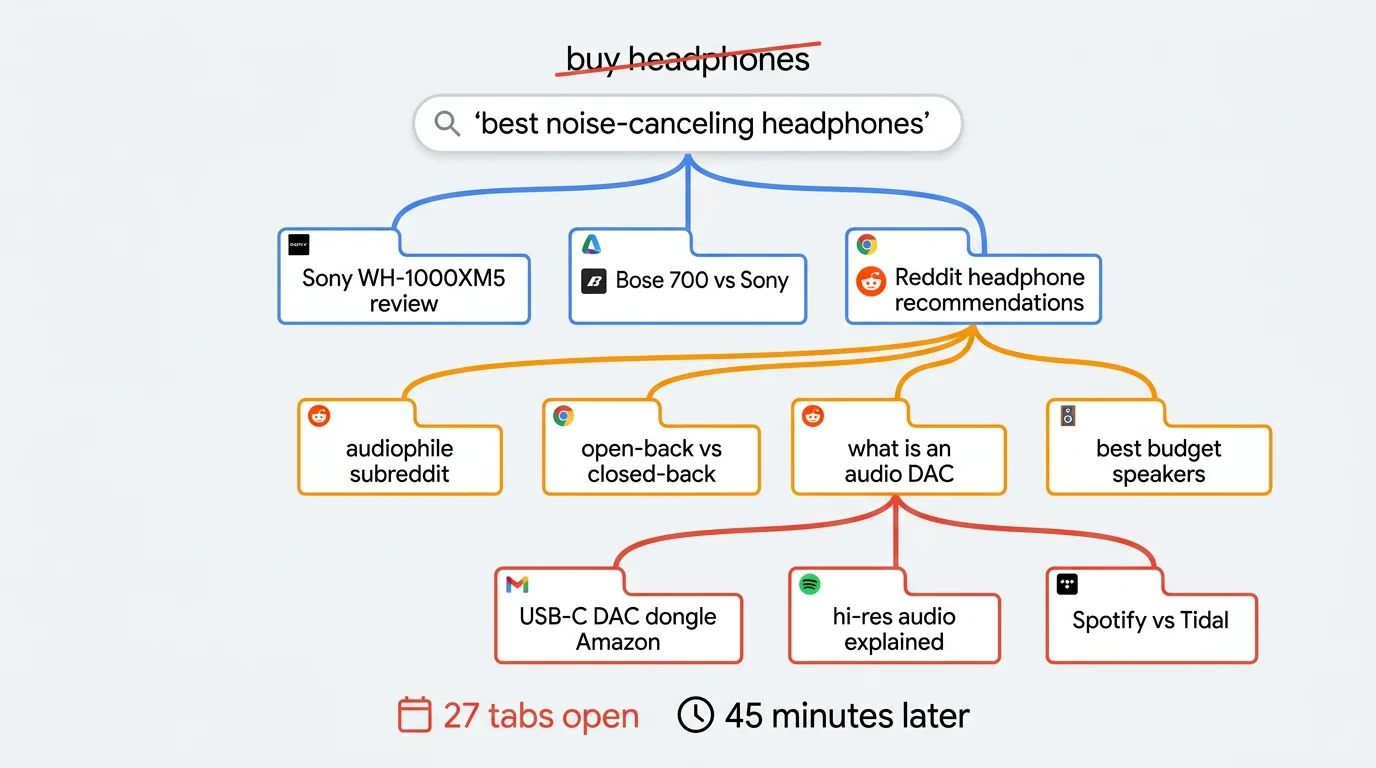
If you have ADHD, you already know that your browser can be both the tool and the trap. The same hyperfocus that lets you go deep on a topic for hours can also leave you with 40 Tabs open, no clear sense of which ones matter, and a nagging feeling that the original task disappeared somewhere along the way.
This is not a character flaw. It is how ADHD interacts with an environment designed for infinite branching. Every link is an invitation to a new thread. Every search result opens three more questions. The browser does nothing to help you maintain a coherent path through information. It just keeps opening Tabs.
The result is a set of challenges that standard productivity advice does not adequately address:
- Tab overwhelm. Too many Tabs creates visual noise that makes it harder to focus on any single one. The Tab bar becomes a wall of indistinguishable favicons.
- Out of sight, out of mind. If you close a Tab, it stops existing in your mental model. This makes closing Tabs feel risky, so you keep everything open as a memory aid.
- Hyperfocus scatter. During a hyperfocus Session, you open dozens of Tabs on a topic. When the Session ends, you have a mess of Tabs with no organization and no way to distinguish the important ones from the rabbit holes.
- Context loss. Switching between tasks means losing your mental model of what you were doing. Rebuilding that model is exhausting and sometimes impossible.
The tools below are meant for those browser-specific problems. This is not a discipline lecture. It is a way to make Chrome less punishing when your attention branches.
Category 1: Context Preservation
The biggest win for ADHD browser management is solving the "out of sight, out of mind" problem. If you can save your current context and trust that it will be there later, closing Tabs stops feeling like a gamble. That is what creates room to focus.
TabGroup Vault
TabGroup Vault saves snapshots of your Chrome Tab Groups. Click save, and every Tab, every Group, and every color label is captured. Close everything. When you need to come back, restore the snapshot and your entire context reappears exactly as it was.
For ADHD brains, this addresses the core anxiety: if I close this, I will lose it. You will not. It is saved. You can close it. The free tier gives you 10 snapshots, enough to keep a few separate contexts (work, personal project, research rabbit hole) without leaving all of them open at once.
TabGroup Vault
Save and restore Chrome Tab Groups with one click. Addresses the ADHD challenge of "out of sight, out of mind" by making Tab closure reversible. Free: 10 snapshots. Pro ($39 one-time): unlimited snapshots, bulk restore, Google Drive backup, 5 Chrome profiles, dark theme.
The useful part is that TabGroup Vault does not ask you to organize before you save. You can be in the middle of a chaotic hyperfocus Session with 30 messy Tabs, hit save, and deal with the organization later (or never). The safety net works even when the Tabs are not tidy.
Chrome Tab Groups (Built-in)
Chrome's built-in Tab Groups provide visual structure that ADHD brains often benefit from. Color-coding and labeling Groups creates visual anchors in the Tab bar. Instead of 40 identical-looking Tabs, you see a few colored blocks with names. Your eyes can find what they need faster, and collapsing a Group reduces the clutter immediately.
Chrome now says Tab Group changes are automatically saved and synced across devices when you are signed in with the same Google Account, and closed Groups can be reopened. That makes native Tab Groups useful for active visual organization.
TabGroup Vault is for a different moment: "save this whole context before I close it." Use Chrome Groups to keep the active workspace readable. Use TabGroup Vault when you want an explicit snapshot, an archive you can name, backup/export, or more confidence restoring work across Chrome profiles.
Chrome has also started rolling out vertical Tabs on desktop, which can make full page titles easier to scan when Tab counts climb.
Category 2: Distraction Blocking
Distraction blocking tools create friction between you and the sites that pull your attention away. They do not make distraction impossible. They make the automatic reach for social media or news awkward enough to interrupt.
Before installing any blocker, review its permissions and only choose tools you trust. Blockers often need broad site access to work; StayFocusd's listing, for example, discloses permission to read and change site data so it can block pages.
StayFocusd
StayFocusd lets you set a daily time allowance for specific websites. Once you hit your limit, those sites are blocked for the rest of the day. The "Nuclear Option" blocks everything except a whitelist for a set period, which is useful during deep work Sessions.
StayFocusd is useful because it makes the block harder to undo in the moment. Require Challenge makes settings harder to change, and Nuclear Option blocks access for selected hours or days and cannot be canceled once active. That matters when the impulse to disable a blocker shows up five seconds after it blocks something.
Forest
Forest adds a visual, gamified focus timer around growing trees during focus Sessions, including 30-minute focus blocks and shared trees. It feels less punitive than a plain blocker. If visual rewards and streaks work for you, Forest may be easier to stick with.
Category 3: Tab Limiters
Tab limiters enforce a maximum number of open Tabs. This is a blunt tool, but it directly addresses the hyperfocus scatter pattern where you open 30 Tabs without realizing it.
xTab
xTab sets a hard cap on the number of Tabs you can have open. It can remove the least recently used, least accessed, or oldest Tab, and it can also block new Tabs once the limit is reached. You choose the limit. Some people set it to 20. Some to 10. The right number is whatever makes you pause before opening another Tab.
Be careful with any mode that automatically closes Tabs. If losing context makes you anxious, choose a behavior that blocks new Tabs or warns you instead of surprise-closing something you still need.
Choosing a Tab Limiter
If you prefer Tab limiters, choose a current extension with clear permissions and a behavior that will not surprise-close Tabs you still need. For ADHD Tab anxiety, the best limiter is usually the one that creates a pause without making your browser feel unsafe.
How These Tools Work Together
No single tool handles every ADHD browser problem. The useful setup is usually a small combination:
| Challenge | Tool | How It Helps |
|---|---|---|
| Tab overwhelm | Chrome Tab Groups + xTab | Visual organization + optional limits on open Tabs |
| Out of sight, out of mind | TabGroup Vault | Save context so closing Tabs is safe |
| Hyperfocus scatter | TabGroup Vault + xTab | Save the mess, limit future accumulation |
| Distraction spirals | StayFocusd or Forest | Block or limit access to distracting sites |
| Context loss | TabGroup Vault | Restore previous working state instantly |
A practical starting point is TabGroup Vault plus one other tool. If distraction is your main issue, pair it with StayFocusd or Forest after checking permissions. If Tab accumulation is the problem, pair it with xTab in a mode that will not make you worry about lost context. Add more only when there is a specific reason; too many extensions can become its own mess.
ADHD-Specific Workflow Strategies
Beyond tools, a few strategies make the browser more ADHD-compatible:
The "Parking Lot" Group
Create a Tab Group called "Parking Lot" or "Later" for Tabs that catch your attention but are not related to your current task. When you feel the pull to go down a rabbit hole, drag the Tab into the Parking Lot instead. This acknowledges the impulse without derailing your focus. Review the Parking Lot during a planned break or at the end of the day.
The Session Bookmark
Before you start working on something, save a snapshot of your current Tabs. Think of it as a bookmark for your Session. If you get distracted and your browser ends up in a completely different state, you can restore the snapshot and get back to where you were. This removes the penalty for distraction. You do not have to remember where you were because the snapshot remembers for you.
The Two-Window Split
Use two Chrome Windows: one for your current task and one for everything else. Keep the task Window in front. If you need to look something up that is not task-related, use the second Window. The separation gives you a visual cue. When you catch yourself in the second Window, you have a clean signal to switch back.
A Note on Self-Compassion
If you set up a system and do not follow it perfectly, that is fine. These tools should make things easier, not create another source of guilt. Use what helps. Ignore what does not. Adjust as you learn what works for your brain. There is no right way to manage Tabs, only a way that reduces friction for you.
What Does Not Work (and Why)
Some common productivity advice actively clashes with ADHD. Knowing what to skip saves time and frustration:
- "Just close Tabs you don't need." This assumes you know which Tabs you need, which requires a working memory that ADHD often compromises. Save first, then close.
- "Use bookmarks." Bookmarks are where Tabs go to die. If you cannot see it, you will not remember it exists. Bookmarks work for neurotypical organization; for ADHD, they become a graveyard of good intentions.
- "Be more disciplined about opening Tabs." This is like telling someone with poor eyesight to just look harder. The tool should accommodate the behavior, not the other way around.
- "Start each day with a clean browser." For ADHD, the context in your browser is part of your external memory. Wiping it daily means rebuilding your mental state from scratch every morning. Save your context instead.
Getting Started Without Getting Overwhelmed
If you have read this far and are feeling the urge to install five extensions right now, pause. Here is the minimum viable setup:
- Install TabGroup Vault. Save a snapshot of your current Tabs right now. That is your safety net.
- Create one or two Chrome Tab Groups for your most important current tasks. Do not try to organize everything.
- Use it for a week. Just the save-and-restore workflow. See if it helps.
- Add one more tool if you identify a specific remaining problem (distraction, Tab accumulation, etc.).
The goal is not a perfectly organized browser. The goal is a browser where you can find what you need, save what matters, and get back on track after the inevitable distractions. You can get there without becoming a different person first.