The Multi-Process Architecture: Why Each Tab Costs So Much
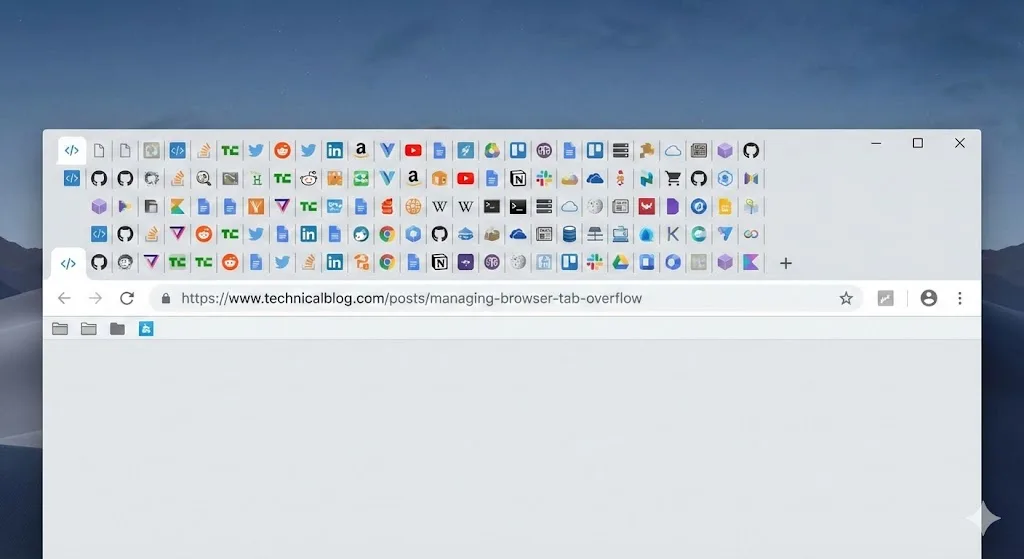
Chrome was designed from the ground up to isolate tabs from each other. Every tab you open runs inside its own operating system process, complete with its own V8 JavaScript engine instance, its own copy of the rendering engine (Blink), and its own memory heap. This is fundamentally different from how older browsers worked, where a single process handled everything.
The benefits of this architecture are real. If a tab crashes, it does not bring down the entire browser. If a site tries to run malicious code, it is sandboxed within its own process and cannot easily access data from other tabs. Security and stability are both improved.
But the cost is equally real. Every process has overhead. The operating system needs to track it, schedule it, and allocate memory for it. When you have 5 tabs, the overhead is negligible. When you have 50, you are running 50 or more separate processes, and the cumulative overhead becomes the dominant factor in Chrome's resource consumption.
Resource Cost #1: RAM Consumption
Memory is the most visible cost of too many tabs. Each tab process requires a baseline allocation just to exist, typically 30-50 MB for the process infrastructure alone. Then the page contents are loaded on top of that: HTML, CSS, JavaScript, images, and media.
A simple text-heavy article might bring a tab to 60-100 MB total. A complex web application like Gmail, Figma, or a data dashboard can push a single tab past 500 MB. Sites with embedded video players or heavy advertising networks often consume 200-400 MB each.
| Type of Page | Typical RAM Usage Per Tab | Example Sites |
|---|---|---|
| Simple/static page | 50-100 MB | Wikipedia, blog posts, documentation |
| News/media site | 150-300 MB | CNN, Reddit, YouTube (paused) |
| Web application | 200-500 MB | Gmail, Slack, Google Docs |
| Heavy web app | 400-1000+ MB | Figma, Google Sheets (large), Jira |
| Streaming video | 300-600 MB | YouTube (playing), Netflix, Twitch |
When total Chrome memory approaches your system's physical RAM capacity, the operating system starts using swap space (virtual memory on disk). Disk access is orders of magnitude slower than RAM access, and this is when you experience severe slowdowns: laggy typing, delayed tab switching, and unresponsive interfaces.
Resource Cost #2: CPU Wake-Ups
Even when you are not looking at a tab, it is not truly dormant. Modern web pages are full of background activity that periodically wakes up the CPU:
- JavaScript timers: setInterval and setTimeout calls that run code on a schedule, such as updating a notification badge or refreshing content.
- WebSocket connections: Persistent connections to servers for real-time updates (chat apps, stock tickers, collaborative editing tools).
- Service workers: Background scripts that handle caching, push notifications, and offline functionality.
- CSS animations: Animated elements continue their rendering cycles even when the tab is not visible.
- Analytics and tracking: Many sites run periodic beacons that report user engagement data.
Chrome throttles timers in background tabs to fire no more than once per second, but that still means each background tab wakes up the CPU at least once per second. Multiply that by 40 background tabs and you have 40 CPU wake-ups per second just from timer throttling. Add WebSockets and service workers, and the load compounds further.
This constant background activity drains laptop batteries faster and makes the system feel sluggish even when you are working in a different application entirely.
Resource Cost #3: Extension Injection Overhead
This is the factor most people overlook. Chrome extensions that use content scripts inject their code into every page you visit. An extension that modifies web pages, such as an ad blocker, a grammar checker, or a dark mode tool, runs its scripts inside every tab's process.
If you have 5 extensions with content scripts and 30 tabs, that is 150 instances of extension code running across your browser. Each instance consumes memory and CPU cycles. The overhead per instance is usually small (5-20 MB), but the multiplication effect is significant.
The Extension Multiplier Effect
5 content-script extensions across 30 tabs = 150 injection instances. If each uses 10 MB, that is 1.5 GB of memory consumed just by extensions, on top of the tabs themselves. Reducing either the number of extensions or the number of tabs reduces the total multiplicatively.
When Does the Slowdown Actually Start?
The answer depends on your system's hardware, but here are typical thresholds based on common configurations:
| System RAM | Comfortable Tab Range | Slowdown Begins | Severe Impact |
|---|---|---|---|
| 4 GB | 5-10 tabs | ~15 tabs | ~25 tabs |
| 8 GB | 15-25 tabs | ~35 tabs | ~50 tabs |
| 16 GB | 30-60 tabs | ~80 tabs | ~120 tabs |
| 32 GB | 60-120 tabs | ~150 tabs | ~250+ tabs |
These numbers assume a moderate number of extensions (3-5) and a mix of simple and complex pages. Heavy web apps shift these thresholds significantly lower. Running Figma, multiple Google Sheets, and Slack simultaneously can make 20 tabs feel like 60.
What To Do About It
Understanding why Chrome slows down points directly to the solutions. You need to reduce the number of active processes, which means reducing the number of active tabs.
Solution 1: Save and close tabs you are not using right now
The most effective fix is also the most straightforward. If you are not actively using a tab right now, it should not be consuming memory right now. Save your tab groups with TabGroup Vault, close them, and restore them when you actually need them.
This eliminates the tab's process entirely: no RAM, no CPU wake-ups, no extension injection overhead. It is the difference between a tab existing and a tab being remembered.
TabGroup Vault
Price: Free (5 snapshots) / $29 one-time Pro
Key benefit: Save tab groups with full structure, then close them to eliminate all resource usage
Restore: One-click restore brings back every tab, group name, and color exactly as saved
Solution 2: Reduce your extension count
Audit your extensions at chrome://extensions. For each one, ask: do I use this daily? If not, disable it. Remember the multiplier effect: removing one content-script extension saves memory across every open tab. Removing a single extension from a session with 30 tabs can free 150-600 MB.
Solution 3: Use tab groups to batch your work
Instead of having all your tabs open simultaneously, organize them into groups and only expand the group you are currently working with. Collapse the rest. This does not eliminate their resource usage, but Chrome throttles collapsed group tabs more aggressively, and it makes it easier to identify which groups can be saved and closed.
Solution 4: Enable Memory Saver
Chrome's Memory Saver mode (Settings > Performance) suspends inactive tabs to reclaim some of their memory. It is not as effective as closing tabs entirely, but it requires zero effort once enabled. It is a good complement to the save-and-close strategy for tabs that are in your current working set but not actively being viewed.
Solution 5: Close media and streaming tabs
Tabs playing video or audio are among the heaviest resource consumers. A paused YouTube tab still holds its decoded video frames in memory. Close streaming tabs when you are done watching, even if you plan to return later. Bookmarking a video takes one second and saves hundreds of megabytes.
The Bigger Picture: Rethinking Tab Habits
The root cause of Chrome's slowdown is rarely Chrome itself. It is the habit of using tabs as a memory system. People keep tabs open to remember things: articles to read, tasks to complete, references to check. But open tabs are one of the most expensive forms of digital memory. Each one costs real system resources every second it exists.
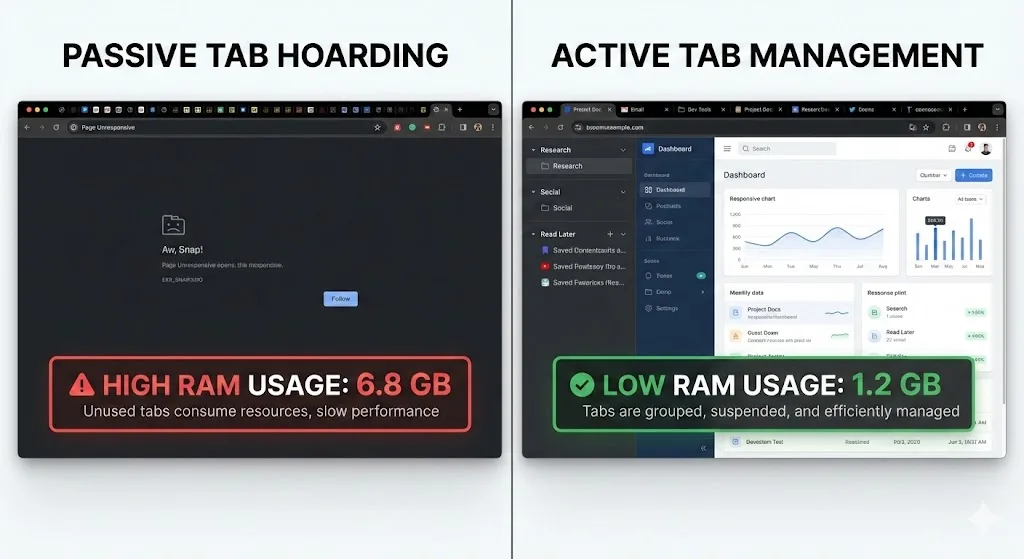
The shift is to move from passive tab accumulation to active tab management. Save what you need, close what you are not using, and restore on demand. Tools like TabGroup Vault make this practical by ensuring you never lose your tab structure when you close groups.
For specific optimization steps, see our guide on speeding up Chrome with tab-focused optimizations. To understand the hard limits of Chrome's tab capacity, read our data on Chrome's tab limit and how many tabs it can handle.