Why Chrome uses so much memory
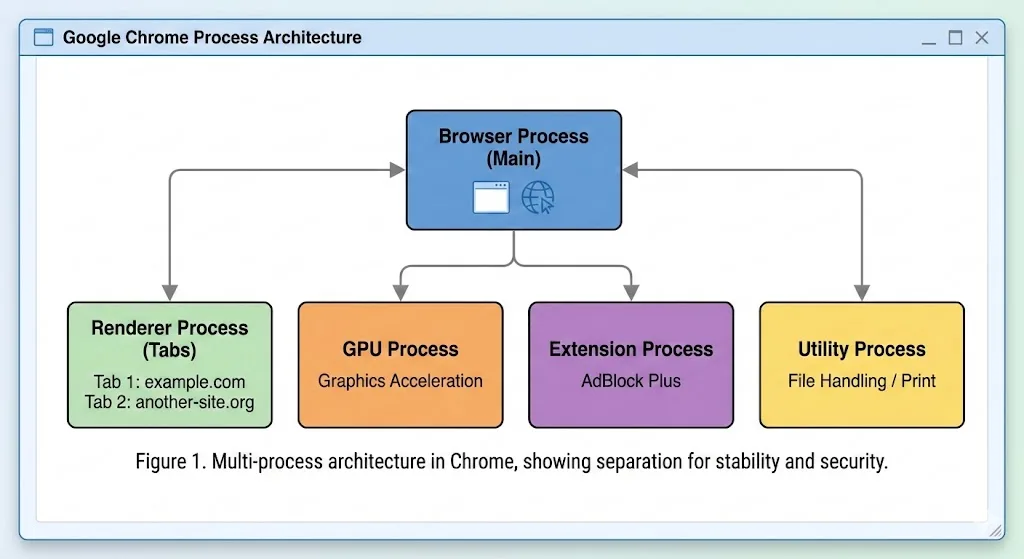
Open your system's activity monitor and you will probably see Chrome consuming 4, 6, or even 10 GB of RAM. You are not imagining it. Chrome is one of the most memory-hungry applications on any computer, and there is a specific reason for it.
Chrome runs each tab as a separate process. This is called a multi-process architecture, and it exists for good reason: if one tab crashes, it does not take down your entire browser. But the tradeoff is memory. Every tab gets its own allocation of RAM for rendering, JavaScript execution, and media playback. Add extensions, and each one also spawns its own process that runs across every open tab.
The result is predictable. Open 30 tabs and you might have 40 or more Chrome processes running simultaneously. Each one is small on its own, but together they can eat most of your system's available memory.
The good news is that you do not have to live with it. Here are 10 fixes, ordered from quickest to most impactful.
Fix 1: Use Chrome's built-in Task Manager
Before you fix anything, you need to see what is eating your memory. Press Shift + Esc on Windows or Linux, or go to Menu > More Tools > Task Manager on any platform. This opens Chrome's internal Task Manager, which shows memory usage per tab, extension, and background process.
Sort by the Memory Footprint column to find the worst offenders. You will often discover that a single tab running a heavy web app like Google Sheets, Figma, or Slack is using more memory than 20 simple tabs combined. You can select any process and click End Process to kill it immediately.
Fix 2: Close tabs you are not actively using
This is the most obvious fix, but it deserves emphasis because it is also the most effective. Every tab you close frees its entire memory allocation. If you have 50 tabs open but are only actively using 5, those other 45 tabs are consuming resources for no immediate benefit.
The problem, of course, is that people keep tabs open for a reason. They are reference material, tasks in progress, or articles to read later. Simply closing them means losing that context. That is where the next fix comes in.
Fix 3: Save tab groups with TabGroup Vault, then close them
If you want to cut Chrome's memory without losing your work, save your tab groups before closing them. TabGroup Vault takes a snapshot of your tab groups, preserving every tab URL, the group name, the group color, and the tab order. You can then close those tabs to reclaim all their memory, and restore them later with a single click.
TabGroup Vault
Price: Free (5 snapshots) / $29 one-time Pro
How it helps: Save tab groups, close them to free memory, restore them when needed
Impact: Closing 30 saved tabs can free 2-4 GB of RAM instantly
This approach works especially well for project-based workflows. Save your Research group on Monday, close it, work on something else, and restore it on Wednesday exactly as it was. Your memory stays low in between without any loss of context.
Fix 4: Enable Chrome's Memory Saver mode
Chrome includes a built-in feature called Memory Saver (previously called Tab Discarding). Go to Settings > Performance and enable Memory Saver. When enabled, Chrome automatically suspends tabs you have not visited in a while, freeing their memory. The tab stays in your tab bar, but its contents are unloaded until you click on it again.
Memory Saver is effective for passive tab hoarders, but it has limitations. Suspended tabs lose their state, so forms you were filling out or scroll positions you had reached may reset when the tab reloads. You can exclude specific sites from being suspended in the settings.
Fix 5: Audit and remove unnecessary extensions
Extensions are a hidden source of memory bloat. Each extension runs as its own process, and many inject scripts into every page you visit. An ad blocker, a password manager, a grammar checker, and a screenshot tool might seem lightweight individually, but together they can add hundreds of megabytes of overhead.
Go to chrome://extensions and review what you have installed. Disable anything you do not use regularly. For extensions you use occasionally, consider disabling them and enabling them only when needed rather than letting them run continuously.
Fix 6: Disable hardware acceleration (if on older hardware)
Hardware acceleration offloads rendering tasks from the CPU to the GPU. On modern systems with dedicated graphics cards, this improves performance. On older systems or laptops with integrated graphics, it can backfire, causing Chrome to allocate extra memory for GPU processes without a meaningful speed benefit.
To disable it, go to Settings > System and toggle off "Use hardware acceleration when available". Restart Chrome and check if your memory usage drops. If it does not help, turn it back on.
Fix 7: Use tab groups to collapse inactive sets
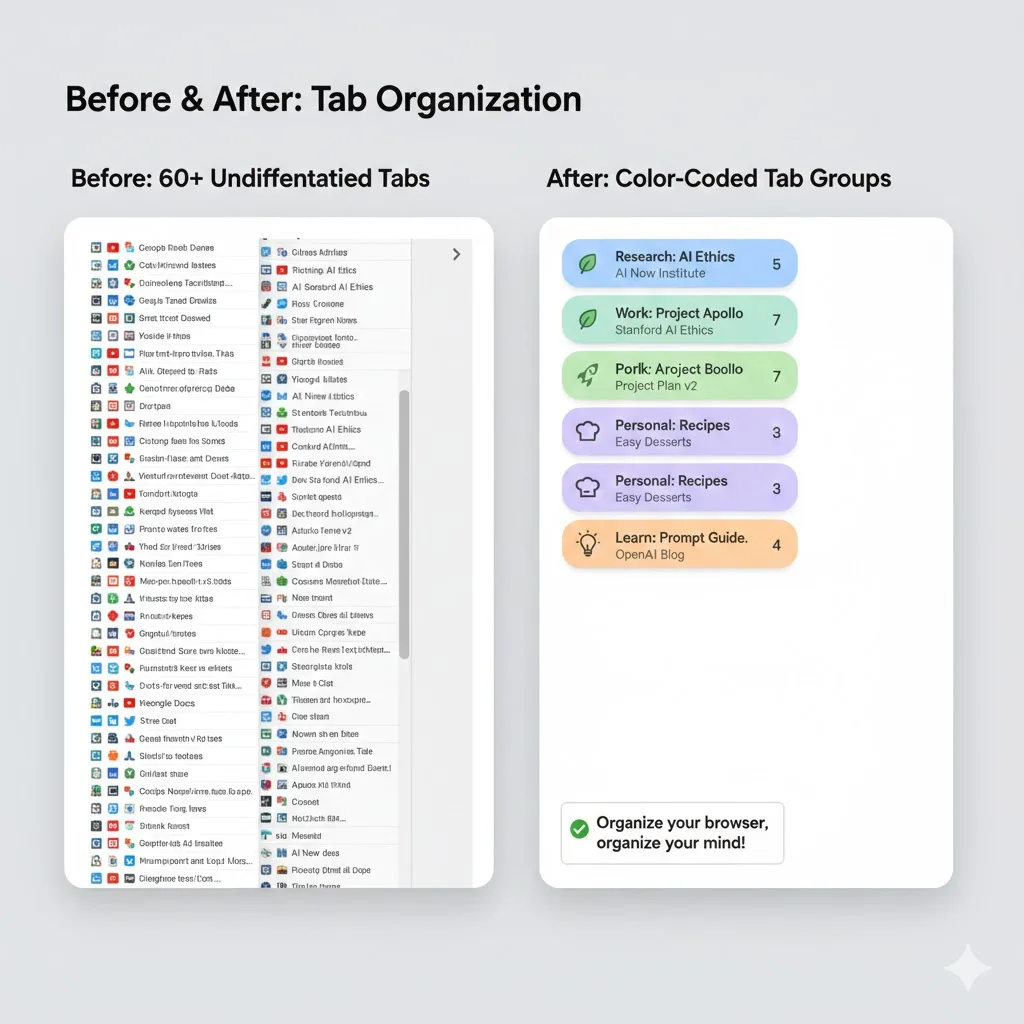
Chrome's native tab groups let you organize tabs by topic or project and collapse them with a click. While collapsed tab groups still use some memory, they use less than fully rendered tabs because Chrome throttles their background activity.
More importantly, collapsed groups help you visually identify which tabs are active and which can be saved and closed. Combine this with TabGroup Vault: organize tabs into groups, save the groups you do not need right now, and close them. For a detailed walkthrough, see our guide on reducing Chrome memory usage without losing your tabs.
Fix 8: Update Chrome to the latest version
Google ships memory optimizations in nearly every Chrome release. Older versions may have memory leaks or inefficient rendering paths that have since been fixed. Go to Settings > About Chrome to check for updates. Chrome usually updates automatically, but it only applies the update when you restart the browser, so users who never close Chrome can fall behind.
Fix 9: Clear browsing data and cache
Over time, Chrome accumulates cached data, cookies, and browsing history that can grow to several gigabytes. While this data lives mostly on disk, a large cache can cause Chrome's internal processes to consume more memory when indexing and managing it.
Go to Settings > Privacy and Security > Delete browsing data. Select cached images and files, cookies, and browsing history. Choose a time range and clear the data. This will not affect your saved passwords or bookmarks unless you explicitly select them.
Fix 10: Use Chrome flags for advanced tuning
Chrome has experimental settings available at chrome://flags that can help with memory management. A few worth trying:
- Parallel downloading -- Splits downloads into multiple streams, reducing the time Chrome holds memory for download buffers.
- Smooth Scrolling -- Disabling this can reduce rendering memory on lower-end hardware.
- GPU Rasterization -- Enabling this shifts more rendering work to the GPU, potentially freeing system RAM.
Be cautious with flags. They are experimental and can cause instability. Change one at a time and test before changing another.
Warning
Chrome flags are experimental features that may change or disappear in future versions. If Chrome becomes unstable after changing a flag, you can reset all flags to default at the top of the chrome://flags page.
How much memory should Chrome use?
There is no single correct answer because it depends on what you are doing. But here are some general benchmarks to help you gauge whether your Chrome usage is typical.
| Scenario | Typical RAM Usage | Status |
|---|---|---|
| 5 simple tabs, 2 extensions | 400-800 MB | Normal |
| 15 mixed tabs, 5 extensions | 1.5-2.5 GB | Normal |
| 30+ tabs, web apps open | 3-5 GB | High but expected |
| 50+ tabs, heavy extensions | 5-10 GB | Problematic for most systems |
| 100+ tabs | 8-16+ GB | Unsustainable without intervention |
If Chrome is using more than half of your system's total RAM, it is time to act. Systems with 8 GB of RAM will feel the pressure much sooner than those with 16 or 32 GB.
The long-term solution: change how you use tabs
All of the fixes above help in the short term, but the root cause of Chrome's memory usage is almost always the same: too many tabs open at once. The most sustainable solution is changing your tab habits.
Instead of keeping 50 tabs open as a to-do list, save them. Use tab groups to organize your work, take snapshots with TabGroup Vault, and close what you are not actively using. You get the same access to your tabs without the memory penalty, because saved tabs consume zero RAM until you restore them.
For a deeper dive into why Chrome slows down with many tabs, read our explainer on why Chrome slows down with too many tabs. If you want practical tips for speeding up Chrome overall, check our tab-focused Chrome performance guide.