Why Tabs Are the Key to Chrome Speed
Most guides on speeding up Chrome focus on clearing cache, updating the browser, and disabling animations. Those steps help, but they are optimizations around the edges. The single biggest factor in Chrome's speed is the number and type of tabs you have open.
Each open tab runs as its own process with its own memory allocation, JavaScript engine, and rendering pipeline. Extensions inject code into every tab. Background tabs continue running timers and connections. When you have 40 tabs open, you are essentially running 40 small applications simultaneously. No amount of cache clearing fixes that.
This guide focuses on tab-specific optimizations that produce the most dramatic speed improvements. We start with the highest-impact changes and work down to fine-tuning details.
Step 1: Identify Your Tab Overhead
Before optimizing, measure. Open Chrome's Task Manager with Shift+Esc and sort by Memory Footprint. Look for:
- Tabs using 300+ MB: These are heavy web applications or media-rich pages. Consider whether they need to be open right now.
- Extension processes: Listed separately from tabs. Extensions using more than 50 MB each deserve scrutiny.
- Subframe processes: These represent iframes embedded in pages, such as ads, embedded videos, or third-party widgets. They add hidden overhead.
Step 2: Group Your Tabs by Purpose
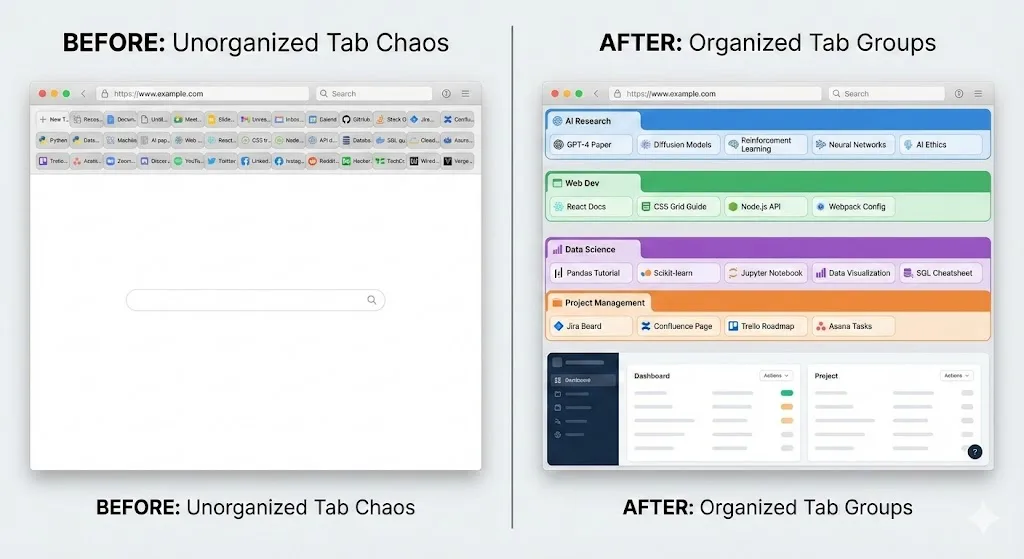
Before you can effectively manage tabs, you need to organize them. Chrome's built-in tab groups let you cluster related tabs under a named, color-coded label. Right-click any tab and choose Add tab to group, or drag tabs onto an existing group.
Create groups based on your current projects or activities:
- A group for your active work project
- A group for reference materials
- A group for communication tools (email, Slack, etc.)
- A group for miscellaneous browsing
Once grouped, you can clearly see which tabs are essential right now and which are being kept around for later. This visibility is what enables the next step.
Step 3: Archive Inactive Tab Groups
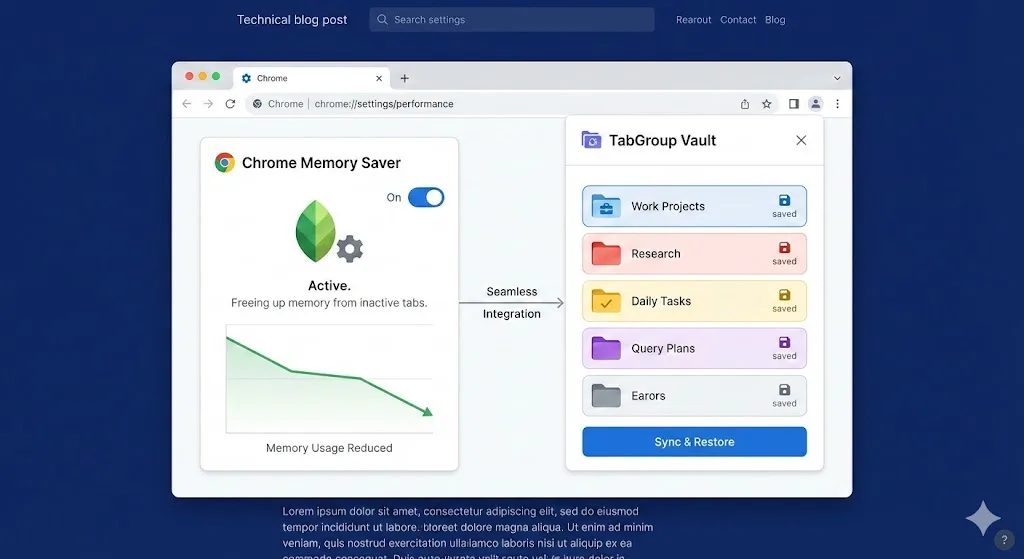
This is the single most impactful speed optimization. Take every tab group that you are not actively working with right now and save it using TabGroup Vault. Then close those tabs.
When you save a tab group with TabGroup Vault, it captures every detail: the tab URLs, group name, group color, and tab order. The snapshot is stored locally and uses minimal resources. When you need those tabs again, restore the group with one click and everything comes back exactly as it was.
TabGroup Vault
Price: Free (5 snapshots) / $29 one-time Pro
Speed impact: Closing 20 saved tabs can free 2+ GB of RAM and eliminate dozens of background processes
Pro features: Unlimited snapshots, bulk restore, Google Drive backup, 5 Chrome profiles, dark theme
The performance impact is immediate. If you go from 50 open tabs to 10 active tabs (with the other 40 saved and closed), you will typically free 3-5 GB of RAM and see noticeably faster tab switching, page loading, and overall browser responsiveness.
Step 4: Collapse Tab Groups You Are Keeping Open
For tab groups that stay open in your current session but are not being actively viewed, collapse them by clicking the group label. Collapsed groups take up minimal space in the tab bar, and Chrome throttles their background activity more aggressively.
This is less effective than closing tabs entirely, but it reduces the visual clutter and provides a modest performance improvement for tabs that remain loaded. Think of it as a middle ground between fully active and fully archived.
Step 5: Enable Memory Saver
Go to Settings > Performance and enable Memory Saver. This feature automatically suspends tabs you have not visited in a while, freeing their memory. When you click a suspended tab, it reloads.
Memory Saver works best for tabs within your active working set that you visit intermittently. It is less suitable for tabs where you need to preserve in-page state like form data or scroll position.
You can add exceptions for sites that should always stay active, such as email clients or real-time communication tools.
Step 6: Clean Up Extensions
Extensions affect Chrome speed in two ways. First, each extension runs its own background process that consumes memory and CPU. Second, extensions with content scripts inject code into every page you visit, adding per-tab overhead that multiplies across all your open tabs.
How to audit your extensions
- Go to chrome://extensions
- Review each extension and ask: do I use this daily?
- Disable extensions you use less than weekly
- Remove extensions you have not used in a month
The impact of removing a single content-script extension scales with your tab count. If you have 30 tabs open and remove one extension that injects scripts into every page, you eliminate 30 instances of that extension's code running simultaneously.
| Extension Type | Memory Per Tab | Impact With 30 Tabs | Examples |
|---|---|---|---|
| Ad blocker | 5-15 MB | 150-450 MB total | uBlock, Adblock Plus |
| Grammar checker | 10-25 MB | 300-750 MB total | Grammarly, LanguageTool |
| Password manager | 5-10 MB | 150-300 MB total | 1Password, LastPass |
| Dark mode | 5-15 MB | 150-450 MB total | Dark Reader |
| Screenshot tool | 2-5 MB | 60-150 MB total | Lightshot, Awesome Screenshot |
Pro Tip
Keep ad blockers even though they add per-tab overhead. The memory saved by blocking ads, tracking scripts, and auto-playing videos far exceeds the memory cost of the ad blocker itself. A page that loads 2 MB of ad scripts saved by an ad blocker using 10 MB per tab is still a net win.
Step 7: Optimize Chrome Settings
Several Chrome settings can improve performance, especially on lower-end hardware.
Preloading
Go to Settings > Performance and check the preloading option. Standard preloading uses past browsing data to predict which pages you might visit and pre-fetches them. This speeds up navigation but uses more memory and bandwidth. On constrained systems, switching to standard preloading or turning it off can help.
Hardware acceleration
Under Settings > System, the hardware acceleration toggle offloads rendering to the GPU. On systems with a capable dedicated GPU, keep this on. On systems with weak integrated graphics or where Chrome renders incorrectly, turning it off can improve stability and sometimes speed.
Startup behavior
Under Settings > On startup, choose what happens when Chrome launches. If Chrome is set to restore all previous tabs, startup will be slow when you have many tabs. Consider setting Chrome to open a new tab page on startup and using TabGroup Vault to selectively restore the tab groups you need for the day.
Step 8: Use Chrome Flags for Performance
Navigate to chrome://flags to access experimental features. A few flags that can improve performance:
- Parallel downloading (#enable-parallel-downloading): Splits file downloads into multiple streams for faster completion.
- GPU rasterization (#enable-gpu-rasterization): Moves page rendering from CPU to GPU, freeing the CPU for other tasks.
- Back-forward cache (#back-forward-cache): Caches entire pages in memory for instant back/forward navigation. Uses more memory but speeds up navigation.
Flags Change Between Versions
Chrome flags are experimental and may be renamed, removed, or graduated to stable settings in any Chrome update. If a flag listed here does not exist in your version, it may have been incorporated into Chrome's default behavior or removed.
Step 9: Clear Cache and Browsing Data Periodically
Over months of use, Chrome accumulates cached files, cookies, and site data that can grow to several gigabytes. While this data is primarily stored on disk, a large data footprint can slow down Chrome's internal indexing and lookup operations.
Go to Settings > Privacy and security > Delete browsing data and clear cached images and files periodically (monthly is a good cadence). Be selective: clearing cookies will log you out of all sites, so you may want to keep those.
Step 10: Establish a Weekly Maintenance Routine
Performance improvements are not one-time fixes. Tabs accumulate, extensions creep back in, and cache grows. A simple weekly routine keeps Chrome consistently fast.
- Friday close-out: Save all your tab groups with TabGroup Vault and close everything.
- Monday startup: Restore only the tab groups you need for the week's priorities.
- Monthly extension audit: Check chrome://extensions and disable anything you added on impulse but do not use regularly.
- Monthly cache clear: Clear cached images and files to keep disk usage lean.
This routine takes less than five minutes and prevents the gradual slowdown that comes from months of unchecked tab and extension accumulation.
Expected Results
Implementing these steps typically produces the following improvements:
| Optimization | Typical Impact | Effort |
|---|---|---|
| Archive inactive tab groups | 40-70% memory reduction | Low (one-click saves) |
| Enable Memory Saver | 15-30% memory reduction | One-time toggle |
| Remove 3-4 extensions | 10-25% memory reduction | 10-minute audit |
| Collapse inactive groups | 5-15% CPU reduction | Habitual (seconds) |
| Clear cache | Faster startup, less disk I/O | Monthly, 2 minutes |
| Chrome flags tuning | Varies; incremental | One-time, 5 minutes |
The first three items alone can transform a sluggish Chrome installation into a responsive one. For more detail on the memory side of performance, read our guide on fixing Chrome's memory usage. For understanding the technical reasons behind Chrome's slowdown, see why Chrome slows down with too many tabs.