The Core Problem: Tabs Are Not Free
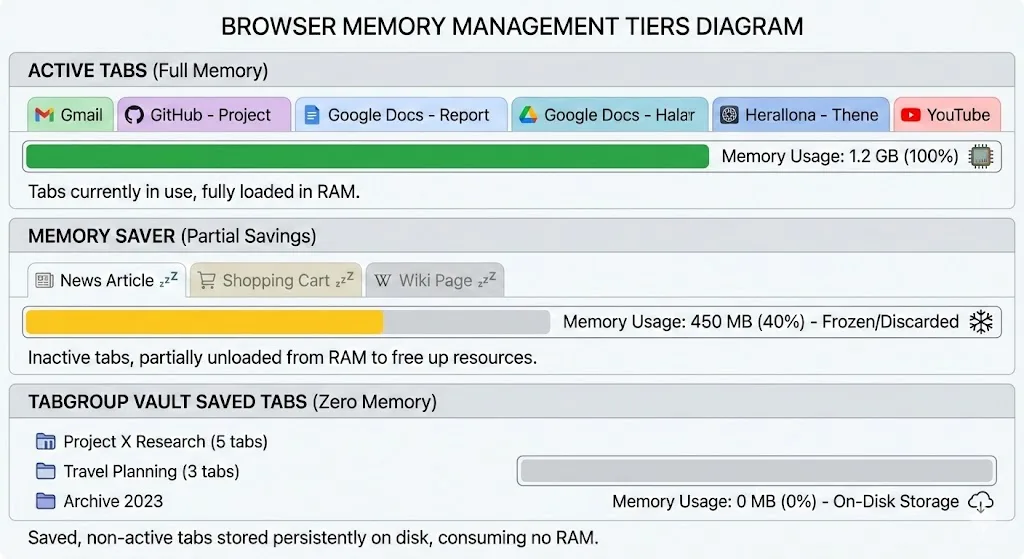
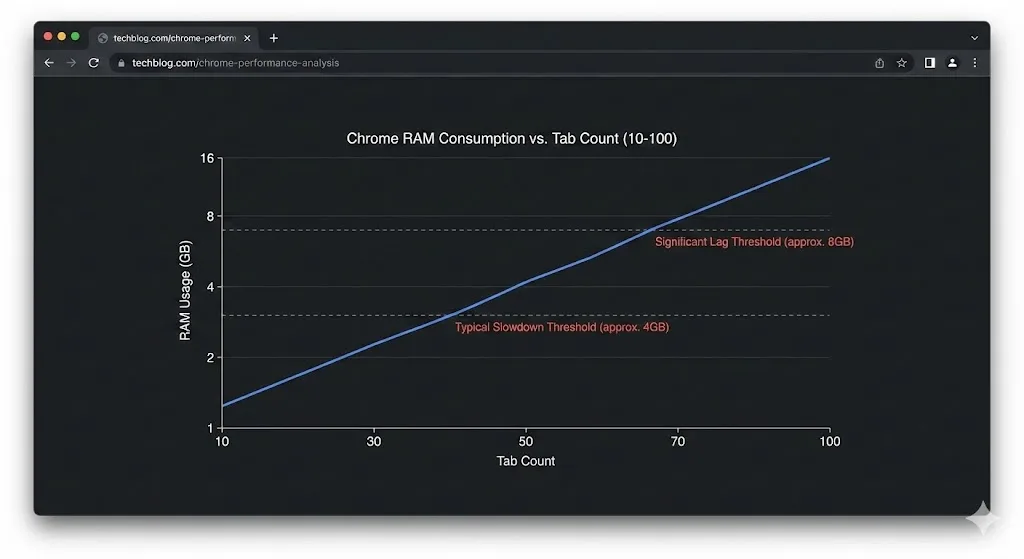
Every open tab in Chrome costs memory. Not a trivial amount either. A simple static web page uses around 50-80 MB. A web application like Gmail, Google Docs, or Slack can consume 200-500 MB. Media-heavy sites with auto-playing video can spike even higher.
People keep tabs open because they represent work in progress, references, or things they plan to get back to. The fear of losing that context keeps tabs alive, and the memory cost accumulates silently until Chrome is consuming several gigabytes and your system starts to slow down.
The solution is not to stop using tabs. It is to separate the idea of keeping tabs from the act of running them. You can maintain full access to all your tab collections without keeping a single one of them loaded in memory.
Strategy 1: Chrome's Built-In Memory Saver
Chrome's Memory Saver feature (found under Settings > Performance) automatically suspends tabs you have not interacted with for a while. A suspended tab stays in your tab bar, but its contents are unloaded from memory. When you click on it, Chrome reloads the page.
How to enable Memory Saver
- Open Chrome Settings (chrome://settings).
- Click Performance in the left sidebar.
- Toggle on Memory Saver.
- Optionally, add sites you want to keep active to the exception list.
Limitations of Memory Saver
Memory Saver is a good first step, but it has drawbacks that matter for power users:
- State loss: Suspended tabs lose unsaved form data, scroll positions, and in-page application state when they reload.
- Process stubs: Even suspended tabs maintain a small process in memory. With 50 suspended tabs, this overhead adds up.
- No organization: Memory Saver does not help you organize or find tabs. Your tab bar remains just as cluttered.
- Reload delays: Clicking a suspended tab triggers a full page reload, which can take seconds on slower connections.
Strategy 2: Organize Into Tab Groups and Collapse
Chrome's tab groups let you cluster related tabs under a named, color-coded label. Right-click any tab and select Add tab to group to get started. Once grouped, you can collapse the entire group with a click on the group label.
Collapsed tab groups take up minimal space in the tab bar and signal to Chrome that these tabs are not in active use. Chrome throttles background activity for tabs in collapsed groups, which reduces their CPU and memory impact slightly. It is not the same as closing them, but it helps.
The organizational benefit matters too. When your tabs are grouped by project or topic, you can quickly identify which groups are currently relevant and which are just being kept around for reference. Those reference groups are prime candidates for the next strategy.
Strategy 3: Save Tab Groups, Then Close Them
This is the approach that makes the biggest difference. Instead of keeping tab groups open and relying on Chrome to manage their memory, save them externally and close them entirely. When you need them again, restore them with a click.
TabGroup Vault was built for this workflow. It saves your tab groups as snapshots, preserving every detail: tab URLs, group names, group colors, and tab order. The snapshots are stored locally on your machine and use minimal system resources. A snapshot of 50 tabs might be a few kilobytes on disk versus several gigabytes in RAM.
TabGroup Vault
Price: Free (5 snapshots) / $29 one-time Pro
Memory savings: Closing saved tabs frees 100% of their RAM (no process stubs)
Pro features: Unlimited snapshots, bulk restore, Google Drive backup, dark theme
The save-close-restore workflow
- Organize your tabs into groups by project or topic.
- Save each group with TabGroup Vault (one click per group or one click for all).
- Close the groups you are not actively working on.
- Restore any group when you need it, exactly as it was.
This approach frees 100% of the memory used by closed tabs, not just a partial reduction. There are no process stubs, no suspended pages, and no background timers. The tabs simply do not exist in Chrome until you restore them.
Comparing the Three Strategies
Here is how each approach compares in terms of memory savings and usability for a scenario with 40 open tabs.
| Strategy | Memory Freed | Tab Access | State Preserved |
|---|---|---|---|
| Memory Saver only | 30-50% | Instant (click tab bar) | Partial (forms/scroll lost) |
| Collapse tab groups | 10-20% | Instant (expand group) | Full (tabs still loaded) |
| Save with TabGroup Vault + close | 100% | One click to restore | URLs and structure preserved |
| Combined approach | 60-90% | Mixed (active tabs instant) | Full for saved, partial for suspended |
The Recommended Layered Approach
For the best balance of performance and convenience, combine all three strategies:
- Enable Memory Saver for tabs in your current working session that you are not actively viewing.
- Use tab groups to organize your active work into named, collapsible clusters.
- Save and close groups you will not need today using TabGroup Vault.
This gives you the instant access of Memory Saver for your working tabs, the organization of tab groups for your current session, and the complete memory savings of saved-and-closed groups for everything else.
Real-World Memory Savings
To put numbers on this, consider a typical knowledge worker's Chrome session:
- 5 active work tabs (email, docs, internal tools): ~800 MB
- 15 reference tabs (articles, documentation, Stack Overflow): ~1.2 GB
- 20 project tabs across 3 inactive projects: ~2.5 GB
- 6 extensions running: ~300 MB
Total: approximately 4.8 GB consumed by Chrome.
After applying the layered approach: keep the 5 active tabs running, let Memory Saver handle the 15 reference tabs, and save the 20 project tabs with TabGroup Vault and close them. Estimated Chrome memory drops to around 1.5 GB. That is a 70% reduction while maintaining full access to every tab.
Additional Tips for Keeping Memory Low
Use fewer extensions
Each extension adds its own memory overhead across every tab. Audit your extensions at chrome://extensions and disable anything you do not use daily. For more on this, see our comprehensive list of 10 fixes for Chrome's memory usage.
Prefer lightweight alternatives
Some sites offer lightweight versions. Gmail's basic HTML view, mobile versions of news sites, and reader mode in Chrome all use less memory than their full-featured counterparts.
Close duplicate tabs
It is common to have the same page open in multiple tabs without realizing it. Chrome's built-in tab search (Ctrl+Shift+A or Cmd+Shift+A) can help you find duplicates.
Restart Chrome periodically
Chrome can develop memory leaks during long sessions, especially from complex web apps. Restarting the browser clears these leaks. If you save your tab groups with TabGroup Vault first, restarting Chrome takes seconds and you lose nothing.
Pro Tip
Make it a weekly habit: every Friday, save your tab groups with TabGroup Vault, close everything, and start Monday fresh. Your saved snapshots are waiting whenever you need them, and your system gets a clean slate for the new week.
When Memory Saver Is Not Enough
If you have tried Memory Saver and your system still struggles, tabs are likely not your only problem. Check Chrome's Task Manager (Shift+Esc) for extensions or background processes consuming unexpected amounts of memory. Some web apps maintain WebSocket connections or run background workers that Memory Saver does not suspend.
For a deeper technical understanding of why Chrome consumes so much memory, read our article on why Chrome slows down with too many tabs. If you want to know the actual limits, check out our data on how many tabs Chrome can handle.