Does Chrome Have a Hard Tab Limit?
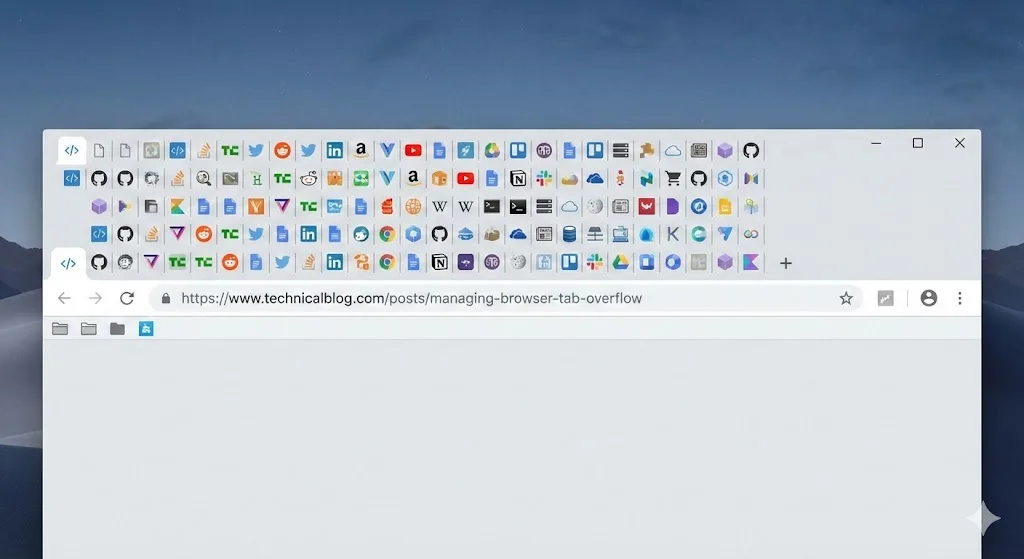
No. Chrome does not enforce a maximum number of tabs. You can open hundreds or even thousands of tabs if your system has the resources to support them. There is no pop-up that says "you have reached the maximum number of tabs" and no setting that caps tab count.
However, the absence of a hard limit does not mean there are no consequences. Chrome's practical tab limit is determined by your system's physical RAM, your CPU, and the complexity of the pages you have open. Once Chrome exhausts available memory, the operating system begins swapping data to disk, and performance degrades sharply.
The real question is not how many tabs Chrome allows, but how many tabs Chrome can handle while remaining usable. That depends on your hardware.
RAM Usage at Different Tab Counts
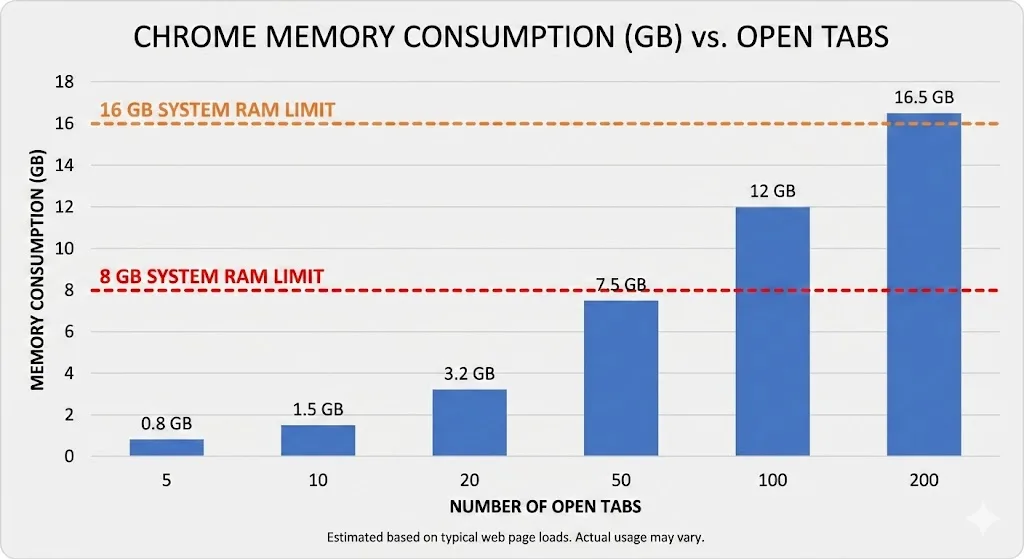
We tested Chrome's memory consumption at various tab counts using a standardized mix of page types: 40% simple content pages, 30% news and media sites, 20% web applications, and 10% heavy apps. Three commonly-used extensions were enabled throughout. Here are the results.
| Open Tabs | Chrome RAM Usage | Chrome Processes | System Impact |
|---|---|---|---|
| 5 | ~500 MB | 12 | Negligible |
| 10 | ~900 MB | 18 | Minimal |
| 25 | ~2.1 GB | 35 | Light on 16 GB systems |
| 50 | ~4.2 GB | 62 | Noticeable on 8 GB systems |
| 75 | ~6.0 GB | 88 | Sluggish on 8 GB; OK on 16 GB |
| 100 | ~7.8 GB | 115 | Painful on 8 GB; noticeable on 16 GB |
| 150 | ~11 GB | 168 | Requires 16+ GB to function |
| 200 | ~14 GB | 220 | Requires 32 GB; tab crashes begin |
The relationship between tab count and memory is roughly linear at lower counts but becomes less predictable at higher counts as Chrome's internal memory management kicks in. Chrome begins to discard tab content to avoid crashes, which is visible as the "Aw, Snap!" error when you click on a tab.
Practical Recommendations by System Specs
Based on our testing, here are practical guidelines for how many tabs to keep open depending on your hardware.
| System RAM | CPU | Recommended Active Tabs | Notes |
|---|---|---|---|
| 4 GB | Any | 5-10 | Keep it minimal; save and close aggressively |
| 8 GB | Dual-core | 10-20 | Avoid heavy web apps in multiple tabs |
| 8 GB | Quad-core+ | 15-30 | CPU helps with responsiveness, but RAM is the bottleneck |
| 16 GB | Quad-core+ | 30-60 | Comfortable range for most workflows |
| 32 GB | 8-core+ | 60-120 | Power user territory; save groups periodically |
| 64 GB | 8-core+ | 120-200+ | Workstation-class; still benefits from tab management |
Important Caveat
These numbers assume Chrome is the primary application running. If you also run an IDE, Slack, Figma, or other memory-heavy applications alongside Chrome, reduce the recommended tab counts by 30-50% to leave enough RAM for everything.
What Happens When Chrome Runs Out of Memory
When Chrome approaches your system's memory limits, several things happen in sequence:
- Tab discarding: Chrome silently unloads the contents of background tabs you have not visited recently. The tab stays in the tab bar but shows an "Aw, Snap!" error when you click on it, and it needs to reload.
- System swapping: The operating system moves some of Chrome's memory to the swap file on disk. This causes dramatic slowdowns because disk access is thousands of times slower than RAM access.
- UI lag: Chrome's interface becomes unresponsive. Switching tabs takes seconds instead of milliseconds. Typing in the address bar lags noticeably.
- Tab crashes: Individual tab processes crash with "Aw, Snap!" errors. Chrome tries to keep the main browser process alive even as tab processes fail.
- Browser crash: In extreme cases, Chrome's main process itself runs out of memory and the entire browser closes. Any unsaved work in tabs is lost.
The Content Variable: Not All Tabs Are Equal
Tab count alone does not tell the whole story. The type of content in each tab matters enormously. Here is how different content types compare:
- Static HTML pages (documentation, Wikipedia): ~50-80 MB each. These are the lightest tabs you can have.
- News sites with ads: ~150-300 MB each. Advertising networks inject numerous scripts and tracking pixels that inflate memory usage.
- Google Workspace apps: ~200-400 MB each. Docs, Sheets, and Slides are full web applications with complex rendering.
- Communication tools (Slack, Discord, Teams): ~300-500 MB each. WebSocket connections and persistent state keep memory high.
- Design tools (Figma, Canva): ~400-1000+ MB each. These render complex visual content and can exceed 1 GB for large files.
Ten Figma tabs can consume more memory than one hundred Wikipedia tabs. When evaluating your tab capacity, consider what you have open, not just how many.
How to Exceed Chrome's Practical Tab Limit
If you need access to more tabs than your system can handle simultaneously, the solution is to keep only active tabs loaded and save everything else externally.
The save-and-close approach
TabGroup Vault lets you save your tab groups as lightweight snapshots that use minimal system resources. A snapshot stores tab URLs, group names, colors, and tab order in a few kilobytes of local storage. You can then close those tabs entirely, freeing their full memory allocation, and restore them later with one click.
TabGroup Vault
Price: Free (5 snapshots) / $29 one-time Pro
Effective tab capacity: Unlimited (only active tabs use memory; saved tabs use zero)
Pro features: Unlimited snapshots, bulk restore, Google Drive backup, 5 Chrome profiles, dark theme
With this approach, your effective tab limit becomes unlimited. You might have 200 tabs saved across various groups but only 15 loaded at any time. Your system only needs to support those 15 active tabs, while the other 185 exist as saved snapshots that use no memory.
Combine with Memory Saver for active tabs
For the tabs that are currently open, Chrome's Memory Saver mode provides an additional layer of optimization by suspending tabs you are not actively viewing. Together with the save-and-close approach for inactive groups, you can maintain a productive workflow well beyond the raw tab limits of your hardware.
How Other Browsers Compare
Chrome is not the only browser that struggles with high tab counts, though its multi-process architecture makes it memory-hungry. Firefox uses less memory per tab on average due to its process-sharing model, but it can become equally unresponsive at high counts. Edge, being Chromium-based, has nearly identical memory characteristics to Chrome but includes a built-in sleeping tabs feature that helps. For a full comparison, see our article on Chrome vs Firefox vs Edge for tab management.
Key Takeaway: Manage Tabs, Do Not Count Them
Obsessing over a specific tab number misses the point. The real goal is to keep your active working set small and your saved collection large. Whether your system can handle 20 or 200 tabs, the principle is the same: do not keep tabs loaded that you are not using right now.
Save your tab groups. Close what you are not using. Restore on demand. This turns Chrome's practical tab limit from a hardware constraint into a non-issue. For detailed steps on reducing memory, see our guide on reducing Chrome memory without losing tabs. For broader performance tips, check our Chrome speed optimization guide.