Why Chrome extensions still matter in 2026
Chrome remains the dominant browser with over 65% market share, and its extension ecosystem keeps getting better. The right set of extensions turns Chrome from a simple browser into a productivity operating system. But with over 180,000 extensions in the Chrome Web Store, finding the ones that actually make a difference takes effort.
We tested dozens of extensions over the past year and narrowed them down to 15 that deliver measurable productivity gains. These are organized by category so you can pick the ones that address your biggest pain points first.
Tab management
If you work with more than 10 tabs at a time, tab management extensions are essential. They prevent the single biggest source of browser friction: losing your place when you switch between projects.
1. TabGroup Vault (best overall tab manager)
TabGroup Vault takes the top spot because it solves the one problem Chrome still cannot: permanently saving tab groups. Chrome's built-in tab groups are useful for organizing tabs visually, but they vanish after crashes, updates, or accidental closes. TabGroup Vault snapshots your tab groups and lets you restore them with one click.
TabGroup Vault
What it does: Saves and restores Chrome tab groups with full color, name, and URL preservation. Price: Free (5 snapshots) / $29 lifetime Pro (unlimited snapshots, bulk restore, Google Drive backup, 5 Chrome profiles, dark theme). Best for: Anyone who uses tab groups and cannot afford to lose them.
What sets it apart is the focus on tab groups specifically rather than generic session management. If you already use Chrome's native tab groups to organize work by project, TabGroup Vault is the companion that makes those groups persistent and portable.
2. Workona
Workona takes a workspace-based approach to tab management. It creates distinct workspaces that you switch between, effectively giving you multiple desktops inside Chrome. The free tier is generous, but power users will likely need the paid plan at $7/month.
Best for: Users who want full workspace isolation between projects. Price: Free (5 workspaces) / $7/month Pro.
3. OneTab
OneTab is the veteran of tab management. Click the extension icon, and all your open tabs collapse into a single list. It is simple, lightweight, and effective for quick tab cleanup. However, it does not support Chrome tab groups, and the interface has not been updated in several years.
Best for: Users who want the simplest possible way to reduce open tabs. Price: Free.
Focus and distraction blocking
Research shows that a single interruption can cost 23 minutes of refocus time. These extensions help you protect deep work blocks.
4. Freedom
Freedom blocks distracting websites and apps across all your devices simultaneously. You create blocklists and schedule focus sessions in advance. The cross-device sync is what makes it stand out from browser-only blockers.
Best for: People who need system-wide distraction blocking. Price: $3.33/month (annual plan).
5. Forest
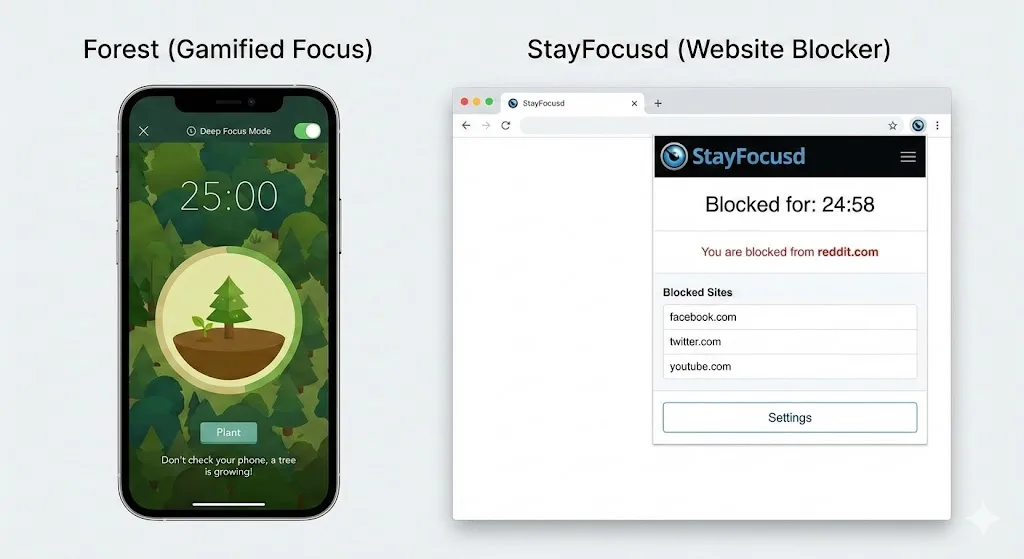
Forest gamifies focus by growing a virtual tree during work sessions. If you leave a blocked site, the tree dies. The visual accountability is effective. Forest also partners with real tree-planting organizations, so your focus sessions contribute to reforestation.
Best for: Users who respond well to gamification and visual motivation. Price: Free with optional premium.
6. Momentum
Momentum replaces your new tab page with a clean dashboard showing your main focus for the day, a to-do list, and an inspirational background. It is a subtle but effective way to redirect your attention every time you open a new tab.
Best for: Users who want a daily focus reminder integrated into their browsing. Price: Free / $3.33/month Plus.
Notes and clipping
Capturing information from the web without context-switching to a separate app is a major time saver.
7. Notion Web Clipper
If you use Notion as your knowledge base, the Web Clipper lets you save any web page directly to a Notion database. You can tag, categorize, and add notes before saving. It is especially useful for research workflows where you need to collect articles for later review.
Best for: Notion users who collect web content. Price: Free (requires Notion account).
8. Raindrop.io
Raindrop.io is a modern bookmark manager that supports collections, tags, full-text search, and visual previews. Unlike Chrome's built-in bookmarks, Raindrop organizes saved pages into a searchable, visual library that works across browsers and devices.
Best for: Heavy bookmarkers who need better organization than Chrome provides. Price: Free / $3/month Pro.
Communication and collaboration
Remote workers spend much of their day in communication tools. These extensions reduce the friction.
9. Loom
Loom lets you record your screen, camera, or both and share a video link instantly. For explaining complex ideas, walking through a bug, or giving feedback, a 2-minute Loom replaces a 15-minute meeting. The Chrome extension makes recording frictionless.
Best for: Remote teams that want to reduce meeting count. Price: Free (25 videos) / $12.50/month Business.
10. Grammarly
Grammarly checks your writing in real-time across Gmail, Slack, Google Docs, and virtually every text field in Chrome. The premium version catches tone, clarity, and engagement issues beyond basic grammar. For anyone who writes professionally, it pays for itself quickly.
Best for: Anyone who writes emails, documents, or messages regularly. Price: Free / $12/month Premium.
Developer tools
Developers live in the browser. These extensions save meaningful time during development workflows.
11. React Developer Tools
The official React DevTools extension adds a React tab to Chrome DevTools, letting you inspect component hierarchies, props, state, and hooks in real time. If you build with React, this is mandatory.
Best for: React developers. Price: Free.
12. Wappalyzer
Wappalyzer identifies the technologies used on any website, including frameworks, CMS platforms, analytics tools, and hosting providers. It is invaluable for competitive analysis, sales research, and technical due diligence.
Best for: Developers, marketers, and sales professionals doing website research. Price: Free (basic detection) / paid plans for bulk analysis.
Email and scheduling
13. Checker Plus for Gmail
Checker Plus lets you read, respond to, and manage Gmail without opening a new tab. You get desktop notifications with email previews and can handle quick replies from the popup. For anyone who checks email frequently, it eliminates dozens of tab switches per day.
Best for: Gmail power users who want to reduce inbox context switches. Price: Free / optional donation.
14. Calendly
Calendly's Chrome extension lets you insert your scheduling link into any email or message with one click. It also overlays your availability when composing emails so you can suggest meeting times without switching to your calendar.
Best for: Anyone who schedules meetings frequently. Price: Free / $10/month Standard.
Automation
15. Bardeen
Bardeen automates repetitive browser tasks without code. You can build automations that scrape data from websites, populate spreadsheets, send notifications, and connect web apps together. Think of it as Zapier but running directly inside your browser.
Best for: Non-technical users who want to automate browser-based workflows. Price: Free (basic automations) / $10/month Pro.
Quick comparison table
| # | Extension | Category | Price | Best Feature |
|---|---|---|---|---|
| 1 | TabGroup Vault | Tab Management | Free / $29 lifetime | Save & restore tab groups |
| 2 | Workona | Tab Management | Free / $7/mo | Full workspace isolation |
| 3 | OneTab | Tab Management | Free | One-click tab collapse |
| 4 | Freedom | Focus | $3.33/mo | Cross-device blocking |
| 5 | Forest | Focus | Free / Premium | Gamified focus timer |
| 6 | Momentum | Focus | Free / $3.33/mo | New tab focus dashboard |
| 7 | Notion Web Clipper | Notes | Free | Save pages to Notion |
| 8 | Raindrop.io | Notes | Free / $3/mo | Visual bookmark manager |
| 9 | Loom | Communication | Free / $12.50/mo | Instant screen recording |
| 10 | Grammarly | Communication | Free / $12/mo | Real-time writing check |
| 11 | React DevTools | Dev Tools | Free | Component inspection |
| 12 | Wappalyzer | Dev Tools | Free / Paid | Tech stack detection |
| 13 | Checker Plus | Free | Gmail without a tab | |
| 14 | Calendly | Scheduling | Free / $10/mo | One-click scheduling |
| 15 | Bardeen | Automation | Free / $10/mo | No-code browser automation |
How to choose the right extensions
Adding too many extensions can slow Chrome down and create its own form of digital clutter. Here is a practical approach to choosing wisely:
- Start with tab management. If your browser is disorganized, no other tool will reach its full potential. TabGroup Vault or a similar tab manager should be your first install.
- Add one focus tool. Pick Freedom, Forest, or Momentum based on your personality. You do not need all three.
- Layer in role-specific tools. Developers add DevTools extensions, writers add Grammarly, sales teams add Wappalyzer and Calendly.
- Audit quarterly. Remove extensions you have not used in 30 days. Every extension consumes memory, even when idle.
Where to start
Productivity in the browser comes down to organization, focus, and reducing repetitive tasks. The 15 extensions above cover all three. Start with the category that addresses your biggest pain point and build from there.
For most people, that starting point is tab management. Once your browser is organized, everything else gets easier. Context switching costs you 23 minutes per interruption, and a well-organized browser is your first defense against that loss.