How We Selected These Extensions
The Chrome Web Store has over 180,000 extensions. Most lists repackage the same popular names without testing them. We took a different approach.
Every extension on this list was installed, tested in daily use, and evaluated against three criteria:
- Does it actually work? Many extensions are abandoned, broken by Chrome updates, or have not migrated to Manifest V3. We verified each one runs correctly on Chrome 126+.
- Does it justify its resource cost? Every extension consumes memory. We measured each one's footprint and excluded those with disproportionate overhead.
- Does it solve a real problem? We avoided gimmicks and novelty extensions. Every entry here addresses a genuine workflow friction.
Productivity
Extensions that help you get more done by reducing friction, blocking distractions, and automating repetitive tasks.
Todoist
Todoist's Chrome extension turns your browser into a task capture machine. Add tasks from any web page, turn emails into to-dos, and manage your task list without leaving your current tab. The quick-add shortcut (Ctrl+Shift+A) is fast enough to capture a thought without breaking flow. Projects, labels, and priority levels keep everything organized.
Price: Free / $4/month Pro. Best for: Personal task management with browser integration.
Freedom
Freedom blocks distracting websites across all your devices. Schedule recurring focus sessions, create custom blocklists, and lock yourself out of social media during work hours. The cross-device sync is critical -- blocking Twitter in Chrome means nothing if you can still open it on your phone.
Price: $3.33/month (annual). Best for: Anyone who struggles with self-discipline around distracting sites.
Bardeen
Bardeen automates repetitive browser tasks without code. Scrape data from web pages, populate spreadsheets, connect apps, and build workflows that run on schedule or on demand. For anyone who does the same browser-based task repeatedly, Bardeen can likely automate it.
Price: Free (basic) / $10/month Pro. Best for: Non-technical users who want browser automation.
Tab Management
Extensions that organize, save, and manage your open tabs. This is the most impactful category because browser organization reduces context-switching costs that affect everything else you do.
TabGroup Vault
TabGroup Vault focuses on one thing and does it well: saving and restoring Chrome tab groups. If you use Chrome's built-in tab groups to organize your work (and you should), TabGroup Vault is the insurance policy that ensures they never disappear. Save a snapshot of all your tab groups with full preservation of names, colors, and URLs, then restore with one click.
TabGroup Vault
What it does: Saves and restores Chrome tab groups with full color, name, and URL preservation. Price: Free (5 snapshots) / $29 lifetime Pro (unlimited snapshots, bulk restore, Google Drive backup, 5 Chrome profiles, dark theme). Standout feature: One-time purchase in a category dominated by monthly subscriptions.
OneTab
OneTab is the simplest possible tab management tool. Click the icon, and all open tabs collapse into a list of links on a single page. Useful for quick cleanups when your tab bar gets out of control. It does not support tab groups, but for flat tab-saving it remains effective.
Price: Free. Best for: Users who want the simplest tab reduction tool.
Workona
Workona takes a workspace approach, creating virtual desktops inside Chrome. Each workspace has its own tabs, resources, and notes. It is powerful but requires committing to Workona's paradigm. The free tier limits you to 5 workspaces; power users will need the $7/month plan.
Price: Free (5 workspaces) / $7/month Pro. Best for: Users who want full workspace isolation between projects.
Security and Privacy
Extensions that protect your accounts, data, and browsing privacy.
Bitwarden
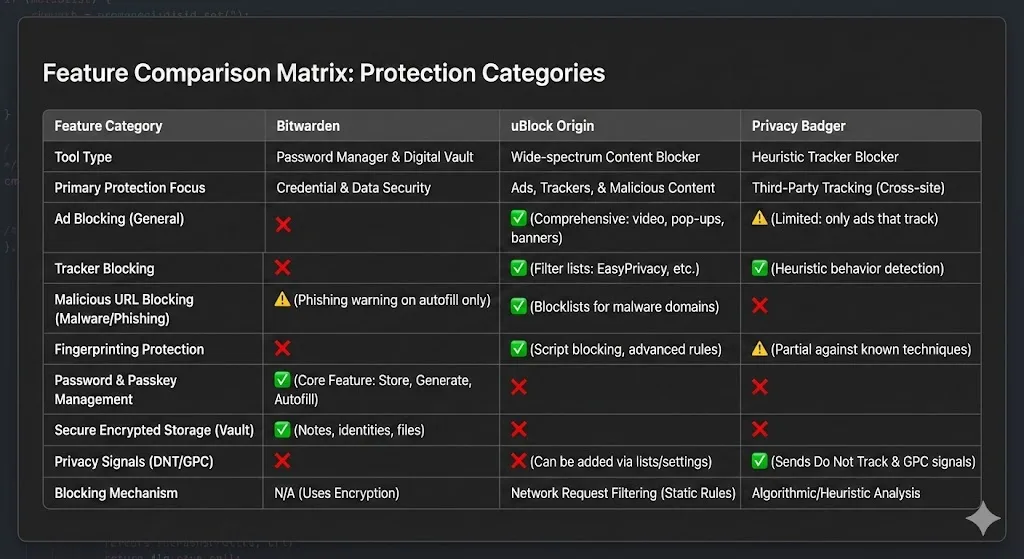
Bitwarden is the best free password manager available. It auto-fills credentials across all your accounts, generates strong passwords, and syncs across devices. The Chrome extension is fast and unobtrusive, integrating with login forms without getting in the way. The $10/year premium plan adds TOTP authentication and emergency access.
Price: Free / $10/year Premium. Best for: Everyone. A password manager is non-negotiable in 2026.
uBlock Origin
uBlock Origin is the gold standard for content blocking. It blocks ads, trackers, and malware domains with minimal CPU and memory impact. Unlike some ad blockers, uBlock Origin is open-source, does not participate in "acceptable ads" programs, and does not sell your data. It works out of the box with no configuration needed.
Price: Free. Best for: Everyone. Improves page load speed and reduces tracking.
Privacy Badger
Privacy Badger, from the Electronic Frontier Foundation, learns to block invisible trackers as you browse. Unlike static blocklists, Privacy Badger uses algorithmic detection to identify new trackers automatically. It runs silently in the background and requires zero configuration.
Price: Free. Best for: Privacy-conscious users who want tracker protection beyond ad blocking.
Development
Extensions tailored for software developers, web designers, and technical professionals.
React Developer Tools
The official React DevTools extension adds dedicated React tabs to Chrome's developer tools. Inspect component trees, examine props and state, profile rendering performance, and debug hooks. If you work with React, this extension is essential.
Price: Free. Best for: React developers.
Wappalyzer
Wappalyzer identifies the technology stack behind any website. Click the extension icon on any page to see what CMS, framework, analytics tools, hosting provider, and other technologies it uses. Invaluable for competitive analysis, technology scouting, and sales research.
Price: Free (basic detection) / paid plans for bulk analysis. Best for: Developers, tech leads, and sales engineers.
JSON Viewer
JSON Viewer formats raw JSON responses in the browser with syntax highlighting, collapsible sections, and search. When working with APIs, this transforms unreadable JSON blobs into navigable, color-coded data structures. It also validates JSON syntax and shows errors.
Price: Free. Best for: Anyone who works with APIs or JSON data.
Design
Extensions for designers, front-end developers, and anyone who works with visual elements.
ColorZilla
ColorZilla provides an advanced eyedropper, color picker, and gradient generator directly in Chrome. Pick any color from any web page, get its hex/RGB/HSL values, and build CSS gradients. The color history tracks every color you pick for quick reference.
Price: Free. Best for: Designers and front-end developers who need to sample colors from the web.
Fonts Ninja
Fonts Ninja identifies fonts used on any web page. Hover over text to see the font family, size, line height, and color. It also shows where to purchase or download the font. For designers doing competitive research or trying to identify a font they like, this saves hours of manual detective work.
Price: Free (identification) / $3.99/month Pro. Best for: Designers and typography enthusiasts.
Responsive Viewer
Responsive Viewer displays any web page at multiple screen sizes simultaneously. Instead of manually resizing your browser to test responsive designs, see how a page looks on phone, tablet, and desktop side by side. You can customize the device profiles and take screenshots of all views at once.
Price: Free. Best for: Web designers and front-end developers testing responsive layouts.
Communication
Extensions that streamline how you communicate with colleagues, clients, and collaborators.
Loom
Loom lets you record your screen, camera, or both, and share a video link instantly. The Chrome extension makes recording frictionless -- click the icon, choose what to record, and start. For remote teams, Loom replaces many unnecessary meetings with async video that can be watched at 2x speed.
Price: Free (25 videos) / $12.50/month Business. Best for: Remote workers and anyone who gives visual explanations.
Grammarly
Grammarly checks your writing in real-time across every text field in Chrome -- email, Slack, Google Docs, social media, and more. The free version catches grammar and spelling errors. The premium version adds tone detection, clarity suggestions, and engagement scoring.
Price: Free / $12/month Premium. Best for: Anyone who writes professionally in the browser.
Checker Plus for Gmail
Checker Plus delivers Gmail notifications with full email previews and lets you read, reply, and manage email without opening a Gmail tab. For people who check email frequently, it eliminates dozens of tab switches per day while keeping you responsive to important messages.
Price: Free. Best for: Gmail power users who want notifications without context switching.
Master Comparison Table
| Extension | Category | Price | Must-Have? |
|---|---|---|---|
| Todoist | Productivity | Free / $4/mo | If you use Todoist |
| Freedom | Productivity | $3.33/mo | For focus problems |
| Bardeen | Productivity | Free / $10/mo | For automation needs |
| TabGroup Vault | Tab Management | Free / $29 lifetime | Yes, for all tab group users |
| OneTab | Tab Management | Free | For quick tab cleanup |
| Bitwarden | Security | Free / $10/yr | Yes, for everyone |
| uBlock Origin | Security | Free | Yes, for everyone |
| React DevTools | Development | Free | For React developers |
| Wappalyzer | Development | Free / Paid | For tech research |
| ColorZilla | Design | Free | For designers |
| Loom | Communication | Free / $12.50/mo | For remote workers |
| Grammarly | Communication | Free / $12/mo | For professional writers |
Extension Management Best Practices
Having the right extensions is half the equation. Managing them well is the other half.
- Install per profile, not globally. Your work profile needs different extensions than your personal profile. Install only what each profile requires.
- Disable, do not uninstall. If you use an extension infrequently (like Responsive Viewer), disable it and re-enable when needed. Disabled extensions consume zero resources.
- Audit quarterly. Review your extension list every three months. Remove anything you have not used in 30 days. Check for updates and review any new permissions requested.
- Pin selectively. Only pin extensions you use multiple times per day to the toolbar. Everything else can live in the extensions menu (the puzzle piece icon).
- Check permissions. Be wary of extensions that request broad permissions like "Read and change all your data on all websites" unless there is a clear reason they need it (like a password manager or ad blocker).
The Bottom Line
The best Chrome setup is not the one with the most extensions. It is the one where every installed extension solves a specific problem and justifies its resource cost. Start with the universal essentials (a password manager, an ad blocker, and a tab management tool), then add role-specific extensions as needed.
For a deeper dive into tab management, see our 15 Best Productivity Chrome Extensions roundup or our detailed tab organizer comparison.