Your browser is your office
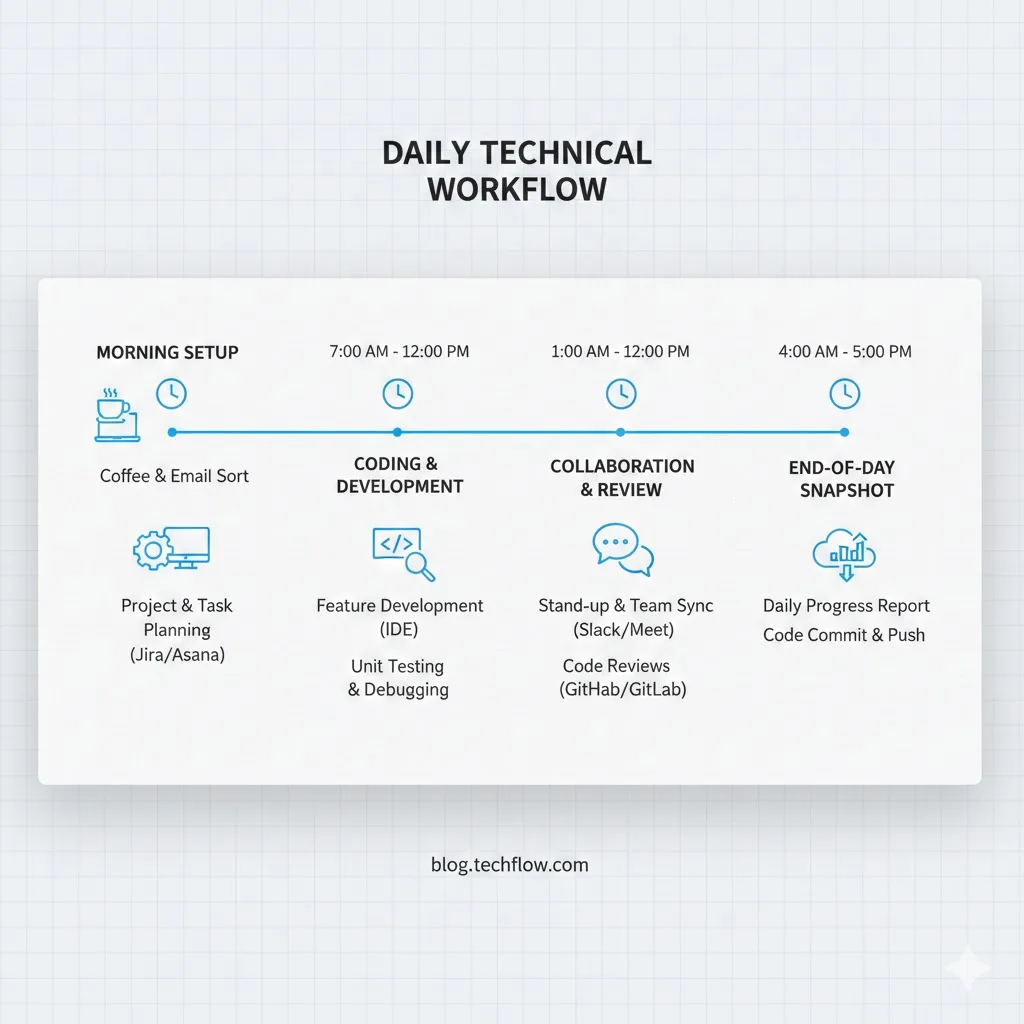
For remote workers, the browser is not just a tool. It is the office. Email, project management, video calls, documentation, design tools, code editors: nearly every work application lives inside Chrome. Yet most remote workers spend zero time optimizing this environment.
Imagine walking into a physical office where papers are scattered across every surface, there are no filing cabinets, and the phone rings constantly with no way to silence it. That is what an unoptimized browser looks like for remote work.
This guide walks you through building a complete browser toolkit across five categories. Each section includes our top picks and practical setup advice.
Category 1: Communication
Remote teams rely on asynchronous and synchronous communication. The right browser tools make both faster.
Loom for Async Video
Loom is the standard for asynchronous video communication. Record your screen, camera, or both, and share a link instantly. The Chrome extension makes starting a recording as simple as clicking an icon. For remote teams, a 3-minute Loom often replaces a 30-minute meeting.
Checker Plus for Gmail
Stop opening Gmail tabs every 15 minutes. Checker Plus delivers desktop notifications with full email previews and lets you reply directly from the notification popup. It eliminates dozens of unnecessary tab switches per day.
Slack Browser Extension
If your team uses Slack, the browser extension lets you see notifications, mark messages as read, and quickly respond without keeping a Slack tab permanently open. This is useful when you want to minimize distracting tabs.
Category 2: Project Management
Remote work demands strong project visibility since you cannot walk over to someone's desk to check on progress.
Asana, Trello, or Linear Browser Extensions
Most major project management tools offer Chrome extensions that let you create tasks from any web page, add browser content as attachments, and check project status without leaving your current workflow. Pick the one that matches your team's platform.
Toggl Track for Time Tracking
Toggl's Chrome extension integrates with over 100 web tools, adding a timer button directly inside Asana, Trello, GitHub, and other platforms. For remote workers who bill by the hour or need to track time across projects, it removes the friction of remembering to start and stop timers.
Category 3: Focus and Deep Work
Working from home introduces unique distractions. The browser itself becomes both the workspace and the distraction source. Research shows that each context switch costs an average of 23 minutes to regain full focus.
Freedom
Freedom blocks distracting websites and apps across all devices. You can schedule recurring focus blocks that automatically activate during your most productive hours. The sync across phone, tablet, and computer is what makes it effective for remote workers who face distractions from multiple screens.
Forest
Forest gamifies focus sessions. You plant a virtual tree, and it grows while you stay on task. Leave a blocked site, and the tree dies. The visual accountability works well for people who struggle with willpower-based approaches to focus.
Category 4: Tab and Workspace Management
This is the category most remote workers overlook, and it is the most important. When you work on multiple projects, attend meetings, research topics, and manage email all in the same browser, tab chaos is inevitable.
TabGroup Vault for Tab Group Preservation
Chrome's built-in tab groups let you color-code and label clusters of tabs by project or topic. The problem is that these groups are fragile. A crash, an update, or an accidental window close wipes them out. TabGroup Vault solves this by saving tab group snapshots that you can restore anytime.
TabGroup Vault
What it does: Saves and restores Chrome tab groups with full color, name, and URL preservation. Price: Free (5 snapshots) / $29 lifetime Pro (unlimited snapshots, bulk restore, Google Drive backup, 5 Chrome profiles, dark theme). Why it matters for remote work: You can save your "Client A" tab group at the end of the day and restore it the next morning exactly where you left off.
How Remote Workers Use Tab Groups
The most effective remote work tab setup we have seen uses Chrome tab groups as project workspaces:
- Client/Project groups: Each client or project gets its own color-coded tab group with all relevant tabs (docs, tools, communication)
- Admin group: Email, calendar, and HR tools in a persistent admin group
- Reference group: Documentation, wikis, and frequently used resources
- Meeting group: Temporary group for video call tabs and shared documents during meetings
With TabGroup Vault, you can save each of these groups and restore them on demand. This means you can close the "Client A" group entirely when you are not working on it, freeing up memory and reducing visual clutter, then bring it back with one click when you need it.
Category 5: Security and Privacy
Remote workers are often targets for phishing and other attacks because they operate outside the corporate firewall. A few browser security tools go a long way.
Bitwarden or 1Password
A password manager is essential for remote work. You are logging into dozens of web apps daily, often on networks that may not be as secure as an office LAN. Bitwarden (free) and 1Password ($3/month) both offer excellent Chrome extensions that auto-fill credentials securely.
HTTPS Everywhere / Privacy Badger
These extensions from the Electronic Frontier Foundation enforce encrypted connections and block invisible trackers. They run silently in the background and require zero configuration.
VPN Extension
If your company does not provide a VPN, a browser-based VPN extension encrypts your web traffic when working from coffee shops, co-working spaces, or other public networks. NordVPN and ExpressVPN both offer Chrome extensions that are easy to toggle on and off.
The Complete Remote Work Browser Toolkit
| Category | Tool | Purpose | Cost |
|---|---|---|---|
| Communication | Loom | Async video messages | Free / $12.50/mo |
| Communication | Checker Plus | Gmail notifications | Free |
| Project Mgmt | Toggl Track | Time tracking | Free / $9/mo |
| Focus | Freedom | Distraction blocking | $3.33/mo |
| Tab Management | TabGroup Vault | Save/restore tab groups | Free / $29 lifetime |
| Security | Bitwarden | Password management | Free / $10/yr |
| Security | Privacy Badger | Tracker blocking | Free |
Setting Up Your Toolkit in 30 Minutes
Here is a quick-start checklist you can complete in a single sitting:
- Install a password manager first. This protects every other account you set up.
- Set up Chrome profiles. Create separate profiles for work and personal browsing if you have not already. This keeps cookies, history, and bookmarks separate. Learn more in our Chrome workspace setup guide.
- Install TabGroup Vault. Create tab groups for each of your current projects and take your first snapshot.
- Add one focus tool. Schedule a recurring focus block for your most productive hours.
- Install communication extensions. Set up Loom and email notifications so you can communicate without opening extra tabs.
- Add security extensions. Install Privacy Badger and enable HTTPS enforcement.
The Bottom Line
Your browser is your remote office. Treating it that way -- with intentional tool selection, organized workspaces, and proper security -- transforms your workday. The toolkit above covers the essentials without bloating Chrome. Start with the category that addresses your biggest friction point, and build from there.