Why Your Browser Needs a Workspace System
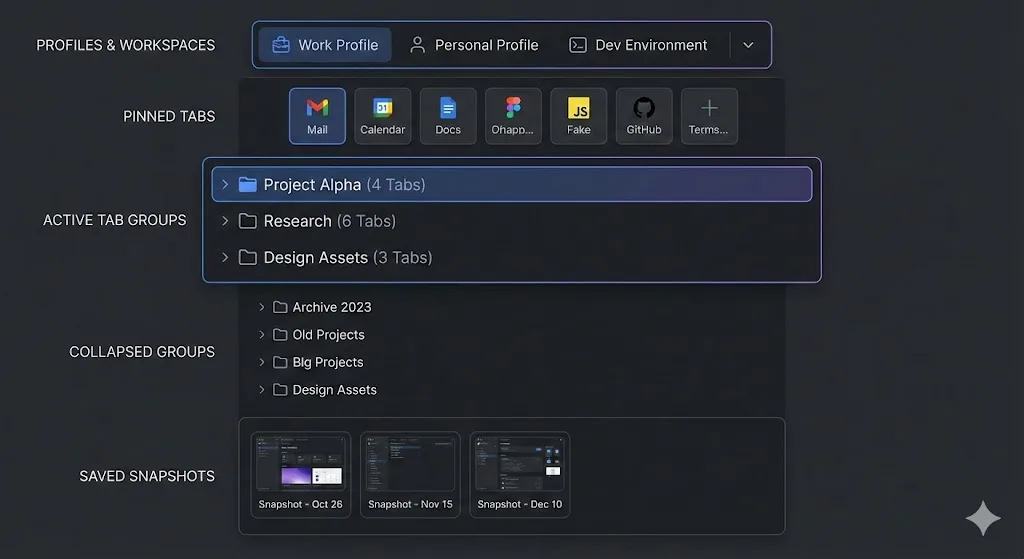
You would not work at a desk covered in papers from five different projects with no folders, labels, or filing system. Yet that is exactly how most people use their browser: tabs from work, personal browsing, side projects, and random research all mixed together in a single undifferentiated window.
Chrome has the building blocks for a proper workspace system built right in. Most people just do not know how to assemble them. This tutorial walks you through setting up a professional Chrome workspace from scratch using three layers: Chrome profiles, tab groups, and TabGroup Vault snapshots for backup.
Layer 1: Chrome Profiles
Chrome profiles are the broadest layer of separation. Each profile is a completely independent browser environment with its own:
- Bookmarks and bookmark bar
- Extensions (installed separately per profile)
- Login sessions and cookies
- Browser history
- Autofill data and saved passwords
- Settings and preferences
This means you can be logged into your work Google account in one profile and your personal Google account in another. Extensions you use for work do not clutter your personal browsing, and vice versa.
How to Create Chrome Profiles
- Click your profile icon in the top-right corner of Chrome (the small avatar next to the three-dot menu)
- Click "Add" at the bottom of the profile dropdown
- Choose a name, color, and optional avatar for the new profile
- Sign in with the Google account you want associated with this profile (optional but recommended)
Recommended Profile Setup
| Profile | Purpose | Google Account | Key Extensions |
|---|---|---|---|
| Work | All professional tasks | Work email | TabGroup Vault, Toggl, Grammarly, Slack |
| Personal | Personal browsing, shopping, social | Personal email | Minimal -- ad blocker, password manager |
| Client (optional) | Client-specific logins and tools | Client-provided email | Only what the client requires |
Pro Tip
Use distinct color themes for each profile so you can instantly tell which context you are in. Chrome lets you set a custom color theme per profile in Settings > Appearance.
Layer 2: Tab Groups Within Profiles
Within your work profile (or any profile), tab groups provide project-level organization. If profiles are like separate offices, tab groups are like desks or workstations within that office.
Creating a Tab Group
- Right-click any tab in your Chrome window
- Select "Add tab to new group"
- Name the group (e.g., "Project Alpha" or "Marketing Campaign")
- Choose a color that helps you identify the group at a glance
- Drag additional related tabs into the group
Effective Tab Group Architecture
The most productive tab group setups follow a consistent structure. Here is a framework that works across different roles:
For knowledge workers and managers:
- Admin (Gray): Email, calendar, HR tools, expense reports -- things you check throughout the day
- Project A (Blue): All tabs related to your primary project
- Project B (Green): All tabs related to your secondary project
- Reference (Yellow): Documentation, wikis, and resources you refer to frequently
- Temp (Red): Temporary tabs for research, meetings, or one-off tasks that you clear regularly
For developers:
- Code (Blue): GitHub/GitLab, code review tools, CI/CD dashboard
- Docs (Green): API documentation, framework docs, Stack Overflow threads
- Env (Purple): Staging environments, testing tools, database admin
- Admin (Gray): Email, Jira/Linear, Slack
For freelancers:
- One tab group per active client, named with the client's name
- A "My Business" group for invoicing, banking, and portfolio
- A "Prospecting" group for job boards and outreach
Collapse and Expand
The real power of tab groups comes from collapsing. Click any tab group label to collapse it, hiding all its tabs and freeing up tab bar space. A collapsed group takes up the width of its label text, reducing visual clutter.
Adopt this habit: only keep 1-2 groups expanded at any time. Collapse everything else. This alone transforms a chaotic tab bar into a clean, navigable workspace.
Layer 3: TabGroup Vault Snapshots for Backup
Profiles and tab groups give you the organizational structure. The missing piece is persistence. Chrome's native tab groups are fragile. They disappear after:
- Browser crashes
- Chrome auto-updates (which restart the browser)
- Accidentally closing the browser window
- System restarts without session restore
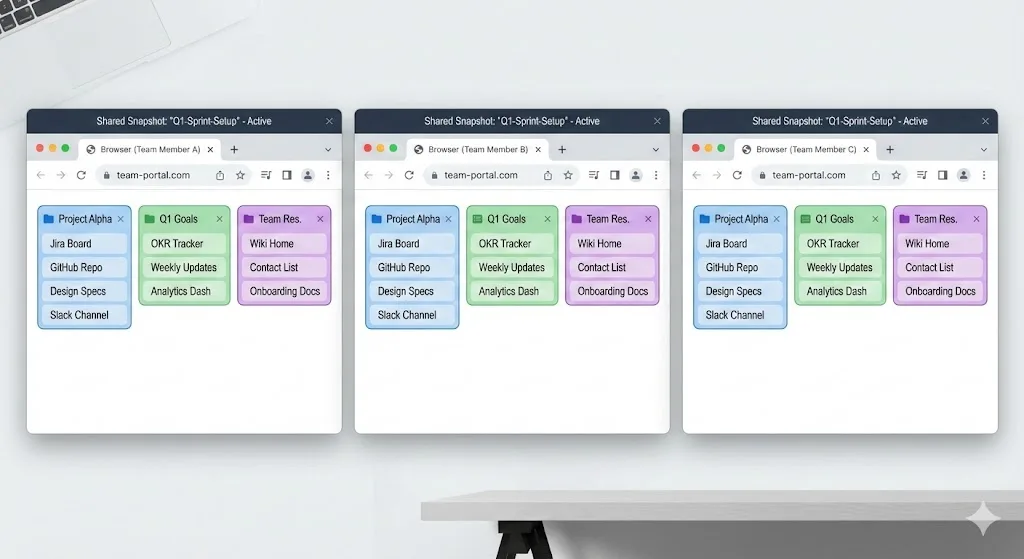
If you spend 20 minutes setting up your tab groups and a crash wipes them out, you are back to square one. TabGroup Vault solves this by saving a snapshot of all your tab groups -- including names, colors, and every URL -- that you can restore with one click.
TabGroup Vault
What it does: Saves and restores Chrome tab groups with full color, name, and URL preservation. Price: Free (5 snapshots) / $29 lifetime Pro (unlimited snapshots, bulk restore, Google Drive backup, 5 Chrome profiles, dark theme). For workspace setup: Save your ideal workspace configuration once, then restore it whenever Chrome loses it. Think of it as version control for your browser workspace.
Snapshot Workflow
- Initial setup: Once you have your profiles and tab groups configured, save a "baseline" snapshot. This is your ideal workspace template.
- Daily save: Save a snapshot at the end of each workday. This captures any new tabs or configuration changes.
- Weekly cleanup: Every Friday, clean up your tab groups (close stale tabs, reorganize), and save a clean "weekly" snapshot.
- Recovery: If your tab groups ever disappear, restore from your most recent snapshot. Total recovery time: seconds.
Automating Your Workspace
Beyond profiles, tab groups, and snapshots, a few additional optimizations complete your professional Chrome setup.
Startup Pages
Configure Chrome to open your essential tabs automatically at startup:
- Go to Settings > On startup
- Select "Open a specific page or set of pages"
- Add the URLs you always need: email, calendar, project management tool
Combined with TabGroup Vault, you get the best of both worlds: essential tabs load automatically, and your full workspace is one restore click away.
Bookmark Bar Organization
Your bookmark bar should complement your tab groups, not duplicate them. Use it for:
- Quick launchers: Frequently accessed tools that are not always open as tabs
- Bookmark folders by category: Reference material organized by topic for when you need to look something up
- Bookmarklets: Small JavaScript snippets that automate common browser tasks
Extension Management
Install extensions thoughtfully. Each one adds memory overhead and can slow your browser. A well-organized workspace needs fewer extensions because the organization itself reduces the need for tools. Keep your active extension count under 12 and disable any you have not used in 30 days.
The Complete Workspace Setup Checklist
Follow this checklist to build your Chrome workspace in about 30 minutes:
- Create a Work profile and a Personal profile (plus any additional profiles you need)
- Set distinct color themes for each profile
- Install essential extensions in each profile (keep the lists separate and lean)
- In your Work profile, create tab groups for each active project plus an Admin group
- Color-code each tab group with a distinct color
- Populate each tab group with its relevant tabs
- Collapse all groups except the one you are currently working on
- Install TabGroup Vault in your Work profile
- Save your first workspace snapshot
- Configure startup pages for your most essential tabs
- Organize your bookmark bar with quick launchers and reference folders
The Bottom Line
A professional Chrome workspace is not about having more tools. It is about using Chrome's built-in features intentionally. Profiles separate your identities. Tab groups separate your projects. TabGroup Vault ensures you never have to rebuild your workspace from scratch.
The 30-minute setup investment pays for itself in the first week. You will spend less time searching for tabs, less time rebuilding after crashes, and less mental energy managing browser chaos. That is time and attention you can redirect toward actual work.