What are Chrome tab groups?
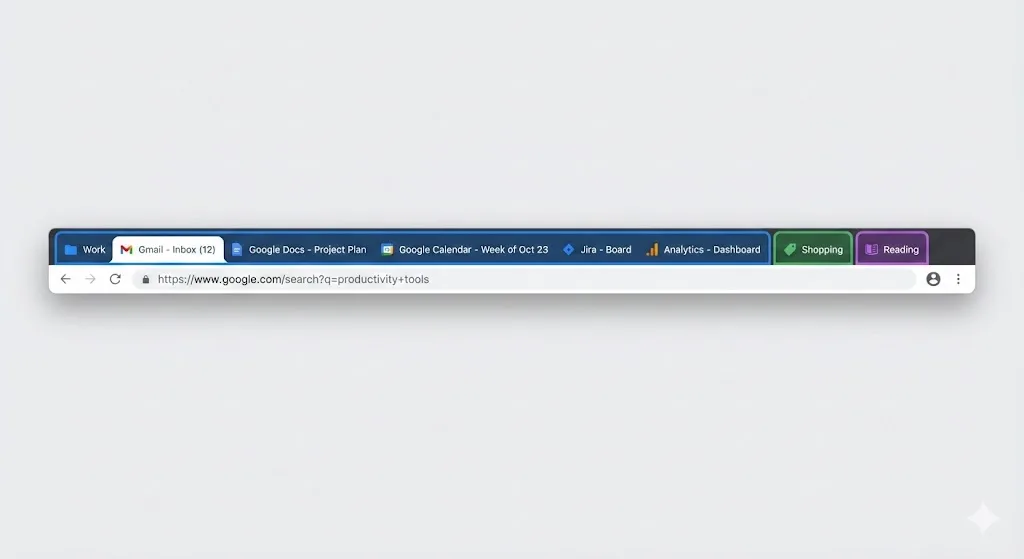
Chrome tab groups let you bundle related tabs together under a shared color-coded label. Google added them in 2020, and they have become one of the most-used organization features in Chrome. Whether you are juggling research for a paper, managing multiple client projects, or just trying to keep personal browsing separate from work, tab groups give you a visual way to stay organized.
Unlike bookmarks, which store URLs for later, tab groups keep your tabs active and accessible. You can collapse and expand them with one click. This gives you the benefits of having dozens of tabs open without the clutter of a packed tab bar.
How to create a tab group
Creating your first tab group takes about three seconds:
- Right-click any tab in your Chrome tab bar.
- Select "Add tab to a new group" from the context menu.
- A small colored dot appears to the left of the tab. Click it to name the group and choose a color.
- Drag additional tabs into the group, or right-click other tabs and select "Add tab to group" followed by the group name.
You can also select multiple tabs at once by holding Ctrl (or Cmd on Mac) and clicking each tab, then right-clicking to group them all in one step. This works well when you already have a dozen tabs open and want to organize them after the fact.
Naming conventions that work
The name you give a tab group appears as a label on the tab bar. Short, descriptive names work best because Chrome does not give you much horizontal space. Here are some naming patterns that power users rely on:
You can name groups by project ("Q1 Report," "Website Redesign," "Client X"), by activity ("Research," "Email," "Reading"), by priority ("Now," "Later," "Reference"), or even by day ("Monday Tasks," "Weekly Review"). Pick whatever system matches the way you think about your work.
Color-coding your groups
Chrome offers eight colors for tab groups: grey, blue, red, yellow, green, pink, purple, and cyan. That might seem limited, but eight options are enough to build a consistent color-coding system.
The key is consistency. Pick a color scheme and stick with it. For example, you might always use blue for work, green for personal, red for urgent items, and grey for reference material. Over time, your brain will associate colors with contexts, and you will be able to scan your tab bar at a glance to find what you need.
| Color | Suggested use | Why it works |
|---|---|---|
| Blue | Primary work tasks | Calm, professional, easy to spot |
| Red | Urgent or time-sensitive | Naturally draws attention |
| Green | Personal browsing | Feels relaxed, separate from work |
| Yellow | Research and reference | Suggests "note-taking" or highlights |
| Purple | Side projects or learning | Distinct from all work colors |
| Grey | Low-priority or archived | Visually recedes, does not distract |
| Pink | Collaboration or social | Friendly, stands out from blues |
| Cyan | Secondary work or tools | Close to blue but distinguishable |
Collapsing and expanding groups
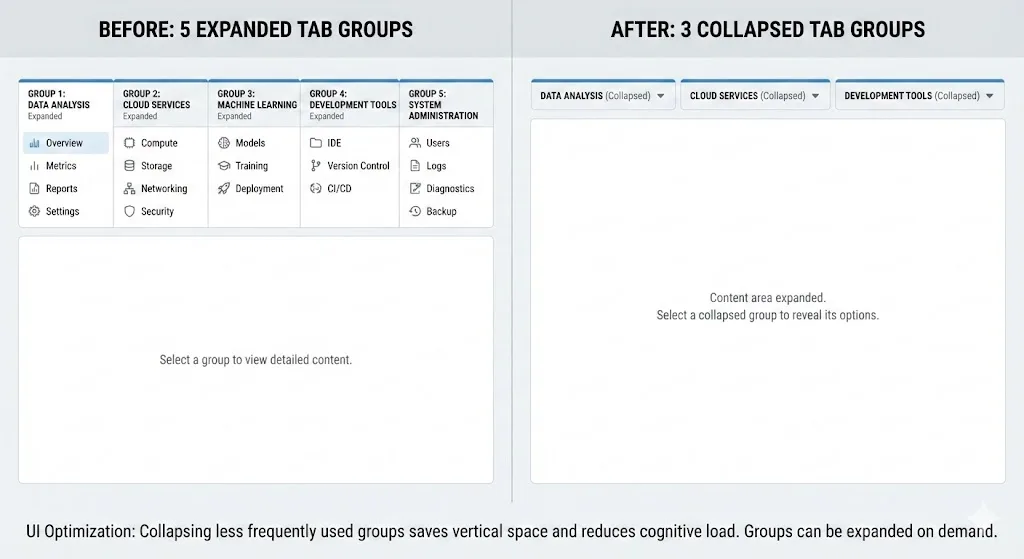
This is the most useful feature of tab groups. Clicking the group label collapses the entire group into a single compact label on your tab bar. All the tabs are still loaded and accessible, but they take up almost no space.
Collapsing makes a real difference for anyone who works on multiple projects throughout the day. You can have five or six groups open, collapse the ones you are not actively using, and focus on a single expanded group. When you need to switch contexts, click the label to expand it and collapse the one you were working on.
This gives you workspace-like behavior within a single Chrome window. Instead of juggling multiple windows or losing track of scattered tabs, everything stays in one place, organized and one click away.
Moving and rearranging tabs between groups
Chrome makes it straightforward to move tabs between groups. You can drag a tab from one group to another, or right-click a tab and select "Add tab to group" to pick a different destination. To remove a tab from a group without closing it, right-click and choose "Remove from group."
You can also reorder groups themselves by dragging the group label to a new position on the tab bar. This is useful for putting your most active group on the far left where it is easy to reach.
Moving a group to a new window
Sometimes you want to break a group out into its own window, maybe to put it on a second monitor or to share your screen for a specific project. Right-click the group label and select "Move group to new window." All tabs in that group move together, preserving the group name and color.
Chrome's built-in save groups feature
In 2023, Google added the ability to save tab groups. When you right-click a group label, you will see a "Save group" option. Saved groups appear as entries in your bookmarks bar and persist across Chrome restarts.
This was a big improvement, but the feature has notable limitations:
- Saved groups can quietly unsave themselves after Chrome updates or crashes.
- There is no version history. If you accidentally remove a tab from a saved group, the old version is gone.
- No export or backup option. Your saved groups are tied to your Chrome profile.
- Syncing across devices is unreliable. Many users report saved groups not appearing on their other machines.
TabGroup Vault: Reliable tab group saving
We built TabGroup Vault to solve these limitations. It takes full snapshots of your tab groups and stores them independently of Chrome's internal data. Your groups survive crashes, updates, and profile resets. You can also export snapshots as JSON to back them up or share them with colleagues. Free tier includes 5 snapshots; Pro ($29 one-time) gives you unlimited.
Tab group limitations you should know about
Tab groups are genuinely useful, but they are not perfect. Understanding the limitations helps you set realistic expectations and find workarounds.
No cross-window groups
A tab group exists within a single window. You cannot have one group that spans two Chrome windows. If you drag a tab to a different window, it leaves its group behind. This means you need to decide upfront whether to use multiple windows or keep everything in one window with groups.
No keyboard shortcuts for group actions
Chrome does not provide built-in keyboard shortcuts for creating, collapsing, or switching between tab groups. All group interactions require the mouse. For keyboard-centric users, this is a real productivity gap. Some extensions, including TabGroup Vault, add keyboard shortcut support to fill this gap. See our Chrome tab groups keyboard shortcuts cheat sheet for all available options.
Limited to eight colors
If you manage more than eight distinct categories, you will need to reuse colors. This can make it harder to differentiate groups at a glance. One workaround is to rely on names more than colors when you exceed eight categories.
Group state is fragile
As mentioned above, tab groups can vanish when Chrome crashes, updates, or when you accidentally close the window. This is the single biggest complaint from tab group users, and it is the primary reason tools like TabGroup Vault exist. For a deeper dive, read our article on why Chrome tab groups disappear and how to fix it.
Advanced tab group tips
Once you have the basics down, these tips will help you get more out of tab groups.
Use the omnibox to search tabs
Press Ctrl+Shift+A (or Cmd+Shift+A on Mac) to open Chrome's tab search. This searches across all open tabs, including those in collapsed groups. It is the fastest way to find a specific page when you have dozens of tabs organized across multiple groups.
Pin important tabs outside groups
Pinned tabs live to the left of all tab groups and cannot be grouped. Use pinned tabs for always-open apps like email, calendar, or a project management tool. This keeps your most-used tabs accessible regardless of which group you are working in.
Combine groups with Chrome profiles
If you work across completely different contexts (for example, freelance work vs. personal browsing vs. a day job), consider using separate Chrome profiles for each. Within each profile, use tab groups for sub-projects. This two-level hierarchy can handle even complex workflows.
Create template groups for recurring work
If you start each week with the same set of tabs (a project board, a communication tool, relevant documents), save that group as a template. With an extension like TabGroup Vault, you can restore the same group of tabs with one click every Monday morning instead of manually opening each URL.
Tab groups vs. other organization methods
Tab groups are one of several approaches to browser organization. Here is a quick comparison to help you decide when to use groups versus other methods:
| Method | Best for | Weakness |
|---|---|---|
| Tab Groups | Active projects with 3-15 tabs each | Groups can disappear; no backup |
| Bookmarks | Long-term reference URLs | No session state; tabs open individually |
| Multiple Windows | Completely separate contexts | Hard to track; no color coding |
| Chrome Profiles | Work vs. personal separation | Heavyweight; separate logins required |
| Tab Manager Extensions | Saving, restoring, and sharing groups | Requires installing an extension |
For a more detailed comparison, check out our article on Chrome tab groups vs. bookmarks.
The future of tab groups
Google keeps adding to tab group features. Recent Chrome updates improved the saved groups interface, added tab group suggestions, and made groups more stable after crashes. The Chrome team has also tested automatic grouping based on your browsing patterns.
But the core limitation remains: Chrome treats tab groups as temporary UI state rather than saved data. Until Google changes this, extensions will fill the gap for users who need their tab groups to survive every restart, crash, and update.
Getting started: a practical workflow
If you are new to tab groups, try this workflow for one week:
- Start each morning by creating a group for your primary task. Name it and pick a color.
- As you open tabs throughout the day, add them to the relevant group.
- Collapse groups you are not using to keep your tab bar clean.
- At the end of the day, save any groups you want to continue tomorrow.
- Once a week, review your groups and close any that are no longer relevant.
After a week of regular use, tab groups will feel natural. You might wonder how you worked without them.
Pro tip
Start with just two or three groups. Adding too many groups at once can feel just as overwhelming as having too many tabs. Build your system gradually and add groups only when you have a clear need.