The Shortcut Gap in Chrome Tab Groups
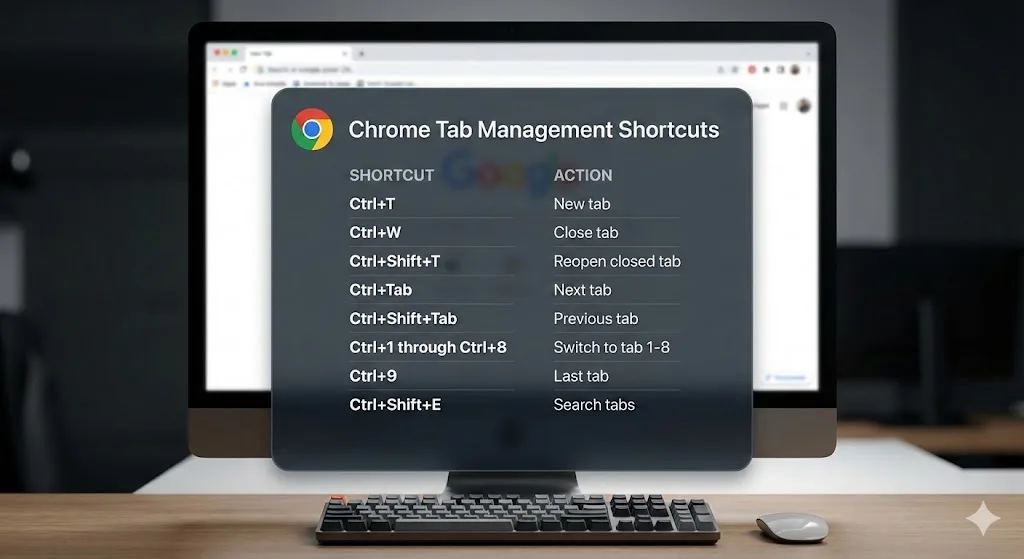
Chrome tab groups are a powerful organizational tool, but they have a notable weakness: there are almost no dedicated keyboard shortcuts for group-specific actions. You cannot create a group, collapse a group, or switch between groups using the keyboard alone. All group-specific interactions require the mouse.
This is a significant productivity gap for keyboard-centric users who prefer to keep their hands on the keyboard. The good news is that Chrome's general tab shortcuts still work with grouped tabs, and you can assign custom shortcuts to extensions that add group functionality.
This cheat sheet covers everything available: general Chrome tab shortcuts that work with groups, extension shortcuts you can configure, and equivalent shortcuts for Edge and Brave.
Essential Chrome Tab Shortcuts (Work With Groups)
These shortcuts work whether your tabs are grouped or not. They are the foundation of keyboard-based tab management.
| Action | Windows / Linux | Mac |
|---|---|---|
| Open new tab | Ctrl + T | Cmd + T |
| Close current tab | Ctrl + W | Cmd + W |
| Reopen last closed tab | Ctrl + Shift + T | Cmd + Shift + T |
| Switch to next tab | Ctrl + Tab | Cmd + Option + Right Arrow |
| Switch to previous tab | Ctrl + Shift + Tab | Cmd + Option + Left Arrow |
| Go to specific tab (1-8) | Ctrl + 1 through Ctrl + 8 | Cmd + 1 through Cmd + 8 |
| Go to last tab | Ctrl + 9 | Cmd + 9 |
| Move tab left | Ctrl + Shift + Page Up | Not available |
| Move tab right | Ctrl + Shift + Page Down | Not available |
| Search open tabs | Ctrl + Shift + A | Cmd + Shift + A |
| Bookmark all open tabs | Ctrl + Shift + D | Cmd + Shift + D |
| Bookmark current tab | Ctrl + D | Cmd + D |
| Open new window | Ctrl + N | Cmd + N |
| Close current window | Ctrl + Shift + W | Cmd + Shift + W |
| Reopen closed window | Ctrl + Shift + T (repeated) | Cmd + Shift + T (repeated) |
| Select multiple tabs | Ctrl + Click each tab | Cmd + Click each tab |
Tab Search is Your Best Friend
The Ctrl+Shift+A shortcut opens Chrome's tab search panel. This searches across all open tabs, including those hidden inside collapsed tab groups. If you use tab groups heavily, this is the fastest way to find a specific tab without expanding every group.
What Chrome Is Missing: Group-Specific Shortcuts
Here are the actions that Chrome does not provide keyboard shortcuts for, which would make tab groups significantly more powerful:
| Desired Action | Keyboard Shortcut | Current Workaround |
|---|---|---|
| Create new group from selected tabs | None | Right-click selected tabs |
| Collapse/expand a group | None | Click the group label |
| Switch to next group | None | Click the group label |
| Move tab to a specific group | None | Right-click > Add to group |
| Rename a group | None | Click the group label |
| Close a group | None | Right-click group label > Close group |
| Save a group | None | Right-click group label > Save group |
This is a significant gap in Chrome's keyboard accessibility. Users have requested these shortcuts for years in Chromium bug reports, but as of early 2026, they have not been implemented.
Extension Shortcuts: Filling the Gap
Chrome allows you to assign keyboard shortcuts to extension actions. This means you can add shortcuts for saving, restoring, and managing tab groups through extensions like TabGroup Vault.
How to Set Up Extension Shortcuts
- Navigate to chrome://extensions/shortcuts in your address bar.
- Find the extension you want to configure (for example, TabGroup Vault).
- Click the pencil icon next to the shortcut field.
- Press the key combination you want to assign (for example, Ctrl+Shift+S).
- The shortcut is now active.
TabGroup Vault Shortcut Suggestions
TabGroup Vault supports custom keyboard shortcuts via chrome://extensions/shortcuts. We recommend assigning Ctrl+Shift+S (Cmd+Shift+S on Mac) for quick snapshot saving. This gives you one-keystroke access to save all your tab groups without touching the mouse. Free tier includes 5 snapshots; Pro is $29 one-time for unlimited.
Microsoft Edge Tab Shortcuts
Microsoft Edge is built on Chromium, so it shares most of Chrome's keyboard shortcuts. Edge also adds a few tab-related features of its own.
| Action | Windows Shortcut | Notes |
|---|---|---|
| Open new tab | Ctrl + T | Same as Chrome |
| Close tab | Ctrl + W | Same as Chrome |
| Switch tabs | Ctrl + Tab / Ctrl + Shift + Tab | Same as Chrome |
| Search tabs | Ctrl + Shift + A | Same as Chrome |
| Open vertical tabs | Ctrl + Shift + , (comma) | Edge-exclusive feature |
| Create/manage group | None | Same limitation as Chrome |
Edge adds vertical tabs (accessible via Ctrl+Shift+comma), which can work well alongside tab groups by giving you more visual space. However, Edge shares Chrome's lack of dedicated group shortcuts.
Brave Browser Tab Shortcuts
Brave is another Chromium-based browser that supports tab groups. Its shortcuts are nearly identical to Chrome's.
| Action | Windows / Linux | Mac |
|---|---|---|
| Open new tab | Ctrl + T | Cmd + T |
| Close tab | Ctrl + W | Cmd + W |
| Reopen closed tab | Ctrl + Shift + T | Cmd + Shift + T |
| Search tabs | Ctrl + Shift + A | Cmd + Shift + A |
| Bookmark all tabs | Ctrl + Shift + D | Cmd + Shift + D |
| Tab group actions | None | None |
Brave supports Chrome extensions, so you can use the same extension shortcut configuration (brave://extensions/shortcuts) to add tab group shortcuts.
Power User Workflow: Combining Shortcuts
Here is a keyboard-heavy workflow for managing tab groups efficiently, combining built-in shortcuts with extension shortcuts:
Morning Setup
- Press your custom shortcut (e.g., Ctrl+Shift+S) to open TabGroup Vault.
- Restore yesterday's snapshot with a click.
- Use Ctrl+Shift+A to search for the specific tab you want to start with.
During Work
- Use Ctrl+Tab and Ctrl+Shift+Tab to navigate between tabs within your current group.
- Use Ctrl+1 through Ctrl+8 to jump to specific tab positions.
- When you need to find a tab in a collapsed group, use Ctrl+Shift+A to search.
- Open new tabs with Ctrl+T and then right-click to add them to a group (this step still requires the mouse).
End of Day
- Press your custom snapshot shortcut to save your current state.
- Close Chrome knowing your groups are safely stored.
Requesting New Shortcuts from Google
If you want to see dedicated tab group shortcuts added to Chrome, you can voice your support in the Chromium issue tracker. Google prioritizes features based on user demand, and multiple requests for the same feature increase the likelihood of implementation.
In the meantime, the combination of Chrome's built-in tab shortcuts and configurable extension shortcuts provides a workable, if imperfect, keyboard-driven workflow for tab group management.
For a complete overview of tab groups, see our complete guide to Chrome tab groups. If you are new to tab groups, start with our beginner's tutorial on how to use tab groups.