Two Tools, Two Different Jobs
Chrome users often wonder whether they should organize their browser with tab groups, bookmarks, or both. The short answer is that they serve fundamentally different purposes, and understanding that distinction is the key to using each one effectively.
Tab groups organize tabs you are actively working with during a session. They are visual, color-coded, and collapsible. They keep your tab bar tidy while you jump between projects.
Bookmarks save URLs for later retrieval. They are persistent by design, synced across devices, and organized into folders. They act as your long-term library of saved web pages.
The confusion arises because both features involve "saving" and "organizing" web pages. The timescale is different. Tab groups are about the next few hours or days. Bookmarks are about weeks, months, or years.
Head-to-Head Comparison
Let us break down every important dimension where tab groups and bookmarks differ.
| Feature | Tab Groups | Bookmarks |
|---|---|---|
| Purpose | Organize active tabs in a session | Save URLs for long-term access |
| Persistence | Temporary by default (can be saved) | Permanent until deleted |
| Visual Organization | Color-coded labels on tab bar | Folders and subfolders |
| Collapse/Expand | Yes, one-click collapse | No (folders expand in sidebar) |
| Cross-Device Sync | Unreliable | Reliable with Chrome Sync |
| Session State | Preserves scroll position, form data | Opens a fresh page load |
| Max Items | Limited by RAM and tab bar width | Unlimited |
| Search | Ctrl+Shift+A tab search | Bookmark manager search bar |
| Export | Not natively (extension needed) | HTML export built-in |
| Sharing | Extension needed | Export HTML and share |
When Tab Groups Are the Better Choice
Tab groups work well when you are actively working with multiple pages and need quick access.
Project-Based Work Sessions
When you are working on a project that involves five to fifteen open tabs, such as a Google Doc, a reference article, a design tool, and a communication thread, a tab group keeps them bundled and accessible. You can collapse the group when you need to focus on something else and expand it when you return.
Research in Progress
If you are in the middle of comparing products, reading several articles on a topic, or gathering information from multiple sources, tab groups let you keep everything open and organized. Bookmarking each page individually would be slower and would lose the contextual grouping.
Daily Workflow Management
Many people create tab groups that represent their daily tasks: a group for email and communication, a group for their current project, and a group for reference material. These groups change frequently, which makes tab groups more practical than constantly updating bookmark folders.
When Bookmarks Are the Better Choice
Bookmarks work well for long-term storage and retrieval.
Reference Material You Return to Frequently
Documentation sites, style guides, internal tools, and commonly used web apps belong in bookmarks. You visit them regularly, and you want them available permanently. Keeping them as perpetually open tabs would waste memory.
Collections You Build Over Time
Building a library of recipes, travel destinations, or professional development resources is a bookmark job. These collections grow slowly over weeks and months, and you do not need all of them open at once.
Cross-Device Access
If you need to access the same links on your work computer, home laptop, and phone, bookmarks are the reliable choice. Chrome Sync handles bookmarks well across devices. Tab group sync remains inconsistent.
The Best Approach: Use Both Together
The most effective browser organization uses tab groups and bookmarks together, each for what it does best. Here is a practical combined workflow:
Step 1: Tab Groups for Active Work
During your work day, organize everything into tab groups. Keep your active projects, current research, and in-progress tasks as live tab groups. Collapse the ones you are not currently focused on.
Step 2: Bookmark Important Pages Before Closing
Before you close a tab group at the end of a project or work session, go through the tabs and bookmark any that you might need again in the future. Use a bookmark folder with the same name as the tab group for easy reference.
Step 3: Use Snapshots as the Bridge
For tab groups that you want to preserve but might not need for weeks, take a snapshot with a tool like TabGroup Vault. This lets you close the group and free up resources while maintaining the ability to restore the exact same group of tabs later without manually bookmarking each one.
TabGroup Vault: The Best of Both Worlds
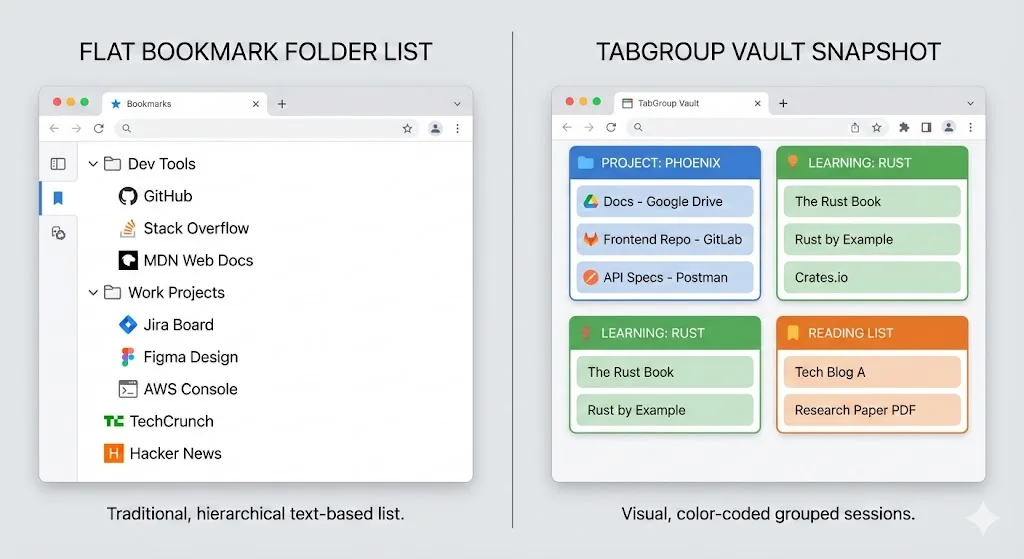
TabGroup Vault bridges the gap between tab groups and bookmarks. It saves full snapshots of your tab groups, preserving names, colors, and tab order, so you can close groups without losing them. Unlike bookmarks, restoring a snapshot reopens the entire group exactly as it was. Free tier includes 5 snapshots; Pro is just $29 one-time.
Common Mistakes to Avoid
Here are patterns that lead to browser chaos, along with what to do instead.
Mistake: Using Bookmarks as Active Tabs
Some people bookmark everything and then open 30 bookmarks each morning. This defeats the purpose of bookmarks as a library. If you need the same tabs open every day, save them as a tab group snapshot and restore it with one click instead of opening bookmarks individually.
Mistake: Keeping Tabs Open "Just in Case"
If you have tabs that have been open for weeks but you have not looked at them, they belong in bookmarks or a saved snapshot, not in your active tab bar. Closing them reduces memory usage and visual clutter.
Mistake: Organizing Bookmarks Like Tab Groups
Creating elaborate, frequently-changed bookmark folder structures to mimic tab groups is a waste of time. Tab groups are designed for fluid reorganization. Use them for it.
Mistake: Never Bookmarking Anything
Relying entirely on tab groups and browser history to find pages again is risky. Important reference URLs deserve the permanence that bookmarks provide. Even if you primarily use tab groups, develop a habit of bookmarking pages you know you will need again.
What About Bookmark Folders That Open as Tab Groups?
Some users create a bookmark folder for each project and use "Open all" to load the folder's contents as tabs, which they then group manually. This works but involves friction. Every time you want to switch projects, you are creating tab groups from scratch.
A tab group snapshot approach eliminates this friction. Save the group once, restore it whenever you need it, and the group reappears with its name, color, and tab order intact. No manual grouping required.
The Verdict
Tab groups and bookmarks are not competitors. They are complementary tools for different phases of your browsing lifecycle. Tab groups handle the present, keeping your active work organized. Bookmarks handle the future, storing reference material for later retrieval. Tab group snapshots bridge the two, letting you archive active work without reducing it to a flat list of URLs.
For a deeper dive into tab groups, check out our complete guide to Chrome tab groups. And if you want to explore every method for saving tabs, read our breakdown of the 5 best methods for saving tabs in Chrome.
Quick Rule of Thumb
If you will need it in the next 48 hours, use a tab group. If you will need it next month, use a bookmark. If you are not sure, take a snapshot and close the tab.