The Problem: Tab Groups Are Not Permanent
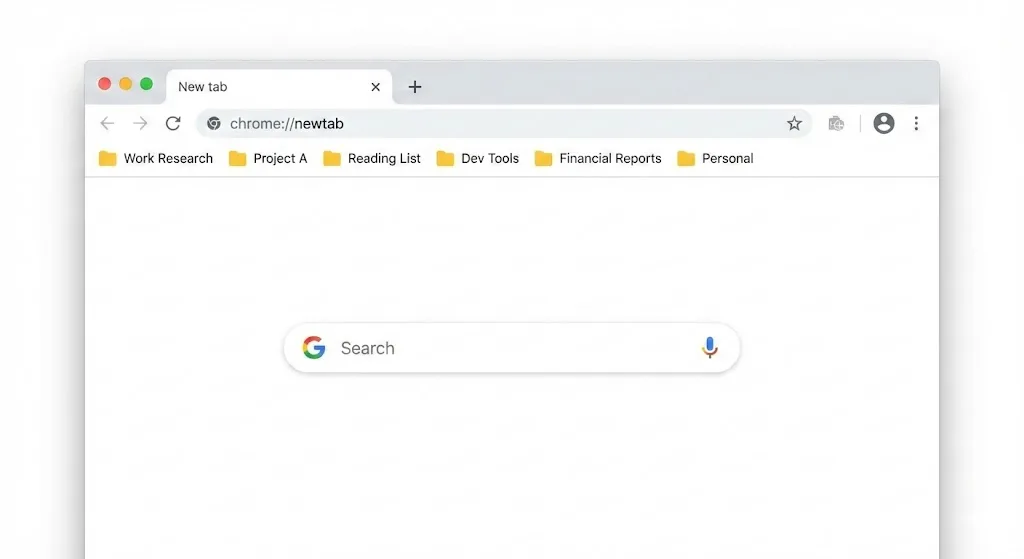
You spent twenty minutes organizing your tabs into clean, color-coded groups. You named each one, arranged them in order, and collapsed the ones you were not using. Then Chrome updated overnight, and when you opened your browser the next morning, every single group was gone.
This is not a rare edge case. It is one of the most common frustrations Chrome users face. Tab groups in Chrome were designed as a visual organizational tool, not a persistent data store. By default, they exist only in your current session. Close the window, and the groups vanish.
Google keeps adding improvements, but the underlying issue remains: Chrome treats tab groups as temporary UI state rather than important user data. This means even the built-in save feature has reliability gaps that can leave you starting from scratch.
Method 1: Chrome's Built-In Save Group Feature
Chrome added a native save feature for tab groups. Here is how to use it:
- Right-click the tab group label (the colored name on your tab bar).
- Click "Save group" in the context menu.
- The group is now saved. A small icon appears on your bookmarks bar indicating the saved group.
- If you close the group, you can reopen it from the bookmarks bar.
This feature is convenient because it requires no extra software. But it has real limitations you need to understand before relying on it.
Limitations of Chrome's Built-In Save
- Groups can unsave after Chrome updates. Major version updates sometimes reset the saved state of tab groups. You will not receive a warning when this happens.
- No version history. When you modify a saved group by adding or removing tabs, the previous state is overwritten permanently. There is no way to go back to yesterday's version.
- No export or backup. Saved groups are stored in Chrome's internal database. You cannot export them, back them up to a file, or move them to a different computer manually.
- Cross-device sync is unreliable. While Chrome Sync theoretically includes saved groups, many users report that groups do not appear on their other devices, or they appear empty.
- Crashes can corrupt the save data. If Chrome crashes while a saved group is open, the save data can become corrupted, resulting in the group disappearing from the bookmarks bar entirely.
Warning
Do not rely exclusively on Chrome's built-in save for tab groups that contain important work. Always have a secondary backup method, whether that is an extension, bookmarks, or a note with the URLs.
Method 2: Enable "Continue Where You Left Off"
Chrome has a setting that reopens your previous session every time you start the browser. This acts as a basic safety net for tab groups:
- Open Chrome and go to Settings (chrome://settings).
- Scroll down to the "On startup" section.
- Select "Continue where you left off."
With this enabled, Chrome will reopen all your windows and tabs (including groups) from your previous session. This protects you against accidentally closing Chrome but does not help with crashes, profile corruption, or updates that clear your session data.
Method 3: Bookmark All Tabs as a Backup
A manual but reliable approach is to bookmark all the tabs in a group before you close it:
- Right-click any tab within the group.
- Select "Bookmark all tabs" (or press Ctrl+Shift+D / Cmd+Shift+D).
- Create a new folder with the same name as your tab group.
- Save the bookmarks.
This preserves the URLs, but you lose the tab group structure, the color, and the name. When you reopen the bookmarks, they open as individual tabs you will need to re-group manually. It works as a last resort, but it is not practical for daily use.
Method 4: Use a Tab Group Extension (Recommended)
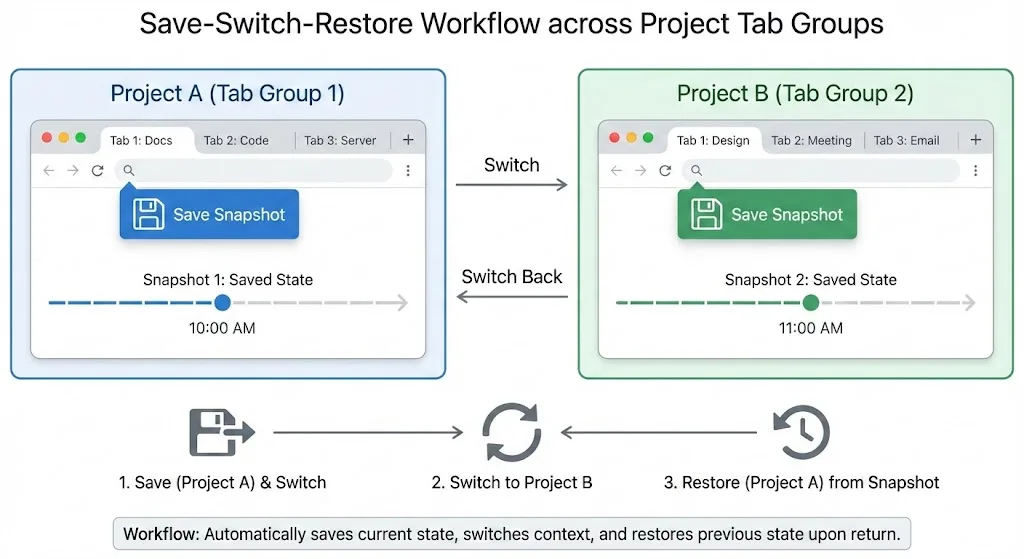
The most reliable way to save tab groups is to use a dedicated extension that stores your group data outside Chrome's internal state. This means your groups survive crashes, updates, profile resets, and any other scenario that would normally destroy them.
TabGroup Vault: One-Click Tab Group Saving
TabGroup Vault takes a complete snapshot of all your tab groups, including names, colors, tab order, and URLs. Snapshots are stored independently and can be restored with a single click. You can also export snapshots as JSON files for backup or sharing. The free tier includes 5 snapshots. Pro users ($29 one-time payment) get unlimited snapshots with no recurring fees.
Here is how saving tab groups works with an extension like TabGroup Vault:
- Click the extension icon in your toolbar.
- Click "Save Snapshot" to capture all current tab groups.
- Your groups are now stored safely, outside Chrome's session data.
- To restore, open the extension, find your snapshot, and click "Restore."
The key advantage is independence. Even if Chrome completely loses its session data, your snapshots remain intact. You can also maintain multiple snapshots to create a version history. This lets you go back to how your groups looked last Tuesday or two weeks ago.
Comparing All Four Methods
| Method | Survives Crashes | Version History | Exportable | Effort |
|---|---|---|---|---|
| Chrome Save Group | Sometimes | No | No | Low |
| Continue Where Left Off | No | No | No | Low (one-time) |
| Bookmark All Tabs | Yes | Manual | Yes (HTML) | High |
| TabGroup Vault | Yes | Yes | Yes (JSON) | Low |
Best Practices for Keeping Your Tab Groups Safe
Regardless of which method you choose, these practices will minimize your risk of losing tab groups:
1. Save Before Closing Chrome
Make it a habit to save your tab groups before you shut down your computer or close Chrome for the day. This takes a few seconds and eliminates the most common cause of tab group loss.
2. Use the "Continue Where You Left Off" Setting as a Baseline
Even if you use an extension, having this Chrome setting enabled provides an additional layer of protection. Think of it as your first line of defense, with the extension as your backup.
3. Export Periodically
If your tab groups contain important research or project links, export them to a file periodically. Store the export in a cloud folder like Google Drive or Dropbox. This protects you even against scenarios where Chrome and the extension data are both lost (for example, if you need to set up a new computer).
4. Do Not Close Chrome with Ctrl+Q / Cmd+Q
Quitting Chrome with the keyboard shortcut can skip the session save process, especially on Mac. Close individual windows with the X button instead, which gives Chrome time to save your session state. Install a quit-confirmation extension to prevent accidental closures.
5. Keep Chrome Updated, But Save First
Chrome updates are the main cause of tab group disappearances. Before allowing an update, save your groups. After the update completes and Chrome restarts, verify that your groups are intact before continuing work.
Tip
Set a weekly reminder to export your tab group snapshots. Having an offline backup protects you no matter what happens with Chrome or your extensions.
What to Do If You Already Lost Your Groups
If your tab groups have already disappeared, do not panic. There are several recovery options:
- Check Chrome History: Press Ctrl+H to open your browsing history. Your recently visited URLs are still there even if the groups are gone. You can reopen them and re-create your groups.
- Try "Reopen closed window": Right-click the tab bar and select "Reopen closed window." If Chrome closed unexpectedly, this might restore the entire window with its groups intact.
- Check the Bookmarks Bar: If you had saved your groups using Chrome's built-in feature, they may still appear as entries on the bookmarks bar even if they are no longer open.
- Look for extension backups: If you had a tab manager extension installed, check whether it auto-saved a recent session.
For a detailed walkthrough, read our guide on why Chrome tab groups disappear and how to fix it.
The Bottom Line
Saving tab groups in Chrome is not as straightforward as it should be. Chrome's built-in save feature is a good start, but it is not reliable enough to be your only safety net. If you depend on tab groups for daily work, combine Chrome's save feature with an extension like TabGroup Vault and the "Continue where you left off" setting for the best protection.
Your tab groups represent your mental model of your current work. Losing them means losing context and wasting time. A few seconds of saving now prevents hours of reconstruction.