Why Tab Organization Matters
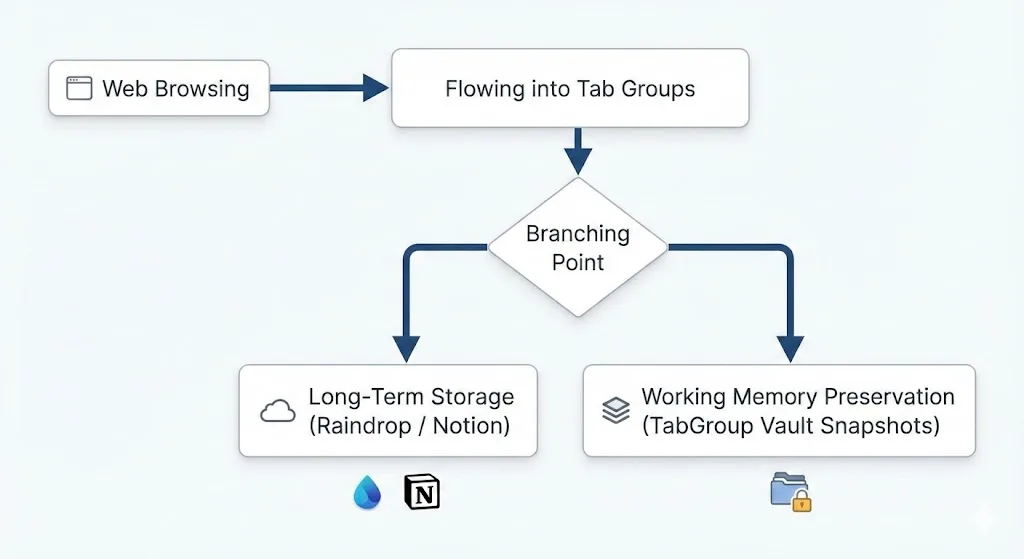
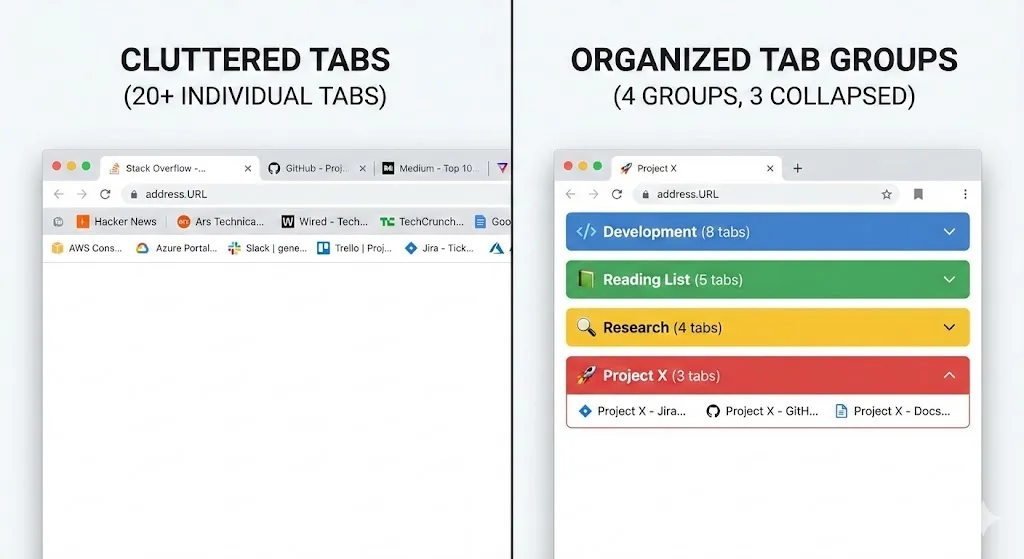
The average knowledge worker has 15 to 30 tabs open at any given time. Researchers, developers, and students often exceed 50. Without a system, those tabs become a wall of tiny favicons that you scan repeatedly, wasting minutes every hour.
Disorganized tabs cause three problems. First, they slow you down because finding the right tab takes longer. Second, they drain your focus because visual clutter increases cognitive load. Third, they create anxiety because you worry about losing important pages.
Chrome has strong native tools for tab organization. Combined with smart habits and the right extension, you can keep your browser clean without constantly closing tabs.
Step 1: Use Chrome Tab Groups
Tab groups are the foundation of any Chrome organization system. They let you bundle related tabs together, give each bundle a name and color, and collapse them to free up space on the tab bar.
How to create a tab group
- Right-click any tab in Chrome.
- Select "Add tab to new group."
- Name the group and pick a color.
- Drag other related tabs into the group.
Naming conventions that work
Use short, descriptive names. Good examples: "Q1 Report," "Job Hunt," "React Docs," "Recipes." Avoid generic names like "Work" or "Stuff" because they stop being useful as you add more groups.
Color coding strategy
Assign colors by category, not by group. For example, all work groups could be blue, personal groups green, and research groups purple. This creates a visual pattern that helps you find the right group.
Pro Tip
Collapse tab groups you are not actively using by clicking the group name. This hides all tabs in the group and frees up bar space. Click the name again to expand.
Step 2: Pin Your Permanent Tabs
Some tabs are always open: Gmail, Slack, a project management tool, your calendar. These should be pinned. Pinned tabs sit at the far left of the tab bar as small favicons and cannot be accidentally closed with the normal close button.
Right-click a tab and select "Pin" to pin it. Keep your pinned tabs to 5 or fewer. If you are pinning more than that, some of those tabs belong in a group instead.
Step 3: Separate Contexts with Chrome Profiles
Chrome profiles are underused but powerful. Each profile has its own bookmarks, extensions, history, and saved passwords. This makes them ideal for separating work and personal browsing, or for managing multiple clients.
To create a new profile, click your avatar in the top-right corner of Chrome and select "Add." Each profile gets its own window with a distinct color at the top, making it easy to tell which context you are in.
When to use profiles vs tab groups
| Scenario | Use Profiles | Use Tab Groups |
|---|---|---|
| Separate work and personal | Yes | No |
| Different login accounts | Yes | No |
| Multiple projects at work | No | Yes |
| Research topics | No | Yes |
| Client-specific workflows | Yes | Also helpful |
Step 4: Use Tab Search
Chrome has a built-in tab search feature that most people never discover. Press Ctrl+Shift+A (or Cmd+Shift+A on Mac) to open it. You can type the name of any open tab and jump to it instantly. This is especially useful when you have collapsed tab groups and cannot see the individual tabs.
Tab search also shows recently closed tabs, so you can quickly reopen something you closed by mistake.
Step 5: Save Your Tab Groups
Chrome's built-in "Save group" option stores tab groups so they appear in the bookmarks bar. But this feature has limitations. Saved groups can disappear after Chrome updates, they do not export, and there is no automatic backup.
This is where an extension like TabGroup Vault adds critical value. It takes a complete snapshot of all your tab groups, including names, colors, tab order, and URLs. If Chrome crashes, updates, or you accidentally close a window, you can restore everything exactly as it was.
TabGroup Vault
What it does: Saves and restores Chrome tab groups with full fidelity (names, colors, tab order).
Free tier: 5 snapshots. Pro: $29 one-time for unlimited snapshots, auto-save, and export.
Step 6: Develop Daily Habits
Tools are only effective if you use them consistently. Here are the habits that keep tabs organized over time.
Start-of-day routine
- Open Chrome and check for any tab groups from yesterday that need attention.
- Close or archive any groups for completed tasks.
- Create a new group for today's primary task if needed.
End-of-day routine
- Save a snapshot of your current tab groups with TabGroup Vault.
- Close any tabs you will not need tomorrow.
- Bookmark any reference material you want to keep long-term.
The 20-tab rule
When your visible (uncollapsed) tab count exceeds 20, stop and organize. Either group the new tabs, close ones you no longer need, or save a snapshot and start fresh. This prevents the gradual slide from organized to chaotic.
Step 7: Use Keyboard Shortcuts
Keyboard shortcuts make tab management much faster. Here are the essential ones.
| Action | Windows / Linux | Mac |
|---|---|---|
| New tab | Ctrl+T | Cmd+T |
| Close tab | Ctrl+W | Cmd+W |
| Reopen closed tab | Ctrl+Shift+T | Cmd+Shift+T |
| Search open tabs | Ctrl+Shift+A | Cmd+Shift+A |
| Switch to tab 1-8 | Ctrl+1 through Ctrl+8 | Cmd+1 through Cmd+8 |
| Switch to last tab | Ctrl+9 | Cmd+9 |
| Move between tabs | Ctrl+Tab / Ctrl+Shift+Tab | Cmd+Option+Right/Left |
Putting It All Together
A complete Chrome tab organization system looks like this:
- Profiles separate your life contexts (work, personal, client A, client B).
- Pinned tabs hold your always-open apps (3-5 tabs max).
- Tab groups organize everything else by project or topic.
- Collapsed groups keep your tab bar clean by hiding what you are not working on.
- TabGroup Vault saves snapshots so nothing is ever lost.
- Daily habits prevent entropy from creeping back in.
This system scales from 10 tabs to 200+ without breaking down. For a deeper look at scaling, see our guide to building a complete tab management system. If you are drowning in tabs, read how one person fixed their 200+ tab problem.