Why You Need a Tab Management System
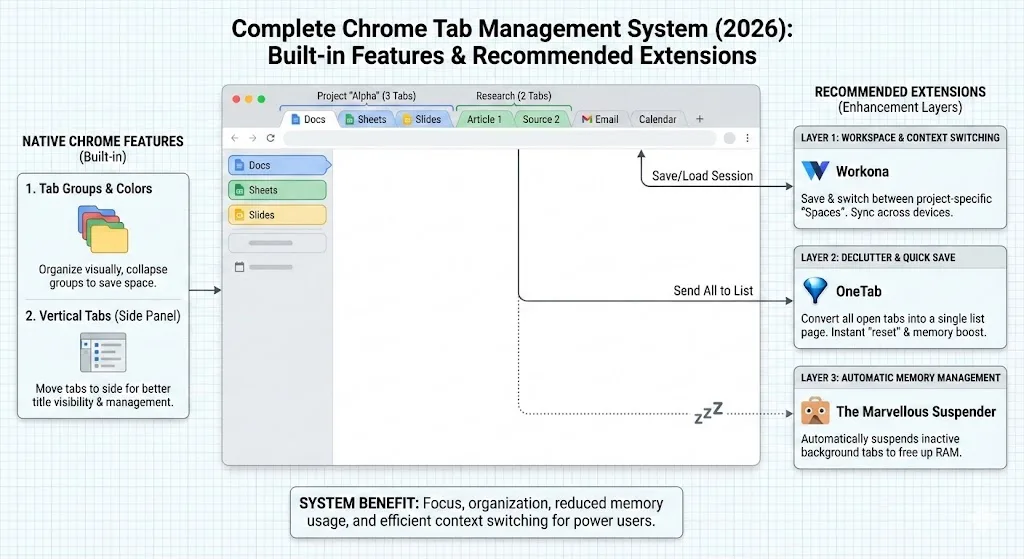
Most people do not have a tab problem. They have a system problem. Tabs accumulate because there is no plan for what to do with them. Without a system, every open tab represents a decision you have deferred: should I close this, bookmark it, or keep it open?
A tab management system eliminates those micro-decisions. It gives you clear rules for categorizing tabs, saving work in progress, and cleaning up when tasks are done. The result is less mental overhead and more time spent on actual work.
This guide walks you through building a complete system, starting with core principles and scaling up to handle 200+ tabs across multiple projects.
Core Principles of Tab Management
Principle 1: Every tab should belong somewhere
Ungrouped tabs are the source of tab chaos. Every tab in your browser should belong to either a pinned set (your permanent apps), a named tab group (active work), or the close button (you do not need it). If a tab does not fit any of these categories, bookmark it and close it.
Principle 2: Active work and reference material are different
Active work tabs are pages you are interacting with right now: a document you are editing, a form you are filling out, code you are reviewing. Reference tabs are pages you might need later: documentation, articles, search results. Keep these in separate groups. Active work stays expanded; reference groups stay collapsed.
Principle 3: Saving is not optional
Chrome will lose your tabs at some point. An update will restart the browser. A crash will corrupt the session file. You will accidentally close a window. If you have not saved your tab groups, that work context is gone. Regular saving is the insurance policy that makes everything else in your system safe.
Principle 4: Less is more (but only if you can get it back)
The goal is not to keep every tab open forever. The goal is to have confidence that you can close tabs without losing them. When saving is easy, closing tabs becomes easy too. That is why a tool like TabGroup Vault is the foundation of the system, not a nice-to-have.
TabGroup Vault
Role in the system: Handles the persistence layer. Saves all your tab groups as snapshots and restores them with one click.
Free: 5 snapshots. Pro: $29 one-time for unlimited snapshots and auto-save.
Building Your System: Layer by Layer
Layer 1: Categorization
This is the visible structure of your browser. It determines how tabs are organized at any given moment.
Pinned tabs (3-5 max): These are your always-on applications. Email, calendar, chat, project management. Pin them and leave them. They sit at the left edge of the tab bar as small icons.
Active tab groups (2-4 at a time): These are the projects or tasks you are currently working on. Each group is named, color-coded, and expanded. Two to four active groups is the sweet spot. More than that and you are context-switching too often.
Reference tab groups (collapsed): These are groups you need available but are not actively using. Research for a project you will resume later, documentation you check occasionally, comparison shopping. Keep these collapsed to save tab bar space.
Ungrouped tabs (temporary): Sometimes you open a tab quickly and have not decided where it goes yet. That is fine, but ungrouped tabs should be triaged within the hour. Group them, bookmark them, or close them.
Layer 2: Persistence
This layer ensures that your categorization survives crashes, restarts, and time.
Tab group snapshots: Use TabGroup Vault to save a snapshot of your current tab groups at least once per day. Pro users can enable auto-save to capture snapshots automatically. Each snapshot preserves group names, colors, tab order, and URLs.
Bookmarks for long-term reference: Pages you want to keep for months or years belong in bookmarks, not tab groups. Use bookmark folders that mirror your tab group categories. This creates a two-tier system: tab groups for active and recent work, bookmarks for archival.
Export for sharing: When you need to share a set of tabs with a colleague, export the snapshot as a file. This is cleaner than sending a list of links and preserves the group structure for anyone using TabGroup Vault.
Layer 3: Maintenance
Without regular maintenance, any system decays. These habits keep your tab system clean.
Morning review (2 minutes): Open Chrome and scan your tab groups. Close any groups for tasks you finished yesterday. Create groups for today's priorities. Save a snapshot.
Mid-day triage (1 minute): Check for ungrouped tabs and either group them or close them. If your visible tab count exceeds 20, collapse a group or two.
End-of-day archive (2 minutes): Save a snapshot with TabGroup Vault. Bookmark any reference material you want long-term. Close groups for completed tasks. Your browser should be noticeably cleaner than when you started the day.
Scaling the System: From 10 to 200+ Tabs
10-30 tabs: Basic grouping
At this level, you need 2-3 tab groups and pinned tabs. Organization is lightweight and manual. Save a snapshot once per day.
30-100 tabs: Active archiving
This is where most power users live. You need 4-6 tab groups, a mix of active and collapsed groups, and daily saving. At this scale, collapse groups you have not touched in an hour.
| Tab Count | Groups Needed | Save Frequency | Key Behavior |
|---|---|---|---|
| 10-30 | 2-3 | Once daily | Basic grouping |
| 30-100 | 4-6 | Twice daily | Active collapsing & archiving |
| 100-200 | 6-10 | Auto-save recommended | Multiple windows + profiles |
| 200+ | 10+ | Auto-save required | Aggressive archiving + close completed work |
100-200 tabs: Multiple windows and profiles
At this scale, a single Chrome window becomes unwieldy. Split your work across windows: one window per major project area, each with its own tab groups. Use Chrome profiles to separate different contexts (work vs personal, client A vs client B). Auto-save with TabGroup Vault becomes important because manually saving at this scale is easy to forget.
200+ tabs: Aggressive archiving
If you regularly have 200+ tabs, you are holding onto tabs out of anxiety rather than need. The fix is not better organization but more confident closing. With TabGroup Vault auto-saving your groups, you can close completed project groups knowing they are saved. You can always restore them if needed. Read about how one person fixed their 200+ tab habit for a practical walkthrough.
Pro Tip
Use the "snapshot + close" workflow: save a snapshot of a tab group with TabGroup Vault, then immediately close the group. This frees up memory and tab bar space while keeping the group fully recoverable. It is the tab equivalent of archiving an email.
Tools That Support the System
A tab management system works best with the right tools in each layer. Here is our recommended stack.
- Categorization: Chrome's native tab groups (built-in, free)
- Persistence: TabGroup Vault (free for 5 snapshots, $29 Pro)
- Navigation: Chrome tab search via Ctrl+Shift+A (built-in) or Tab Manager Plus (free extension)
- Performance: Chrome's built-in Memory Saver (chrome://settings/performance) or a tab suspender extension
- Long-term storage: Chrome bookmarks (built-in)
You do not need all of these. At minimum, use tab groups and TabGroup Vault. Add the others as your tab count and workflow complexity increase.
Common Mistakes to Avoid
- Over-organizing: Do not create a tab group for every micro-task. Groups are for projects and contexts, not individual pages.
- Never closing tabs: A tab group is not a permanent home. When a task is done, save the snapshot and close the group.
- Relying on Chrome's session restore: Chrome's built-in session restore fails frequently during crashes and updates. It should be a backup, not your primary safety net.
- Using too many extensions: Two or three focused extensions work better than six overlapping ones. Each extension adds memory usage and potential conflicts.
- Skipping daily maintenance: Five minutes per day keeps the system working. Skip maintenance for a week and you are back to chaos.
For a complete walkthrough of Chrome's native organization tools, see our definitive guide to organizing Chrome tabs. To compare extension options for your toolkit, check out our comparison of Chrome tab organizer extensions.