The Problem
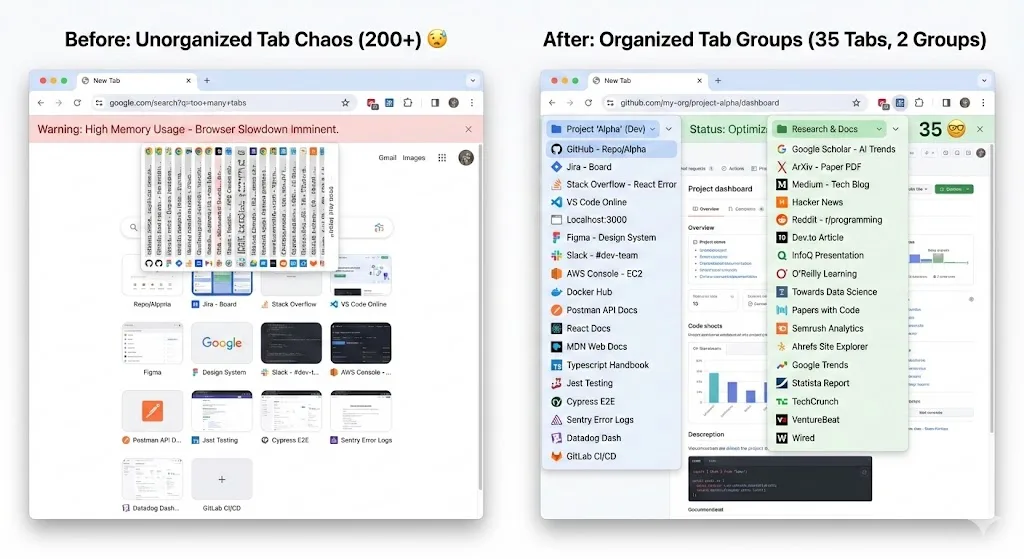
I am going to be honest about this: at my worst, I had 234 tabs open across three Chrome windows. Chrome stopped showing the tab count and replaced it with a smiley face. My laptop fan ran constantly. Finding any specific tab required scrolling through a sea of identical-looking favicons, and half the time I would just open a new tab and search for the page again rather than hunt for the one I already had open.
I knew I had a problem. I just did not know how to fix it without losing all the things I was "going to get back to." That stack of tabs represented weeks of accumulated research, project references, articles to read, shopping comparisons, and half-started tasks. Closing them felt like throwing away work.
Sound familiar? If you have too many tabs open in Chrome, this is the story of what I tried, what worked, and the system I use now that keeps my tab count under 40 permanently.
What I Tried First (And Why It Did Not Work)
Attempt 1: Just close everything
I tried the "declare tab bankruptcy" approach. Close all tabs, start fresh. It felt great for about an hour. Then I needed a page I had closed and could not find it in my history because I did not remember the URL or the exact title. Within two days, I was back up to 80 tabs because I was afraid to close anything again.
Attempt 2: Bookmark everything
I selected all tabs, bookmarked them into a folder called "Cleanup Feb 2026." I now have 14 of those folders, dating back years. I have never opened any of them. Bookmarking 200 tabs does not organize them. It just moves the clutter from the tab bar to the bookmark menu.
Attempt 3: OneTab
OneTab collapsed everything into a list. It saved memory, which was great. But the list was unsorted and context-free. My research tabs were mixed with shopping tabs, work references, and random articles. Restoring meant scrolling through 200 links trying to figure out which ones went together. I restored everything back to tabs within a week.
What Actually Worked: The Afternoon Cleanup
The fix took one afternoon. About three hours. Here is exactly what I did, step by step.
Step 1: Install TabGroup Vault and save everything first
Before doing anything else, I installed TabGroup Vault and saved a complete snapshot of all my tabs. This was critical psychologically. Knowing that every tab was saved somewhere meant I could close things without anxiety. Even if I messed up the cleanup, I could restore the snapshot and try again.
TabGroup Vault
Why it was essential: It saved all 234 tabs as a restorable snapshot before I started cleaning. No tab could be permanently lost.
Free tier: 5 snapshots (enough to start). Pro: $29 one-time for unlimited.
Step 2: Sort tabs into groups by project
I went through every tab and right-click added it to a Chrome tab group. I created groups as I went. The first pass gave me these groups:
- Work - Q1 Report (blue) - 18 tabs of research and data
- Work - Client Proposal (blue) - 12 tabs
- Side Project (green) - 22 tabs of docs and tutorials
- Apartment Hunt (purple) - 31 tabs of listings and neighborhood info
- Travel Planning (orange) - 15 tabs of flights, hotels, itineraries
- Read Later (grey) - 47 tabs of articles and blog posts
- Shopping (yellow) - 28 tabs of product comparisons
- Random / Unknown (red) - everything else
This step took the longest, about 90 minutes. But it was also the most valuable. Just seeing the tabs categorized made it obvious what I actually needed.
Step 3: Make hard decisions about each group
For each group, I asked one question: "Am I actively working on this in the next 3 days?"
- Yes (keep open): Work - Q1 Report, Work - Client Proposal
- Maybe soon (save and close): Side Project, Apartment Hunt, Travel Planning
- Not really (save and close): Shopping, Read Later
- No (just close): Random / Unknown
Step 4: Save groups, then close them
For each "save and close" group, I saved a snapshot with TabGroup Vault, then closed the group. This is the key move. The tabs are gone from my browser, freeing up memory and visual space, but they are fully recoverable. If I need those apartment listings next week, one click brings them all back in the same tab group with the same colors and names.
For the "just close" group, I took a final snapshot as insurance, then closed everything in it.
Step 5: Bookmark the truly permanent stuff
A few pages from the closed groups were things I wanted as permanent references, not tied to a specific project. I bookmarked those into organized folders: "Recipes," "Tax Resources," "Dev References." About 15 bookmarks total from 200+ tabs.
The Results
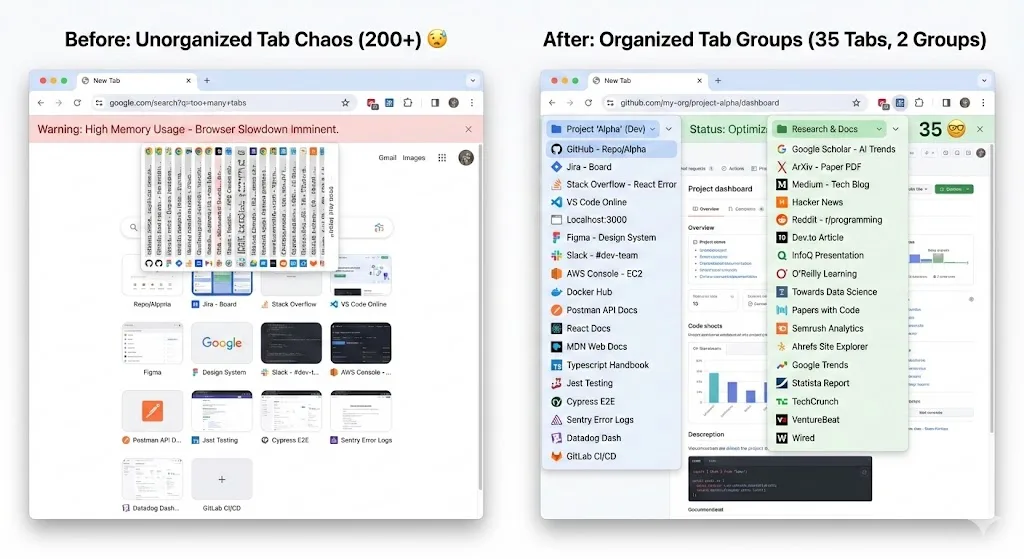
After the cleanup, I had 30 tabs open in 2 active groups, plus 4 pinned tabs. Chrome went from using 8 GB of RAM to under 2 GB. My laptop stopped sounding like a jet engine. And most importantly, I could find every tab I needed in seconds.
| Metric | Before | After |
|---|---|---|
| Open tabs | 234 | 34 |
| Chrome windows | 3 | 1 |
| RAM usage | ~8 GB | ~1.8 GB |
| Time to find a tab | 30-60 seconds | Under 5 seconds |
| Tabs permanently lost | N/A | Zero (all saved) |
The System That Keeps It Clean
The cleanup was the hard part. Staying organized is much easier because I follow three rules.
Rule 1: Group immediately
When I open a new tab that is part of a project, it goes into the project's tab group right away. If there is no group for it yet and I am opening a third tab on the same topic, I create a new group. Ungrouped tabs are not allowed to accumulate.
Rule 2: Save before switching
Before I switch to a different project, I save a snapshot. This takes one click. It means that if Chrome crashes mid-switch, or if I get pulled into something and forget to go back, my groups are preserved.
Rule 3: Close completed work
When a project is done or a task is complete, I save a final snapshot of the tab group and close it. The snapshot is my archive. I can reopen it any time, but the tabs are not cluttering my browser anymore.
The Key Insight
The reason I hoarded tabs was fear of losing them. Once I had a reliable way to save and restore tab groups, closing tabs became easy. The tool did not organize my tabs for me -- it gave me the confidence to organize them myself.
Frequently Raised Objections
"But I might need those tabs later"
That is exactly why you save a snapshot before closing. Every tab is recoverable. In three months of using this system, I have needed to restore a saved group exactly twice. Both times, it took less than 10 seconds.
"I do not have time to organize tabs"
The cleanup takes one afternoon. After that, the daily maintenance is under 5 minutes. Compare that to the time you waste every day scanning 200 tabs for the one you need, or reopening pages you already had open somewhere.
"I work on too many things at once"
That might be true. But having 200 open tabs does not help you work on many things. It makes you worse at all of them by splitting your attention. A system that lets you collapse and restore project contexts makes multi-project work more efficient, not less.
If you are ready to fix your tab problem, start by installing TabGroup Vault and saving a snapshot of your current state. Then follow the afternoon cleanup process above. For the full system guide, see our complete tab management system article. And if you are curious about the psychology behind tab hoarding, read why you hoard tabs and how to stop.