The Remote Work Tab Problem
If you work remotely, your browser is your entire workplace. Slack, email, Google Docs, Jira, Figma, your CRM, your analytics dashboard, video calls, research -- all of it runs in tabs. And unlike an office worker who might have separate physical tools for separate tasks, everything you do happens in the same Chrome window.
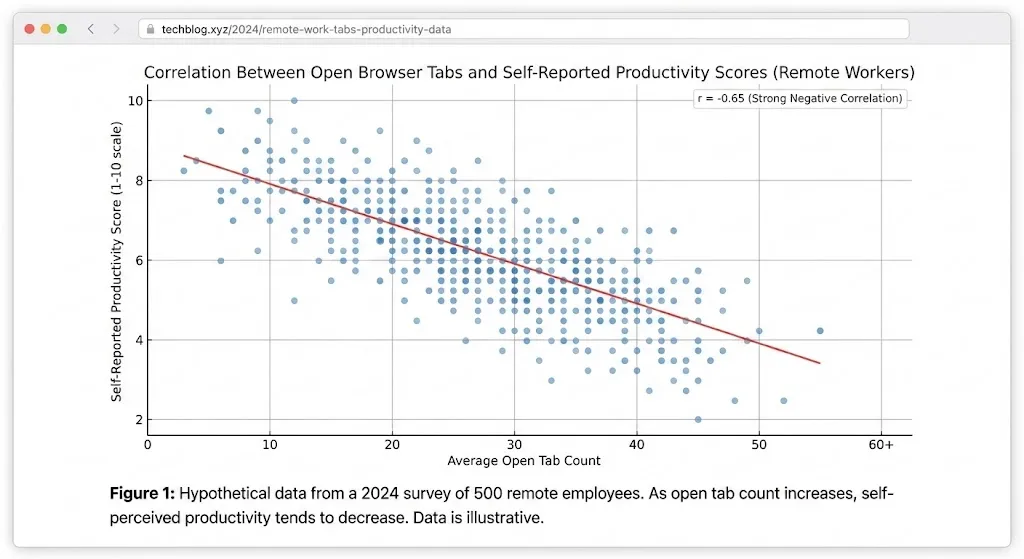
The result is predictable. Studies on remote worker behavior show that the average remote worker has 40 or more tabs open at any given time, with some power users exceeding 100. This is not just a memory problem. It is a cognitive one.
Each open tab represents an unfinished thought, a pending task, or a piece of information you might need later. Your brain treats them like open loops, consuming mental bandwidth even when you are not looking at them.
Why Traditional Solutions Fall Short
The standard advice for tab overload -- bookmark everything, use a session manager, just close tabs you do not need -- misses the core issue. Remote workers keep tabs open because they are working across multiple projects at the same time. Closing them means losing context. Bookmarking them means losing the grouped relationships between tabs.
Here is what typically fails:
- Bookmarking: Saves URLs but strips away the context of how tabs were grouped and what you were working on
- Session managers: Save entire sessions as flat lists, with no structure or grouping
- Just closing tabs: Works in theory, creates anxiety in practice because there is no safety net
- Multiple windows: Spreads the problem across more surfaces without solving it
Remote workers need a system that preserves both the individual tabs and the relationships between them -- the project context, the groupings, the workflow structure.
Solution 1: Chrome Tab Groups as Project Workspaces
Chrome's built-in tab groups are the first layer of the solution. If you are not using them yet, start today. Tab groups let you color-code and label clusters of related tabs, creating visual workspaces inside a single window.
Here is an effective structure for remote work:
| Tab Group | Color | Contains |
|---|---|---|
| Project Alpha | Blue | Jira board, design docs, Figma file, staging URL |
| Project Beta | Green | GitHub repo, API docs, test environment, Sprint board |
| Admin | Gray | Gmail, Google Calendar, Slack, HR portal |
| Research | Yellow | Articles, competitor sites, market data |
| Meetings | Red | Zoom/Meet, shared notes, agenda docs |
Collapsing tab groups you are not using hides their tabs and frees up visual space. A collapsed group takes up no more room than a single tab. This alone can make a window with 50 tabs feel like it has 10.
Solution 2: The Snapshot-and-Close Routine
Tab groups solve the organization problem, but they do not solve the accumulation problem. Over the course of a week, even well-organized tab groups grow as you add reference material, new tools, and temporary tabs that never get closed.
The fix is a daily snapshot-and-close routine. Here is how it works:
- End of day: Open TabGroup Vault and save a snapshot of all your current tab groups
- Close non-essential groups: Keep only your admin group open. Close everything else.
- Start of next day: Restore only the tab groups you need for today's work from your snapshot
This routine gives you the confidence to close tabs because you know everything is recoverable. You are not losing work -- you are archiving it. The difference in cognitive load between a browser with 5 open groups and one with 2 open groups is noticeable.
TabGroup Vault
What it does: Saves and restores Chrome tab groups with full color, name, and URL preservation. Price: Free (5 snapshots) / $29 lifetime Pro (unlimited snapshots, bulk restore, Google Drive backup, 5 Chrome profiles, dark theme). For remote workers: Unlimited snapshots mean you can save a new snapshot every day, creating a browsable history of your workspaces.
Solution 3: Chrome Profiles for Role Separation
If you wear multiple hats -- which most remote workers do -- Chrome profiles add a second layer of separation above tab groups. Each Chrome profile is an independent browser environment with its own bookmarks, extensions, cookies, and login sessions.
Common profile setups for remote workers:
- Work profile: All professional tools, work email logged in, company extensions installed
- Personal profile: Personal email, social media, banking, shopping
- Client profile: For freelancers or consultants who need to log into client systems with separate credentials
Within each profile, you use tab groups for project-level organization. So the hierarchy becomes: Profile > Tab Groups > Individual Tabs. This two-layer system scales to handle even the most complex remote work setups. Learn more in our Chrome workspace setup guide.
Solution 4: Scheduled Browser Cleanups
Even with good habits, tabs accumulate. Schedule a weekly browser cleanup every Friday afternoon:
- Save a full snapshot in TabGroup Vault as your weekly backup
- Review each tab group and close tabs you no longer need
- Move any important reference URLs to bookmarks if they are long-term resources
- Close your browser completely and reopen it fresh
This 10-minute routine prevents the gradual buildup that turns a clean browser into a cluttered one over weeks and months.
Solution 5: Intentional Tab Opening
Prevention is better than cure. Most tab accumulation happens because we open tabs reflexively without intention. Before opening a new tab, ask:
- Do I need this tab right now, or can I find it again later?
- Does this tab belong in an existing tab group, or is it a stray?
- Is this a reference resource I should bookmark rather than keep open?
This is not about being restrictive. It is about being intentional. The goal is not zero tabs -- it is the right number of tabs, organized in a way that supports your work rather than overwhelming it.
Measuring the Impact
How do you know if these strategies are working? Track these informal metrics over a two-week period:
- Average open tab count: Check at the end of each day. It should trend downward.
- Time to find a specific tab: If you are spending more than 5 seconds searching for a tab, your organization needs work.
- Recovery incidents: How often do you lose important tabs? With snapshots, this should drop to zero.
- Subjective overwhelm: Rate your browser stress on a 1-10 scale each day. This is the metric that matters most.
The Bottom Line
Browser overwhelm is not a personal failing. It is a natural consequence of doing all your work in a single application that was not designed for project management. The solution is to impose structure on your browser the same way you would organize a physical workspace: create designated areas for different activities, archive what you are not using, and clean up regularly.
Tab groups provide the structure. TabGroup Vault provides the safety net. Chrome profiles provide the separation. Together, they turn a chaotic browser into a productive workspace that supports your remote work rather than hindering it.