The multi-project browser problem
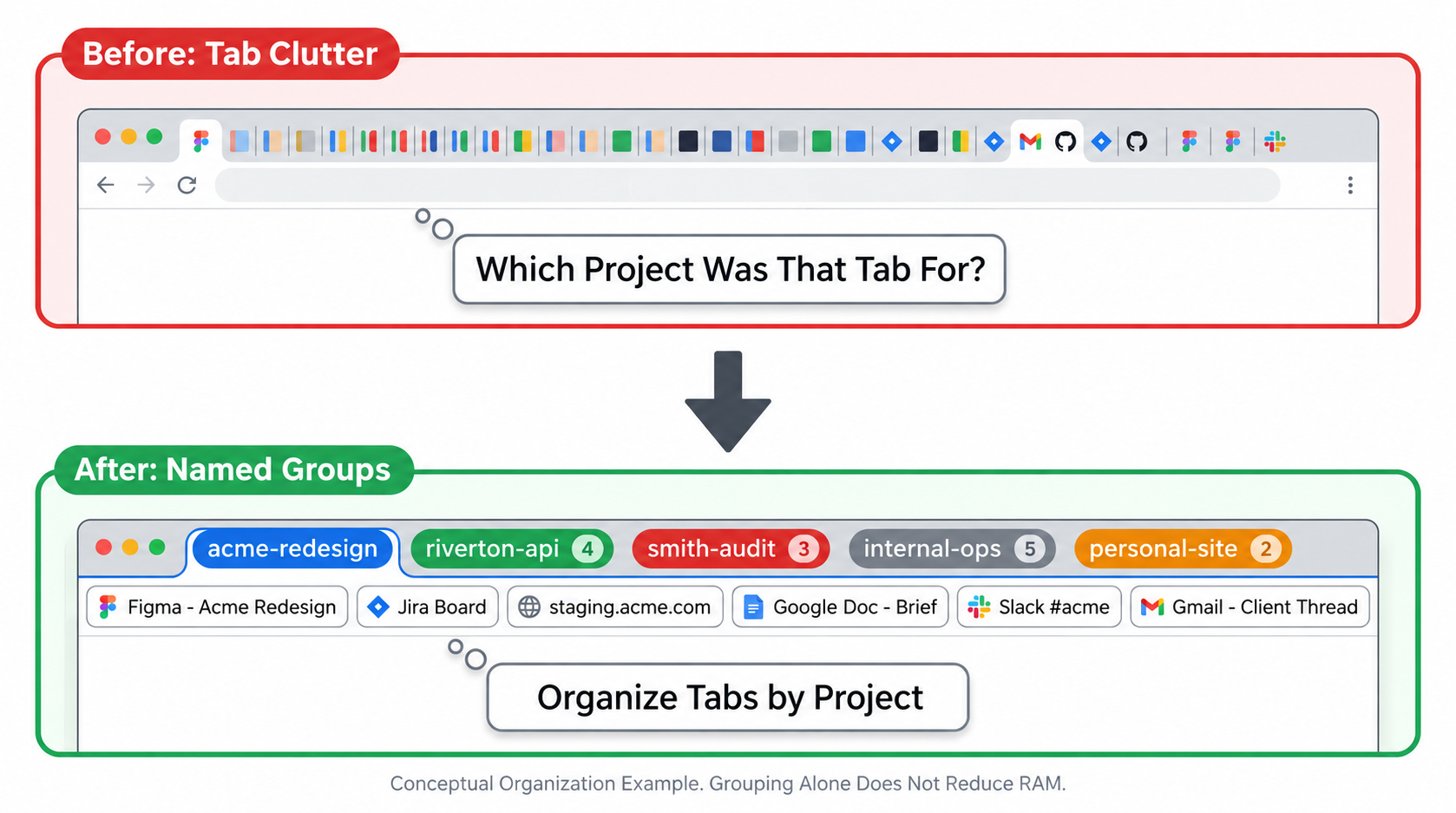
Illustrative example; layout and sample data are conceptual.
Running several projects at once is normal for freelancers, project managers, and anyone with a scattered week. What is less normal, though just as common, is having a browser that reflects that reality in a useful way. Most people end up with one mixed pile of Tabs: client A's Figma mockup next to client B's analytics dashboard next to a personal blog CMS next to a recipe opened at lunch.
This is not laziness. It is what browsers encourage. Tabs accumulate in the order your attention moved, not in the order your work is organized. By the time you have 35 Tabs open across three projects, the Tab strip is mostly favicons, and switching projects means scanning icons until you remember which cluster belongs to which client.
The hidden cost is real. When you switch from client A's work to client B's, you don't just switch tasks. You have to mentally reconstruct the context of where you left off with client B. What were you doing? What's pending? What Tabs do you need? If those Tabs are buried in the sea of mixed-project Tabs, frequent context switching can add up quickly.
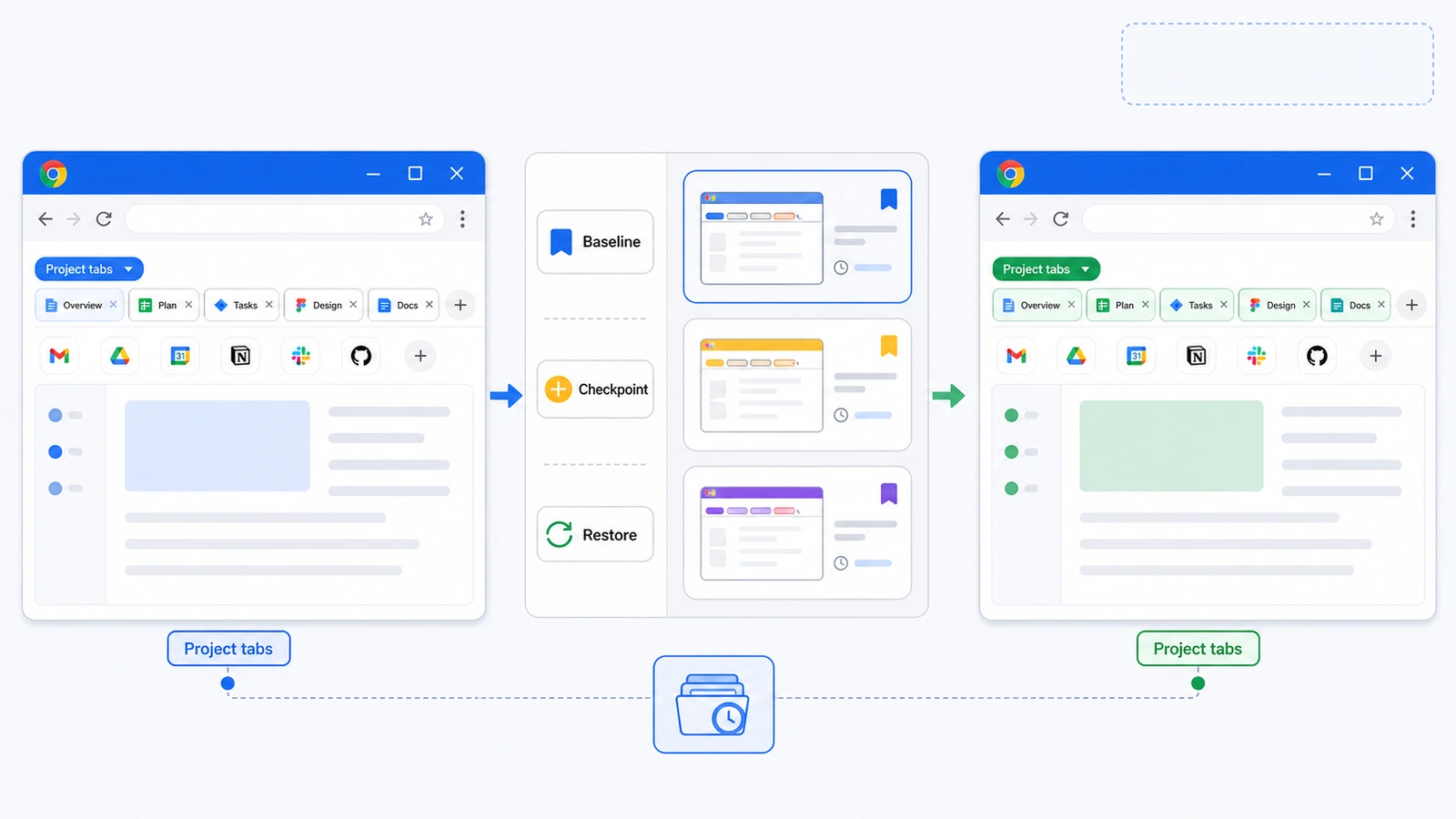
You do not need a completely new browser. Use the organization Chrome already gives you, then add deliberate project checkpoints so you can restore a known workspace instead of rebuilding context from memory.
Chrome profiles vs. Tab Groups
Start by separating profiles from Tab Groups. Mixing them up is how a simple workspace plan turns into a fussy system you will abandon by Thursday.
Chrome profiles keep Chrome information separate, including bookmarks, history, passwords, and settings. Use them when you need separate identities: your work account and personal account, or your agency's Google account and a client's account. If you need to be logged into Gmail as two different users at the same time, one for a client and one for yourself, use two profiles.
Tab Groups are labels inside one profile. They separate clusters of Tabs, collapse when you are not using them, and reopen later as saved Groups. Use them for projects that share the same identity context.
For a freelancer who logs into client tools with one Google account, one profile may be enough. Manage the client projects with Tab Groups. If a client needs you inside their Google Workspace domain, use a separate Chrome profile for that client, then use Tab Groups inside that profile for the work.
Most people need one or two profiles at most. Tab Groups carry the day-to-day workload. Pairing them with the right Tab organizer extension gives you a workspace library for baselines, checkpoints, restores, and URL export.
Chrome saved Groups vs. project checkpoints
Chrome's native Tab Groups cover the basics. When you're signed in and syncing browsing history and Tabs, Chrome can automatically save and sync Tab Group changes across devices. Closed Groups can also be reopened from the bookmarks bar or Chrome menu.
That native behavior helps, but it is not the same as a project checkpoint. A saved Group reflects the current state Chrome knows about. A checkpoint is a deliberate snapshot: the clean baseline for a project, the end-of-day state before you switch clients, or the URL set you want to export for a teammate.
Some people still get tripped up by saved Groups, closing, hiding, deleting, and sync behavior. Treat Chrome's saved Groups as a useful layer, then use explicit checkpoints when the exact project state matters.
Chrome now offers vertical Tabs on desktop, which can make large Tab sets easier to scan. It still does not replace saved project checkpoints or workspace hygiene.
Build your project workspace system
Here is a practical setup for freelancers and project managers handling three to eight active projects. The goal is a workspace that is quick to set up, light to maintain, and clear enough that switching projects does not mean rebuilding the browser context each time.
Step 1: Define your project inventory. List every active project or client. Include internal projects and side work. This is the list you are organizing around. If a project has been quiet for three weeks, consider archiving it. Active lists should stay short enough to scan.
Step 2: Identify your base Tabs. For each project, choose the three to six Tabs you always need. For a client website project, that might be the CMS admin, Google Analytics, your project management tool filtered to that client, and the Figma file. These are the bones of the workspace: always open, always relevant.
Step 3: Create and name your Groups. In Chrome, right-click any Tab and select "Add Tab to new Group." Name the Group after the client or project. Use short names such as "acme", "river-co", or "personal-site". Color-code them if it helps you scan faster, then move the base Tabs into their Groups.
Step 4: Save a clean project baseline. Chrome can save and sync Tab Groups, but a baseline is more intentional than whatever happens to be open right now. In TabGroup Vault, save each project Group once it contains the core Tabs you expect to use again. Now you have a reusable starting point.
Step 5: Build a daily checkpoint habit. At the end of each workday, save your current Group states. This captures the extra Tabs you opened during the day on top of your base Tabs. The next morning, restore the checkpoint and return to the project state you meant to keep.
Naming conventions that scale
Naming Tab Groups sounds like a tiny detail until you have 20 or 30 saved configurations. Your saved library needs to be readable at a glance. The name has to carry enough information without becoming a sentence.
This naming pattern works for most multi-project setups:
- Client/project identifier: Short, unambiguous. "acme", "riverton", "blog". Not "Acme Corp Website Redesign Project", just "acme".
- Work type (optional): "acme-dev", "acme-analytics", "acme-comms". Useful when one client creates several separate work contexts.
- Status (for saved snapshots): "acme [active]", "acme [onhold]", "acme [complete]". A status tag in your saved snapshots means you can tell what's current without opening each one.
Keep the identifiers short enough to read in the collapsed Tab Group chip in your Tab bar. Long names get truncated and lose their value. Four to eight characters is the practical limit for what reads well in the Chrome UI.

Your Project Workspaces, Always Ready
Save your entire multi-project browser setup and restore any workspace instantly. Stop starting each day from scratch.
Install TabGroup Vault FreeFree tier available • Start a 7-day Pro trial
Handle project transitions and handoffs
Projects end. New ones start. The system should handle transitions without collecting stale Groups for work that finished six months ago.
When a project completes, do a quick browser closeout. Save the final state of the Group in case the project comes back, then close and delete the active Group. Your active workspace stays lean, and your saved library stays meaningful.
When a project is paused, waiting for client feedback, or in a quiet phase, collapse the Group and keep the saved state, but remove it from the active browser Session. When the project restarts, restore it. That is the browser equivalent of putting a file in the cabinet instead of leaving it on your desk.
For handoffs, a saved Tab Group can be a useful artifact. Export the Group as a URL list, and the next person gets a starting point for the browser resources they will need. It is not a full handoff document, but it is a helpful supplement.
The weekly workspace review
The system needs light maintenance. A five-minute weekly review keeps it from drifting back into Tab soup. Cover these four checks:
- Prune closed projects. Is there a Group still open for a project that wrapped up last week? Archive and close it.
- Trim base Tabs. Did a resource URL change? Did you add a tool to a project that should now be in the base Tabs? Update the Group and re-save your baseline.
- Check for orphan Tabs. Are there ungrouped Tabs in your Tab strip that actually belong to a project? Add them to the relevant Group or close them.
- Review saved snapshots. Are there old snapshots in your saved library that are no longer useful? Delete them. A cluttered saved library is almost as bad as a cluttered Tab strip.
Five minutes, once a week. That small habit can reduce repeated reorientation time and keep the system from slowly collapsing under its own weight.
Side projects and personal Tabs
Where do personal Tabs go in a work-focused Group system? Start with your profile setup: one profile for everything, or separate profiles for work and personal browsing.
If you use one profile for everything, which is common for freelancers who work from personal machines, create a "personal" Group alongside your client Groups. Shopping, reading, personal project research: it all goes there. The Group functions as a boundary between work and personal context, even when they live in the same browser Window.
Side projects get their own Group, treated the same as client projects. Your personal blog, a side business, an open source project: if it generates recurring browser context, such as a CMS, analytics, or a GitHub repo, it deserves a named Group. Revenue does not matter here. Reliable re-entry does.
Avoid letting "personal" become a catch-all for everything that does not fit elsewhere. A Group named "misc" or "other" is organizational debt. It grows without limit and becomes just as messy as an ungrouped Tab strip. If something does not have a natural home, create a Group for it or close the Tab.