The Context-Switch Tax Nobody Talks About
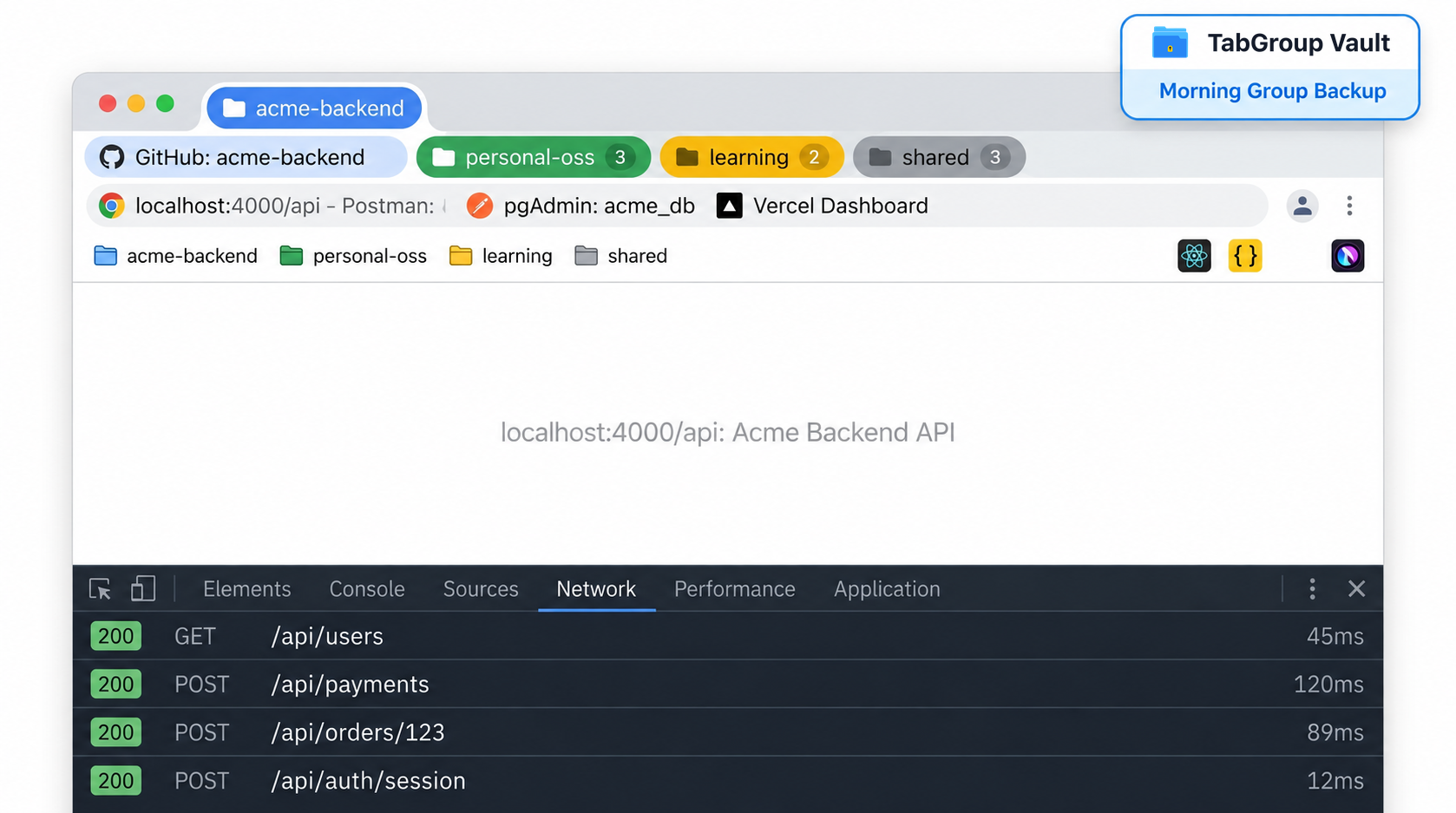
You know the feeling. You're deep in a debugging Session for Project A: you have the GitHub issue open, the relevant Stack Overflow answer pinned, three MDN reference Tabs, your staging environment, and the pull request you're about to open. Then your phone buzzes. Client B needs a hotfix. Urgent. Can you look at it now?
You context-switch. You open the new set of Tabs. You deal with the hotfix. An hour later, you're back at Project A and staring at a browser Window that either got buried under 40 new Tabs or: if you closed it: is completely gone. You spend the next 10 minutes reconstructing your headspace: what was the bug? Which Stack Overflow answer had the fix? Where's that deployment log?
This is the context-switch tax, and it compounds throughout the day. A study from the University of California, Irvine found it takes an average of 23 minutes to fully regain focus after an interruption. For developers, who carry enormous amounts of working memory per task, that number feels conservative. The browser Tabs you had open weren't just navigation history: they were the externalized version of your mental model of the problem.
Most developers accept this as an unavoidable cost of the job. It isn't. The solution isn't better focus: it's better state preservation.
The Git Branch Mental Model for Tab Groups
Here's a framing that clicks for most developers: think of your Tab Groups the way you think about Git branches.
A Git branch is an isolated context. When you're on feature/payment-refactor, the code you see, the history, the working state: all of it is scoped to that branch. You can switch to hotfix/login-bug, do your work, and switch back. The state on feature/payment-refactor is exactly where you left it. You don't have to remember what you were doing: the branch remembers for you.
Tab Groups work the same way, when used correctly. A Tab Group named "Payment Refactor" contains the Stripe docs, the GitHub issue, your local dev environment, and the billing API reference. A Tab Group named "Login Hotfix" contains the error logs, the authentication middleware file on GitHub, and the Sentry report. When you collapse the Payment Refactor Group and expand Login Hotfix, you've effectively checked out a different branch of your browser state.
The analogy extends further. Just as you wouldn't cram all your changes into a single branch, you shouldn't let all your project Tabs pile into one undifferentiated mass. Naming your Groups well is like writing good commit messages: it costs a few seconds and saves enormous time later. "client-a-redesign", "internal-dashboard-v2", "personal-blog-migration": these are branches. Your browser should look like a thoughtfully managed repository, not an uncommitted working directory with 47 modified files.
The key difference from Git, of course, is that Chrome doesn't persist branches across Sessions. Close Chrome, lose your Tab Groups. This is where the mental model breaks down: and where you need tooling to fill the gap.
Why Chrome's Built-In Group Saving Falls Short
Chrome did add some Tab Group persistence features in recent versions. You can right-click a Group and save it, and it'll appear in a "Saved Tab Groups" panel. On paper, this sounds like exactly what you need. In practice, it's frustrating in a few specific ways that matter for developers.
First, Chrome's saved Groups are all-or-nothing. There's no concept of a "snapshot": you can't save a version of your workspace at 2pm, keep working, and then restore that specific state later. The saved Group is a live link; if you add or remove Tabs, the saved version changes too. For a developer who wants to checkpoint a stable working state before going down a rabbit hole, this is a problem.
Second, the feature has well-documented reliability issues. Users report Groups disappearing after Chrome updates, or after the browser crashes (which, with a large number of Tabs, happens more often than it should). If you're mid-sprint and your saved workspaces vanish, you're rebuilding from memory.
Third, Chrome's implementation doesn't handle the "many Groups across multiple Windows" use case well. Developers who work with multiple monitors often have separate browser Windows for different project phases: one for local dev, one for documentation, one for communication. Chrome's Group saving doesn't give you a coherent view across Windows.
A dedicated extension like TabGroup Vault stores your Groups independently of Chrome's Session state, gives you named snapshots you can restore by name, and works reliably across updates and restarts. It's the difference between trusting your work to git stash versus committing it to a branch.
Save Your Developer Workspaces Reliably
Pro users get unlimited project workspaces and AI-powered Group naming. Stop rebuilding your context from scratch every morning.
Install TabGroup Vault FreeFree tier available • Start a 7-day Pro trial
Setting Up a Developer Workspace System
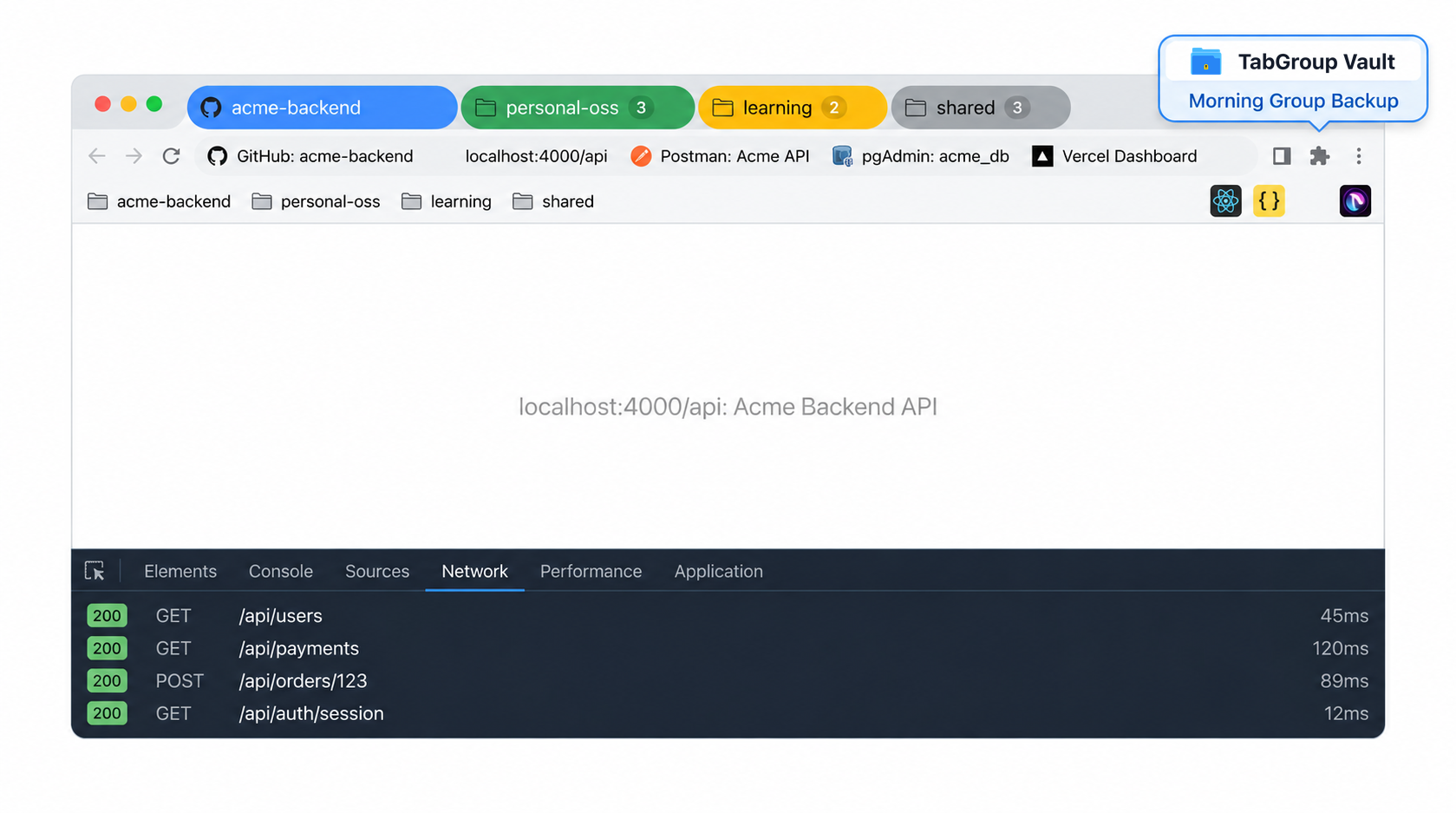
The following system is opinionated, but it's based on patterns that work. Adapt it to your situation, but give it two weeks before you start tweaking: habits take time to bed in.
- Audit your current projects. List every active project or client you're working on right now. Include side projects and anything you've touched in the last two weeks. This is your "repository list."
- Create one Tab Group per project. Open Chrome and create a Tab Group for each project. Name them with a short, unambiguous label: "acme-backend", "personal-site", "oss-contrib". Use the same naming scheme you'd use for Git branches: lowercase, hyphen-separated.
- Populate each Group with your base Tabs. For each project, what Tabs do you always need? Usually: the GitHub repo, your local dev environment URL, the project's documentation or wiki, and any monitoring dashboards. These are your "base branch" Tabs: the ones that are always relevant.
- Save each Group immediately. Use TabGroup Vault to save each Group before you start working. This is your clean baseline: the equivalent of a commit before you start a feature branch.
- Add transient Tabs within the Group. When you're debugging a specific issue, open the Stack Overflow answer, the error log, the relevant RFC: inside the Group. These are ephemeral. When the issue is resolved, close them. Your base Tabs remain.
- Save a new snapshot before major context switches. Before you collapse a Group and switch to another project, hit save. This captures your current state including the transient Tabs. If you need to come back to that exact debugging context, you can restore it.
- Review and prune Groups weekly. At the end of the week, go through your Groups. Close Groups for completed projects. Archive Groups for projects that are on hold. Keep the active list short enough that you can see all Group names without horizontal scrolling.
The maintenance overhead is about 5 minutes a week. The time you save is measured in hours: not from dramatic rescues, but from the accumulated elimination of hundreds of small "where was I?" moments.
Keyboard Shortcuts That Accelerate Group Navigation
Reaching for the mouse to switch between Tab Groups is slow. Chrome doesn't have native keyboard shortcuts specifically for Tab Groups, but you can navigate efficiently with a few techniques. Ctrl+Tab (or Cmd+Tab on Mac) cycles through open Tabs: not ideal when you have 50 Tabs, but workable when each Group is kept lean. Ctrl+1 through Ctrl+8 jump to specific Tab positions, which is useful if you keep your base Tabs in predictable positions within each Group.
The more useful shortcut for developers is Ctrl+Shift+T, which reopens recently closed Tabs. If you accidentally close a Tab within your current Group, this brings it back instantly. Combined with TabGroup Vault's restore functionality: which lets you bring back an entire saved Group with one click: you have a reasonable keyboard-centric workflow.
Some developers go further and use browser automation tools or custom keyboard remapping (via extensions like Shortkeys) to assign keyboard shortcuts to specific saved Groups. If you find yourself switching between two projects dozens of times a day, assigning Alt+1 to "restore project-a Group" and Alt+2 to "restore project-b Group" is worth the setup time.
Handling Monorepos and Multi-Repo Projects
Modern development projects often span multiple repositories: a frontend repo, a backend repo, an infrastructure repo, maybe a shared component library. The question is whether to create one Tab Group per repo or one per project.
The answer depends on how often you switch between repos within a single work Session. If you're regularly consulting all three repos while working on a feature, a single "Project X" Group that spans all of them makes sense. If you only touch the infrastructure repo during deployments, it might be a separate Group: or even just a bookmark folder.
A useful heuristic: Group Tabs by the question you're trying to answer, not by the organizational structure of your codebase. When you're answering the question "why is the checkout flow broken?", you might have Tabs from three repos open. Group them together. When that question is answered, the transient Tabs go away, and your base repo Tabs remain in their respective Groups.
This is a more cognitive framing than the "one Group per project" rule, and it takes longer to develop as a habit. But for developers working on complex multi-component systems, it tends to produce Groups that are more useful and more stable over time.
The Morning Startup Routine
The most underrated benefit of a solid Tab Group system isn't the mid-day context switching: it's the morning startup. Without a system, starting work means opening Chrome, staring at whatever you had open yesterday (or nothing, if it crashed), and spending 15 minutes reconstructing the context you need. With a system, you open Chrome, restore your active project Groups, and you're in your working context in under a minute.
The difference compounds over weeks. Developers who implement this system consistently report that they feel "ready to work" within 2 minutes of opening their laptop, versus the 15-20 minutes of "warming up" that's otherwise typical. That's not just time saved: it's cognitive momentum. You enter flow state faster when you're not starting from a blank slate.
The habit to build: at the end of each workday, take 30 seconds to save all your active Groups. Treat it like committing your work before you push. The next morning, you restore them and pick up exactly where you left off. It's a small ritual with an outsized return.