Does Chrome have a Split View API?
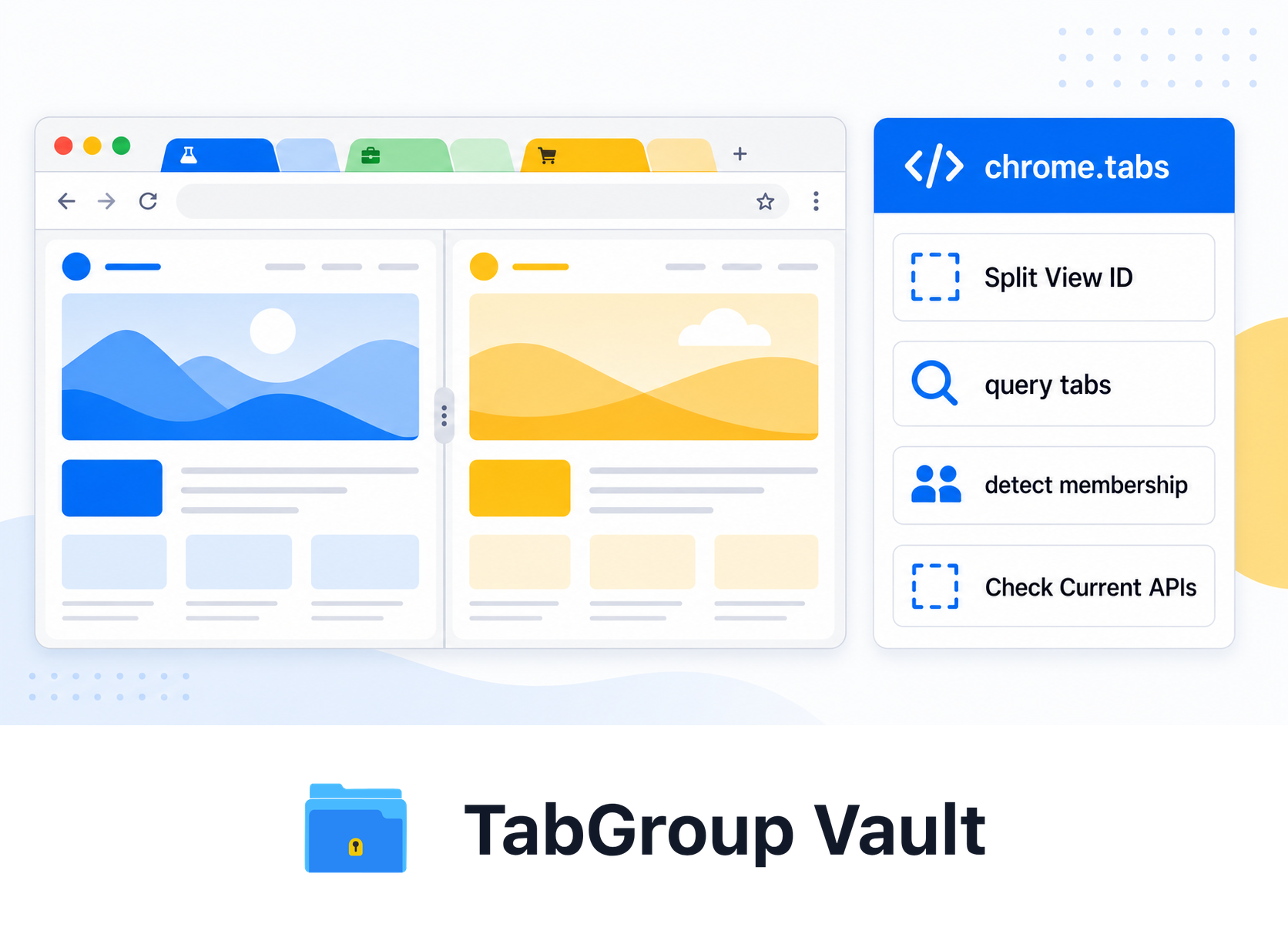
Illustrative example; layout and sample data are conceptual.
Yes, but only in a narrow extension-facing sense. Chrome has a built-in Split View feature that displays two websites in one Chrome Window. For extension developers, Chrome 140+ exposes Split View IDs in the chrome.tabs API.
The field to watch is splitViewId. Extensions can read it from Tab metadata, use it in tabs.query() filters, and receive it in Tab update or change information. That gives an extension enough signal to detect whether a Tab belongs to a Split View, or to find the other Tabs in the same Split View.
That is not the same as a full Split View layout API. Chrome does not document extension methods for creating a Split View, choosing left or right placement, resizing the divider, arranging two Tabs into a pair, or saving a Split View layout across restarts.
Practical API takeaway
Use chrome.tabs and splitViewId when your extension needs to understand Split View membership. Avoid building a product promise around programmatically creating or restoring Split View layouts unless Chrome adds those controls later.
Split View API vs Side Panel API
Chrome Split View and Chrome Side Panel API solve different problems. Split View is a browser feature for placing two websites side by side in one Window. Side Panel API is for showing your extension's own UI beside a webpage.
If your extension UI needs to sit next to the current page, use Side Panel API. It is available for Manifest V3 extensions in Chrome 114+ and requires the sidePanel permission. If you only need to know whether a Tab is in Chrome's Split View, use the splitViewId data exposed through chrome.tabs.
How Chrome Split View works for users
Chrome's user-facing Split View displays two websites inside one Chrome Window. One view is active at a time, and toolbar or Tab-specific actions apply to the active view.
- Open the two Tabs you want to compare.
- Right-click an inactive Tab and choose Add Tab to new split view. Chrome pairs that Tab with the currently active Tab.
- Alternatively, right-click any link and choose Open link in split view to open the target URL in the second pane.
- You can also create Split View by dragging and dropping a Tab or link into the split area.
Chrome also documents controls for separating the views, closing one side, reversing their position, and pinning the Split View icon. If drag-and-drop opens Split View by accident, Chrome has a setting for turning off Split View drag-and-drop under Settings > Appearance. Some r/chrome users report friction with drag-to-edge behavior and context-menu placement, so start with that Appearance setting before chasing deeper workarounds.
Split view and Tab Groups
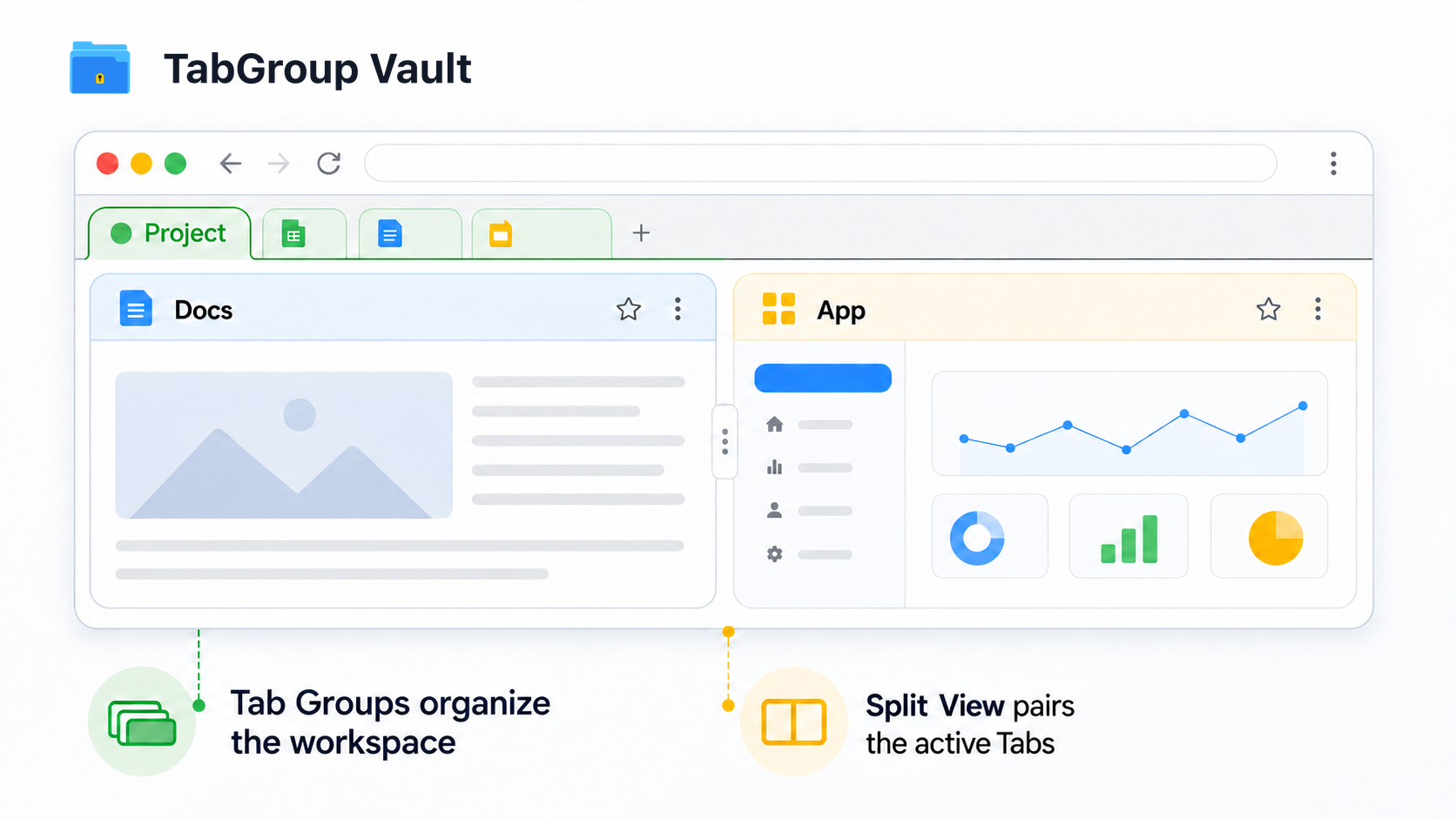
Split View can sit next to Tab Groups in the same Chrome Window. Use Tab Groups to organize the project, and use Split View to pair the two Tabs you are actively comparing. Chrome's user docs do not promise that a Split View pairing is preserved inside a collapsed Group or restored as a durable layout, so treat the pair as a working view rather than a saved structure.
For a practical Tab-Groups primer, see the guide to Chrome Tab Groups.
Split view vs multiple Windows
Split View is Tab and Window contained: two sites, one Chrome Window, one shared browser frame. If you need two fully independent Window contexts, use separate Chrome Windows and your operating system's Window snapping.
| Dimension | Split view (one Window, two panes) | Two separate Windows |
|---|---|---|
| Vertical space per Tab | Full Window height | Full Window height |
| Horizontal space per Tab | Half the Window width | Whatever size you make each Window |
| Separate Tab bars | No, shared Tab bar | Yes, independent Tab bars per Window |
| Cross-monitor | No, both panes on one screen | Yes, Windows can span monitors |
| Save/restore structure | No documented extension API for saving the Split View layout | Window layout is managed outside Chrome Tabs |
| Keyboard focus management | One Window to target | OS-level Window switching required |
| Fullscreen apps on secondary monitor | Awkward | Natural |
Where TabGroup Vault fits
TabGroup Vault snapshots Tab Groups, pinned Tabs, Group names, and color coding. It does not claim to restore Chrome's Split View pairing itself, because Chrome does not expose full Split View layout persistence to extensions. Use it to preserve the surrounding workspace, then recreate the active Split View pair when needed.
Things to know before relying on it
Below about 1280 px wide, split panes get cramped, and some dashboards or web apps with rigid layouts may not fit well at half Window width. Split View is best for quick compare-and-reference work: docs beside implementation, staging beside production, or notes beside a source article. It is less useful when each side needs its own Window size, monitor, or independent Tab bar.
The short version
Chrome Split View exists, and Chrome 140+ exposes splitViewId through chrome.tabs. That is useful for detecting and querying Split View membership. It is not a full extension API for creating, resizing, positioning, or restoring Split View layouts. For extension UI beside a page, reach for Side Panel API instead.