Why students need Chrome extensions
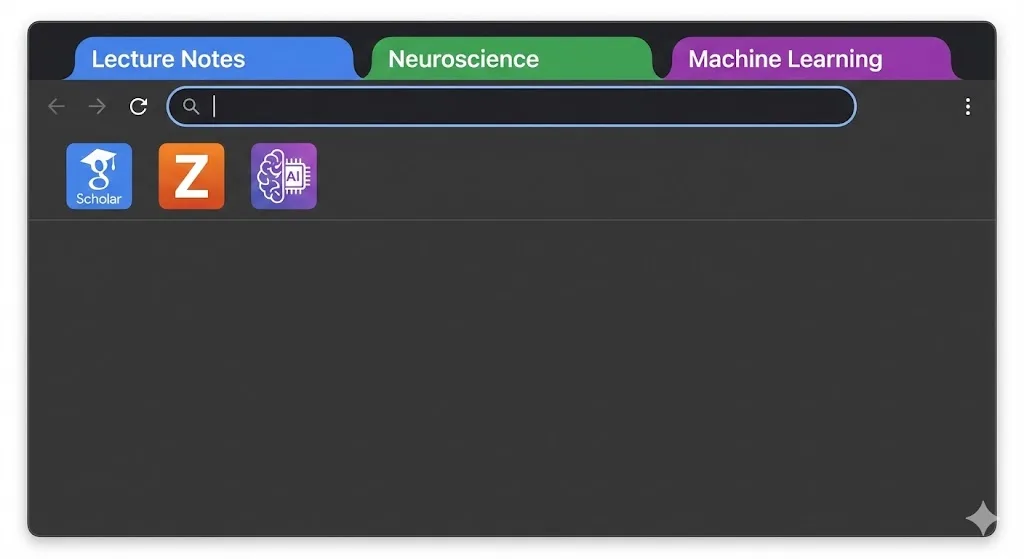
College and university life means research papers, group projects, online lectures, discussion boards, and deadlines that overlap. Your browser becomes the center of it all. Without the right tools, Chrome turns into a graveyard of forgotten tabs, lost sources, and wasted time.
The good news is that a handful of well-chosen Chrome extensions can turn your browser from a source of stress into an organized workspace. After testing dozens of extensions across a full semester's worth of work, we narrowed the list down to the ones that genuinely help. They fall into four categories: research, focus, note-taking, and tab management.
Research extensions
Academic research in 2026 happens almost entirely in the browser. You need tools that help you find sources, save citations, and keep track of what you have already read.
Zotero Connector
Zotero is the standard for academic citation management, and its Chrome connector ties it all together. Click the icon on any journal article, book page, or news site, and Zotero saves the full bibliographic data automatically. It generates citations in APA, MLA, Chicago, and hundreds of other formats. The connector works with Google Scholar, JSTOR, PubMed, and most university library portals. If you write research papers, you need this.
Price: Free. Best for: Anyone writing research papers with proper citations.
Google Scholar Button
This small extension adds a search icon that lets you look up any highlighted text on Google Scholar instantly. Select a term or phrase on any webpage, click the icon, and you get a list of academic papers related to that concept. It also shows citation counts and direct links to PDFs. For quick literature exploration while reading articles, it saves an enormous amount of time compared to switching tabs and searching manually.
Price: Free. Best for: Quick academic lookups while reading online.
Mendeley Web Importer
If your department or study group uses Mendeley instead of Zotero, the Web Importer extension provides similar one-click saving of references. It pulls metadata from most academic databases and syncs to your Mendeley library. The advantage over Zotero is tighter integration with Elsevier journals, though the trade-off is a smaller community and fewer citation style options.
Price: Free. Best for: Students already in the Mendeley ecosystem.
Focus and distraction management
The same browser you use for research also has YouTube, social media, and every other distraction imaginable. Focus extensions help you draw a line.
Forest
Forest gamifies focus by growing a virtual tree while you work. If you leave the app to browse a blocked site, your tree dies. It sounds simple, and it is, but the psychological nudge is surprisingly effective. You can set custom blocklists, track your focus history over weeks, and even contribute to planting real trees through the app's partnership with Trees for the Future.
Price: Free tier available. Best for: Students who respond well to visual motivation and gamification.
StayFocusd
StayFocusd takes a stricter approach. You set a daily time allowance for distracting sites, and once you hit the limit, those sites are blocked for the rest of the day. The "Nuclear Option" lets you block everything except a whitelist for a set period. It is particularly good for exam weeks when you need to eliminate distractions completely. The settings are intentionally difficult to change once activated, which is the whole point.
Price: Free. Best for: Students who need hard limits on time-wasting sites.
Note-taking and clipping
When you find something useful online, you need to capture it before it disappears into your browser history.
Notion Web Clipper
If you use Notion for course notes (and many students do), the Web Clipper extension saves any webpage directly into your Notion workspace. You can choose which database or page to save to, add tags, and include your own notes before clipping. It preserves formatting well and works with most sites. The workflow of clipping articles into a course-specific Notion database creates a searchable archive that outlasts any browser session.
Price: Free (Notion has a free plan for students). Best for: Notion users who want to save web content into their existing workspace.
Hypothesis
Hypothesis lets you annotate and highlight any webpage directly in the browser. You can add notes to specific passages, share annotations with classmates, and build a searchable archive of your reading notes. Many professors use Hypothesis for collaborative annotation assignments. Even if yours do not, the ability to mark up articles and PDFs without leaving Chrome is valuable for any reading-heavy course.
Price: Free. Best for: Students who annotate readings and want collaborative highlighting.
Tab management
Here is where most student workflows fall apart. You open tabs for Biology, then switch to your English paper, then check your schedule, then look up something for your group project. Within an hour you have 40 tabs open across four unrelated tasks and no way to tell them apart.
Chrome tab groups (built-in)
Before installing anything, use Chrome's native tab groups. Right-click any tab, select "Add tab to group," and create color-coded groups for each course or project. This alone can bring order to a chaotic tab bar. The limitation is that Chrome does not save tab groups permanently. Close Chrome or let it update, and your carefully organized groups can vanish.
TabGroup Vault
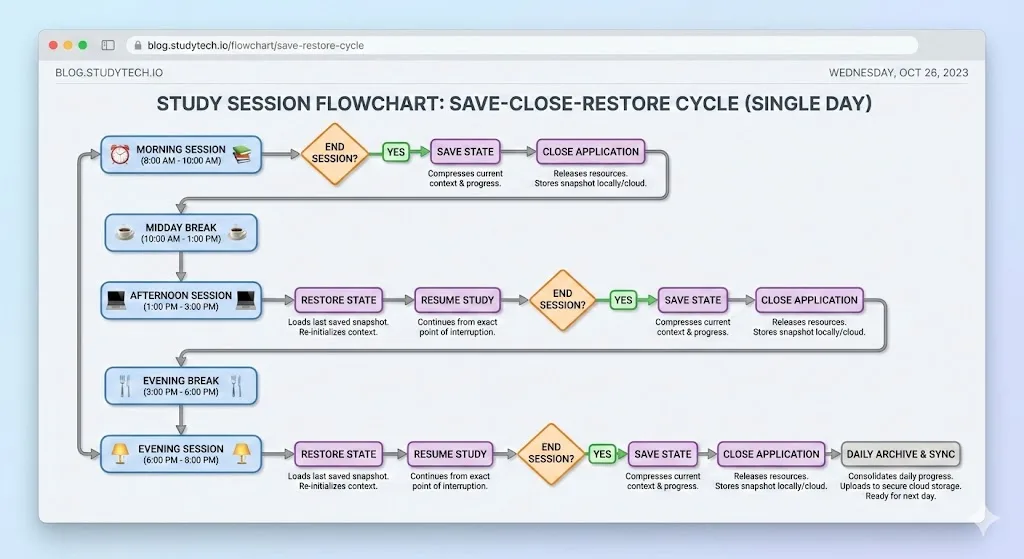
TabGroup Vault solves the biggest problem with Chrome's built-in tab groups: they disappear. This extension saves snapshots of your tab groups so you can close them without anxiety and restore them later with one click. For students, this means you can have a "Biology Research" group, a "History Paper" group, and a "Study Session" group, and switch between them without keeping everything open at once.
TabGroup Vault
Save and restore Chrome tab groups with one click. Free tier includes 5 snapshots. Pro ($29 one-time) adds unlimited snapshots, bulk restore, Google Drive backup, 5 Chrome profiles, and dark theme. No subscription fees.
The student use case is strong because coursework is inherently project-based with clear start and end points. Save a snapshot of your research tabs at the end of a study session, close everything, and pick up exactly where you left off the next day. During finals week, you can have separate snapshots for each exam's study materials.
The complete student extension stack
You do not need every extension on this list. Here is a recommended starter stack based on the type of student you are:
| Student Type | Research | Focus | Notes | Tabs |
|---|---|---|---|---|
| STEM Major | Zotero + Google Scholar Button | Forest | Notion Web Clipper | TabGroup Vault |
| Humanities Major | Zotero + Hypothesis | StayFocusd | Notion Web Clipper | TabGroup Vault |
| Graduate Student | Zotero + Google Scholar Button | StayFocusd | Hypothesis | TabGroup Vault |
| Casual / Light Research | Google Scholar Button | Forest | Notion Web Clipper | Chrome Tab Groups (built-in) |
Setting up your browser for the semester
Once you have installed your chosen extensions, spend 15 minutes setting up your browser for the semester ahead:
- Create a tab group for each course. Use different colors so you can identify them at a glance. Red for your hardest class, green for the one you enjoy, whatever works.
- Pin your most-used tabs. Your university portal, email, and LMS (Canvas, Blackboard, etc.) should be pinned so they are always accessible but do not take up space.
- Set your blocklist. Add your biggest distractions to Forest or StayFocusd before you need willpower. Doing it in advance removes the decision in the moment.
- Connect your citation manager. Make sure Zotero or Mendeley is signed in and syncing before you start your first research session.
- Save your first snapshot. Once your tab groups are set up, use TabGroup Vault to save a snapshot. This becomes your baseline workspace that you can return to any time.
Tips for maintaining your setup
The hardest part is not setting things up. It is maintaining the system when deadlines pile up and you start opening tabs frantically. A few habits that help:
- Do a weekly tab cleanup. Every Sunday, close tabs you no longer need and save updated snapshots of your active projects.
- Keep one group per task. Resist the urge to mix tabs from different assignments in the same group. When everything has a place, nothing gets lost.
- Archive finished projects. When a paper is submitted or an exam is done, save a final snapshot in TabGroup Vault and close the group. You can always restore it if you need to reference something later.
- Limit your extensions. Every extension uses memory. Stick to 5-7 active extensions and disable anything you are not using this semester.
Your browser is where most of your academic work happens. Treating it like a workspace rather than a junk drawer makes a real difference in how efficiently you study, research, and write. The extensions on this list are a starting point. Find the combination that works for your courses and workflow, and adjust as the semester progresses.
Student tip
Many extensions offer student discounts or free tiers. Notion is free for students with a .edu email. Zotero is entirely free. TabGroup Vault's free tier gives you 5 snapshots, which is enough for one snapshot per course in a typical semester.