The student tab problem
If you are a student in 2026, your browser is your primary workspace. Lectures are streamed. Readings are PDFs opened in tabs. Research happens across Google Scholar, JSTOR, your university library, and a dozen other sites. Group projects live in Google Docs. Course management happens in Canvas or Blackboard. Somewhere in all of that, you also have email, messaging, and the occasional stress-relief YouTube video.
The result is predictable: 50, 70, sometimes 100+ tabs open at once, spread across topics that have nothing to do with each other. Your Organic Chemistry study materials sit next to your English Lit sources, which sit next to your part-time job schedule. Finding anything takes longer than it should, and the mental weight of all those open tabs adds a low-grade stress that compounds over a semester.
This is not a discipline problem. It is an organization problem. And it has a straightforward solution.
The system: one tab group per course
Chrome's built-in tab groups are the foundation of any student organization system. Every course or project gets its own tab group with a distinct color and label. When you are working on Biology, all your Biology tabs are grouped together in green. When you switch to History, those tabs are grouped in purple. At a glance, you know where everything is.
Here is how to set it up at the start of a semester:
- Create one tab group per course. Right-click any tab and select "Add tab to new group." Name it with the course code or a short label. Choose a unique color.
- Add a "Life Admin" group. One group for email, calendar, scheduling, and anything non-academic. Keep it a neutral color like grey.
- Add a "Current Assignment" group. This is a temporary group for whatever you are actively working on right now. It might pull tabs from multiple course groups.
- Collapse groups you are not using. Click a group label to collapse it. This hides the tabs and clears visual clutter while keeping them accessible.
This alone reduces the chaos significantly. But Chrome's tab groups have a major weakness: they are not saved permanently. A crash, an update, or accidentally closing Chrome can erase hours of carefully organized tabs.
Saving study sessions as snapshots
This is where the system goes from decent to reliable. You need a way to save your tab group arrangements so they survive Chrome restarts, crashes, and the general unpredictability of student life.
TabGroup Vault lets you take a snapshot of your current tab groups with one click. That snapshot captures every group name, color, and the URLs inside it. You can restore any snapshot later to reopen everything exactly as it was.
TabGroup Vault
Save and restore Chrome tab groups with one click. Free tier includes 5 snapshots (one per course). Pro ($29 one-time) unlocks unlimited snapshots, bulk restore, Google Drive backup, support for 5 Chrome profiles, and dark theme.
For students, snapshots map naturally to study sessions. At the end of a study session for your Chemistry course, save a snapshot. Close those tabs. Move on to your next subject with a clean workspace. When you come back to Chemistry, restore the snapshot and pick up where you left off.
This has a psychological benefit that is easy to underestimate. Closing tabs feels risky when you know you might not find those sources again. But when you have a saved snapshot, closing tabs becomes a relief rather than a source of anxiety. Your browser stays fast, your focus stays sharp, and your work is always recoverable.
A day in the life: the snapshot workflow
Here is what the workflow looks like in practice during a typical day:
| Time | Activity | Tab Group Action |
|---|---|---|
| 9:00 AM | Morning classes | Restore "BIO 301" snapshot, open lecture stream and lab manual |
| 11:00 AM | Switch to English paper | Save BIO 301 snapshot, restore "ENG 205 Paper" snapshot |
| 1:00 PM | Lunch break | Save ENG 205 snapshot, close all academic tabs |
| 2:00 PM | Group project meeting | Restore "HIST 410 Group" snapshot with shared docs |
| 4:00 PM | Library research | Save HIST 410 snapshot, restore "Thesis Research" snapshot |
| 7:00 PM | Evening study session | Restore whichever course needs attention for tomorrow |
Each transition takes seconds. No scrambling to find tabs. No re-Googling sources you had open yesterday. No keeping 80 tabs open because you are afraid to close them.
Using exports for citations
One underrated benefit of saving tab group snapshots is that they create a record of every source you visited during a research session. TabGroup Vault exports snapshots as JSON files that include the URL and title of every tab. This data can speed up your bibliography work.
When it is time to compile your Works Cited page, export your research snapshot and you have a list of every source you had open. Cross-reference it with your citation manager (Zotero, Mendeley, etc.) to make sure nothing slipped through the cracks. It is not a replacement for a proper citation manager, but it works well as a safety net that catches sources you forgot to save.
Managing group projects
Group projects add another layer of complexity. You need shared Google Docs, communication channels (Slack, Discord, or group texts), reference materials that the whole team uses, and your own working notes. Mixing these tabs with your other coursework creates confusion fast.
The solution is a dedicated tab group for each group project. Include the shared document, the communication channel, any research tabs the group agreed on, and the assignment rubric. Save a snapshot and share the export file with your group members so everyone has the same starting point. When the project is done, save a final snapshot as an archive and close everything.
The end-of-semester archive
At the end of each semester, you accumulate a library of snapshots that represents your entire academic workflow. Some students delete them. Smarter students keep them. Here is why:
- Upper-level courses often build on material from earlier ones. Having your old research tabs saved means you can revisit sources without searching from scratch.
- If you need to describe your research experience for graduate school applications, your snapshot history shows exactly what you worked on and when.
- Senior theses and capstone projects often draw on research from multiple prior courses. Your archived snapshots give you a head start.
Name your snapshots descriptively
Instead of "Biology tabs," use names like "BIO 301 - Enzyme Kinetics Paper - Draft 2." When you have dozens of snapshots, descriptive names save you from opening the wrong one.
Complementary tools
Tab groups and snapshots handle the structural organization. A few other tools round out the system:
- Zotero or Mendeley for formal citation management. Save every source properly as you find it, not after.
- Notion or Obsidian for course notes that live outside the browser. Your notes should survive even if Chrome does not.
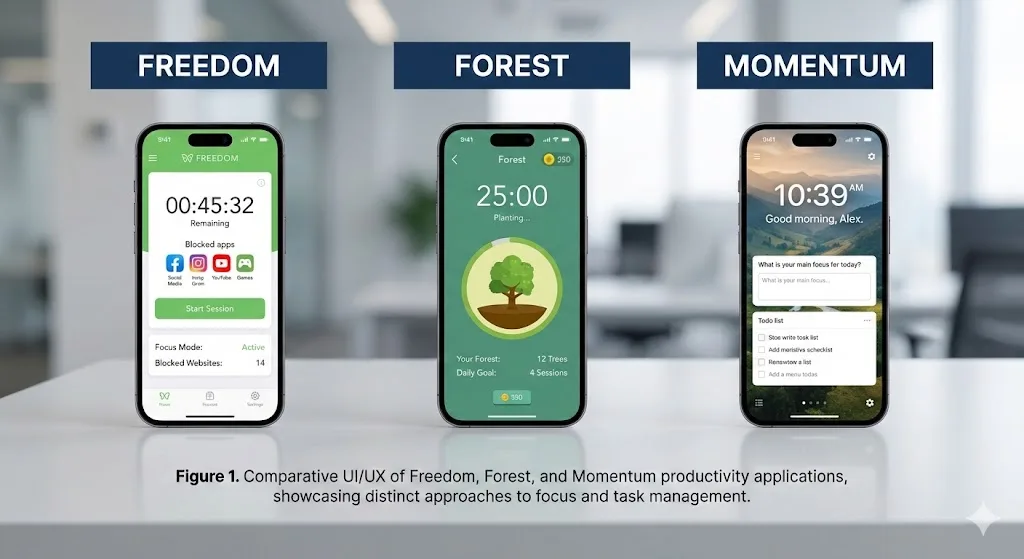
- Forest or StayFocusd for focus sessions. Block distracting sites when you are deep in a research session.
- Google Calendar for time blocking. Assign specific time slots to specific courses and match them to your tab group workflow.
For a deeper look at each of these tools, see our guide to the best Chrome extensions for students.
Common mistakes to avoid
Even with a good system, a few pitfalls trip students up consistently:
- Mixing personal and academic tabs. Keep Netflix, social media, and shopping in a separate window or profile entirely. Do not let them contaminate your course tab groups.
- Never closing tabs. The whole point of snapshots is that you can close tabs safely. If you never close anything, you lose the performance and focus benefits.
- Overcomplicating the system. One group per course plus one for life admin is enough for most students. Do not create sub-groups for every assignment unless you genuinely need that granularity.
- Forgetting to save before closing. Make it a habit: save before you close Chrome. It takes two seconds and can save hours of lost work.
Student productivity is not about working harder. It is about removing the friction that slows you down. When your browser is organized, switching between courses takes seconds instead of minutes. When your tabs are saved, you can focus on the work instead of worrying about losing your place. Start with one tab group per course, save snapshots at the end of each session, and build from there.