The Scale of Academic Research in the Browser
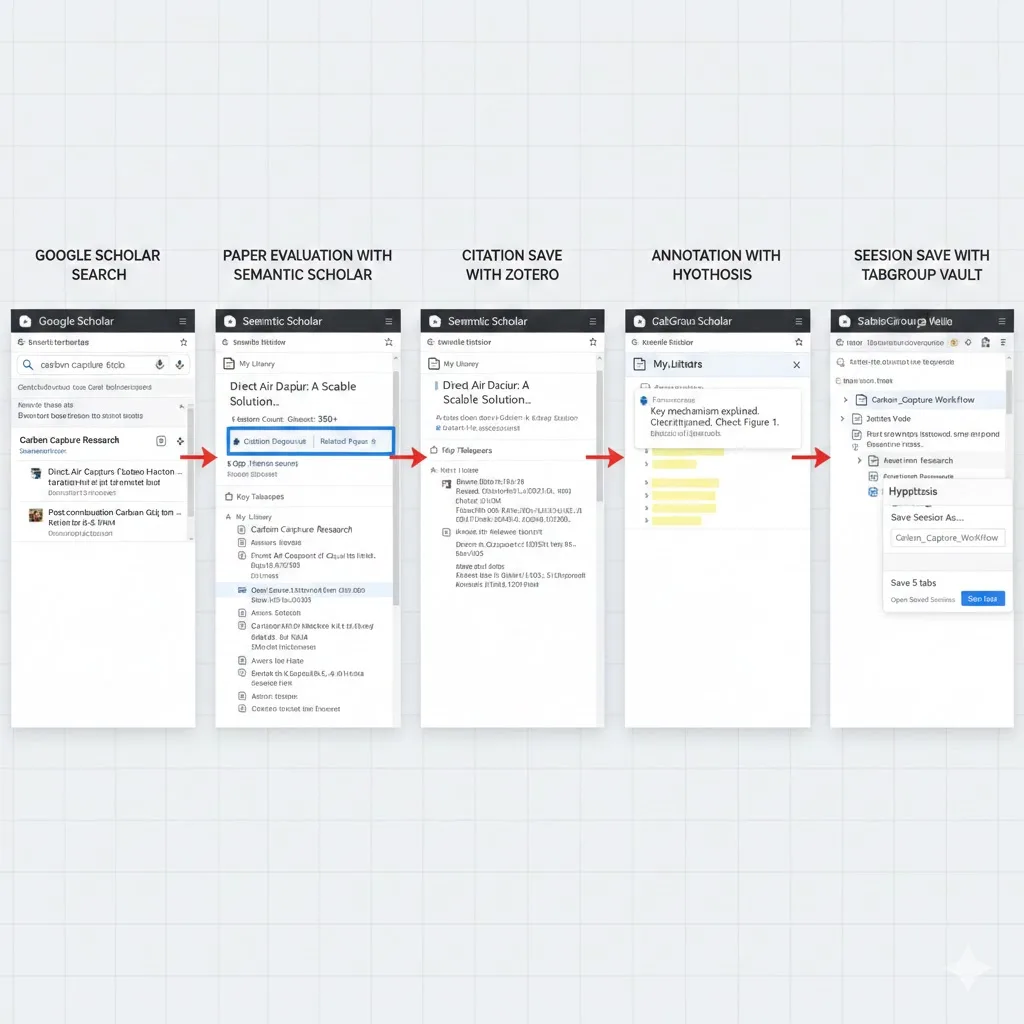
Your browser is your primary research environment. A single literature review can involve 50, 80, or over 100 open tabs: journal articles on PubMed, preprints on arXiv, methodology papers on IEEE Xplore, supplementary materials hosted on university servers, and Google Scholar results you have not finished scanning yet.
Graduate researchers often juggle multiple research threads at once. You might be writing Chapter 3 of your dissertation while exploring a tangential finding for a conference paper, reviewing a colleague's manuscript, and preparing a grant application that references a different body of literature.
Standard browser organization was not designed for this level of complexity. Bookmarks are static and hard to organize at speed. Browser history is chronological, not topical. Chrome treats every tab as equal, making it impossible to tell which of your 70 tabs belongs to which research thread.
The Literature Review Workflow
Literature reviews are where tab management matters most. The process typically unfolds in stages, and each stage benefits from a different organizational approach.
Stage 1: Discovery
You start broad, searching Google Scholar, PubMed, or your field's primary database for papers related to your research question. This phase generates the most tabs. You open dozens of search results, skim abstracts, and keep anything that looks relevant while closing the rest. Do not organize yet. Just collect. Open everything in a single tab group labeled "Discovery" or "Initial Search." Speed matters more than structure at this stage.
Stage 2: Categorization
Once you have a pool of potential sources, sort them into thematic groups. Create a new tab group for each sub-topic or research thread within your review. For example, a literature review on climate change adaptation might have groups like "Policy Frameworks," "Community Resilience," "Economic Models," and "Case Studies." Drag tabs from your Discovery group into the appropriate thematic group. Chrome tab groups use visual color coding that makes the structure visible at a glance.
Stage 3: Deep Reading
Now you read closely, one group at a time. Collapse all groups except the one you are currently reading. This eliminates visual noise and lets you focus. As you read, you will open additional tabs for cited papers, related work, and methodological references. Add them to the current group. When you finish a reading session, save a snapshot before closing anything.
Stage 4: Synthesis and Writing
During writing, you need quick access to sources you are actively citing. Create a "Currently Writing" tab group with just the papers you are referencing in the section you are working on. Keep it small (5-10 tabs) for focus. Your thematic groups remain saved as snapshots, ready to restore when you need additional sources.
Tab Groups by Research Thread
Beyond the literature review, most researchers maintain several parallel lines of work. Tab groups map naturally to these:
| Tab Group | Contents | Snapshot Frequency |
|---|---|---|
| Dissertation Ch. 3 | Key papers, data sources, writing doc | End of each work session |
| Conference Paper | Related work, methodology refs, submission portal | Weekly or after major edits |
| Grant Application | Funder guidelines, budget template, prior art | Before and after each draft |
| Peer Review | Manuscript PDF, related literature, review form | Once when starting, once when submitting |
| Lab/Methods | Protocol documents, equipment manuals, supplier sites | Monthly or when protocols change |
Each of these can be active for weeks or months. Without a saving mechanism, keeping them all open would mean 100+ persistent tabs, constant memory pressure, and the risk that a Chrome crash wipes everything out.
Saving Long-Running Research with Snapshots
This is the critical infrastructure piece for academic research. Your work spans months. Chrome does not care. It will update itself, crash, or lose tabs without warning and without recovery.
TabGroup Vault
Save and restore Chrome tab groups with one click. Designed for long-running, multi-project workflows like academic research. Free tier: 5 snapshots. Pro ($29 one-time): unlimited snapshots, bulk restore, Google Drive backup, 5 Chrome profiles, dark theme.
The snapshot model works because academic work is naturally structured in sessions. You work on your dissertation for three hours, then switch to preparing lecture materials. Saving a snapshot at each transition creates an automatic log of your work and a recovery point if anything goes wrong.
Over time, your snapshot library becomes a timeline of your research. You can see how your source list evolved, which papers you added at each stage, and how your research threads branched and merged. Some researchers use their snapshot history as a lightweight research journal, noting which direction their investigation took each week.
Reference Management Integration
Tab group snapshots and reference managers serve different purposes. Your reference manager (Zotero, Mendeley, EndNote) is the permanent record -- the structured database of everything you might cite. Your tab groups are the working set -- the sources you are actively reading, comparing, and referencing now.
The workflow between them is straightforward:
- Find a paper in your browser. Open it in a tab within the relevant group.
- Save it to your reference manager. Use the Zotero Connector or Mendeley Web Importer to capture the citation data.
- Keep the tab open while you are actively reading it. Close it when you are done and know it is safely in your reference library.
- Save a tab group snapshot so you can return to the reading session later if needed.
The reference manager is your long-term memory. The tab group snapshot is your working memory. Together, they cover both the archival and the active dimensions of research management.
Tools That Complement Tab Groups for Research
Beyond tab management, several tools integrate well into the academic research workflow:
- Zotero + Zotero Connector: The standard for open-source citation management. The Chrome connector saves papers from any journal site with one click.
- Google Scholar Button: Highlight any term on a webpage and search Google Scholar for related academic papers.
- Hypothesis: Annotate web pages and PDFs collaboratively. Useful for reading groups and shared literature reviews.
- Connected Papers: Visualize the citation graph around a paper to discover related work you might have missed.
- Semantic Scholar: AI-powered search that surfaces relevant papers based on meaning, not just keywords.
For a broader list of student-focused extensions, see our guide to Chrome extensions for students.
Managing Research Across Devices
If you work on a desktop in the lab and a laptop at home, keeping your research workspace synchronized is essential. Chrome sync handles bookmarks and history, but it does not sync tab groups reliably across different sessions.
TabGroup Vault Pro's Google Drive backup solves this. Your snapshots sync through Drive. Save a snapshot on your lab computer, go home, and restore it on your laptop. The research session travels with you without keeping Chrome open on both machines.
Tip for Multi-Device Researchers
Name your snapshots with the device location: "Lab - Spectroscopy Papers" vs "Home - Writing Session." This helps you track where you were when you saved each snapshot, which can matter when your work involves physical lab equipment or location-specific resources.
Archiving Completed Projects
When a paper is published, a dissertation chapter is defended, or a grant is submitted, archive the associated tab groups. Save a final snapshot with a clear name like "Published - Journal of X - Final Sources." This becomes a permanent record that you can restore months or years later to revisit the sources for a follow-up study, a citation query, or a systematic review update.
This archival habit pays dividends over an academic career. Researchers who maintain organized archives of their source materials spend less time re-finding information and more time doing original work.
Building the Habit
The best system is the one you actually use. Start with two habits and add complexity only when needed:
- Save a snapshot at the end of every research session. It takes two seconds and protects hours of work.
- Use one tab group per research thread. Name them clearly. Collapse what you are not using.
Everything else (thematic sub-groups, cross-device sync, archival workflows) can be added as your research grows in scope. The foundation is simple: organize by topic, save your state, and never lose your place.