What Chrome's AI Tab organizer actually does
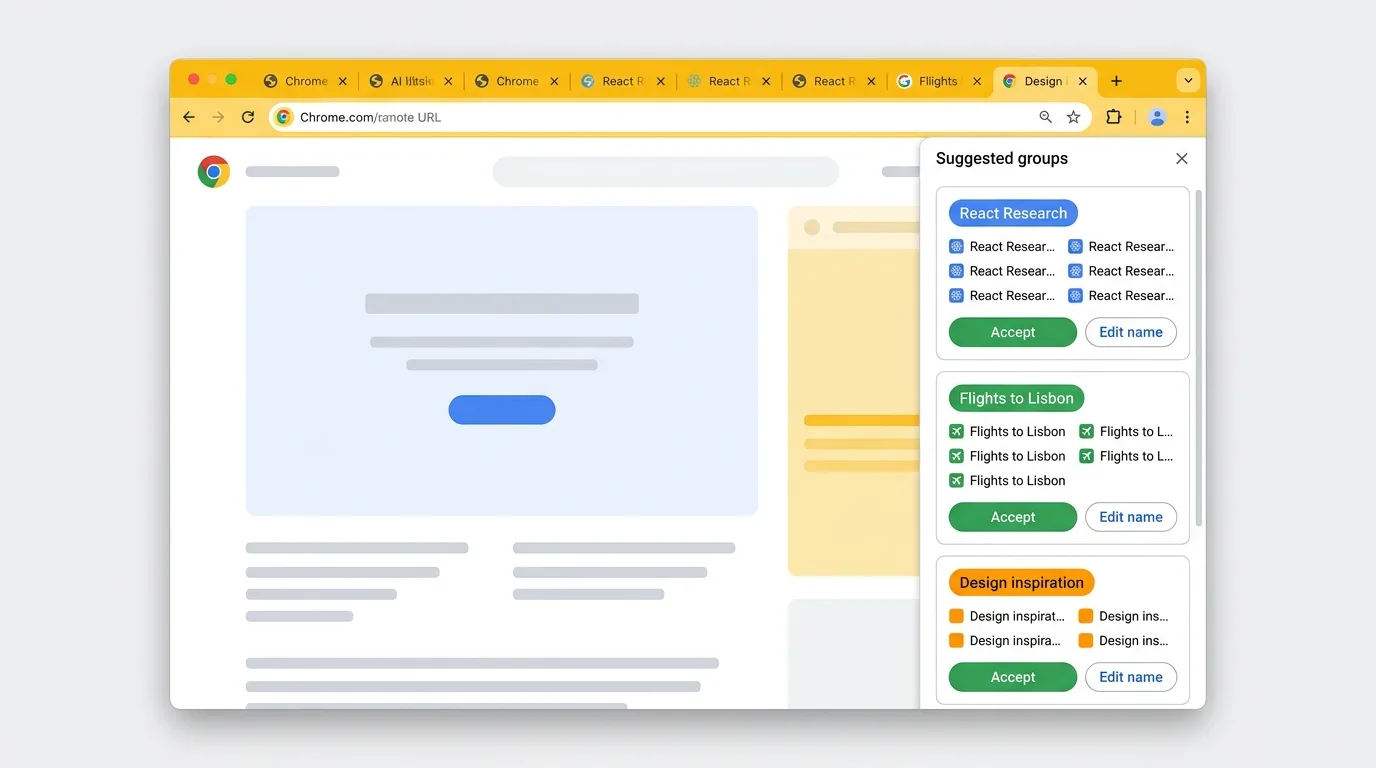
The feature (officially called Tab organizer in Chrome's support docs) looks at the titles and URLs of your currently open Tabs, clusters them by topic, and suggests Tab Groups. For each suggested Group, Chrome proposes a name and a color. You can accept all suggestions in one click, accept some, edit names, or reject.
Under the hood, Chrome is running a model that compares Tabs pairwise and produces clusters. At launch (Chrome 121, January 2024) the model was cloud-based and Tab titles plus URLs were transmitted to Google for classification. As of Chrome 146 (March 2026), processing has shifted toward on-device inference for most rollouts. Either way, you trigger the feature manually. It does not silently reorganize your Tabs in the background.
How to enable it
Two entry points, in order of how Google documents them:
- Make sure you are on a recent Chrome stable channel. Update via three-dot menu > Help > About Chrome.
- Primary path: click the Tab search chevron (the small down-arrow icon at the corner of the Tab strip; top-left on Windows, top-right on macOS) and choose Organize Tabs.
- Alternative path: right-click any Tab in the Tab bar and choose Organize similar Tabs.
- Chrome shows a side panel with suggested Groups. Review each one, then accept the whole set or toggle individual Groups on or off.
If the option is missing
Tab organizer requires a signed-in personal Google account (18+), Chrome Sync with history sync enabled, and a supported region. Enterprise and education-managed accounts are typically excluded unless the admin enables the corresponding GenerativeAiSettings policy. If the menu item still does not appear after meeting those requirements, toggle chrome://flags/#tab-organization and relaunch.
How it Groups Tabs in practice
The model clusters by topic, not by domain. Five different Stack Overflow threads about the same error get grouped together; three unrelated GitHub pages do not. Tab titles matter a lot: Tabs stuck on "Loading..." or "Untitled" often end up in the wrong Group. In observed behavior, pinned Tabs and Tabs already in a manual Group tend to be left out of suggestions, though that behavior is not formally documented. Group names can get long ("Documentation for React Server Components in Next.js 15" instead of "React docs"), and you will want to rename them. Output is always flat: a set of Groups, not nested Groups.
Where it actually helps
The scenarios where it saves real time: a messy reopened Session with 50 Tabs you do not want to sort by hand, research Sessions where a dozen articles on the same topic should obviously be one Group, travel or shopping where flight results and hotel pages sort themselves, and post-crash recovery where Chrome gave you back a flat wall of Tabs. In those cases, accepting 80% of the suggestions and renaming a few Groups is genuinely faster than doing it from scratch.
Where it falls short
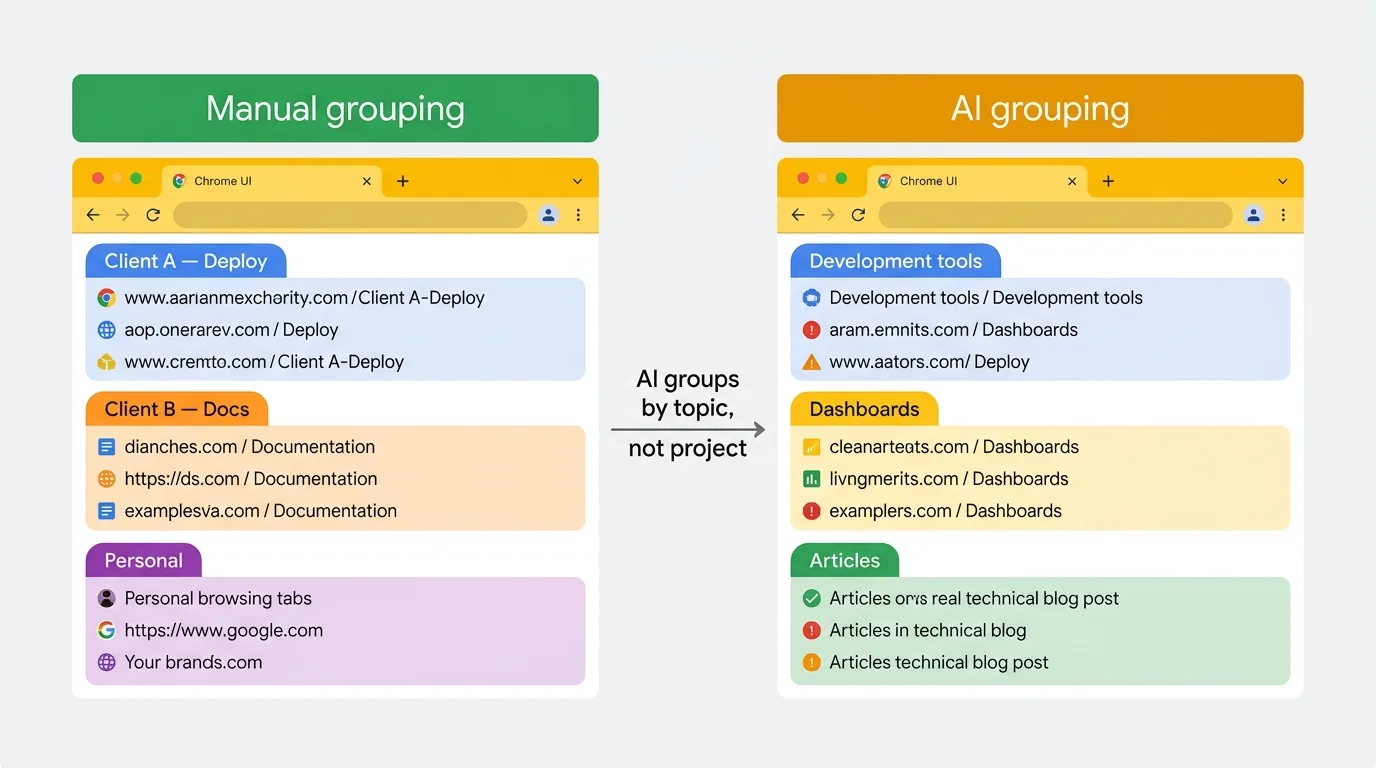
The core problem: it understands topics, not projects. Your "Client A" Group probably contains a Figma page, a GitHub repo, a Notion doc, and a Jira board. The AI sees four different topics and splits them into four Groups. "Morning inbox triage" is not a topic either: the model cannot understand time-of-day buckets or mental contexts. Names drift between runs on similar Tab sets, which is noisy if you are building a persistent workspace. And the catch-all "Miscellaneous" Group it creates for Tabs that do not fit anywhere is usually not useful.
On privacy: the original cloud rollouts (Chrome 121 through late 2025) sent Tab titles and URLs to Google. Chrome 146+ uses on-device inference for most users, but enterprise and older channel builds may still transmit Tab data. Worth checking before using the feature if your Tabs contain sensitive client work.
A note on sensitive Tabs
If you have medical records, financial accounts, or regulated client data open in Tabs, think twice before triggering AI grouping. Chrome's privacy documentation for this feature explains what data leaves the device. Read it for your channel before using the feature in a sensitive context.
AI grouping vs manual grouping
| Dimension | AI grouping | Manual grouping |
|---|---|---|
| Speed to first structure | Seconds | Minutes |
| Groups by topic | Yes | If you want it to |
| Groups by project | Poorly | Yes, exactly as you want |
| Respects your mental model | No, uses the model's | Yes |
| Names | Suggested, sometimes too specific | Whatever you type |
| Privacy | May send Tab data to Google | Stays local |
| Works offline | Sometimes, depending on build | Always |
For deeper manual technique, see how to organize Chrome Tabs and the complete guide to Chrome Tab Groups.
The workflow that actually works
AI grouping as a first pass, then human editing, then saving:
- Run Organize similar Tabs on a messy Window to get an initial structure.
- Rename Groups to project-level labels, merge or split where the AI got it wrong, delete "Miscellaneous" junk.
- Right-click each Group pill and toggle Save Group to promote the result into a persistent, syncable object.
- Take a full snapshot so the cleaned-up layout survives Chrome updates, resets, or accidental closes.
Where TabGroup Vault fits
AI grouping gets you to structure quickly. TabGroup Vault keeps that structure safe. One-click snapshot captures the full Group layout (names, colors, every Tab), with optional Google Drive backup. Free tier covers 10 snapshots; Pro is $39 lifetime.
Getting better results from the AI
The model leans heavily on Tab titles, so the quality of suggestions tracks the quality of your titles. Tabs stuck on "Loading..." or "New Tab" end up miscategorized. Mixing personal and work versions of the same service (two Gmail Tabs, say) confuses the clusterer. Keeping long-lived reference Tabs as bookmarks rather than open Tabs also helps: the model works better on a Window of active working Tabs than one cluttered with permanent fixtures.
The short version
Tab organizer is useful for triaging messy Windows. It is a fast first draft, not a finished product. Run it, fix what it got wrong, then save the result. Treat it as a fast assistant and it saves real time. Let it define your workspace without reviewing it and you end up with Group names nobody recognizes.